
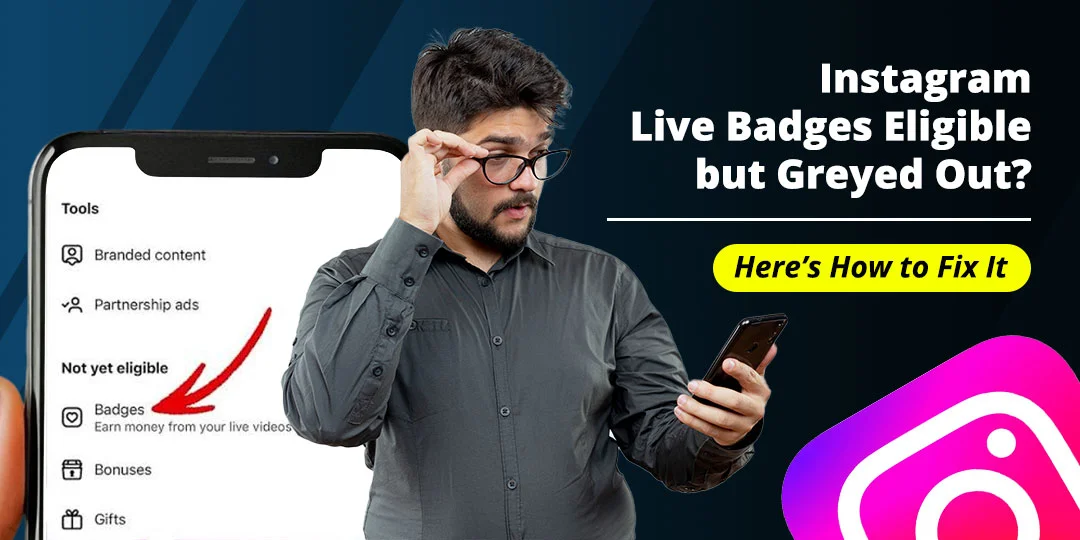

If Instagram Live Badges are eligible in your Professional Dashboard but the toggle is greyed out, Instagram may still need you to complete a payout step, finish a review, or resolve an account restriction. The issue can also appear after switching between Creator, Business, and Personal accounts.
This guide explains why the Badges option is unavailable, how to check your monetization and account status, what to do after switching back to a Creator account, and how to request a review.
Contents
Quick Answer
If Badges are listed as eligible but the toggle is greyed out, check these items in order:
- Confirm the account is still professional.
- Open Monetization Status and read the exact notice.
- Check Account Status for feature or policy restrictions.
- Finish payout and tax onboarding.
- Confirm the account’s country and personal details.
- Check whether Badges are still in review.
- Update Instagram and reopen the Professional Dashboard.
- Submit a review or report the technical problem through Instagram.
An “eligible” message can mean that your account passed one eligibility check. It does not always mean that the Badges control has finished onboarding or that payouts are ready.
What Instagram Live Badges Are
Live Badges allow viewers to buy badges during an eligible Instagram Live to support a creator. Supporters receive recognition in the Live comments, and the creator can see badge activity and earnings in the professional tools.
Badges are different from Gifts, Subscriptions, Bonuses, and branded-content tools. Access to one monetization feature does not automatically unlock every other feature.
Meta’s official information says badges are available only for eligible Creator and Business accounts. Content that violates Instagram’s Content Monetization Policies may also be ineligible to earn through badges.
Eligibility Checklist
Before troubleshooting the greyed-out switch, confirm the account meets the basic requirements shown by Instagram.
- The account is a professional Creator or Business account.
- The creator is at least 18, where the feature requires it.
- The account is located in a country where Live Badges are available.
- The account follows Instagram’s Community Standards.
- The account follows Meta’s Partner Monetization Policies.
- The content follows Instagram’s Content Monetization Policies.
- The payout account and tax information are complete.
- The account has not received a Live or monetization restriction.
Meta’s Help Center currently lists 18+, a professional account, at least 10,000 followers, and policy compliance for Badges eligibility. However, feature requirements and availability can vary by country and account rollout, so the eligibility notice inside your Professional Dashboard should be treated as the final account-specific reference.
Read more: Instagram Live not showing on a teen account
Check Monetization Status First
Instagram’s Monetization Status page can show whether a policy issue is blocking a feature. Meta says creators can use it to check monetization eligibility and view policy violations affecting monetization.
To check it in the Instagram app:
- Open Instagram and go to your profile.
- Tap the menu button.
- Open Settings and activity.
- Look for Creator tools and controls or Business tools and controls.
- Tap Monetization status.
- Review the Badges result and any warning.
You may also find the same information through Professional Dashboard > Monetization. Instagram’s menu names can change between app versions.
Look for wording such as:
- Eligible.
- Set up required.
- In review.
- Not eligible.
- Policy issue.
- Payout account required.
- Feature unavailable in your location.
Save a screenshot of the status before changing settings. It can help if you later request a review.
Why the Badges Toggle Is Greyed Out
The greyed-out control usually means Instagram has not completed one of the steps between eligibility and activation.
1.Payout setup is incomplete
Instagram may show that you qualify while still requiring a payout account, tax form, identity check, or payment-profile confirmation. Open Professional Dashboard > Payouts and complete every requested field.
Use the legal name and country that match your payout and tax information. Do not use a nickname or someone else’s payment account.
2. Monetization review is still pending
An account can pass an initial check while Instagram reviews the creator, content, or payout information. If the dashboard says In review, waiting is usually safer than repeatedly switching account types or submitting duplicate forms.
3. A policy issue is blocking activation
A removed post, copyright issue, misleading content, or monetization-policy violation can affect Badges even when the dashboard still displays a general eligible message. Check Account Status and Monetization Status separately.
4. The feature is not available in the account’s location
Badges are not available to every creator in every country. A travel location, incorrect country information, VPN, or payment profile from another region can create a mismatch.
5. The account type changed recently
Switching between Creator, Business, and Personal accounts can temporarily remove monetization controls while Instagram refreshes the account configuration.
Read more: TikTok LIVE age verification
6. The app has stale data
The Professional Dashboard may show cached information from before a review, account switch, or payout update. Updating the app, restarting the phone, and checking again later can resolve a display problem, but it cannot unlock a feature that Instagram has not enabled.
Instagram Live Badges Eligible but Greyed Out: Fixes
If Instagram shows that you are eligible for Live Badges but the toggle remains greyed out, work through the fixes below in order.
Fix 1: Confirm the Account Type
Live Badges require a professional account. Meta says both Creator and Business accounts can access professional tools when eligible.
Check the account type:
- Go to your Instagram profile.
- Tap the menu button.
- Open Settings and activity.
- Select Account type and tools.
- Confirm that the account is listed as Creator or Business.
If it shows Personal, switch to a professional account and complete the category and contact details requested by Instagram. Reopen the Professional Dashboard after the change.
Do not switch accounts repeatedly. Each change can cause a new review or temporarily remove monetization sections.
Fix 2: Complete Payout and Tax Setup
A greyed-out Badges control may remain locked until Instagram has a valid place to send earnings. Open the payout section and check for:
- Missing legal name.
- Unverified identity.
- Incomplete tax information.
- Incorrect country or address.
- Missing bank or payment details.
- A payout account belonging to another person.
- A payment account that was disabled or rejected.
Enter information exactly as it appears on your official payment and tax documents. If you recently changed your legal name, country, or payout account, wait for Meta to complete the review before submitting more changes.
Do not treat a greyed-out toggle as a payment error until the payout page shows a specific message. First read the status shown in Professional Dashboard > Payouts.
Fix 3: Check Account Status and Policy Issues
A monetization eligibility message and Account Status are not always the same thing. Check both pages.
- Open your Instagram profile.
- Tap the menu button.
- Open Settings and activity.
- Select Account Status.
- Review removed content, disabled features, reach limits, and monetization warnings.
- Open any notice that offers Request a review.
If Instagram removed content incorrectly, appeal the specific decision rather than submitting a general Badges request. Remove or edit content that clearly violates the rules, but do not delete evidence before saving the notice and understanding the appeal option.
Fix 4: Review the Professional Dashboard
Open Professional Dashboard and look for Monetization, Badges, Payouts, and Support.
Check whether the Badges card says:
- Set up: complete the onboarding steps.
- In review: wait for the review result.
- Not available: the feature may not be available for the account or location.
- Action required: open the notice and complete the missing step.
- Eligible: look for a separate activation or Live-screen setting.
The dashboard is more useful than a general online eligibility checklist because it reflects the account Instagram is currently evaluating.
Fix 5: Check the Live Screen
Badges may need to be enabled for an individual Live after the account is approved.
Before starting a Live:
- Open the Instagram camera or Live screen.
- Look for the Badges icon or monetization option.
- Open the setting.
- Turn Badges on if Instagram allows it.
- Review the audience and comment controls.
- Start the Live.
If the Professional Dashboard says eligible but the Live screen has no Badges option, record both screens. This difference is useful evidence for a support request.
Fix 6: Refresh Instagram Safely
A refresh can fix a dashboard display problem when the account is already approved.
- Update Instagram from the App Store or Google Play.
- Force-close and reopen Instagram.
- Restart the phone.
- Check the dashboard on a stable connection.
- Log out and back in only if you know the correct login details.
- Clear the app cache on Android if the option is available.
- Reinstall Instagram only after saving drafts and confirming account access.
Do not use modified Instagram apps or third-party “monetization unlock” tools. They can expose your login details and create additional account restrictions.
Instagram Badges Rejected: Creator Account Status Review Request
If Instagram rejects your Badges application or marks the creator account as not eligible, use the review option shown in the dashboard or Account Status.
Submit a review from the app
- Open Professional Dashboard.
- Go to Monetization or Badges.
- Open the rejection notice.
- Tap Request a review or Appeal, if available.
- Read the reason carefully.
- Correct the issue if Instagram identifies one.
- Submit a short, factual explanation.
- Save the confirmation and wait for the result.
Meta’s help information says that creators can check the status of a Badges application in the Professional Dashboard and submit a review if the application was denied.
What to include in the review request
- Your Instagram username.
- The country where you live.
- Your account type.
- The exact Badges status shown.
- The date the rejection appeared.
- A brief explanation of why you believe the decision is incorrect.
- Screenshots with private payment information hidden.
Do not send passwords, full bank details, or identity documents through a public comment or an unofficial support account.
Instagram Live Badges Disappeared After Switching Back to Creator
If Badges disappeared after switching from Business to Creator, or back to Creator after using a Personal account, the feature may need to be re-evaluated.
Both Creator and Business are professional account types, but a recent switch can affect:
- Professional Dashboard data.
- Monetization onboarding.
- Payout settings.
- Account-level feature reviews.
- Live-screen controls.
Use this recovery sequence:
- Confirm the account is currently Creator, not Personal.
- Open Monetization Status.
- Check Account Status for restrictions.
- Open Payouts and confirm the payment profile is still connected.
- Check whether Badges says In review or Set up required.
- Update Instagram and restart the phone.
- Avoid switching account types again while the review is pending.
- Request support if the feature remains missing after the account status is clear.
Do not assume that switching back to Creator automatically restores the previous Business-account settings. Instagram may require the account to complete onboarding again.
Why Followers and Account Age May Not Be Enough
A creator may have enough followers and an established account but still not receive Badges. Monetization tools depend on more than audience size.
Instagram may also check:
- Account type.
- Age and country.
- Policy compliance.
- Content originality and monetization eligibility.
- Payout readiness.
- Feature rollout.
- Account history and recent changes.
Follower-count articles can become outdated quickly. The Professional Dashboard and Monetization Status page are better sources for your current eligibility.
If Badges Work but Earnings Are Missing
If viewers can buy badges but your earnings are not visible, check the end-of-Live summary and the Badges section in Professional Dashboard.
Meta’s creator guidance says you can view badge counts and earnings after a Live. It also explains that payments depend on payout setup and the applicable threshold.
Check:
- Whether the Live actually had Badges enabled.
- Whether viewers purchased badges rather than only commenting or sending reactions.
- Whether the earnings are still processing.
- Whether the payout account is verified.
- Whether tax information is complete.
- Whether the account has a new monetization restriction.
Do not assume that every heart, reaction, or comment is a paid badge. The badge icon and earnings report are the reliable indicators.
When to Contact Instagram Support
Contact Instagram when:
- Monetization Status says eligible.
- The account is professional.
- Payout setup is complete.
- Account Status shows no relevant restriction.
- Badges remain greyed out or missing from the Live screen.
- The feature disappeared after an account-type switch.
Open Profile > Menu > Settings and activity > Help > Report a problem. Include the exact steps, the account type, the country, the dashboard status, and screenshots with private information hidden.
Keep the report short and specific. For example:
My professional Instagram account shows that I am eligible for Live Badges in the Professional Dashboard, but the Badges toggle is greyed out on the Live screen. My payout setup is complete and Account Status shows no related restriction. Please review the Badges activation status for username [username].
What Not to Do
Avoid these actions while troubleshooting:
- Do not switch between Personal, Creator, and Business repeatedly.
- Do not create a second account to bypass a review.
- Do not buy followers or engagement.
- Do not submit false country, age, tax, or payout information.
- Do not use another person’s payment account.
- Do not share your password with an alleged Instagram agent.
- Do not pay a third party that promises to unlock Badges.
- Do not submit multiple appeals with conflicting explanations.
Frequently Asked Questions
Why are Instagram Live Badges eligible in Professional Dashboard but the toggle is greyed out?
Instagram may still require payout setup, tax information, identity verification, a location check, or a monetization review. Check Professional Dashboard, Monetization Status, Account Status, and Payouts separately.
How do I fix a greyed-out Instagram Badges toggle?
Confirm that you use a professional account, complete payouts and tax onboarding, clear any policy issue, update Instagram, restart the app, and check the Live screen again. If it remains greyed out, report the exact problem to Instagram.
Why were my Instagram Badges rejected on a Creator account?
The account may have a policy issue, missing payout information, unsupported location, incomplete review, or content that is not eligible for monetization. Open the rejection notice and request a review if Instagram provides that option.
How do I request an Instagram Badges creator account status review?
Open the Professional Dashboard, go to Monetization or Badges, open the rejection notice, and select Request a review or Appeal. You can also review Account Status for a separate appeal option.
Why did Instagram Live Badges disappear after switching back to Creator?
The account-type switch may have reset monetization onboarding or caused Instagram to review the professional account again. Confirm the account type, check Monetization Status and Payouts, and avoid switching again while the review is pending.
Do Creator and Business accounts both support Instagram Live Badges?
Meta says Badges are available for eligible professional Creator and Business accounts. Eligibility also depends on age, location, policy compliance, and the account’s current rollout.
Do I need 10,000 followers for Instagram Live Badges?
Meta’s Help Center currently lists at least 10,000 followers among the requirements, but requirements can change by region and account rollout. Check the eligibility information shown in your own Professional Dashboard.
Can Instagram Badges be greyed out because of a payout problem?
Yes. A missing or unverified payout account, tax information, identity check, or country mismatch can keep a monetization feature from being activated.
Can an Instagram age restriction affect Live Badges?
Yes. Monetization tools may require the creator to be 18 or older. This is separate from teen-account controls that limit access to Instagram Live.
Conclusion
When Instagram Live Badges are eligible but greyed out, do not treat the dashboard message as proof that activation is complete. Check the account type, Monetization Status, Account Status, payout setup, tax information, country, and Live-screen controls in that order.
If Badges were rejected, use the review option shown in the Professional Dashboard or Account Status. If they disappeared after switching back to Creator, confirm the professional account type and avoid repeated account changes while Instagram reviews the setup.
Most importantly, use the status shown inside Instagram as the account-specific source of truth. Meta can change eligibility, locations, follower requirements, menu labels, and rollout rules, so old third-party checklists may not match your account.
Disclaimer: Primotechy is an independent website and is not affiliated with or endorsed by Meta Platforms, Inc. or Instagram.
Sources
- Earn Money with Badges on Instagram Live – Instagram Help Center
- About Badges – Instagram Help Center
- Earn Money with Badges on Instagram Live – Meta Business Help Center
- Check Your Eligibility for Instagram Monetization Tools – Meta Business Help Center
- How to Check the Monetization Status of Your Account – Instagram Help Center
- Go Live and Earn Extra Income with Instagram Badges – Instagram Creators
Editorial note: Instagram’s Badges requirements, follower thresholds, supported countries, payout rules, menu labels, and rollout status can change. The Professional Dashboard and Monetization Status page should be treated as the current account-specific reference.
Anica Lymus is a technical writer specializing in consumer applications, mobile operating systems, and practical troubleshooting workflows. At Primotechy, she covers account security, software glitches, and app performance across platforms such as Facebook, Instagram, and Snapchat. Drawing on hands-on device testing and in-depth research across iOS, Android, macOS, and Windows, Anica translates complex platform settings and sudden technical errors into clear, verified, step-by-step guides that readers can easily follow and trust.
View all posts by Anica Lymus →