

If your Instagram Reel is stuck at 90% on your iPhone, the cause is usually a weak connection, limited Photos access, a video that is still in iCloud, or a video format Instagram struggles to process. Start with the fastest fixes: switch to stable Wi-Fi, update Instagram, restart your iPhone, and allow full Photos access. If the Reel still will not move, re-save the video in a compatible format and upload it again.
This guide goes from the quickest fixes to the more advanced ones, so you can stop when your Reel posts.
Contents
Quick Answer: How to Fix a Reel Stuck at 90% on iPhone
- Cancel the stuck upload and close Instagram completely.
- Switch networks. Try stable Wi-Fi, or turn Wi-Fi off and use mobile data.
- Update Instagram in the App Store, then restart your iPhone.
- Check Photos access: Settings > Privacy & Security > Photos > Instagram > Full Access.
- Make sure the video is fully on your phone and not waiting in iCloud.
- Re-save the video as a clean 1080p copy, preferably MP4 with H.264 video and SDR color, then upload that copy.
- Offload and reinstall Instagram if nothing else works.
Instagram does not publish an official fix for this exact issue, so these steps come from how the upload process works, Apple’s iPhone settings, and common reports from users.
Why Does an Instagram Reel Get Stuck at 90%?
The bar often stalls near the end because the upload is almost done, but Instagram has not confirmed that the file arrived and processed correctly. Several things can break that last step:
- An unstable connection. The upload starts, then the signal dips or switches between Wi-Fi and mobile data.
- Limited Photos access. Instagram can see the video thumbnail but cannot read the full file.
- The video is in iCloud. If your iPhone uses “Optimize iPhone Storage,” the full video may not be on your phone yet.
- The video format. Some HDR, HEVC, or high-frame-rate videos process slowly or fail.
- An old Instagram version or a temporary app bug.
- A problem on Instagram’s side. Sometimes it is a server issue, and nothing on your phone will fix it.
It helps to work out which one you have. If every video stalls, suspect your network, the app, or an Instagram outage. If only one video stalls, suspect the file itself.
Step 1: Cancel the Upload and Restart Instagram
Do not keep waiting on a bar that has been frozen for several minutes. A stuck upload rarely recovers by itself.
- Cancel or discard the stuck upload if Instagram lets you.
- Swipe up from the bottom of the screen (or double-press the Home button) to open the app switcher.
- Swipe Instagram up to close it.
- Open Instagram again and retry the upload.
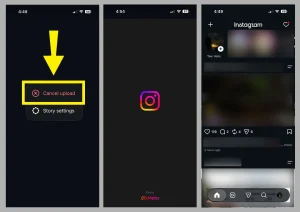
This clears a half-finished upload attempt and gives the app a clean start.
Step 2: Check Your Internet Connection
Many people say “my internet is working” because a website loads. Uploading a video needs a steady upload connection, which is often weaker than download speed on home and mobile networks.
Instagram Reel upload stuck at 90% on Wi-Fi
- Move closer to the router.
- Turn Wi-Fi off, wait a few seconds, then turn it on again.
- Try a different Wi-Fi network if you can, such as a phone hotspot from another device.
- Pause other heavy uses, such as video calls or large downloads.
Instagram Reel stuck at 90% on mobile data
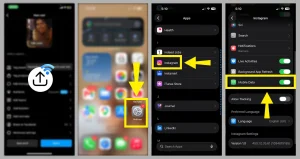
- Go to Settings > Instagram and make sure Mobile Data is on.
- Turn on Wi-Fi instead if the signal is weak where you are.
- Check Low Data Mode under Settings > Cellular > Cellular Data Options (the wording can differ by iOS version and carrier). Low Data Mode can slow uploads.
Common mistake: leaving the Wi-Fi range while the upload is running. The phone switches to mobile data, and the upload can hang right at the end. Stay on one network until the Reel posts.
Step 3: Update Instagram and iOS
Upload bugs are often fixed in app updates. Open the App Store, search for Instagram, and tap Update if you see it. Then check Settings > General > Software Update for an iOS update.
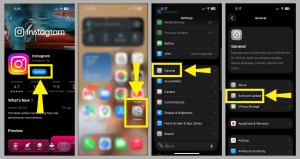
If the problem started right after an iOS update, also check for a newer Instagram version, since the two need to work well together. Updates do not always fix it, but old versions are an easy cause to rule out.
Step 4: Restart Your iPhone
A restart closes background apps and processes, which can fix a temporary app problem. It sounds basic, but it is one of the most common fixes for apps that freeze during uploads.
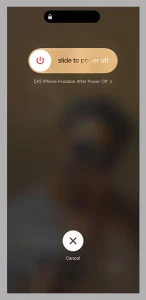
After the restart, open Instagram first, before other apps, and try the Reel again.
Instagram Reels Not Uploading From Camera Roll: Check Photos Access
If Instagram can only see some of your photos, or cannot fully read the video, the upload can stall. This is one of the most overlooked causes when a Reel will not upload from the gallery.
- Open Settings > Privacy & Security > Photos > Instagram.
- Choose Full Access.
If you chose Limited Access earlier, Instagram only reaches the photos and videos you selected. A video you picked later may not be readable. Full Access removes that risk. You can switch back to limited access after the Reel posts if you prefer.
Is the Video Still in iCloud?
If you use iCloud Photos with Optimize iPhone Storage, your iPhone may keep a space-saving version of the video while the full-resolution original stays in iCloud. Instagram then has to download the full video before it can upload it. On a slow connection, this can look like a frozen upload.
To check and fix this:
- Open the Photos app and play the video all the way through on Wi-Fi. This usually makes sure the full file is on the phone.
- Go to Settings > Photos and see whether Optimize iPhone Storage or Download and Keep Originals is selected. Choosing the second option needs enough free space.
Plan for this when you upload old videos. They are the ones most likely to be stored only in iCloud.
Check Your iPhone Storage
Instagram needs free space to prepare the video before it uploads. If your iPhone is almost full, the app may stall while processing.
- Go to Settings > General > iPhone Storage.
- See how much space is free.
- Delete large unused apps, old downloads, or videos you have already backed up.
Apple does not give a fixed number for how much free space an app needs. As a safe rule, keep several gigabytes free when you work with large video files.
Check the Video Format: HDR, HEVC, 4K, and Frame Rate
If only one video gets stuck, the file itself is the most likely cause. iPhones can record in formats that other apps handle less smoothly.
| Video setting | Why it can cause trouble | What to do |
| HDR video (Dolby Vision) | Some uploads process slowly or look wrong after Instagram converts them. | Turn off HDR Video in Settings > Camera > Record Video before filming, or export the clip as SDR. |
| HEVC (High Efficiency) | Smaller files, but not every app or tool handles them equally well. | Choose Most Compatible under Settings > Camera > Formats to record in H.264. |
| 4K or very high resolution | Larger files take longer to upload, and Instagram compresses them anyway. | Record or export at 1080p. |
| 60 fps or slow-motion clips | Bigger files and more work for Instagram to process. | Use 30 fps where possible. |
| Very long videos | Larger files and longer processing time. | Trim the clip. Reel length limits have changed over time, so check what the app allows now. |
Reel length and file size limits have changed before and can differ by account or app version. Third-party spec guides do not always agree with each other, so check Instagram’s Help Center or the in-app limits for the latest numbers.
Tip: For the smoothest upload, use a vertical 9:16 video at 1080 x 1920, saved as MP4 with H.264 video and SDR color. This is a widely recommended setup for Reels.
How to Re-Save the Video So Instagram Can Process It
If the original video keeps stalling, make a new copy. This often works when nothing else does, because it rewrites the file in a cleaner form.
Option 1: Re-export from the Photos app
- Open the video in Photos and tap Edit.
- Make a small change, such as trimming one second from the start or end.
- Tap Done so the video is saved again.
- Return to Instagram and select the new version.
Option 2: Save to Files and import again
- Open the video in Photos, tap Share, then Save to Files.
- Save it to a folder on your iPhone.
- Open the Files app, choose the video, tap Share, then Save Video to put a fresh copy in Photos.
- Upload the new copy.
Option 3: Use a different editor
If you edited the clip in a third-party app, export it again at 1080p, 30 fps, in H.264/MP4 if the app offers those settings. Do not stack many filters and effects. Heavy edits create larger files that are harder to process.
Instagram Reel Stuck at 90% After Editing in Photos or Another App
Edited videos can have odd file details, such as variable frame rates or HDR data, that make Instagram’s processing slower. If the Reel only gets stuck after editing, try these in order:
- Upload the original, unedited clip to see if it posts.
- Export the edited video again at a lower resolution.
- Make the edits inside Instagram’s own Reels editor instead.
If the unedited clip posts fine but the edited one does not, the edit export is the problem. Change the export settings and try again.
Check Background App Refresh and Low Power Mode
Low Power Mode can reduce background activity to save battery. If you lock the screen or switch apps during an upload, it may pause.
- Keep Instagram open and the screen on until the upload finishes.
- Turn off Low Power Mode in Settings > Battery while you upload.
- Check Settings > General > Background App Refresh and make sure Instagram is allowed.
This matters most for long or large videos. A short upload usually finishes before iOS interferes, but a longer one has more time to be interrupted.
Is Instagram Down?
If your feed is slow, other Reels will not load, or friends have the same problem, the issue may be on Instagram’s side. Sites like Downdetector show user-reported outages. If many people report problems, waiting is the only real fix. Try again in an hour or two.
Advanced Fix: Offload or Reinstall Instagram
iPhone does not have a simple “clear cache” button for apps. The nearest options are offloading or reinstalling.
Offload the app (keeps your data)
- Go to Settings > General > iPhone Storage.
- Tap Instagram.
- Tap Offload App, then Reinstall App.
Delete and reinstall (a fuller reset)
- Press and hold the Instagram icon, then tap Remove App and Delete App.
- Reinstall Instagram from the App Store and log in again.
Warning: Save the video to your Photos library first. Unsent drafts may be stored on your device, so deleting the app could remove them. Make sure you remember your login details before you delete the app.
What If Nothing Works?
- Try uploading from a different network, or a different device, to see if the problem follows the video or the phone.
- Try posting a short, simple test video. If it posts, the original file is the problem.
- Log out and log back in to Instagram.
- Report the problem from inside Instagram (Settings, then Help, then Report a problem), or contact Instagram through its Help Center.
Menu names inside Instagram change between app versions, so look for similar wording if you do not see these exact labels.
Common Mistakes That Make It Worse
- Waiting hours on a frozen bar instead of cancelling and retrying.
- Switching between Wi-Fi and mobile data during the upload.
- Retrying the same problem file again and again without changing it.
- Deleting the app before saving the video or draft.
- Using a heavily edited, high-resolution file when a 1080p version would do.
Best Settings for a Smooth Reel Upload From iPhone
| Setting | Safe choice |
| Shape | Vertical, 9:16 |
| Resolution | 1080 x 1920 |
| Format | MP4 or MOV, H.264 (Most Compatible) |
| Frame rate | 30 fps |
| HDR | Off |
| Network | Stable Wi-Fi, stay on it until posted |
| Photos access | Full Access while uploading |
Instagram or TikTok?
If you are deciding where to share your videos, our guide on Instagram vs TikTok explains the main differences between the two apps.
Frequently Asked Questions
Why is my Instagram Reel stuck at 90% on my iPhone?
The upload has usually sent most of the file but is not finishing. The common causes are an unstable connection, limited Photos access, a video stored in iCloud, an incompatible video format, an outdated app, or an Instagram server problem.
How do I fix Instagram Reels not uploading from my gallery?
Switch to stable Wi-Fi, update Instagram, restart your iPhone, and set Instagram’s Photos access to Full Access. If it still fails, re-save the video as a clean 1080p copy, preferably MP4 with H.264 video and SDR color, then upload the new copy.
Why does Instagram stop uploading my Reel at 90%?
The upload often stalls at the end, when Instagram needs to confirm and process the file. A connection drop, a file problem, or a server delay at that point can freeze the bar.
Why is my Instagram Reel stuck uploading even with fast Wi-Fi?
Fast download speed does not guarantee good upload speed. The cause may also be the video itself (HDR, HEVC, high resolution) or iCloud storage, not the network.
Does clearing the Instagram cache fix upload problems on iPhone?
iPhone does not provide a direct cache-clearing button. Offloading or reinstalling Instagram can help if the app has a temporary file problem.
Can low iPhone storage cause Instagram upload issues?
Yes. Instagram needs free space to prepare the video before it uploads. Very low storage can cause stalls or failed uploads.
Does Instagram have a video size or format limit?
Yes. Limits for length, file size, and format exist and have changed over time. Check Instagram’s Help Center or the app for current numbers. A 1080p, 9:16 video in MP4 or MOV with H.264 is the safest choice.
Should I delete and reinstall Instagram if my Reel is stuck?
Try it after the simpler fixes. Offloading the app first is safer, because it keeps your data.
Will I lose my Reel draft if I reinstall Instagram?
You might. Drafts are saved on your device, so deleting the app may remove them. Save the video to your Photos library first, and offload instead of deleting when you can.
How do I upload a Reel from my iPhone camera roll successfully?
Use a stable connection, give Instagram Full Photos access, make sure the video is fully on your phone, and use a 1080p, H.264 video. Keep Instagram open until the upload finishes.
Final Recommendation
Work through the fixes in order. Check your network, update the app, restart your iPhone, and allow Full Photos access. If only one video fails, re-save it as a clean 1080p, H.264, SDR copy and upload that. Many iPhone Reels stuck at 90% when uploading from the gallery start posting again after one of those steps. If every upload still stalls and Instagram looks fine for other people, offload or reinstall the app and contact Instagram support.
Read more:
If you also use Instagram Live and cannot join a Live request, read our guide on Instagram Live request to join not working.
If you want more control over what others see on your profile, read our guide on how to hide Instagram Notes from someone.

Anica Lymus is a technical writer specializing in consumer applications, mobile operating systems, and practical troubleshooting workflows. At Primotechy, she covers account security, software glitches, and app performance across platforms such as Facebook, Instagram, and Snapchat. Drawing on hands-on device testing and in-depth research across iOS, Android, macOS, and Windows, Anica translates complex platform settings and sudden technical errors into clear, verified, step-by-step guides that readers can easily follow and trust.
View all posts by Anica Lymus →