
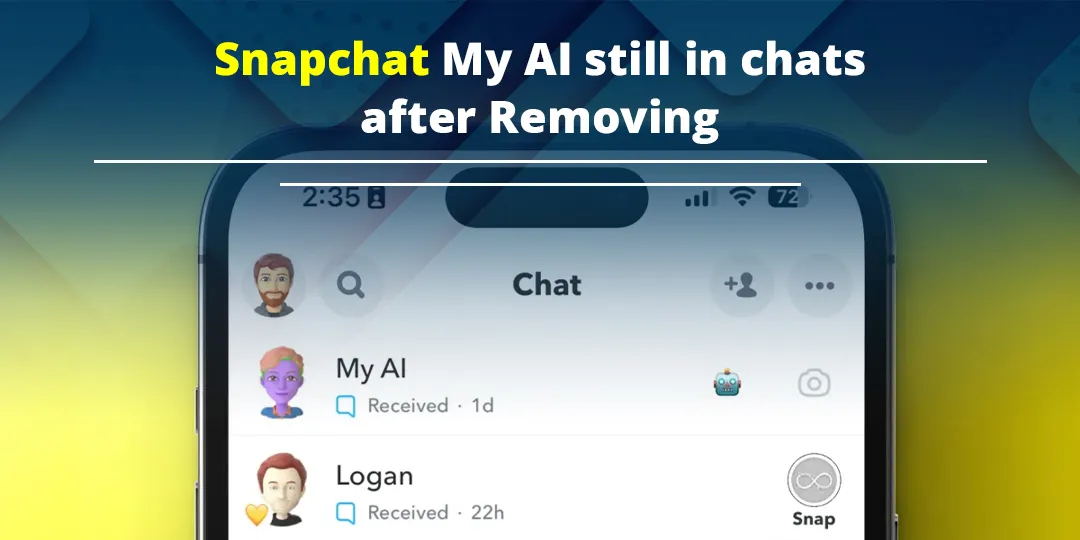

If My AI is still in your Snapchat chats after you removed it, it usually means you only unpinned it or hid it. You didn’t actually unlink it. For most free accounts, Snapchat lets you hide My AI but not delete it, so the chat shows up again whenever something “wakes it up.” That could be a new message, a search, a group chat mention, or an app update.
The good news is you can usually stop it from coming back once you know what each setting really does. This guide covers that, plus why it keeps reappearing and what to try when clearing it doesn’t work.
Contents
Quick Overview
- Unpin Conversation moves My AI off the top of your chat list. It’s still there, just lower down.
- Clear from Chat Feed hides the My AI thread. Any new interaction brings it right back.
- Delete My AI Data (Settings > Privacy Controls) wipes your chat history with the bot. It doesn’t remove the bot.
- Unlinking My AI through Snapchat+ is the closest thing to a full removal, but only subscribers have it.
- If My AI keeps coming back, check for new messages to it, @mentions in group chats, app updates, and a stale chat cache.
Why Is My AI Still in Your Snapchat Chats After Removing It?
My AI is still there because the free options only change how it’s displayed. The bot stays attached to your account.
This is the main thing most guides miss. Snapchat treats My AI as a built-in feature, not a friend you added. You can’t unfriend it, block it, or delete it the way you would a normal contact. When you “remove” it on a free account, you’re really doing one of these two things:
- Unpinning it, so it stops sitting at the top and gets sorted like any other chat by when you last used it.
- Clearing it from the feed, so the thread is hidden until it’s opened again.
Neither option disconnects My AI from your account. That’s why it can come back.
What Do Unpin, Clear, Delete, and Unlink Actually Do?
Each option changes something different. Mixing them up is the biggest reason people think removal “didn’t work.”
| Action | Where to find it | What it does | Can My AI come back? | Who can use it |
| Unpin Conversation | Long-press My AI > Chat and Notification Settings | Removes it from the top spot | It never leaves the list | Most users on current app versions |
| Clear from Chat Feed | Long-press My AI > Chat and Notification Settings | Hides the thread from your Chats screen | Yes, after any new interaction | All users |
| Clear Conversations | Settings > Privacy Controls > Clear Data | Clears conversations from your chat feed in bulk | Yes | All users |
| Delete My AI Data | Settings > Privacy Controls > Clear Data | Deletes stored My AI content, such as past chats | The chat can still appear | All users |
| Unlink / turn off My AI | Snapchat+ management screen in your Profile | Removes My AI from the Chat feed | Much less likely | Snapchat+ subscribers |
Key takeaway: if you only unpinned My AI, it was never removed from your list. It just slid down. Plenty of people unpin it, scroll a few chats, see it again, and assume the setting failed.
How Do You Remove My AI From the Snapchat Chat Feed?
On a free account, unpin My AI first and then clear it from the Chat feed. Doing both makes it less likely to show up again.
Step 1: Unpin My AI
- Open Snapchat and swipe right from the Camera to open the Chat screen.
- Press and hold on My AI.
- Tap Chat and Notification Settings.
- Tap Unpin Conversation.
Step 2: Clear My AI From the Chat Feed
- Press and hold on My AI again.
- Tap Chat and Notification Settings.
- Tap Clear from Chat Feed and confirm.
Step 3 (Optional): Delete Your My AI Data
- Tap your Profile icon, then the gear icon to open Settings.
- Scroll to Privacy Controls and tap Clear Data.
- Tap Delete My AI Data and confirm.
According to Snapchat Support’s guide on deleting My AI data, it can take up to 30 days for that data to be fully deleted. You can also delete a single message by long-pressing it in the My AI chat and tapping Delete.
Menu names and positions can change slightly between iPhone and Android and between app versions. If you can’t find an option, update Snapchat first. Older builds sometimes don’t show the unpin option at all.
Why Does Snapchat My AI Keep Coming Back?
My AI usually comes back because something counts as a new interaction, which puts the chat back in your feed. These are the most common triggers.
You (or Your Thumb) Sent It Something
Any message to My AI brings the thread back, even an accidental tap or a Snap sent to it by mistake. My AI shows up in the send-to list, so this happens more than people realize.
You Searched for It or Opened Its Profile
If you type “My AI” into search or open its profile, the conversation can return to your feed right away. Some users do this just to check whether it’s gone, and that brings it back.
Someone Mentioned My AI in a Group Chat
My AI can be added to group chats and answers when someone @mentions it. Clearing your own My AI chat won’t stop that. To remove it from a group, open the Group Profile, press and hold My AI, and tap Remove from Group. Snapchat says this removes it for everyone in that group.
A Snapchat Update Reset Your Layout
Updates can reset some chat-feed preferences and put default features back in place. If My AI reappeared right after an update, that’s the likely cause. You’ll just need to unpin and clear it again.
You Reinstalled the App or Logged In on a New Device
A fresh install or a new phone loads your feed from scratch, and My AI can come back as a default chat. If you hit a login error while signing back in, such as the Snapchat SS07 error, sort that out first, then hide My AI again.
Your Chat Feed Hasn’t Refreshed
Sometimes My AI really is cleared, but the Chat screen is showing an old cached version of your feed. This often happens alongside sync problems. If your chats also say they could not refresh messages, fix the connection issue first, because the feed won’t update properly until it can sync.
What Should You Do If “Clear from Chat Feed” Isn’t Working?
If My AI won’t disappear, try the fixes below in order. Each one rules out a different cause.
- Force close and reopen Snapchat. This makes the Chat screen reload instead of showing a stale view.
- Clear the Snapchat cache. Go to Settings > Account Actions > Clear Cache. This doesn’t delete your Memories or saved chats. On Android you can also clear the cache in the phone’s app settings.
- Update the app from the App Store or Google Play. Missing or grayed-out options are often just a version problem.
- Unpin before clearing. On some versions, a pinned chat ignores Clear from Chat Feed until you unpin it.
- Check your group chats for My AI and remove it there if it’s active.
- Stop “testing” whether it’s gone. Searching for My AI or opening it brings it back.
- Log out and back in as a last resort. If you get an error like Snapchat C14A while logging in, fix that before trying again.
Can You Permanently Delete My AI on a Free Snapchat Account?
No. Free accounts can hide My AI, but they can’t fully delete or disable it.
Snapchat has given Snapchat+ subscribers an option to unlink My AI so it no longer appears in the Chat feed. Social Media Today reported in May 2025 that non-paying users didn’t have that unlink option yet. Snapchat has relaxed some My AI restrictions over time, especially around unpinning, so what you see depends on your app version and region.
Before you pay for Snapchat+ only for this, keep in mind:
- Unlinking hides My AI from your feed. It doesn’t automatically delete your stored My AI data. That’s still a separate step in Privacy Controls.
- If you cancel Snapchat+, you lose subscriber-only settings.
- For most people, unpinning, clearing, and avoiding accidental taps already keeps My AI out of sight.
How to Unlink My AI With Snapchat+
- Tap your Profile icon.
- Open your Snapchat+ management screen.
- Find My AI and toggle it off, or choose the unlink option if your version shows one.
Common Mistakes That Make My AI Reappear
- Thinking unpin means remove. Unpinning only changes the position.
- Thinking Delete My AI Data hides the chat. It deletes content, not the conversation shortcut.
- Sending Snaps to “everyone” and including My AI by mistake.
- Forgetting group chats, where friends can still bring My AI into your conversations.
- Using third-party “remove My AI” apps or tweaks. They can’t change Snapchat’s servers, and unofficial tools can put your account at risk.
Is Your My AI Data Gone After You Remove the Chat?
Not automatically. Hiding or unpinning the chat doesn’t erase anything the bot has stored.
Snapchat says that unlike regular chats, My AI keeps your content until you delete it. If privacy is the reason you want it gone, the step that matters is Delete My AI Data in Privacy Controls. Then avoid sharing personal details with the bot from then on. Snapchat Support explains what My AI remembers and how to delete it.
FAQs
Why is My AI still showing after I cleared it on iPhone?
The most common reason is a new interaction or a cached feed. Force close Snapchat, clear the cache in Settings > Account Actions, and don’t search for My AI afterward. iPhone and Android behave the same way here. Only the menu layout differs a little.
Why does My AI come back on Android after every update?
Updates can reset parts of the chat feed. Turning off automatic updates for Snapchat in Google Play can reduce how often it happens, but you’ll miss security and bug fixes until you update manually. Most people are better off just re-clearing My AI after each update.
Can I block or unfriend My AI?
No. My AI isn’t a regular friend, so it doesn’t have the usual Block or Remove Friend options. Hiding it from your feed or unlinking it with Snapchat+ are the official controls.
Will clearing My AI delete my other chats?
No. Clear from Chat Feed only affects the My AI thread. The bulk Clear Conversations option in Privacy Controls is different and can clear more than one conversation from your feed, so double-check which one you’re tapping.
I cleared My AI and now I want it back. How?
Search for “My AI” in Snapchat and open it, or follow Snapchat’s guide to re-pin it. It goes straight back into your Chat feed.
Does Snapchat+ stop My AI from replying in group chats?
Unlinking affects your own Chat feed. In a group chat, any member can still bring My AI in unless it’s removed from that group. Remove it from the Group Profile if you don’t want it there.
Final Recommendation
If you’re on a free account, unpin My AI, clear it from your Chat feed, then delete your My AI data if privacy matters to you. After that, don’t open, search for, or message My AI, and remove it from any group chats it’s in. If it comes back after an update, repeat the unpin and clear steps. Only consider Snapchat+ if you want the unlink option and would use the other subscriber features too.

Anica Lymus is a technical writer specializing in consumer applications, mobile operating systems, and practical troubleshooting workflows. At Primotechy, she covers account security, software glitches, and app performance across platforms such as Facebook, Instagram, and Snapchat. Drawing on hands-on device testing and in-depth research across iOS, Android, macOS, and Windows, Anica translates complex platform settings and sudden technical errors into clear, verified, step-by-step guides that readers can easily follow and trust.
View all posts by Anica Lymus →