
Snapchat support code C14B means Snapchat could not finish your login because it could not reach its servers properly. Snapchat files C14B under “Service unavailable,” and its own first fix is simple: switch from Wi-Fi to mobile data (or the other way around) and try logging in again. In most cases, C14B is a network or app problem, not a ban.
This guide explains what the C14B error really means, how it differs from lock and ban codes, and the exact fixes to try on iPhone and Android, in the order that saves you the most time.
Contents
Quick Overview
- Error message: “Please check your connection and try again. Support code: C14B.”
- What it means: Service unavailable. Snapchat could not complete your login at that moment.
- Is it a ban? No. Snapchat lists ban and lock codes separately (SS06, SS18, SS01, SS03, SS08).
- Fastest fix: Turn off Wi-Fi, use mobile data, and log in again. Turn off any VPN first.
- If it keeps coming: Check if Snapchat is down, set date and time to automatic, update or reinstall the app, then try another device.
- Related codes with the same fix: C13A, C14A, C16A, SS14A-D01, SS14A-D02.
What Does Snapchat Support Code C14B Mean?
C14B is a login error that tells you Snapchat’s service was not available to your device when you tried to sign in. Your username and password may be perfectly fine. The app simply could not talk to Snapchat’s servers well enough to finish the login.
On the Snapchat Support help center, C14B sits in the same “Service unavailable” group as C13A, C14A, C16A, SS14A-D01, and SS14A-D02. Snapchat ties this whole group to poor network connectivity and recommends switching from Wi-Fi to mobile data.
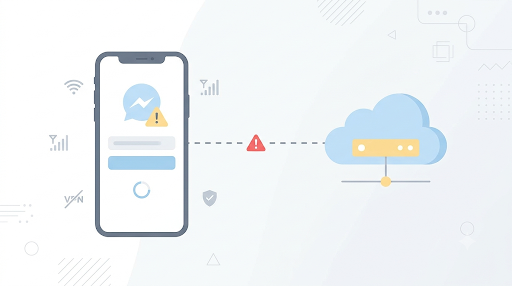
That is why the on-screen message says “check your connection.” It is a hint, not a guess. If your screen shows a different code from this group, our guide on how to fix the Snapchat C13A error walks through that one step by step.
Why Is Snapchat Showing C14B?
C14B usually appears because something between your phone and Snapchat’s servers is blocking or slowing the login request. Here are the most common causes:
- A weak or restricted Wi-Fi network. School, office, hotel, and public Wi-Fi often filter traffic. Some home routers with strict security settings do the same.
- An active VPN or proxy. Snapchat often rejects logins coming through VPN servers, especially shared ones used by many people.
- Snapchat servers being down. During an outage, many users see C14B or C14A at the same time.
- Wrong date and time on your phone. Secure connections can fail if your clock is off.
- An outdated or glitchy app. Old versions and corrupted app data can break the login handshake.
- A temporary block after many attempts. Tapping “Log In” over and over can trigger short security blocks.
- Third-party apps or modified phones. Unofficial Snapchat tweaks, rooted Android phones, and jailbroken iPhones can cause login failures.
Is C14B a Ban or a Locked Account?
No, C14B is not a ban code. You may see posts online claiming C14B means your device is banned and you must wait months. That does not match how Snapchat itself groups this code.
Snapchat uses different codes for bans and locks. Here is how they compare:
| Support code | What Snapchat says it means | What to do |
| C14B, C14A, C13A, C16A, SS14A-D01, SS14A-D02 | Service unavailable. Login could not be completed. | Switch networks, turn off VPN, then troubleshoot the app. |
| SS01, SS03, SS08 | Temporary access disabled | Wait about 48 hours, then check your login details and Wi-Fi. |
| SS02 | Too many failed login attempts | Stop trying and wait before logging in again. |
| SS06, SS18 | The device is banned due to abuse or policy violations | Follow Snapchat’s appeal process. Network fixes will not help. |
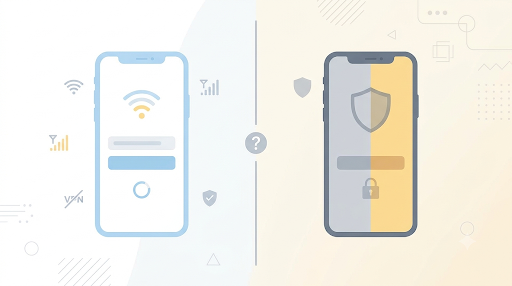
Tip: Read the exact code on your screen. If it says C14B, focus on your connection and the app. If it says SS06 or SS18, skip the network fixes and go straight to Snapchat’s ban guidance. Seeing SS07 instead? That is an account access error with its own fixes, covered in our guide to fixing Snapchat error SS07.
How to Fix Snapchat Support Code C14B
Work through these fixes in order. Try logging in after each one. The first two solve most C14B cases.
1. Switch From Wi-Fi to Mobile Data (or Vice Versa)
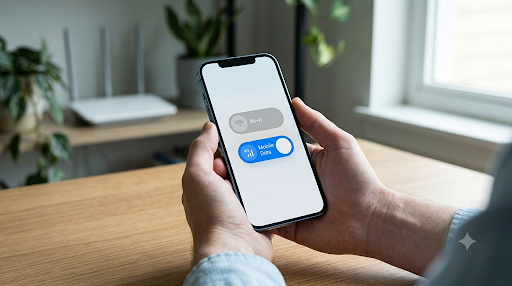
This is Snapchat’s own recommended fix for C14B. A different network gives your phone a different route and a different IP address, which often clears the error right away.
- Close Snapchat completely. Swipe it away from your recent apps.
- Turn off Wi-Fi from Control Center (iPhone) or Quick Settings (Android).
- Make sure mobile data is on and has signal.
- Open Snapchat and log in once.
If you were already on mobile data, connect to a trusted home Wi-Fi network instead. You can also toggle Airplane Mode on for 10 seconds and then off to reset your connection.
Common mistake: Leaving Snapchat open while you switch networks. Force close it first so it makes a fresh connection.
2. Turn Off Your VPN or Proxy
If you use a VPN, ad blocker with VPN mode, or a proxy app, turn it off completely before logging in. A VPN that is “paused” may still route traffic, so disconnect it inside the VPN app.
- iPhone: Settings > VPN (or Settings > General > VPN & Device Management) and switch the status to Not Connected.
- Android: Settings > Network & internet > VPN, tap the VPN, and disconnect. Menu names vary by brand.
Also turn off iCloud Private Relay on iPhone for a test (Settings > your name > iCloud > Private Relay). It works a bit like a VPN and can trigger the same Snapchat C14B VPN issue.
3. Check if Snapchat Is Down Today
If C14B shows up for no clear reason, Snapchat’s servers may be having trouble. Check a live outage tracker such as Downdetector’s Snapchat status page. A sudden spike in reports means the problem is on Snapchat’s side.
If Snapchat is down, no fix on your phone will help. Wait a few hours and try again. Avoid repeated login attempts during an outage, since they can lead to a temporary lock.
4. Set Date and Time to Automatic
A wrong clock can make secure connections fail. This one is easy to miss, especially after travel or a dead battery.
- iPhone: Settings > General > Date & Time > turn on Set Automatically.
- Android: Settings > System > Date & time > turn on automatic date and time.
5. Restart Your Phone
A full restart clears stuck network processes and temporary memory. Turn your phone completely off, wait 30 seconds, and turn it back on. Then open Snapchat on mobile data and try again.
6. Update Snapchat
An old app version can fail to log in after Snapchat changes its servers. Open the App Store or Google Play Store, search for Snapchat, and tap Update if you see it.
Seeing Snapchat C14B after an update instead? A fresh update can leave behind broken app data. In that case, move on to the cache and reinstall steps below.
7. Clear Snapchat Cache (Android) or Offload the App (iPhone)
Since you cannot log in, you cannot use Snapchat’s in-app Clear Cache option. Use your phone’s settings instead.
On Android:
- Go to Settings > Apps > Snapchat.
- Tap Storage & cache.
- Tap Clear cache. Try logging in.
- Still stuck? Go back and tap Clear storage (or Clear data). This resets the app but does not delete your saved Memories, which are stored on your account.
On iPhone:
- Go to Settings > General > iPhone Storage > Snapchat.
- Tap Offload App. This removes the app but keeps its documents.
- Tap Reinstall App, then log in.
8. Uninstall and Reinstall Snapchat
If clearing the cache did not work, delete the app completely and install it again from the official store. This gives you a clean copy with no leftover files.
Before you uninstall: Make sure your Memories are backed up and you know your password and the email or phone number on your account. Unsaved Snaps and Chats may be lost.
9. Reset Network Settings
If C14B keeps coming on every network, your phone’s saved network settings may be the problem. Resetting them removes saved Wi-Fi networks and passwords, so note those first.
- iPhone: Settings > General > Transfer or Reset iPhone > Reset > Reset Network Settings.
- Android: Settings > System > Reset options > Reset Wi-Fi, mobile & Bluetooth. The path differs on Samsung and other brands.
10. Remove Third-Party Apps and Tweaks
Snapchat does not allow unofficial plugins, modified versions, or apps that automate your account. If you have used any of these, remove them. On Android, a rooted phone can also cause login trouble. Using these tools can lead to a real lock or ban, which is a bigger problem than C14B.
11. Try Logging In on Another Device or the Web
This test tells you where the problem lives. Log in on a friend’s phone (then log out) or at Snapchat for Web on a computer.
- It works on the other device: The issue is your phone, app, or network. Repeat steps 7 to 10.
- It fails everywhere: The issue may be your account. Check for a lock in the next step.
12. Unlock Your Account or Contact Snapchat Support
If you have tried several logins and nothing works, your account may be temporarily locked. Visit Snapchat’s account unlock page, sign in, and tap Unlock if the option appears. If you see no unlock option, wait 24 to 48 hours before trying again.
Still stuck? Reach Snapchat through the Snapchat Support help center and choose the option for login or error message problems. Include the exact code (C14B), your device model, and what you have already tried. A clear, short report gets a faster answer.
If the code on your screen changes to C14A while you troubleshoot, the cause is usually the same, but the message and a few fixes differ. Follow our step-by-step Snapchat C14A error fix guide for that version of the error.
How Do You Fix Snapchat C14B on iPhone vs Android?
The fixes are the same idea on both phones, but the settings paths differ. Use this quick table:
| Fix | iPhone | Android |
| Switch network | Control Center > Wi-Fi off | Quick Settings > Wi-Fi off |
| Turn off VPN | Settings > VPN, plus iCloud Private Relay | Settings > Network & internet > VPN |
| Clear app data | iPhone Storage > Snapchat > Offload App | Apps > Snapchat > Storage & cache > Clear cache |
| Fix date and time | General > Date & Time > Set Automatically | System > Date & time > Automatic |
| Reset network | Transfer or Reset iPhone > Reset Network Settings | Reset options > Reset Wi-Fi, mobile & Bluetooth |
What Should You Do If Snapchat C14B Keeps Coming Back?
If C14B goes away and then returns, look for a pattern. The pattern usually points to the cause.
- Only on one Wi-Fi network: That network is filtering Snapchat. Use mobile data there, or ask the network admin. On home Wi-Fi, restart the router.
- Only with the VPN on: Keep the VPN off while using Snapchat, or turn on split tunneling and exclude Snapchat.
- At the same time as other users: It is an outage. Wait it out.
- On every network and device: Treat it as an account issue and contact Snapchat Support.
Common mistake: Retrying the login 20 times in a row. Each failed attempt adds risk of a temporary lock (SS02 or similar). Fix one thing, try once, then move to the next fix.
Frequently Asked Questions
What does “Please check your connection and try again” mean on Snapchat?
It means the app could not reach Snapchat’s servers during login. Your internet may be working for other apps, but the specific connection to Snapchat failed. A network switch or VPN shutoff usually fixes it.
Is Snapchat C14B the same as C14A?
They are close cousins. Snapchat lists both under “Service unavailable” and gives the same fix. C14A usually shows “Something went wrong. Please try again later,” while C14B points more directly to your connection.
Can C14B mean my Snapchat account is locked?
Not by itself. But if you keep failing to log in, Snapchat may add a temporary lock on top of the C14B error. If the code changes to SS01, SS02, SS03, or SS08, stop trying and wait about 48 hours.
Why does Snapchat show C14B on Wi-Fi but work on mobile data?
Your Wi-Fi network is likely blocking or slowing Snapchat’s login traffic. This is common on school, work, and public networks. Restarting your home router or changing its DNS settings can also help.
Will reinstalling Snapchat delete my Memories?
No. Memories saved to Snapchat are stored on your account, not just your phone. Unsaved Chats and Snaps waiting on your device could be lost, so log in elsewhere first if you can.
How long does the Snapchat C14B error last?
If it is caused by your network, it clears as soon as you switch connections. During a Snapchat outage, it usually lasts until the servers recover, often a few hours. If it lasts for days on every device, contact Snapchat Support.
Final Recommendation
Start with the two fixes that solve most cases: turn off your VPN and switch from Wi-Fi to mobile data, then log in once. If that fails, check Downdetector for an outage, set your date and time to automatic, and update or reinstall Snapchat. Still seeing C14B on every device? Use the unlock page, wait 48 hours if needed, and contact Snapchat Support with the exact code and your device details.

Anica Lymus is a technical writer specializing in consumer applications, mobile operating systems, and practical troubleshooting workflows. At Primotechy, she covers account security, software glitches, and app performance across platforms such as Facebook, Instagram, and Snapchat. Drawing on hands-on device testing and in-depth research across iOS, Android, macOS, and Windows, Anica translates complex platform settings and sudden technical errors into clear, verified, step-by-step guides that readers can easily follow and trust.
View all posts by Anica Lymus →