
If the Instagram Add Yours sticker is not showing, the cause is usually an outdated app, a corrupted cache, a temporary feature restriction on your account, or a glitch tied to one specific account. Update Instagram first, then check Account Status, then clear the cache or reinstall. Those three steps fix most cases in under five minutes.
Below you will find every known cause, step-by-step fixes for iPhone and Android, what to do when you can see someone else’s sticker but tapping it does nothing, and a few newer issues tied to Instagram’s latest Story editing update.
Contents
Quick Overview
- Search the sticker tray: Open a Story, tap the sticker icon, and type “Add Yours” in the search bar. It may be lower in the tray than you expect.
- Update Instagram from the App Store or Google Play.
- Check Account Status for any “Features you can’t use” restriction.
- Clear the cache on Android or offload and reinstall on iPhone.
- Log out and back in, or test with a second account to see if the problem is account-specific.
- Switch account type or privacy (personal, creator, or private) as a workaround.
- Report the problem inside the app if nothing else works.
| What you see | Most likely cause | First fix to try |
| Add Yours missing from the sticker tray | Old app version, cache, or account glitch | Update, then clear cache |
| Someone’s Add Yours sticker does nothing when tapped | App bug or restricted interaction | Force close, update, check Account Status |
| Sticker works on one account but not another | Account-level rollout or restriction | Check Account Status on the affected account |
| Add Yours template not opening | Template removed, hidden, or app glitch | Reopen from the original Story, then update |
| Can’t see who started a prompt | Privacy setting or block | Nothing to fix; it’s by design |
| Edit Story option missing on a Story with Add Yours | Editing limits on special stickers | Delete and repost the Story |
What Is the Instagram Add Yours Sticker?
The Add Yours sticker is an interactive Story sticker that lets you post a prompt, such as “Show your workspace” or “Your last photo of the sky,” so other people can respond with their own photo or video. Each response links back to the original prompt, which creates a public chain anyone can browse.
Instagram describes it in its official guide to using Instagram Stories as a way to create your own prompt or start a template that friends can respond to. The sticker also works in Reels, and there is a separate Add Yours Music sticker that asks people to reply with a song.
Knowing this matters for troubleshooting. There are really three different features people mean when they say “Add Yours isn’t working”:
- Creating a new Add Yours prompt from your own sticker tray
- Responding to someone else’s Add Yours sticker
- Using an Add Yours template (a prompt with a pre-built layout)
Each one can fail for slightly different reasons, so figure out which one you’re dealing with before you start.
Where Should the Add Yours Sticker Appear?
The Add Yours sticker lives inside the Story sticker tray, not on the main camera screen. A lot of “missing sticker” reports are really “can’t find sticker” problems.
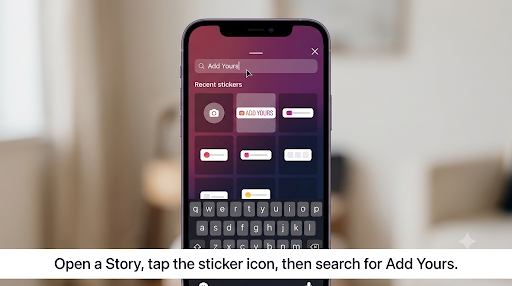
Here’s how to find it on the current app:
- Open Instagram and tap your profile picture at the top left of the home feed, or swipe right to open the Story camera.
- Take a photo or pick one from your gallery.
- Tap the sticker icon (the square smiley face) at the top of the screen.
- Look for Add Yours near the top of the tray.
- If you don’t see it, type “Add Yours” into the search bar at the top of the sticker tray.
- Type your prompt, or tap the dice icon for a suggested prompt, then share your Story.
Tip: Instagram reorders the sticker tray based on what you use most. If you haven’t used Add Yours in months, it can sit far down the list. Searching saves time.
Common mistake: Trying to find the sticker on Instagram’s website. The desktop and mobile web versions do not give you the full Story sticker tray, so use the iPhone, iPad, or Android app.
Why Is the Add Yours Sticker Not Showing on Instagram?
The sticker usually disappears for one of these reasons. Some are quick fixes. Others are on Instagram’s side.
1. You’re on an outdated version of Instagram
Instagram’s own sticker help guidance says that if you’re not seeing certain stickers, you should update the app to the latest version. Older builds can lose access to stickers when Instagram changes how they work on the server side.
2. Your app cache is corrupted
A bad cache can stop the sticker tray from loading new or updated stickers. This is especially common on Android after a big update.
3. Your account has a temporary feature restriction
If Instagram limited your account for activity that breaks its rules, interactive features can be restricted for a set time. You can check this in Account Status.
4. The problem is tied to one account
Many Reddit users report the sticker working on one account but not on another, even on the same phone. This points to an account-level glitch or a partial rollout, not a phone problem.
5. Account type or privacy setting
Users on forums have reported the sticker only working after switching between personal and professional accounts, or between public and private. Results go both ways, so treat this as a workaround to test, not a guaranteed fix.
6. Regional availability
Instagram first tested Add Yours in Indonesia and Japan before expanding it more widely. Some stickers can still behave differently by region, especially if you’re traveling or using a VPN that changes your apparent location.
7. A temporary Instagram outage or bug
Sometimes the sticker appears and disappears, or the button flickers. That pattern usually means a bug or server-side issue, not something on your phone.
8. The prompt or template was removed or hidden
If the original creator deleted their Story, archived it, or hid their template, you may no longer be able to join that particular chain.
How Do You Fix the Add Yours Sticker Not Showing?
Work through these fixes in order. Start with the fast ones and stop when the sticker comes back.
Fix 1: Force close and reopen Instagram
This clears a frozen sticker tray in seconds.
- iPhone: Swipe up from the bottom and pause, then swipe the Instagram card up and away.
- Android: Open Recent Apps and swipe Instagram away, or go to Settings > Apps > Instagram > Force stop.
Fix 2: Update the Instagram app
- Open the App Store (iPhone or iPad) or Google Play Store (Android).
- Search for Instagram.
- Tap Update if it shows up.
- Open Instagram and check the sticker tray again.
Updates can fix one feature and break another. If a recent update also messed with other parts of the app, our guide on fixing Instagram watch history that disappears after an update walks through the same kind of post-update cleanup.
Fix 3: Check Account Status for restricted features
- Go to your Profile.
- Tap the menu icon (three lines) at the top right.
- Scroll down and tap Account Status.
- Open Features you can’t use.
If you see a restriction there, the sticker won’t come back until it ends. You can sometimes request a review from that same screen if you think it was a mistake.
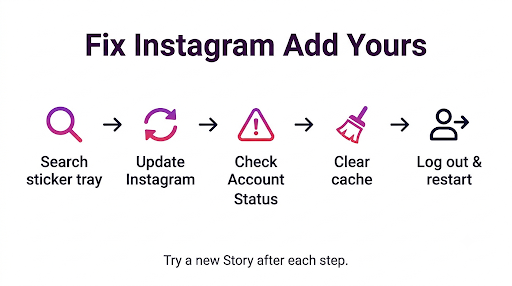
Fix 4: Clear the Instagram cache
On Android:
- Open Settings > Apps > Instagram.
- Tap Storage (or Storage & cache).
- Tap Clear cache.
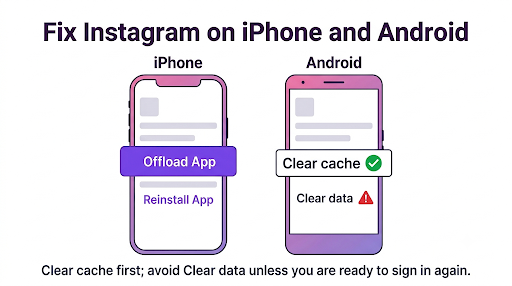
Avoid Clear data unless you’re comfortable logging back in. It signs you out and removes saved drafts.
On iPhone and iPad: iOS does not offer a simple cache button for Instagram. Go to Settings > General > iPhone Storage > Instagram > Offload App, then tap Reinstall App. Offloading keeps your login data, while deleting the app fully clears everything.
Fix 5: Log out and log back in
- Go to Profile > Menu.
- Scroll to the bottom and tap Log out.
- Restart your phone.
- Log back in and open a new Story.
This refreshes your account’s feature flags, which is often what controls whether a sticker shows up.
Fix 6: Delete and reinstall Instagram
Reinstalling gives you a fresh copy of the app. Several Reddit users said the sticker only returned after deleting the app, reinstalling, and then opening and closing it a few times. Others said it came back briefly and then vanished again, which suggests an account-side issue in those cases.
Fix 7: Restart your phone
A simple restart clears temporary memory problems that can stop stickers from loading. It takes a minute and is worth doing after any reinstall.
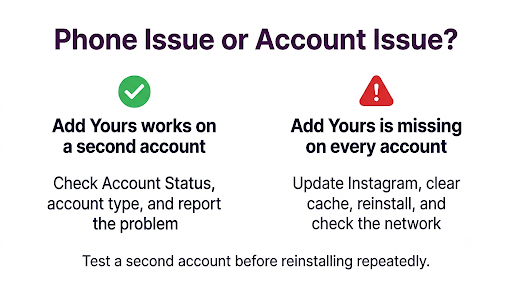
Fix 8: Test with a different account
Add a second account in Instagram, or log in on a friend’s phone. If Add Yours works there, the problem is your account, not your device. That tells you to focus on Account Status, account type, and reporting the issue.
Fix 9: Switch your account type or privacy setting
Try this only after the basic fixes fail.
- Switch account type: Profile > Menu > Account type and tools, then switch between personal and professional (creator or business).
- Switch privacy: Profile > Menu > Account privacy, then toggle Private account on or off.
Some users report the sticker returning after a switch. Others report the opposite. Switch back if it doesn’t help, because changing account type can affect insights, contact buttons, and music access.
Fix 10: Check your connection and Instagram’s status
Stickers load from Instagram’s servers. A weak connection can leave the tray half loaded. Switch between Wi-Fi and mobile data, and check if other people are reporting Instagram problems at the same time. If the whole app feels slow on Android, our guide to fixing an Instagram feed that won’t load on the Samsung Galaxy S26 Ultra covers network and battery settings that also affect stickers.
Fix 11: Turn off your VPN
A VPN can make Instagram think you’re in a different country. If Add Yours behaves differently by region, turning the VPN off (or on, if you’ve seen users suggest it) can change what you see. Keep in mind a VPN is a temporary workaround. Once you disconnect, Instagram goes back to your real location.
Fix 12: Report the problem to Instagram
- Go to Profile > Menu > Help.
- Tap Report a problem.
- Describe the issue clearly, for example: “Add Yours sticker missing from Story sticker tray on iPhone, app updated today.”
You can also shake your phone while using Instagram to open the report screen, if that option is turned on. Add a screenshot of your sticker tray so the team can see what’s missing.
How Do You Fix Add Yours Not Showing on iPhone?
On iPhone, the best order is update, offload, restart, then reinstall.
- Update Instagram in the App Store.
- Check that your iOS version is current under Settings > General > Software Update. Instagram drops support for older iOS versions over time.
- Offload the app under Settings > General > iPhone Storage > Instagram, then reinstall.
- Restart your iPhone.
- If it still fails, delete the app completely and reinstall it.
iPad users: The same steps apply to Instagram’s iPad app. If you’re using the iPhone version scaled up on an iPad, switch to the iPad app from the App Store.
How Do You Fix Add Yours Not Showing on Android?
On Android, clearing the cache is the most effective fix, followed by updating Android System WebView and Instagram itself.
- Force stop Instagram, then clear its cache in Settings > Apps > Instagram > Storage.
- Update Instagram and Android System WebView in the Play Store.
- Turn off battery optimization or data saver for Instagram if it’s enabled. These can stop the app from loading content in the background.
- On Samsung phones, check Settings > Battery > Background usage limits and make sure Instagram is not in “Sleeping apps” or “Deep sleeping apps.”
- Avoid modified or third-party versions of Instagram. They often break stickers and can put your account at risk.
Why Can’t You Tap Someone Else’s Add Yours Sticker?
If you can see a friend’s Add Yours sticker but nothing happens when you tap it, the problem is usually the app, your account restrictions, or the prompt itself.
- App glitch: Force close, update, and try again. This is the most common cause.
- Restricted account: If interactions are limited in Account Status, you may be able to view but not join.
- Prompt was removed: If the original Story was deleted or archived, the chain may no longer accept responses.
- Close Friends or private Story: Responding from a limited Story can behave differently from a regular Story.
Try this: Tap the sticker, then tap the prompt name at the top of the response list instead of the “Add Yours” button. This sometimes opens the camera when the main button won’t.
Why Is the Add Yours Template Not Working?
Templates fail for the same reasons as the regular sticker, plus one extra: the creator can hide them. Instagram’s help center for Add Yours templates explains that a creator can open their Story, tap the profile pictures next to the sticker, tap the options menu, and hide Stories using that template.
If a template won’t load:
- Go back to the original Story and tap the template again.
- Update Instagram, since templates rely on newer app features.
- Make sure you’re using the template from a Story, not from a screenshot or a re-shared Reel.
- Ask the creator if they hid or deleted it.
Why Can’t You See Who Started an Add Yours Prompt?
This one is usually by design, not a bug. According to Instagram’s Add Yours sticker help page, people won’t see who started a prompt if the creator blocked them, or if the creator’s account is private and the viewer doesn’t follow them.
The same rule applies to responses. If your account is private, only your followers can see what you added. Accounts you’ve blocked can’t see it at all. So a friend saying “I can’t see your Add Yours post” may just mean they don’t follow your private account.
If you like controlling who sees your Instagram activity, the same thinking applies to other features too. Here’s how to hide your Instagram Notes from specific people without blocking them.
Can You Edit a Story That Has an Add Yours Sticker?
Maybe not. Instagram just rolled out Story editing, and Stories with special stickers like Add Yours may not show the edit option.
Instagram head Adam Mosseri announced the update on November 18, 2026. You can now edit text, music, stickers, and drawings for up to 15 minutes after sharing a Story, and edited Stories keep their views, likes, and replies. To use it, open your Story and tap More > Edit Story.
However, Instagram notes that the edit option may not appear for Stories with special stickers such as Add Yours, or for Stories shared to Facebook. If the Edit button is missing on your Add Yours Story, nothing is broken. Your only fix is to delete the Story and post it again with the corrected prompt.
Tip: Double-check your Add Yours prompt for typos before posting, since you likely won’t get the 15-minute safety net.
Does Account Type Affect the Add Yours Sticker?
It can. Instagram doesn’t publish a list of which account types get which stickers, but user reports show differences between personal, creator, and business accounts.
Teen Accounts are another case. Instagram applies built-in limits to accounts for users under 18, and some interactive features can behave differently. If a teen user is also missing other features, see our guide on why Instagram Live is not showing on a teen account for how those limits work.
What Mistakes Make the Problem Worse?
- Clearing data instead of cache on Android, then losing unsaved drafts.
- Installing modified Instagram apps to “unlock” stickers. These can get your account flagged and make restrictions more likely.
- Switching account types repeatedly without switching back, which can remove features you actually use.
- Buying “sticker unlock” services or giving your login to third-party sites. No outside service can turn on an Instagram feature for you.
- Reinstalling over and over when the issue is clearly tied to one account. If a second account works, reinstalling again won’t help.
Frequently Asked Questions
Why did the Add Yours sticker disappear suddenly?
A sudden disappearance usually follows an app update, a cache problem, or a new account restriction. Check Account Status first. If nothing is listed, clear the cache or offload the app, then check the sticker tray again.
Why do I have the Add Yours sticker on one account but not the other?
Instagram controls many features at the account level, not the device level. One account may have a temporary restriction or be on a different feature rollout. Check Account Status on the account missing the sticker, and report the problem from that account.
Is the Add Yours sticker available in Reels?
Yes. You can add an Add Yours prompt to a Reel from the sticker option in the Reels editor. If it’s missing in Reels but working in Stories, update the app, since Reels tools often roll out separately.
What is the Add Yours Music sticker?
It’s a version of Add Yours that asks people to respond with a song instead of a photo. Open your Story, tap Stickers, choose Add Yours Music, pick a song, and share. Music availability depends on your region and account type, so it may be missing even when the regular Add Yours sticker works.
Can someone see that I viewed their Add Yours prompt?
Viewing the Story counts as a normal Story view, so the creator sees you in their viewer list. Just browsing the response list does not post anything. Only adding your own response puts your Story in the chain.
Will Instagram bring back the sticker on its own?
Often, yes. If the issue is a server bug or a timed restriction, the sticker usually returns without you doing anything. Restrictions show an end date in Account Status, so you’ll know how long to wait.
Does a VPN permanently fix Add Yours?
No. A VPN only changes your apparent location while it’s connected. Once you turn it off, Instagram sees your real region again. Use it only to test whether the problem is region-related.
Final Recommendation
Start simple. Search “Add Yours” in the sticker tray, update Instagram, and check Account Status. If the sticker is still missing, clear the cache on Android or offload and reinstall on iPhone, then log out and back in.
If a second account can use the sticker and yours can’t, stop troubleshooting your phone. The issue is on the account side, so report it through Help > Report a problem and give it a few days. And if your Add Yours Story won’t let you edit it, that’s expected under Instagram’s new editing rules, so delete and repost instead.

Anica Lymus is a technical writer specializing in consumer applications, mobile operating systems, and practical troubleshooting workflows. At Primotechy, she covers account security, software glitches, and app performance across platforms such as Facebook, Instagram, and Snapchat. Drawing on hands-on device testing and in-depth research across iOS, Android, macOS, and Windows, Anica translates complex platform settings and sudden technical errors into clear, verified, step-by-step guides that readers can easily follow and trust.
View all posts by Anica Lymus →