

We all need Facebook help at some point during our Facebook use. So, there may be many scenarios where you are being hacked, facing an issue with an app feature, or need help with something; that’s when you turn to Facebook Support. How you connect with them is the real concern. You must choose the correct path, particularly for your issue. Today, we will reveal methods you can opt for to find Facebook assistance, as per the issue you’re facing.
Before you find the particular way to access Facebook customer Service, understand that “Facebook support” isn’t one single thing. What you can access depends on your account type (personal, creator, business, or advertiser), the specific problem you’re having (login issue, disabled account, billing dispute, ad rejection), and sometimes even your region. A small business owner running ads has a very different support path than someone who just got locked out of a personal profile.
One quick note before we start: Facebook changes its interface often, so a button that sits in one menu today might move next quarter. The support routes described here (Help Center, Business Help Center, Support Inbox, Meta Verified) are stable even when the exact menu path shifts slightly.
Contents
Which Facebook Support Option Should You Use? (Quick Decision Matrix)
Start here if you’re not sure where to reach out to Facebook representatives. Match your problem to the right column, then jump to that section for the full walkthrough.
| Your Situation | Where to Go | What to Expect |
|---|---|---|
| General “how do I” questions | Facebook Help Center | Self-serve articles, mostly automated |
| Hacked or compromised account | facebook.com/hacked | Automated recovery flow, possible ID check |
| Disabled or suspended account | In-app appeal notice or Help Center | Review queue, no live chat for most personal accounts |
| Business account problems | Meta Business Help Center | May include live chat, depending on eligibility |
| Ad account restricted or rejected ad | Ads Manager → Account Quality | Appeal form, sometimes live chat available depending on spend |
| Billing issue or unauthorized charge | Meta Billing Help / Payment Settings | Dispute form, response by email or Support Inbox |
| Meta Verified subscriber | In-app “Get Support” in Meta Verified settings | Prioritized chat/email queue |
| Checking a previous support request | Support Inbox (facebook.com/support) | Status updates, case notifications |
| Technical bug (app crashing, feature broken) | “Report a Problem” in Settings | Goes to engineering, not a personal reply |
Note: None of these options is guaranteed to be available to every account. Meta rolls out live chat and other premium-feeling support features gradually. Similarly, you need to report your problem with Facebook when it’s a personal account issue.
What to Have Ready Before Contacting Facebook Support
Before you connect with Facebook representative using any of the methods, make sure you follow a ritual of having prerequisites. Check them below:
Information to Collect
- Your Facebook profile URL (found under “About” or in your profile settings)
- Your numeric Account ID, if the form asks for it
- Your Business Portfolio or Business Manager ID (found in Business Settings)
- Your Ad Account ID, a 16-digit number found in Ads Manager
- Transaction details for any billing issue — amount, approximate date, last four digits of the card charged
- The exact date and time the issue started
- The exact error message, copied word for word or screenshotted
- Screenshots of the problem itself (a blank screen, an error page, a rejected ad)
- Any emails or in-app notifications Meta already sent you about the issue
- An existing case or reference number, if you’ve contacted support before about this same issue
Tip: Having your Ad Account ID or Business Manager ID copied to your clipboard before you start a chat is a small thing that saves real time.
When Facebook May Ask for Identity Verification
For sensitive requests such as recovering a hacked account, appealing a disabled account, or verifying a Meta Verified subscription, Meta may ask you to confirm your identity. This can include uploading a government-issued ID or recording a short video where you turn your head so the system can match your face to your profile photos.
A few rules matter here:
- Only submit identity documents through Meta’s own verification flow inside the app or on official facebook.com / meta.com pages. Check the URL bar before uploading anything.
- Meta does not need you to email a photo of your ID to a stranger, a “case manager,” or a third-party recovery service. If someone asks for that outside the official flow, it’s a scam — we’ll cover this in more detail later in the guide.
- ID verification can be rejected even when the document is real, often due to image quality, lighting, or mismatched details. If you face this, try again with a clearer photo taken in good light against a plain background before assuming the process is broken.
Facebook Support for Businesses and Advertisers
If you manage a Facebook Page for a business, run ads, or use Business Manager, you generally have access to more support tools than a personal account holder does. Here is the detailed discussion:
1. Business Support and Live Chat
Meta’s Business Help Center is the starting point for any business or advertising issue. Here’s how it typically works:
1. Go to the Facebook Help Center.
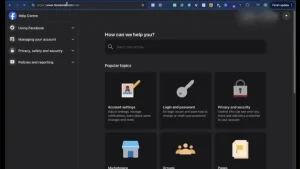
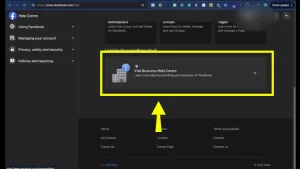
2. Scroll down and click Visit Business Help Center.
3. Find “Find answers or contact support here” and click “Get Started.”
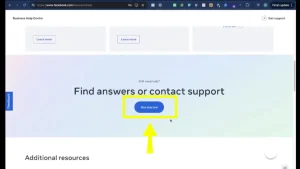
4. Scroll down to “Still need help? Contact a support professional.”
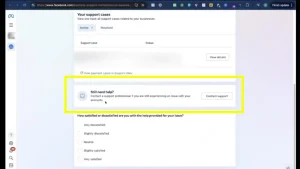
5. Click “Contact Support.”
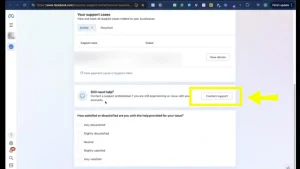
6. Describe your issue in detail and click “Next Step.”
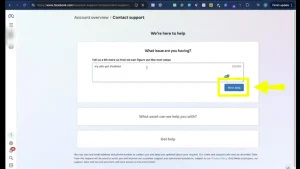
7. Select the option that best matches your issue.
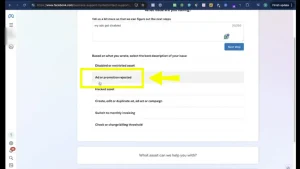
8. Select the Facebook Page related to the problem.
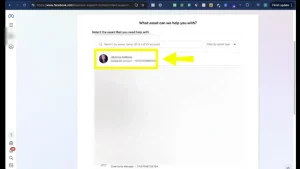
9. Enter your correct email address and provide detailed information about the issue.
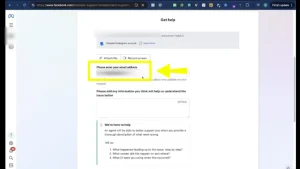
10. Add a valid phone number so Meta can contact you if needed.
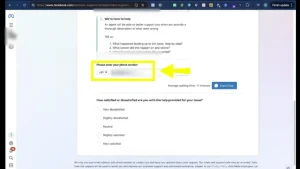
11. If available, click “Start Chat” to connect with Meta Support.
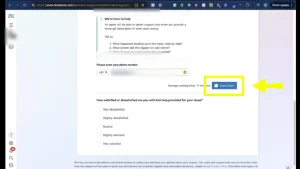
12. If live chat is unavailable, Meta may contact you through email.
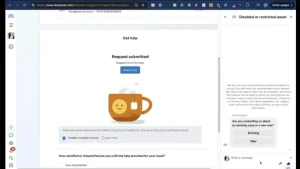
Not every business account sees a live chat option. Meta generally reserves it for accounts with active ad spend, a verified Business Portfolio, or specific account issues that its systems flag as needing a human.
Note: Live chat generally follows business hours, not 24/7 availability. Human chat routing for advertisers is usually tied to regional working hours — roughly 9 AM to 6 PM in your local business timezone. You can use the same ‘chat with us’ button to send an email on off hours.
2. Meta AI for Business and Advertising Help
Meta AI, the assistant built into Facebook, Instagram, WhatsApp, and Meta’s business tools, can answer a wide range of advertising and account questions on demand — things like explaining why a policy exists, walking through how to set up a campaign, or helping you understand an ad rejection notice.
Here’s how Meta AI helps:
- It’s available around the clock, unlike human chat support, which follows the business-hours pattern described above.
- Inside Ads Manager and related business tools, Meta AI can help interpret account quality issues, suggest next steps, and explain policy language in plainer terms.
- It is not a replacement for human review on account-level actions. Meta AI can explain why your ad was likely rejected, but it can’t personally lift a restriction, reverse a disabled account, or guarantee an appeal outcome.
- Treat its guidance as a well-informed first opinion, not a final verdict. If Meta AI’s explanation doesn’t match what you’re seeing in your account, that’s a sign to escalate to an actual appeal or support ticket.
3. Getting Help With Ad Account Restrictions and Policy Violations
Ad account issues come in a few different flavors, and each has a slightly different fix:
- Restricted ad account: Your account is blocked from running ads due to repeated rule violations or unusual activity. Check Account Quality in Ads Manager to view the reason and request a review.
- Rejected individual ads: Specific ads were stopped because their text, image, video, or website link broke a rule. You can request a review for that specific ad inside Account Quality.
- Business asset restrictions: Restrictions applied to your entire Business Portfolio (including Pages, ad accounts, and pixels) due to major or ongoing policy issues across your account.
- Pixel or tracking problems: Technical errors with website tracking, not policy violations. Check Events Manager to fix setup or code issues on your website.
- Campaign delivery issues: Ads aren’t spending money or showing to people. This is usually caused by low budgets, strict bidding, or small target audiences—check delivery insights in Ads Manager before contacting support.
Disputing Billing Errors and Unauthorized Charges
If you see a charge on your card from Meta/Facebook that you don’t recognize, or a billing amount that doesn’t match what you expected, work through this order:
- Check your payment activity first. In Ads Manager, go to Billing and review the full transaction history — sometimes a charge that looks unfamiliar is actually a scheduled payment or a currency conversion difference.
- Identify the exact transaction. Note the amount, date, and which ad account or Business Portfolio it’s tied to.
- Collect evidence. Screenshot the transaction, your bank/card statement line, and anything in Ads Manager that shows the discrepancy.
- Use Meta’s billing dispute flow inside Billing settings or the Business Help Center’s payments section, rather than a general support form — billing issues route to a different queue than account or policy issues.
- Contact your bank only after you’ve tried Meta’s dispute process, unless the charge is clearly fraudulent and time-sensitive (see the warning below).
Important: Disputing a charge with your bank before Meta reviews it may cause Meta to treat it as fraud and block your ad account. Try resolving the issue through Meta support first.
Facebook Support for Personal and Creator Accounts
Personal and creator accounts have fewer built-in support channels than business accounts, but there are still real, official paths. We will tell you about them in detail further.
1. Meta Verified Support
Meta Verified is Meta’s paid subscription for personal profiles, Pages, and Instagram accounts, and one of its selling points is enhanced account support.
What it generally provides:
- A dedicated support channel inside the app (usually found under Meta Verified settings → “Get Support“)
- Priority handling compared to the standard, unassisted Help Center flow
- Access for issues like impersonation, account recovery, and general account questions
What it can’t guarantee: Subscribing moves you to a faster queue, but it doesn’t automatically fix disabled accounts, override policy decisions, or guarantee specific response times.
2. Recovering a Hacked or Compromised Facebook Account
If someone else has gotten into your account — through a hacked email, a changed password, a swapped phone number, or you’re simply unable to log in and seeing unfamiliar activity — Facebook has a dedicated recovery flow separate from a normal password reset.
- Go to facebook.com/hacked directly, rather than searching for a link elsewhere.
- Choose the option that matches your situation, such as “My account has been hacked” or “I think someone got into my account.”
- Verify your identity by providing phone, email, trusted contacts, or an ID upload.
- If the hacker changed your email or phone number, look for the “I don’t have access to these” option, which routes you through an alternate identity-verification path instead of a dead-end password reset.
- Once you regain access, immediately check your login activity, remove unfamiliar sessions, update your password, and turn on two-factor authentication.
Community experiences with this recovery process vary significantly.
Some users recover their account within an hour, while others face repeated ID rejection or security code loops. Switching between phone and email verification often helps break these loops.
If a hacker changes both your email and phone number without trusted contacts enabled, recovery becomes very difficult. Setting up two-factor authentication (2FA) and trusted contacts beforehand is essential.
3. Appealing a Suspended or Disabled Facebook Account
If your account has been disabled or suspended for a suspected community standards violation, Facebook typically shows you an in-app notice with a review or appeal option—this is usually the only reliable entry point, since there’s no separate public “disabled account” form outside of it.
- Go to facebook.com (or open the Facebook app).
- Enter your usual email/phone and password.
- If your account is disabled, you should see a screen that says something like:
- “Your account has been disabled” or
- “This account is no longer available due to a violation of our Community Standards.”
On this screen, look for:
- A button or link such as “Request Review”, “Appeal”, or “Disagree with Decision”.
- Follow the specific instructions given, which sometimes include uploading an ID photo.
- Provide accurate, honest information — appeals that contradict your account’s own history tend to get rejected faster.
- Complete identity verification if requested.
- After submitting, the appeal moves into a review queue. Response times aren’t published or guaranteed, and can range from under a day to several weeks depending on volume and the nature of the violation.
If there’s no appeal option or you can’t log in, go to facebook.com/help, search “disabled account,” and open the matching article.
How to Check Facebook Support Messages and Case Updates
The Support Inbox is Facebook’s dedicated space for tracking communications related to reports, appeals, and account reviews. It’s where you’ll see things like the status of a report you filed, a decision on an appeal, or a request for more information from Meta.
How to Find the Support Inbox on Desktop and Mobile
On desktop:
- Log into Facebook
- Click your profile icon or the menu (three lines/dots depending on your layout)
- Tap ‘Help & Support’
- Look for “Support Inbox” or go directly to facebook.com/support.
On mobile app:
- Tap the menu icon (usually bottom right),
- Scroll to find “Support Inbox,” under “Help & Support” or a similar settings grouping.
How to Check Business Support Requests in Meta Business Suite
Business-related support cases don’t always show up in the same personal Support Inbox. They’re often tracked separately inside Meta Business Suite or the Business Help Center itself. Here is how you find them:
- Open Meta Business Suite and go to the Business Settings or Help section.
- Look for a “Support requests” or “Your cases” area, which lists open and past tickets tied to that Business Portfolio.
- Click into a case to see its current status and any messages from Meta.
- If Meta has asked for more information, reply directly within that case thread rather than opening a new support request.
Thing to know: not finding a case in your Support Inbox doesn’t always mean it disappeared. It’s worth double-checking the account, the business portfolio, and the original submission channel before assuming nothing happened.
Facebook Support Scams and Red Flags to Avoid
When you search for “Facebook support phone number,” you will often encounter toll-free numbers starting with 1-800 or 888, as well as spoofed 650 area code numbers claiming to be authentic. In reality, these are scams. Meta does not operate a direct customer service hotline, and unlike legitimate platforms, these scammers will demand sensitive personal details, passwords, or two-factor codes to steal your account.
Let’s debunk Facebook support-related myths:
Does Facebook Have a Phone Number?
Meta does not publish a general customer service phone number for Facebook users to call. There’s no toll-free hotline you’re meant to dial for a hacked account, a disabled Page, or a billing question.
Some enterprise-level advertisers with dedicated account representatives may have a direct line as part of that specific business relationship, but that’s not something available to the general public.
Does Facebook Have a Support Email?
Facebook does not have a single specific email address to ask your general queries. However, it has issue-specific emails for different use cases. Meta lists a few departmental addresses (for example support@fb.com, disabled@fb.com, appeals@fb.com), but there is no general customer‑support email for personal Facebook users. For most issues—login problems, disabled accounts, hacked accounts, bugs—Facebook directs you to use the Help Center, Report a Problem, and official appeal/recovery forms, not email. Departmental addresses exist but are intended for specific cases (ads, legal, IP, data requests) and often respond slowly or with automated messages.
| # | Email address | Primary purpose | Effectiveness for regular users (2026) | Notes |
| 1 | support@fb.com | General support inquiries (legacy) | ⚠️ Limited | Still active but often slow/templated. Not Meta’s primary recommended path; use Help Center and forms first. |
| 2 | disabled@fb.com | Disabled or hacked personal accounts | ⚠️ Limited–moderate | Commonly used in 2026 for disabled‑account appeals. Often sends automated replies with a case number; may trigger internal review in some cases. |
| 3 | appeals@fb.com | Suspended accounts / content appeals | ⚠️ Limited–moderate | Used for policy‑based suspensions. Typically automated, but tied to real appeal workflows. |
| 4 | phish@fb.com | Report phishing emails/sites impersonating Meta | ✅ Active for purpose | Meta explicitly tells users to forward suspicious emails here. Part of their anti‑phishing workflow. |
| 5 | abuse@fb.com | Report abuse / harmful content | ⚠️ Limited for consumers | Tied to trust & safety pipelines; most users are expected to use in‑app reporting and forms instead of direct email. |
| 6 | security@fb.com | Security research / vulnerability coordination | ❌ Not for general users | Intended for security researchers and serious security issues, not normal account problems. |
| 7 | lawenforcement@fb.com (and close variants) | Law enforcement data requests & emergencies | ❌ Not for general users | Described in Meta’s Law Enforcement Guidelines; used by police, prosecutors, and other authorities. |
| 8 | government@fb.com | Government / regulator communications | ❌ Not for general users | For official government and regulatory bodies, not consumer support. |
| 9 | legal@fb.com | Legal notices, subpoenas, attorney communications | ❌ Not for general users | For formal legal process and counsel, not user complaints. |
| 10 | records@fb.com | Account records requests (often legal / law enforcement) | ❌ Not for general users | Used in response to lawful data requests, not everyday user issues. |
| 11 | datarequests@fb.com | Data request coordination (legal/government) | ❌ Not for general users | Appears in transparency and data‑request contexts; not a consumer help inbox. |
| 12 | copyright@fb.com / copyright@facebook.com | Copyright / DMCA notices | ⚠️ Limited for consumers | Exists, but Meta strongly prefers its online IP form in the Help Center for copyright reports. |
| 13 | trademark@fb.com | Trademark infringement reports | ⚠️ Limited for consumers | Similar to copyright; online forms are the main recommended path. |
| 14 | ip@fb.com | General intellectual property inquiries | ❌ Not for general users | Used by rights holders and legal teams for IP matters. |
| 15 | press@fb.com | Media / press inquiries | ❌ Not for general users | For journalists and official media requests only. |
| 16 | advertise@fb.com | Advertising / business sales inquiries | ❌ Not for general users | Geared to prospective advertisers and partners; ad/account issues should go via Meta Business Help Center. |
| 17 | domain@facebook.com | Domain / DNS / network operations | ❌ Not for general users | Listed in network/IP info for Facebook infrastructure; for network operators, not users. |
| 18 | noc@fb.com | Network Operations Center (infrastructure abuse, outages) | ❌ Not for general users | For network operators and infrastructure issues, not consumer support. |
| 19 | privacy@fb.com | Privacy‑related inquiries | ⚠️ Limited for consumers | Privacy questions and data requests are designed to go through structured Data Subject Request forms; email is secondary. |
| 20 | Any @facebook.com support‑style address (e.g. support@facebook.com, help@facebook.com, contact@facebook.com) | Supposed “Facebook support” | ❌ Effectively obsolete for support | Not promoted by Meta for user support; many are internal or unused for inbound consumer mail. In 2026, when email is tried at all, @fb.com is the working pattern. |
| 21 | Random “customer service” emails not on fb.com / facebook.com / meta.com (e.g. Gmail, Yahoo, random domains) | Claimed “Facebook support” | ❌ Not official (scams) | These are not Meta emails at all; they are third‑party or fraudulent addresses often used in support scams. |
How to Spot Fake Facebook Support Email Addresses
While official domains like fb.com or facebook.com belong directly to Meta, scammers frequently use lookalike domains, spoofed display names, or unrelated free email providers (such as Gmail or Yahoo) to impersonate Facebook support staff.
To stay safe, avoid emailing addresses from forum posts or third-party articles. Always use official in-app and browser channels for support requests.
Important Security Rules
Keep your account safe by following these simple rules:
- Never share your password: Real Facebook staff will never ask for it.
- Never share verification codes: Do not give 2FA or security codes to anyone.
- Do not allow screen sharing: Never install remote access apps if requested by support.
- Check website URLs: Make sure you are on facebook.com or meta.com before logging in.
Official updates from Meta will always appear in your Support Inbox or come from official @facebook.com or @fb.com emails.
Frequently Asked Questions About Facebook Support
Q1. Can I talk to a real person at Facebook?
Business and advertiser accounts have the best chance through Meta Business Help Center live chat (when eligible), and Meta Verified subscribers get access to a dedicated support channel. Personal accounts without either of those generally go through automated review flows instead of live human chat.
Q2. Does Facebook have a customer support phone number?
No general public phone number exists for Facebook account support. Any number you find claiming to be Facebook or Meta customer service through a search engine should be treated as likely unofficial and possibly a scam.
Q3. How do I contact Facebook support for a business account?
Go to the Meta Business Help Center, select your issue, work through the self-serve suggestions, and look for a “Contact Support” or “Still need help?” option. Live chat availability depends on your account’s ad spend and history.
Q4. Why is Facebook Live Chat missing from my account?
Live chat eligibility depends on factors like active ad spend, Business Portfolio verification, region, and business hours. It’s common for chat to be unavailable even on a legitimate business account — this doesn’t necessarily indicate a problem with your account.
Q5. Where is Facebook Support Inbox?
On desktop, go to facebook.com/support or find it through your profile menu. On mobile, it’s typically under the main menu, sometimes found within “Help & Support.”
Q6. How do I check my Facebook support case?
Personal account cases typically appear in your Support Inbox. Business-related cases often appear separately inside Meta Business Suite’s support or case-tracking section.
Q7. How do I appeal a disabled Facebook account?
Use the appeal or review link shown directly in the disabled-account notice inside the app — this is usually the primary entry point, since there isn’t always a separate general appeal form outside of it.
Q8. What should I do if my Facebook appeal is rejected?
Read the specific rejection reason, correct anything that was genuinely missing, and look for a secondary review option if one is offered. Avoid submitting identical appeals repeatedly within a short window, since this can trigger automated throttling rather than a faster review.
Q9. How do I recover a hacked Facebook account?
Go directly to facebook.com/hacked, follow the prompts for a compromised account, and complete identity verification if requested. If your email and phone were both changed by the hacker, look for the “I don’t have access to these” option to use an alternate verification path.
Q10. Does Meta Verified provide enhanced support?
Yes, subscribers generally get access to a dedicated support channel with faster human attention than the standard Help Center flow — but it doesn’t guarantee a specific outcome or override Meta’s normal policy review process.
Q11. Can I contact Facebook support by email?
Not reliably. Meta doesn’t operate a general public support inbox for account issues, and most addresses circulating online claiming to be official contact points are not legitimate. Use the in-app and in-browser support flows instead.
Q12. Can I contact Facebook through Instagram or WhatsApp?
Not for Facebook-specific account issues. Each Meta product generally routes support separately, even though Meta AI is available across all of them for general questions.
Sources:
- Facebook Help Center
- Facebook Account Recovery (Hacked Accounts)
- Meta Business Help Center
- Meta Advertising Standards
- r/facebook community thread: “How can I contact Facebook support / live chat?”

Anica Lymus is a technical writer specializing in consumer applications, mobile operating systems, and practical troubleshooting workflows. At Primotechy, she covers account security, software glitches, and app performance across platforms such as Facebook, Instagram, and Snapchat. Drawing on hands-on device testing and in-depth research across iOS, Android, macOS, and Windows, Anica translates complex platform settings and sudden technical errors into clear, verified, step-by-step guides that readers can easily follow and trust.
View all posts by Anica Lymus →