
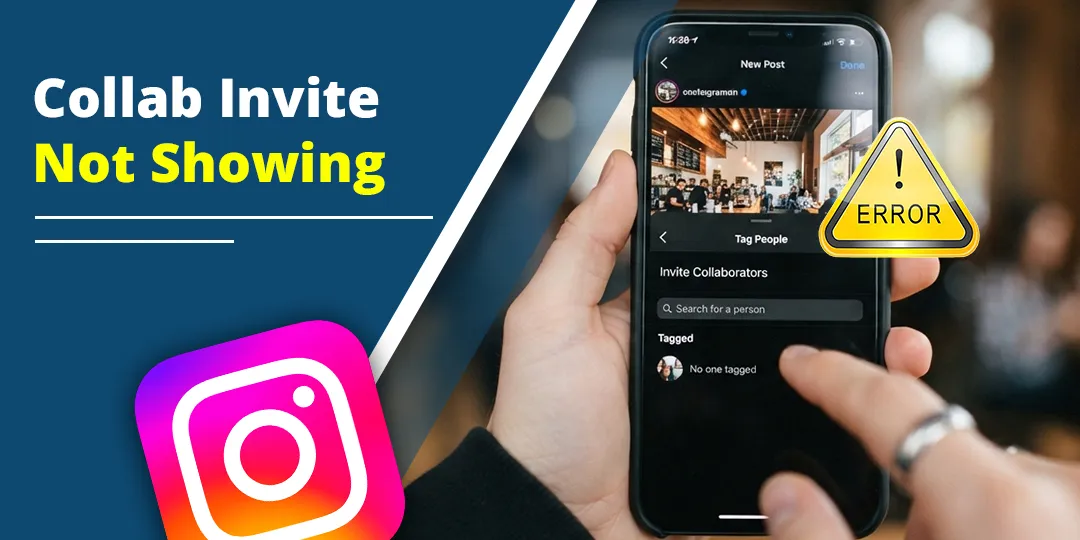
If your Instagram Collab invite is not showing, the cause is usually one of four things: an outdated app, privacy or tagging settings, a post type that doesn’t support Collabs, or the invite landing somewhere you’re not looking. Most people fix it in a few minutes by updating Instagram, checking privacy and tag settings on both accounts, and looking in the DMs and notifications of the person who was invited.
This guide covers both sides of the problem. That means the “Invite collaborator” button missing when you create a post, and the invite never reaching the other person. You’ll know exactly which fix to try first.
Contents
Quick Overview
| What you see | Most likely cause | Fastest fix |
| No “Invite collaborator” option under Tag people | Outdated app, Story or Live post, or a glitch | Update Instagram, then create a feed post or Reel |
| The option is there, but you can’t find the account | Their privacy or tagging settings, or a block | Ask them to allow tags from everyone and check their account privacy |
| You sent the invite, but they never got it | Notifications off, or invite sitting in DMs or message requests | Have them check DMs, message requests, and notification settings |
| Can’t add a collaborator to an older post | Edit option not rolled out to your app yet | Update the app, or try editing again later |
| The option disappeared after a warning | Account restriction | Check Account status in Settings |
Where Should an Instagram Collab Invite Show Up?
A Collab invite usually shows up as a notification and as a message in the invited person’s Instagram DMs. The invited person can also open the post itself and see a prompt asking them to accept or decline.
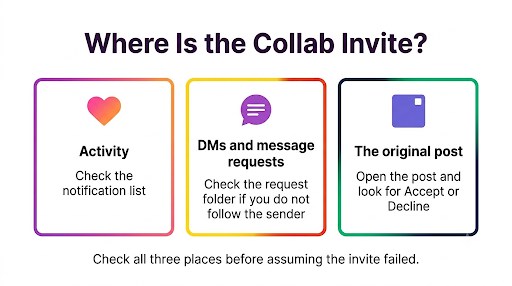
The exact spot has moved between app versions, which is why so many people think the invite never arrived. Before you assume something is broken, ask the invited person to check all three places:
- Activity (the heart icon): Look for a notification saying you invited them to collaborate.
- DMs and message requests: If they don’t follow you, the invite may sit in message requests instead of the main inbox.
- The post on your profile: If they visit the post directly, they may see an accept prompt there.
Until they accept, the post lives only on your profile. Your followers see it right away, but theirs won’t.
Why Is the “Invite Collaborator” Option Missing on Instagram?
The button is usually missing because the app is out of date, the post format doesn’t support Collabs, or your account settings are limiting the feature. Here are the causes in order of how often they come up.
1. You’re Posting a Story or Going Live
Collabs work on feed posts, carousels, and Reels. They don’t work for regular Stories or Live videos. If you’re looking for the option while making a Story, you won’t find it.
Story features have their own quirks too. If you’re also having trouble with interactive stickers, our guide on the Add Yours sticker not showing on Instagram walks through those fixes.
2. Your Instagram App Is Out of Date
Instagram rolls out features in stages. One account may see a new option weeks before another. An old app version is the single most common reason the Collab option goes missing.
Updates also move things around. If an update recently changed other menus on you, it’s a similar story to the Instagram watch history not showing after an update problem, where a feature still exists but sits in a new place.
3. Your Account Is Private
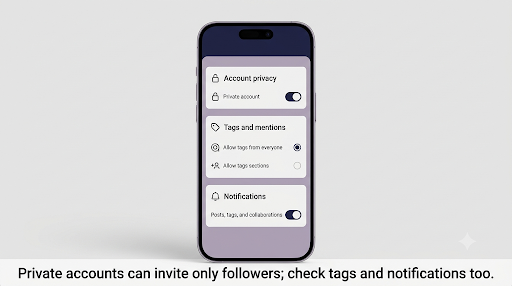
Private accounts can still use Collabs, but with limits. According to Instagram’s Help Center page on collaborative posts, a private account sees an explanation the first time it invites someone. After acknowledging it, the private account can invite only people who follow it.
So if you’re private and the person you want isn’t following you, they won’t show up as an option. A public account can invite both public and private accounts.
4. You’re Trying on a Computer
Instagram’s Help Center lists Collab creation for the iPhone, iPad, and Android apps. It isn’t officially supported on computers. Some users on Reddit report that editing a post on instagram.com in a desktop browser lets them add a collaborator when the app won’t. It’s worth a try, but don’t count on it working for every account.
5. Your Account Has a Restriction
If your account received a Community Guidelines warning or strike, Instagram may limit certain features, including Collabs. Go to Settings and activity > Account status to see if anything is flagged. If there’s a violation you disagree with, you can request a review from that screen.
6. Licensed Music on a Business Account
Business accounts have a more limited music library because of licensing. If a Reel uses a track that isn’t cleared for business use, you can run into posting problems, including issues with Collab features. Swapping the audio for a sound from the commercial library often fixes it.
Why Isn’t the Other Person Receiving My Collab Invite?
When you’ve sent the invite and the other person sees nothing, the problem is almost always on their end. Their notifications, privacy, or tagging settings are blocking or hiding the invite.
- Collab notifications are turned off: They should open Settings and activity > Notifications and make sure notifications related to posts, tags, and collaborations are on. Phone-level notifications for Instagram also need to be enabled.
- Tag settings are too strict: If they only allow tags from people they follow, or have tags turned off, your invite may not go through. They can change this in Settings and activity > Tags and mentions.
- The post already has five collaborators: Instagram allows up to five collaborators per post. A sixth invite won’t go out.
- One of you blocked or restricted the other: Blocks and restrictions stop invites quietly. There’s no error message telling you why.
- Their app is outdated: An old app version may not show the accept prompt even if the invite arrived.
How Do You Fix an Instagram Collab Invite That’s Not Showing?
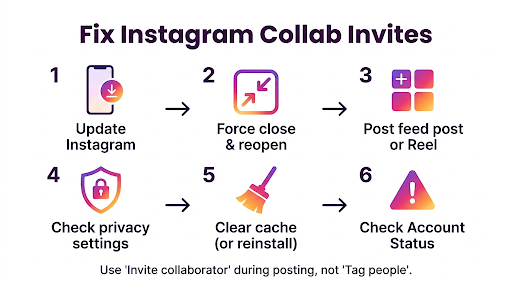
Work through these steps in order. Most people don’t get past step four.
- Update Instagram. Open the App Store or Google Play, search for Instagram, and install any available update. Ask your collaborator to do the same.
- Force close and reopen the app. This clears temporary glitches that hide menu options.
- Create a feed post or Reel, not a Story. Tap Tag people on the final screen, then Invite collaborator.
- Check privacy on both accounts. Go to Settings and activity > Account privacy. If your account is private, the person must follow you before you can invite them.
- Loosen tag settings. In Settings and activity > Tags and mentions, set tags to allow everyone, at least while the Collab is pending.
- Clear the cache on Android. Go to your phone’s Settings > Apps > Instagram > Storage and tap Clear cache. Don’t tap Clear data unless you’re ready to log back in.
- Offload or reinstall on iPhone. Go to Settings > General > iPhone Storage > Instagram and choose Offload App, then reinstall it. This keeps your data while refreshing the app.
- Log out and back in. This refreshes your account’s feature access.
- Try switching to a professional account. Go to Settings and activity > Account type and tools > Switch to professional account. It’s free and can be reversed later. Some users report the Collab option appeared right after switching.
- Check Account status. If a restriction is listed, that may be the real reason the feature is gone.
If Instagram itself is acting up beyond Collabs, the problem may be bigger than one feature. On Android, the same cache and network steps used for an Instagram feed not loading on the Samsung Galaxy S26 Ultra can also bring back missing options.
What If the Collab Post Won’t Upload at All?
Sometimes the invite isn’t the real problem. The post never finishes uploading, so the invite never sends. If your post is stuck, deal with the upload first.
On iPhone, a common sign is a progress bar that freezes near the end. Our fix for an Instagram Reel stuck at 90% uploading on iPhone covers storage, network, and Low Power Mode checks. If your clip is long and simply fails, see why an Instagram Reel longer than 90 seconds is not posting.
Once the post is live, check your profile. If the post shows only your name, the invite either didn’t send or hasn’t been accepted.
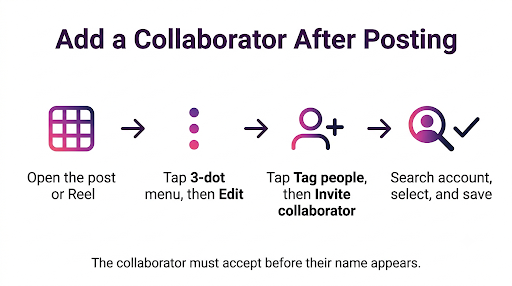
Can You Add a Collaborator After Posting?
Yes, on many accounts you can. Instagram’s Help Center says the original author can add or remove a collaborator at any time. Older guides say you have to delete and repost, but that’s no longer the only option.
- Open the post or Reel on your profile.
- Tap the three dots in the top right corner.
- Tap Edit, then Tag people.
- Tap Invite collaborator, search for the account, and select it.
- Tap Done to save.
If you see Tag people but no Invite collaborator option during editing, your app likely hasn’t received this feature yet. Update the app. If that doesn’t help, the desktop browser workaround mentioned above is your next best bet.
What Mistakes Cause Collab Invites to Fail?
A few small mistakes cause a lot of failed invites:
- Tagging instead of inviting. Tapping Tag people and selecting the account only tags them. You must tap Invite collaborator on that screen.
- Inviting the wrong account. Brands often have look-alike accounts. Double-check the handle and verification badge.
- Assuming the invite is ignored. It may be sitting in message requests. A quick DM saying “check your requests” solves this more often than any setting.
- Waiting on a private-to-public mismatch. If a public account accepts a private account’s invite, the post becomes visible publicly through the public collaborator. Private users sometimes back out once they see that notice.
- Reinstalling before updating. Reinstalling the same old version won’t help. Update first.
When Should You Contact Instagram Support?
Contact Instagram if you’ve updated the app, checked every setting on both accounts, and the option still doesn’t appear on any device. You can report it from the app by going to Settings and activity > Help > Report a problem. On many phones, you can also shake the device while in the app to open the report screen.
Include your app version, your phone model, and a screenshot of the Tag people screen. Clear reports get looked at faster than vague ones.
FAQs
Why can I tag someone but not invite them as a collaborator?
Tagging and Collab invites follow different rules. If you’re private and they don’t follow you, or they’ve restricted who can tag them, you may be able to tag but not invite. Check both accounts’ privacy and tag settings.
Does the other person need a professional account to accept a Collab?
No. Instagram doesn’t require a professional account to accept a Collab invite. Personal accounts can accept too. Switching to professional is a troubleshooting step, not a requirement.
What happens if the collaborator never accepts?
The post stays on your profile as a normal post. Their name won’t appear as a co-author, and it won’t show to their followers. You can remove the pending invite by editing the post.
Can I cancel a Collab invite I already sent?
Yes. Edit the post, tap Tag people, and remove the account from the collaborator list. If the person already accepted, removing them takes the post off their profile.
Why did my Collab invite work yesterday but not today?
This usually points to an app update or a temporary bug. It can also happen if your account picked up a restriction overnight. Check for an update first, then Account status.
Can I collaborate on an Instagram Story?
Not with the Collab feature. Collabs are for feed posts, carousels, and Reels. For Stories, you can mention the other account or reshare their content instead.
Final Recommendation
Start simple. Update Instagram on both phones, make sure you’re creating a feed post or Reel, and ask the invited person to check their DMs and message requests. That clears up most cases.
If the button is still missing, check privacy, tag settings, and Account status on both accounts. Then try clearing the cache or switching to a professional account. If nothing works on any device, report the problem through Instagram’s Help menu with screenshots, and post without the Collab for now. You can add the collaborator later through Edit once the feature returns.
Anica Lymus is a technical writer specializing in consumer applications, mobile operating systems, and practical troubleshooting workflows. At Primotechy, she covers account security, software glitches, and app performance across platforms such as Facebook, Instagram, and Snapchat. Drawing on hands-on device testing and in-depth research across iOS, Android, macOS, and Windows, Anica translates complex platform settings and sudden technical errors into clear, verified, step-by-step guides that readers can easily follow and trust.
View all posts by Anica Lymus →