

If your Snapchat Memories are missing after you changed phones, they are usually still safe. Memories that finished backing up live on Snapchat’s servers, not on your old phone, so they come back when you log in to the same account and give the app time to sync on a strong connection. The only Memories you can truly lose are the ones that never finished backing up before you wiped, reset, or logged out of the old phone.
This guide helps you figure out which situation you’re in, fix the common sync problems, and use Snapchat’s official export as a final check.
Contents
Quick Overview
- Backed-up Memories transfer automatically. Log in to the same account on the new phone and open Memories on Wi-Fi.
- Grey or empty thumbnails are normal at first. A large library can take a while to load on a new device.
- Wrong account is a common cause. Logging in with a phone number linked to a different username shows a different, empty Memories tab.
- My Eyes Only needs your passcode. Resetting a forgotten passcode deletes what’s inside it.
- Camera Roll-only saves don’t move with Snapchat. They come back only through iCloud, Google Photos, or a phone-to-phone transfer.
- Unbacked-up Snaps can’t be recovered. Snapchat Support can’t restore them either.
- Last check: request a Memories export from My Data at accounts.snapchat.com to see what Snapchat actually has.
Do Snapchat Memories Transfer to a New Phone?
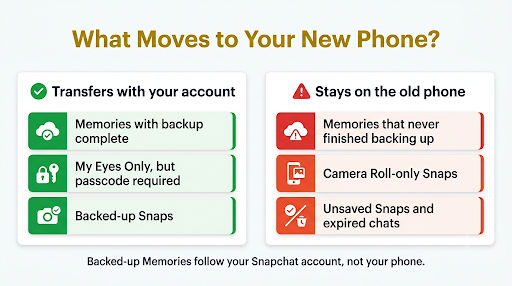
Yes, as long as they were backed up. Snapchat stores Memories in your account, so they follow your login, not your device. That’s true when you move from iPhone to iPhone, Android to Android, or switch between iPhone and Android.
What doesn’t follow your account is anything that only existed on the old phone. Here’s how each type of saved Snap behaves when you switch:
| Where the Snap was saved | Does it show up on the new phone? | How to get it back |
| Memories, backup complete | Yes | Log in to the same account and let it sync |
| Memories, backup not finished | No, if the old phone was wiped or logged out | Only from the old phone, if it still has the Snaps and you haven’t reset it |
| My Eyes Only | Yes, but locked | Enter your original My Eyes Only passcode |
| Camera Roll only | Not inside Snapchat | iCloud Photos, Google Photos, or your phone transfer tool |
| Unsaved Snaps or expired chats | No | Not recoverable by design |
Why Are My Snapchat Memories Missing on My New Phone?
Most cases come down to one of six causes. Knowing which one fits saves you from trying random fixes that could make things worse.
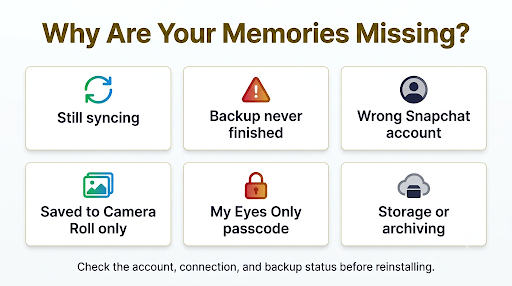
1. The new phone is still syncing
Snapchat doesn’t download your whole library at once. It loads thumbnails and Snaps as you scroll. On a new device, you may see grey boxes, blank tiles, or a spinner for a while. Thousands of saved Snaps take longer, and weak Wi-Fi, a VPN, Low Data Mode on iPhone, or Data Saver on Android can slow it down even more.
2. The backup never finished on the old phone
This is the one that causes permanent loss. If your old phone showed “Snaps Remaining” or “No Network Connection” under Backup Progress and you reset it anyway, those Snaps never reached Snapchat’s servers. A Snap that isn’t backed up yet shows a small backup icon in Memories.
3. You’re logged in to a different account
People with more than one Snapchat account run into this a lot. If you logged in with your phone number or email and it’s linked to a different username, you’ll see an empty or unfamiliar Memories tab. Check your username on your profile screen and compare it with the account you used on your old phone.
4. Your Snaps were saved to Camera Roll only
Snapchat lets you choose where the Save button sends Snaps. If your setting was Camera Roll Only, those Snaps went to your phone’s gallery and never entered Memories. They’ll only appear on the new phone if your phone backup (iCloud, Google Photos, or a transfer tool) moved them.
5. My Eyes Only is locked behind a passcode
Snaps you moved into My Eyes Only don’t appear in the main Memories grid. You’ll find them in the My Eyes Only tab, and you need the same passcode you set on the old phone to open them.
6. Storage limits and archiving
Snapchat now gives you 5GB of free Memories storage. Starting in January 2027, Memories older than one year that fall outside your oldest 5GB will be archived for accounts over the limit. Archived Memories aren’t deleted, but you’ll need a storage plan or a download to open them. If you have a big library, locked items after that date are a storage issue, not a phone-transfer issue.
How Do You Fix Snapchat Memories Missing After Switching Phones?
Work through these steps in order. They start with the safest fixes and save the riskier ones for last.
- Confirm you’re on the right account. Tap your profile icon and check the username. If it’s not your main account, log out and log in with that username directly.
- Connect to strong Wi-Fi and wait. Open Memories, leave the app open, and give it 10 to 15 minutes. Scroll slowly so Snapchat loads older months. Turn off any VPN.
- Turn on Smart Backup. Go to your profile, tap the gear icon, then open Memories (on some versions it sits under My App in the App and Privacy section). Turn on Smart Backup so Snapchat can use mobile data when Wi-Fi isn’t available.
- Update Snapchat. Install the latest version from the App Store or Google Play. A fresh install from a phone transfer can sometimes carry an older build.
- Free up storage. Memories need space to load previews. If your new phone is nearly full, thumbnails may stay grey.
- Restart the phone. Turn it off completely, wait one minute, then turn it back on and open Memories again.
- Clear Snapchat’s cache from inside the app. Go to Settings, find Clear Data or Clear Cache, and tap Clear All on iPhone or Continue on Android. This removes temporary files only, not your Memories. Don’t use Android’s system “Clear storage” button instead, because that resets the whole app.
- Check whether Snapchat is having an outage. If friends also can’t load Memories, wait it out rather than reinstalling.
If thumbnails stay grey even after a cache clear, the guide on fixing Memories that won’t show after clearing the cache covers the deeper sync and network fixes.
Still Have Your Old Phone? Do This First
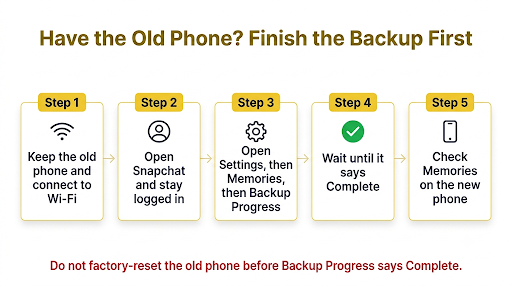
If the old phone still works and hasn’t been reset, you’re in a much better spot. Don’t factory reset it yet.
- Turn on the old phone and connect it to Wi-Fi.
- Open Snapchat and stay logged in.
- Go to Settings, then Memories, then Backup Progress.
- Wait until it says Complete. If it says “Snaps Remaining,” keep the app open on Wi-Fi until the count reaches zero.
- Check the new phone again. The missing Snaps should start appearing.
Logging in on two phones can trigger security checks. If Snapchat suddenly blocks you during this process, see how to handle a Snapchat account locked after a new phone before you try logging in again and again.
Can’t Log In on the New Phone to See Your Memories?
Your Memories are tied to your account, so you need to get back in first. Two problems show up a lot right after a phone switch:
- The verification code never arrives. Carrier filters, a weak signal, or too many requests can block the text. Here are the fixes for a Snapchat verification code that’s not sending.
- The code goes to a number you no longer have. This happens when you changed numbers along with your phone. Walk through what to do when your Snapchat verification code is sent to your old number.
Tip: Avoid creating a new account just to get in. A new account starts with an empty Memories tab, and Memories don’t move between accounts.
How Do You Check What Snapchat Actually Has Saved?
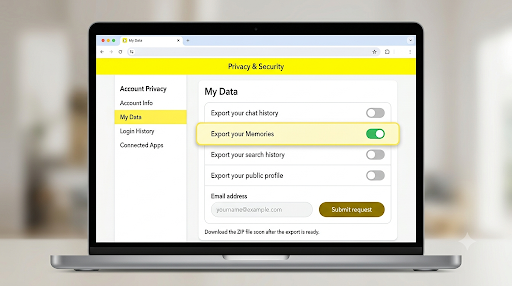
Snapchat’s My Data export is the most reliable test. If a Snap is in your export, it’s on Snapchat’s servers. If it isn’t, it most likely never backed up.
- On a computer, sign in to Snapchat’s My Data page. You can also reach it from Settings, then My Data, in the app.
- Turn on Export your Memories.
- Choose the Memories-only request if you just want your saved Snaps. It makes the file smaller.
- Confirm your email address and submit.
- When the email arrives, download the ZIP file, open the included HTML page, and use it to download your Memories.
A few things to know before you rely on this:
- Download links expire. Download your files soon after the export is ready, ideally within a few days.
- Big libraries take longer. A large export may take days to prepare.
- My Eyes Only items aren’t included. Open those inside the app with your passcode.
- Use a computer if you can. Downloading on a computer tends to be more reliable than on a phone.
What About My Eyes Only on a New Phone?
My Eyes Only Snaps do transfer, but they stay locked until you enter your original passcode. Swipe up from the Camera, tap the My Eyes Only tab, and enter the same four-digit code or passphrase you used before.
Warning: If you forgot the passcode, Snapchat lets you reset it, but resetting deletes everything currently in My Eyes Only. Try every code you might have used before you reset. Snapchat can’t recover the passcode or the Snaps for you.
What About Snaps Saved to Your Camera Roll?
Snaps saved to your Camera Roll are regular photos and videos on your phone. Snapchat doesn’t move them. Look for them in:
- iPhone: the Photos app, if iCloud Photos was on or you used Quick Start to transfer.
- Android: Google Photos, if backup was on, or your phone maker’s transfer tool, such as Samsung Smart Switch.
- Switching platforms: Apple’s Move to iOS app or Google’s transfer tools can move photos, but only if you ran them during setup.
If you didn’t back up the old phone’s gallery and it’s already been reset, those Camera Roll Snaps are gone.
Can Snapchat Support Recover Missing Memories?
Snapchat Support can help with login, backup, and loading problems, but it can’t restore Memories that never backed up or that you deleted. Snapchat says deleted Memories are erased from its servers. If your export shows the Snaps but the app still won’t load them, that’s when contacting Snapchat Support makes sense. Go to Settings, then Support, then I Need Help, and choose the option for missing Memories.
Skip third-party “Snapchat recovery” apps. They can’t reach Snapchat’s servers. At best they scan local cache files on the old phone. At worst they ask for your login, which can get your account locked or stolen.
Common Mistakes That Make Missing Memories Worse
- Resetting the old phone before Backup Progress says Complete. This is the number one way people lose Snaps for good.
- Uninstalling Snapchat over and over. Reinstalling doesn’t speed up sync, and it can trigger security locks.
- Creating a new account. Memories don’t merge or move between accounts.
- Resetting the My Eyes Only passcode too quickly. It wipes the folder.
- Using Android’s system “Clear storage.” Use Snapchat’s in-app Clear Cache instead.
- Letting the export link expire. Download the file soon after the email arrives.
Other Things That Can Look Different After a Phone Switch
A fresh install doesn’t always restore everything the way you left it. Some Snapchat features reload from the server and may take a moment to settle, like Lenses, filters, and chat layout. For example, if My AI keeps reappearing at the top of your chats on the new phone, here’s why My AI is still in chats after removing it.
How to Avoid Losing Memories Next Time You Change Phones
Use this checklist about a day before you switch:
- Open Settings, then Memories, and confirm Backup Progress says Complete.
- Keep Smart Backup turned on.
- Set the Save button to Memories and Camera Roll for Snaps you really care about, so you have two copies.
- Write down your My Eyes Only passcode somewhere safe.
- Make sure your phone number and email on Snapchat are current, and save a recovery code if you use two-factor authentication.
- Request a My Data export a few times a year, especially if you’re close to the 5GB limit.
- Only reset the old phone after your Memories load on the new one.
FAQs
How long does it take for Memories to load on a new phone?
Small libraries often load within minutes on good Wi-Fi. Libraries with thousands of Snaps can take much longer, and older months may only load as you scroll to them. If nothing has loaded after a full day on Wi-Fi, check your account and run a My Data export.
Why do only some of my Memories show up on my new phone?
Partial loading usually means the sync is still running or a few Snaps never backed up. If the same Snaps stay missing after a day, check whether they appear in your My Data export. If they’re not there, they didn’t reach Snapchat’s servers.
Will my Memories transfer from iPhone to Android?
Yes. Backed-up Memories are tied to your Snapchat account, so they show up on any phone you log in to. Camera Roll photos are different and need a separate transfer.
Can I see my Snapchat Memories without the app?
Yes, through the My Data export. Sign in at accounts.snapchat.com on a computer, request your Memories, and open the downloaded files in your browser.
Do I lose Memories if my old phone was stolen or broken?
Not the ones that were already backed up. Log in on the new phone and they’ll sync. Anything still waiting to back up when the phone was lost is gone, along with any Camera Roll-only Snaps you didn’t back up elsewhere.
Will Snapchat delete my Memories if I go over 5GB?
Snapchat says it won’t automatically delete Memories because you don’t upgrade. Instead, starting January 2027, older Memories beyond your oldest 5GB may be archived until you upgrade or download them.
Final Recommendation
Don’t panic, and don’t reset or reinstall anything yet. First, make sure you’re on the right account and give Memories time to sync on strong Wi-Fi. If you still have your old phone, finish the backup there before anything else. If Snaps are still missing after that, request a My Data export. It tells you for certain whether Snapchat has them, and it gives you a backup copy you control.

Anica Lymus is a technical writer specializing in consumer applications, mobile operating systems, and practical troubleshooting workflows. At Primotechy, she covers account security, software glitches, and app performance across platforms such as Facebook, Instagram, and Snapchat. Drawing on hands-on device testing and in-depth research across iOS, Android, macOS, and Windows, Anica translates complex platform settings and sudden technical errors into clear, verified, step-by-step guides that readers can easily follow and trust.
View all posts by Anica Lymus →