
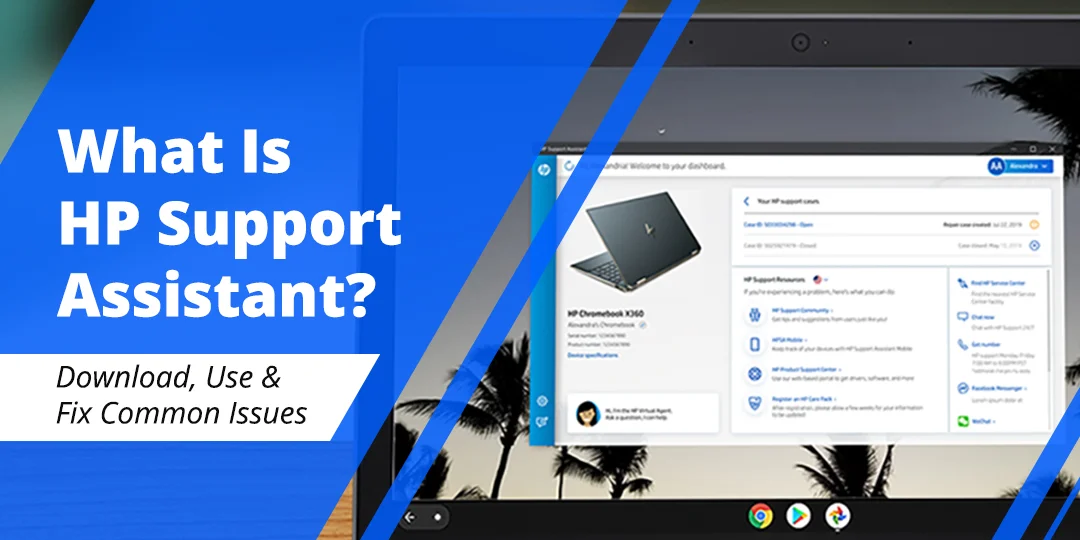

The individuals who are confronting issues related to HP products, devices, and printers can use HP Support Assistant software. With the help of this software, individuals can find updates, use troubleshooting tools, and fix different issues in a hassle-free manner. Via this software, individuals can also maintain the performance of their compatible devices. However, in order to use the features and functions of HP Support Assistant, individuals need to download it on the device if it is not already installed.
With the help of this HP Support Assistant software, you can check the following things –
- Printer-related information through a supported HP printer application.
- Device status and available support notifications.
- HP driver, firmware, and software updates.
- Troubleshooting tools and guided assistance.
- Information related to the HP device.
- It helps in identifying device and connection issues.
- The device can easily communicate with the required HP support resources.
- It can help in maintaining the performance of compatible devices.
- Fix problems such as errors, connection issues, update issues, and many more.
Note: HP Support Assistant should not be confused with HP Smart or HP Printer Assistant. HP Smart and printer-specific HP software are generally used for printing, scanning, checking ink or toner levels, and managing printing tasks. The available features can vary according to the device, operating system, application version, and region.
Contents
How Can I Download HP Support Assistant On My Device?
To download the HP Support Assistant software, follow the directions described below. For free, one can download and install HP Support Assistant from the official HP website.
- At first, switch on your computer and connect it to a stable internet connection.
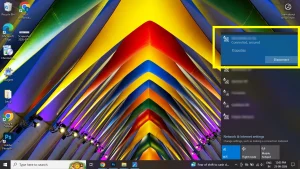
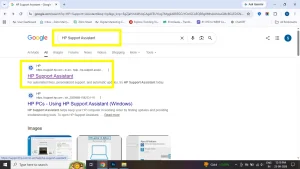
- Thereafter, type HP Support Assistant on Google and click the first official HP link.
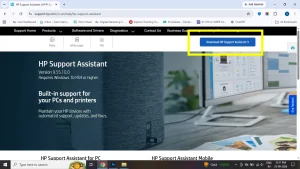
- From the official HP page, tap the Download HP Support Assistant 9 button in the top right screen for the compatible version.
- After that, save the setup file on your device and open the downloaded file.
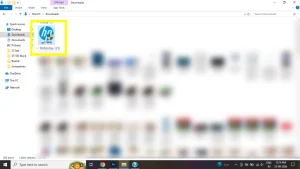
- Later, follow the on-screen instructions to complete the installation process.
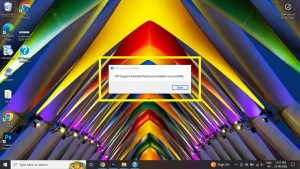
- Lastly, open HP Support Assistant from the Start menu and check for available updates, troubleshooting options, and other support resources.
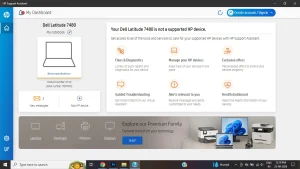
HP Support Assistant is already installed on many new HP desktop and notebook computers. If you are unable to find it, open the Windows Start menu and search for HP Support Assistant. HP’s support information states that the PC version requires Windows 10 RS4 or higher, but system requirements can change with new versions. Therefore, always check the official HP page before downloading the latest version.
How Can I Use HP Support Assistant?
After completing the installation process, open the HP Support Assistant software on your device and select the HP product. After that, you can check the available updates and troubleshooting options. If any driver or software update is available, follow the on-screen instructions to download and install it.
Do not turn off the computer during an important driver or firmware update. Also, make sure that your device remains connected to the internet while checking for updates or using the online support features.
How Can I Fix HP Support Assistant If It Is Not Working?
If HP Support Assistant is not opening or working properly, follow the directions described below –
- Restart your computer and try to open the software again.
- Check whether your internet connection is working properly.
- Make sure that you are using the compatible version of the software.
- Install the latest version from the official HP website.
- Run Windows Update and restart the device.
- If the issue remains, uninstall the existing software and install it again.
- If required, visit the HP Support website to download drivers or use troubleshooting tools manually.
Frequently Asked Questions
Is HP Support Assistant free to download?
Yes, HP Support Assistant can be downloaded free of cost from the official HP website. However, some HP support services or features may depend on the device, operating system, region, or HP service plan.
Is this software already installed on HP computers?
HP Support Assistant is already installed on many new HP desktop and notebook computers. If you are unable to find it, open the Windows Start menu and search for HP Support Assistant. If it is not available, download the compatible version from the official HP website.
What can I do with HP Support Assistant?
With the help of HP Support Assistant, you can check available HP driver, firmware, and software updates. You can also use troubleshooting tools, check device information, access support resources, and get help with certain device or connection issues.
Can HP Support Assistant fix all computer problems?
No, you cannot fix all computer problems. It can help identify certain issues and provide available troubleshooting tools, updates, and guided assistance. The result can vary according to the device, operating system, and type of problem.
Is HP Support Assistant the same as HP Smart?
No, HP Support Assistant and HP Smart are different applications. HP Support Assistant is mainly used for device updates, troubleshooting, diagnostics, and support resources. HP Smart and other printer-specific HP applications are generally used for printing, scanning, checking ink or toner levels, and managing printing tasks.
Can I use HP Support Assistant for my HP printer?
HP Support Assistant can provide support resources and device-related help for compatible HP printers and computers. However, printer setup, printing, scanning, checking ink or toner levels, and managing print jobs are generally performed through HP Smart or compatible HP printer software.
What should I do if HP Support Assistant is not opening?
If It is not opening, restart your computer and try again. Also check your internet connection, make sure that you are using a compatible version, and install the latest version from the official HP website. If the issue remains, uninstall the existing software and install it again.
Does HP Support Assistant require an internet connection?
Yes, an internet connection is generally required to download the software, check for updates, access online support resources, and use certain troubleshooting features. Try to use HP Support Assistant when you are connected to a stable internet connection.
Can I uninstall HP Support Assistant?
Yes, you can uninstall HP Support Assistant through the Windows settings if you do not want to use it. However, after uninstalling it, you may need to visit the HP Support website manually to download drivers, software updates, and troubleshooting information.
Which Windows version is required for HP Support Assistant?
HP’s support information states that the PC version requires Windows 10 RS4 or higher. However, system requirements can change with new versions. Therefore, check the official HP Support Assistant page before downloading the latest version.
Conclusion
By following the above-mentioned steps, you can download and install HP Support Assistant on your compatible device. To get a better outcome, do download the new version of the software from the official HP website. Try to download the HP Support Assistant when you are in an internet connection zone, as sometimes due to poor internet connectivity, the installation procedure gets affected. Because of this, you may be unable to use the HP Support Assistant software and may also face issues and errors related to the same.
If you want to print, scan documents and images, check printer ink or toner levels, or manage printing tasks, use the compatible HP Smart or HP printer software. HP Support Assistant is mainly used for device support, updates, troubleshooting, and related support resources.
Disclaimer: Primotechy is an independent website and is not affiliated with or endorsed by HP Inc.

Michael C. is an information-technology support professional with experience in Windows, Apple software, networking, malware analysis, and Apple-certified technical support. His background combines practical device troubleshooting with user-facing technical assistance. At Primotechy, Michael would write clear guides for macOS, iOS, Windows, system updates, driver conflicts, application errors, device performance issues, and common software failures.
View all posts by Michael C →