
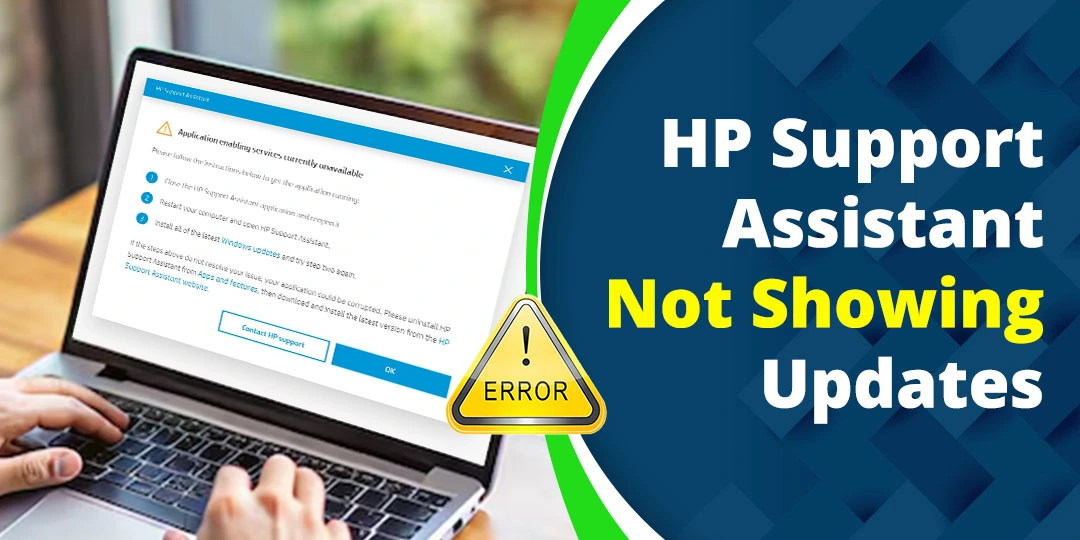

When HP Support Assistant is not showing updates, the problem is not always a missing driver. The update may already be installed, HP may not have released a newer package for your exact model, the application may be unable to connect to HP services, or its local installation may be damaged.
This guide explains how to troubleshoot HP Support Assistant update detection on Windows 11 and Windows 10, what to do on older Windows 7 computers, how to handle an error code such as 206, and why Power-On Self-Test (POST) is separate from normal Windows updates. If you are unsure whether you need HP Support Assistant or HP Smart for a particular task, read our guide explaining the difference between HP Support Assistant and HP Smart.
Contents
Why HP Support Assistant Shows No Updates
HP Support Assistant compares your HP computer’s model, operating system, installed drivers, and software with packages available from HP. It may show no updates for several reasons:
- The available updates have already been installed.
- HP has not released a newer package for your exact product number.
- Windows Update installed a driver before HP Support Assistant checked.
- HP Support Assistant is outdated or its local data is damaged.
- The application cannot connect to HP’s update services.
- A VPN, proxy, firewall, antivirus product, or managed network is blocking the connection.
- The application has identified the wrong HP product or an incomplete product number.
- Your Windows version or device configuration is not supported.
- The computer is running Windows in S mode.
- The laptop is old and only legacy HP software is available.
An empty update list does not prove that every driver from every hardware manufacturer is the newest available version. It means that HP Support Assistant did not identify an applicable HP package during that check.
Run the Update Check Correctly
Before repairing or reinstalling the application, make sure you are checking the correct device page.
- Connect the computer to a reliable internet connection.
- Open HP Support Assistant from the Windows Start menu.
- Select My devices.
- Choose your HP laptop or desktop.
- Open Updates.
- Select Check for updates and messages, if available.
- Review the recommended and optional updates.
- Restart the computer after installing updates.
- Open HP Support Assistant again and run a second check.
HP Support Community instructions describe this same path: open My devices, select Updates, choose Check for updates and messages, and review the available packages.
Keep the computer connected to AC power when installing BIOS or firmware updates. Never turn off the computer or close the lid while a BIOS update is running.
Fix 1: Restart Windows and HP Support Assistant
A temporary application or service problem can prevent the update list from refreshing.
- Close HP Support Assistant.
- Exit it from the notification area if it continues running in the background.
- Restart Windows.
- Open HP Support Assistant again.
- Run the update scan.
A restart reloads HP services and clears temporary processes without removing your personal files.
Fix 2: Check Windows Update and Network Access
HP Support Assistant needs an active connection to identify your device and check HP’s update catalogue. First, confirm that websites load normally, then temporarily disconnect from a VPN or proxy and try again.
Also install pending Windows updates:
- Press Windows + I.
- Open Windows Update.
- Select Check for updates.
- Install available updates.
- Restart Windows.
- Run HP Support Assistant again.
Windows Update and HP Support Assistant do not always show exactly the same packages. A driver installed through Windows Update may no longer appear as a pending update in HP Support Assistant.
If the computer is connected to a workplace, school, or company network, a firewall or administrator policy may block HP’s services. Contact the network administrator instead of permanently disabling security protection.
Fix 3: Check Whether Windows Is in S Mode
Windows 10 and Windows 11 in S mode do not support traditional Win32 applications such as HP Support Assistant. HP states that S mode receives drivers through Windows Update, and HP Support Assistant is not supported in that mode.
To check your Windows edition:
- Open Settings.
- Select System.
- Open About.
- Review the Windows edition and system type.
If the computer is running S mode, use Windows Update for drivers and system updates. Do not try to install an unofficial HP Support Assistant package to bypass the restriction.
Fix 4: Update HP Support Assistant
An outdated HP Support Assistant installation may not communicate correctly with current HP services. Open the application and look for an application update, About section, or update notification.
If HP Support Assistant cannot update itself, download it only from HP’s official HP Support Assistant page. Avoid third-party download sites that advertise modified or “latest” versions.
HP’s compatibility documentation describes the current PC application for Windows 11 and Windows 10 RS4 or later, subject to the device and application requirements.
Fix 5: Repair or Reset the Application
Windows may be able to repair HP Support Assistant without removing it.
Windows 11
- Open Settings.
- Select Apps > Installed apps.
- Find HP Support Assistant.
- Select the three-dot menu.
- Choose Advanced options.
- Select Repair.
- Test the update check.
- If the problem continues, select Reset.
Windows 10
- Open Settings.
- Select Apps > Apps & features.
- Select HP Support Assistant.
- Open Advanced options, if available.
- Select Repair.
- Use Reset if repairing does not help.
Resetting may remove local application settings, but it does not delete your documents, photos, or other personal files.
Fix 6: Reinstall HP Support Assistant
Reinstall HP Support Assistant if its update database, services, or installation files are damaged.
- Open Settings > Apps.
- Select HP Support Assistant.
- Choose Uninstall.
- Restart Windows.
- Download the supported installer from HP’s official website.
- Install the application.
- Restart the computer if prompted.
- Select your device and run the update scan.
Do not copy HP service files from random websites or use an unknown “driver updater.” These tools may install incorrect or unsafe packages.
Fix 7: Confirm Your HP Product Number
HP laptop families often contain several configurations with different processors, wireless cards, graphics hardware, and BIOS versions. Searching only by a general model name can therefore produce the wrong driver list.
To check the model information in Windows:
- Press Windows + R.
- Type msinfo32.
- Press Enter.
- Review System Model and System SKU.
- Compare those details with the device shown in HP Support Assistant.
You can also find the product number on the laptop’s bottom panel, original packaging, BIOS screen, or HP identification label.
Use the exact product number on HP’s Drivers and Software page. Do not install a BIOS or firmware package simply because the product name looks similar.
Fix 8: Install the Driver Manually from HP
Manual installation is useful when HP Support Assistant shows no updates, cannot download a package, or you need to verify whether a newer driver exists.
- Open HP’s official Drivers and Software page.
- Enter the exact product number.
- Select the correct Windows version.
- Expand the required driver category.
- Read the release notes and supported models.
- Download the package from HP.
- Create a restore point when appropriate.
- Install one package at a time.
- Restart Windows when requested.
- Test the device before installing another package.
For most HP laptops, use HP’s package first for chipset, power-management, audio, hotkey, wireless, graphics, and firmware components. A newer generic driver is not automatically better than the package tested for your HP model.
If HP does not list a driver for your operating system, Windows Update or the hardware manufacturer may be the supported source. Confirm compatibility before installing anything.
Fix 9: Check Device Manager and HP Diagnostics
Device Manager can show problems that do not appear in HP Support Assistant.
- Right-click the Start button.
- Select Device Manager.
- Look for yellow warning icons or unknown devices.
- Open the device properties.
- Read the status message and note any error code.
A device without a warning icon may still not have the newest driver, while a newer generic driver may not be appropriate for your computer. Compare the installed driver version with the package listed on HP’s model-specific support page.
HP Support Assistant Not Showing Updates on Windows 11
For Windows 11, use this order:
- Install pending Windows updates.
- Restart the computer.
- Confirm that Windows is not running in S mode.
- Repair or reset HP Support Assistant.
- Verify the HP product number.
- Reinstall the official application if necessary.
- Compare the update list with HP’s Drivers and Software page.
- Run HP hardware diagnostics if the problem is accompanied by crashes, startup failures, or hardware warnings.
If HP Support Assistant does not launch at all, use the troubleshooting steps in our guide to fix HP Support Assistant not opening in Windows 11.
HP Support Assistant Not Showing Updates on Windows 10
On Windows 10, check the Windows version, pending Windows updates, application health, network access, and exact product number. HP’s current compatibility information refers to Windows 10 RS4 or later for the PC application, subject to system requirements.
If Windows 10 was installed from Microsoft installation media instead of the original HP recovery image, the application may still work, but the device may be identified differently. Use the exact product number on HP’s driver page to verify the correct packages.
HP Support Assistant Not Showing Updates on Windows 7
Windows 7 requires extra caution because it is a legacy operating system and the current HP Support Assistant application is not intended for every Windows 7 computer.
For a Windows 7 HP laptop:
- Confirm that HP lists the exact model and operating system.
- Use only legacy packages published by HP for that computer.
- Create a backup and restore point before installing an old driver.
- Avoid current Windows 10 or Windows 11 installers unless HP explicitly lists them as compatible.
- Prefer HP’s official website over third-party driver sites.
- Consider moving to a supported Windows version if the hardware permits it.
If HP no longer provides a compatible Support Assistant version, an empty update list may reflect the age of the operating system rather than a fault in your laptop.
What If You See Error Code 206?
If you searched for “HP Support Assistant not showing updates 206,” do not assume that 206 has one universal meaning. HP does not clearly document “error 206” as a standalone HP Support Assistant update error in its general support guidance. The code may relate to the installer, driver download, network connection, or another Windows component.
This is not necessarily a typo, but it should not be presented as a confirmed HP Support Assistant diagnosis without the complete message or a screenshot. Record when the code appears and what action triggers it.
Then try these steps:
- Restart Windows and run the update check again.
- Confirm the internet connection, date, and time.
- Install pending Windows updates.
- Repair or reset HP Support Assistant.
- Uninstall and reinstall the official HP application.
- Download the required driver manually from HP’s Drivers and Software page.
- Check whether a VPN, proxy, firewall, antivirus program, or company policy is blocking the process.
- Contact HP Support with the exact error message, product number, and Windows version if the code continues.
Do not download a random “error 206 fix” from an unverified website. The correct solution depends on where the code appears.
Is POST Included in HP Support Assistant?
Power-On Self-Test, or POST, is a startup hardware check that runs before Windows loads. It is not the same as a driver-update scan inside HP Support Assistant.
HP Support Assistant may provide links to troubleshooting and diagnostic resources, but POST itself is performed by the computer’s firmware during startup. If the computer produces beep codes, blinking-light patterns, a POST message, or fails to reach Windows, use HP’s startup diagnostics instead of relying on HP Support Assistant.
On many HP computers, you can access System Diagnostics by turning on the computer, pressing Esc repeatedly to open the Startup Menu, and selecting F2. HP’s boot troubleshooting guidance identifies this Esc-and-F2 path and provides a Fast Test for hardware checks.
If the computer cannot complete POST, focus on hardware diagnostics, power, memory, storage, display, and BIOS recovery. Do not attempt a Windows driver update while the computer is failing before Windows starts.
What HP Support Assistant Can and Cannot Do
HP Support Assistant can help identify compatible HP updates, provide troubleshooting tools, show device information, and connect users with HP support resources. It is useful for routine maintenance, but it is not a complete replacement for HP’s model-specific support page or Windows Update.
It cannot guarantee that every driver from every hardware manufacturer will appear. It also cannot repair failed hardware, replace a damaged BIOS chip, or bypass network and administrator restrictions.
For a broader explanation of the application, read our guide on what HP Support Assistant is.
What Reddit Discussions Can and Cannot Tell You
Searches for “HP Support Assistant not showing updates Reddit” produce different solutions because users may have different HP models, Windows builds, application versions, and network settings. Reinstalling the application may help one person, while another may simply have no newer HP package available for that model.
Treat Reddit and forum suggestions as troubleshooting clues, not proof that a driver is safe. Before following advice:
- Verify the exact HP product number.
- Confirm the Windows version and system architecture.
- Check the package on HP’s official website.
- Read the release notes.
- Create a restore point before installing a BIOS or major driver update.
Frequently Asked Questions
Why is HP Support Assistant not showing any updates?
The updates may already be installed, HP may not have published a newer compatible package, or the application may be unable to connect to HP services. Check the exact product number, internet connection, application version, and HP’s driver page.
How do I force HP Support Assistant to check for updates?
Open HP Support Assistant, select your device under My devices, open Updates, and choose Check for updates and messages. Restart Windows and repeat the scan if the list does not refresh.
Can Windows Update install a driver before HP Support Assistant?
Yes. Windows Update and HP Support Assistant use different update channels. If Windows Update installed a compatible driver, HP Support Assistant may no longer list the same package as pending.
Should I install drivers manually when HP Support Assistant shows no updates?
You can install a driver manually when you need a particular package or want to verify HP’s current model-specific list. Download it from HP and confirm that it matches your exact product number and Windows version.
Where can I download HP Support Assistant?
Download it from HP’s official Support Assistant page. Avoid modified installers and third-party download sites.
Does HP Support Assistant work on Windows 11?
It can work on compatible HP computers running Windows 11. If the application does not open or does not show updates, repair or reinstall it and compare the results with HP’s official driver page.
Does HP Support Assistant work on Windows 10?
The current PC application information refers to Windows 10 RS4 or later, subject to device and application requirements. Older installations may require manual downloads.
Can HP Support Assistant update BIOS?
It may offer a compatible BIOS update when HP has published one for your model. Connect AC power, follow HP’s instructions, and never interrupt the update.
Is POST part of HP Support Assistant?
No. POST is a firmware-based startup hardware check that runs before Windows. HP Support Assistant may provide diagnostic guidance, but POST is accessed through the startup menu on supported computers.
Is HP Support Assistant error 206 a typo?
Not necessarily, but its exact meaning is unverified without the complete message and context. Treat 206 as an application or installation error code that requires further identification, not as a universally defined HP Support Assistant update error.
Conclusion
When HP Support Assistant is not showing updates, first confirm that the update is genuinely missing and has not already been installed through Windows Update. Then check the application, internet connection, Windows edition, HP product number, and HP Support Assistant installation.
For Windows 11 and Windows 10, repairing or reinstalling the official application and comparing its results with HP’s Drivers and Software page usually provides the clearest answer. On Windows 7, use only legacy packages that HP lists for the exact model and operating system.
If you see a code such as 206, record the complete message rather than assuming that the number has a fixed meaning. If the issue involves startup failure or POST, use HP’s preboot hardware diagnostics instead of trying to solve it through a Windows update tool.
Disclaimer: Primotechy is an independent website and is not affiliated with or endorsed by HP Inc.
Sources
- HP Support Assistant – Official HP Support
- HP PCs – Downloading or Updating Software and Drivers
- HP PCs – Frequently Asked Questions About Windows in S Mode
- HP Official Drivers and Software Download
- HP Computer and Laptop Power-On and Boot-Up Problems
- What Is HP Support Assistant? – HP Official Site
Editorial note: Error 206 is included because users search for it, but HP does not clearly define it as a universal standalone HP Support Assistant error. The article intentionally explains that its meaning depends on the complete message and context.

Michael C. is an information-technology support professional with experience in Windows, Apple software, networking, malware analysis, and Apple-certified technical support. His background combines practical device troubleshooting with user-facing technical assistance. At Primotechy, Michael would write clear guides for macOS, iOS, Windows, system updates, driver conflicts, application errors, device performance issues, and common software failures.
View all posts by Michael C →