
If your Snapchat Story is stuck on “Sending” or won’t upload, the cause is almost always a weak or blocked internet connection, a frozen app session, or a corrupted cache. Switch between Wi-Fi and mobile data, force-close Snapchat, and clear the app cache. Those three steps fix most stuck Stories in under two minutes.
If they don’t, the problem is usually a setting on your phone that quietly limits Snapchat in the background, or a Snapchat server issue you can only wait out. This guide walks you through every fix in the right order, so you don’t lose the Snap you’re trying to post.
Contents
Quick Overview
Here’s the fastest path to get a stuck Story posted:
- Save the stuck Snap first so you don’t lose it if you have to delete and repost.
- Reset your connection: toggle Airplane Mode on and off, or switch from Wi-Fi to mobile data.
- Force-close Snapchat and reopen it.
- Clear Snapchat’s cache. This won’t delete your Memories, Snaps, or Chats.
- Turn off Low Power Mode, Low Data Mode, Data Saver, and any VPN.
- Update Snapchat from the App Store or Google Play.
- Check if Snapchat is down before you reinstall anything.
| What you see | Most likely cause | Try this first |
| Story stuck on “Sending…” for minutes | Weak, slow, or blocked network | Switch networks, toggle Airplane Mode |
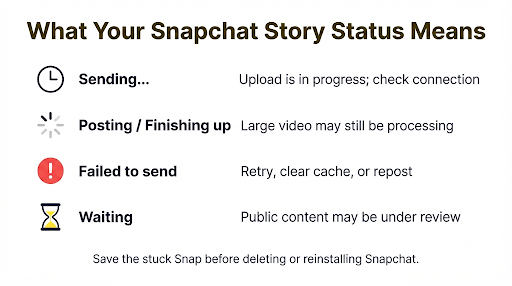
| Story stuck on “Posting” or “Finishing up” | Large video still processing, or app frozen in the background | Keep the app open on strong Wi-Fi, then force-close if it doesn’t move |
| Red arrow or “Failed to send, tap to try again” | Upload failed and stopped | Tap to retry, then clear cache |
| Only Camera Roll videos fail | Photos permission or a long, heavy file | Check Photos access, trim the clip |
| Nothing sends at all, for anyone | Snapchat outage | Check Downdetector and Snapchat Support on X |
Why Is My Snapchat Story Stuck on Sending?
Your Story gets stuck on “Sending” when Snapchat can’t finish uploading the file to its servers. The app shows the Snap as pending and keeps trying, but something is blocking or slowing the upload.
The common causes are:
- A weak or unstable connection. Stories, especially videos, need a steady upload speed. Full signal bars don’t guarantee that.
- A frozen app session. Snapchat can get stuck mid-upload after you switch apps or lock your phone.
- Corrupted cache files. Old temporary data can break the upload process.
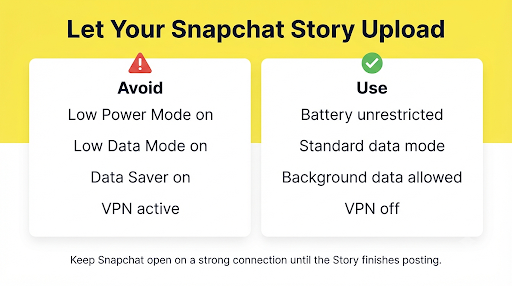
- Background limits. Low Power Mode, Low Data Mode, Data Saver, and battery optimization can pause uploads when Snapchat isn’t on screen.
- Low phone storage. Snapchat needs free space to process and compress your video before it uploads.
- An outdated app version. Older builds can have upload bugs that newer versions already fixed.
- A VPN or restricted network. School, work, and public Wi-Fi networks sometimes block or throttle Snapchat.
- A Snapchat server problem. When Snapchat is down, no fix on your phone will help.
A quick test: try sending a plain photo Snap to a friend. If that goes through but your Story video doesn’t, the problem is likely the video file, storage, or a background limit. If nothing sends at all, focus on your connection or a possible outage.
What Should You Do Before Trying Any Fix?
Save the stuck Snap before you delete or retry anything. Some fixes, like deleting the pending Story or reinstalling the app, can wipe Snaps that never finished uploading.
Here’s how to protect it:
- Open your profile and find the pending Snap under My Stories.
- Tap it, then look for the option to save or download it to Memories or your Camera Roll.
- If you can’t save it from there, check whether the original video is already in your phone’s gallery.
Menu labels can vary slightly between app versions, but the save option is usually in the three-dot menu or by pressing and holding the Snap.
How Do You Fix a Snapchat Story Stuck on Sending?
Work through these fixes in order. The early ones are quick and solve the most cases. The later ones take more time, so only use them if the basics fail.
1. Reset Your Internet Connection
Start here, because network trouble causes most stuck uploads.
- Toggle Airplane Mode on for about 10 seconds, then turn it off.
- Switch networks. If you’re on Wi-Fi, turn Wi-Fi off completely and use mobile data. If you’re on mobile data, connect to a strong Wi-Fi network.
- Test your speed. Open a web page or YouTube video. If other apps are slow too, the problem is your connection, not Snapchat.
Public, school, and office Wi-Fi networks are common trouble spots. Some require you to sign in through a web page first, and some block social apps entirely. If your Story only fails on one network, that network is the issue.
If Snapchat keeps showing connection errors on top of the stuck Story, our guide on fixing Snapchat connection and refresh problems covers deeper network fixes.
2. Force-Close and Reopen Snapchat
A frozen app session can keep an upload stuck forever. Closing the app fully gives it a fresh start.
On iPhone:
- Swipe up from the bottom of the screen and pause to open the App Switcher.
- Swipe the Snapchat card up and off the screen.
- Wait a few seconds, then reopen Snapchat.
On Android:
- Go to Settings > Apps > Snapchat.
- Tap Force Stop and confirm.
- Reopen Snapchat.
After reopening, keep Snapchat open on the screen until the Story finishes posting. Locking your phone or switching apps can pause the upload again.
3. Retry or Delete the Stuck Story
Once your connection is stable, go to your profile and check the pending Story.
- If you see a “Tap to retry” message or a red arrow, tap it to restart the upload.
- If it just sits on “Sending” with no option, press and hold the Snap and choose Delete. Then post it again from your saved copy.
If you keep getting the red “Failed to send” message instead of a frozen “Sending” status, follow our step-by-step guide to fix the Snapchat failed to send, tap to try again error.
4. Clear Snapchat’s Cache
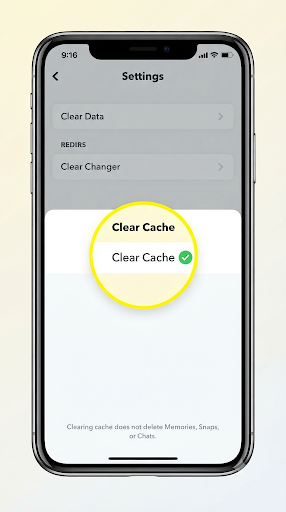
Clearing the cache removes temporary files that can break uploads. It does not delete your Memories, Snaps, Chats, or saved Stories. Snapchat confirms this in its own support guidance.
Inside the Snapchat app (iPhone and Android):
- Tap your profile icon in the top-left corner.
- Tap the gear icon to open Settings.
- Scroll to Account Actions (or the data and privacy section on newer versions) and tap Clear Cache.
- Confirm, then restart Snapchat.
On Android, you can also use phone settings:
- Go to Settings > Apps > Snapchat > Storage & cache.
- Tap Clear cache.
Warning: On Android, do not tap Clear storage or Clear data unless you’re ready to log back in. That wipes the app’s local data and signs you out, and any Snap that never uploaded will be gone.
Worried about your saved content after this step? See what to do if Snapchat Memories aren’t showing after you clear the cache. In most cases, they come back once the app syncs.
5. Turn Off Low Power Mode, Low Data Mode, and Data Saver
This is the fix most guides skip. Power and data-saving modes limit what apps can do in the background, and that includes finishing a Story upload.
On iPhone:
- Low Power Mode: Settings > Battery > turn off Low Power Mode.
- Low Data Mode on Wi-Fi: Settings > Wi-Fi > tap the info icon next to your network > turn off Low Data Mode.
- Low Data Mode on cellular: Settings > Cellular > Cellular Data Options > Data Mode > choose Standard or Allow More Data.
- Cellular access for Snapchat: Settings > Cellular > make sure Snapchat is switched on.
- Background App Refresh: Settings > General > Background App Refresh > turn it on for Snapchat.
On Android (names vary by brand, such as Samsung, Pixel, or Motorola):
- Data Saver: Settings > Network & internet > Data Saver > turn it off, or allow unrestricted data for Snapchat.
- Background data: Settings > Apps > Snapchat > Mobile data > turn on Background data.
- Battery optimization: Settings > Apps > Snapchat > Battery > choose Unrestricted.
Also check Snapchat’s own Data Saver. Open Snapchat Settings and look for Data Saver under additional services. If it’s on, turn it off while you post.
6. Turn Off Your VPN
VPNs route your traffic through another server, which can slow uploads or trigger connection blocks. Turn the VPN off in its app or under your phone’s VPN settings, then retry the Story.
The same goes for ad blockers or private DNS apps that filter traffic. If your Story uploads with them off, add Snapchat to the app’s allow list.
7. Free Up Storage Space
Snapchat compresses and processes videos on your phone before uploading them. If storage is nearly full, that step can stall and leave your Story stuck.
- iPhone: Settings > General > iPhone Storage.
- Android: Settings > Storage (or Battery and device care > Storage on Samsung).
Delete old videos, unused apps, or large downloads. Keeping at least a few gigabytes free gives Snapchat room to work.
8. Check Photos Permission for Camera Roll Uploads
If Stories you shoot in Snapchat post fine but videos from your Camera Roll get stuck, check permissions.
- iPhone: Settings > Snapchat > Photos > choose Full Access. “Limited Access” can block some files.
- Android: Settings > Apps > Snapchat > Permissions > Photos and videos > allow access.
Also, very long or high-resolution clips take much longer to upload. If a heavy 4K video keeps failing, trim it or split it into shorter Snaps and post them one by one.
9. Update Snapchat
Snapchat updates often include fixes for sending and media bugs. An old version can also fall out of step with Snapchat’s servers.
- iPhone: Open the App Store, tap your profile picture, scroll to Snapchat, and tap Update.
- Android: Open Google Play, search for Snapchat, and tap Update.
Also update your phone’s software. On iPhone, go to Settings > General > Software Update. On Android, go to Settings > System > Software update.
10. Set Date and Time to Automatic
A wrong date or time on your phone can break secure connections to Snapchat’s servers. This sounds minor, but it causes strange sending errors.
- iPhone: Settings > General > Date & Time > turn on Set Automatically.
- Android: Settings > System > Date & time > turn on automatic date and time.
11. Restart Your Phone
A restart clears temporary glitches in memory and the network stack. Turn your phone fully off, wait about a minute, and turn it back on. Then open Snapchat and retry the Story.
12. Reset Network Settings
If your Story only fails on your phone, but works on a friend’s phone on the same network, your network settings may be the problem.
- iPhone: Settings > General > Transfer or Reset iPhone > Reset > Reset Network Settings.
- Android: Settings > System > Reset options > Reset Wi-Fi, mobile & Bluetooth.
Note: This removes saved Wi-Fi passwords and Bluetooth pairings. Have your Wi-Fi password ready.
13. Log Out and Log Back In
Logging out refreshes your account session with Snapchat’s servers. Go to Settings in Snapchat, scroll to the bottom, and tap Log Out. Then sign back in.
Before you do this, make sure you know your password and have access to your phone number or email. You may need a verification code to get back in.
14. Reinstall Snapchat
Use this as a last resort. A clean reinstall replaces damaged app files that clearing the cache can’t fix.
Before you delete the app:
- Save any stuck Snaps you want to keep. Unsent Snaps are lost when you uninstall.
- Check that your Memories have finished backing up. In Memories, look for any backup progress indicator.
- Confirm you know your login details.
Then delete Snapchat, restart your phone, and install it again from the App Store or Google Play.
How Can You Tell If Snapchat Is Down?
If your Story won’t post on Wi-Fi or mobile data, and friends are having the same problem, Snapchat is likely having a server issue. In that case, no fix on your phone will help. You just have to wait.
To check:
- Look for recent reports on Downdetector’s Snapchat status page.
- Check the official Snapchat Support account on X, which usually posts during major outages.
- Ask a friend on a different network if their Stories are posting.
During an outage, avoid reinstalling or logging out. Those steps won’t help and can cost you unsent Snaps. Leave the Story pending or save it, and retry once service is back.
What If Your Story Shows “Posting” or “Finishing Up” Instead?
“Posting” or “Finishing up” usually means Snapchat is still processing or uploading a large file. This is more common with long videos, multiple Snaps added at once, or uploads from your Camera Roll.
Give it a couple of minutes on a strong Wi-Fi connection with the app open. If the status hasn’t changed after that, treat it like a stuck “Sending” Story: force-close the app, clear the cache, and retry.
Why Does My Public Story or Spotlight Post Say “Waiting”?
Public content works a little differently. Snaps submitted to Spotlight or shared publicly can go through review before they show up widely, so a short delay isn’t always an error.
If a Public Story is stuck for a long time, check that your public profile is set up correctly and that the content follows Snapchat’s Community Guidelines. Then run the same connection and cache fixes above.
Does a Snapchat Error Code Appear With the Stuck Story?
Sometimes a stuck Story comes with an error code. These point to specific causes, so fix the code first.
- C14A: A connection error between your phone and Snapchat’s servers. Follow our Snapchat C14A error fix guide.
- C13A: Often linked to app or device conflicts. Our Snapchat C13A error guide walks through the fixes.
Common Mistakes That Make the Problem Worse
- Deleting the stuck Story before saving it. You lose the Snap for good.
- Tapping “Clear data” on Android instead of “Clear cache.” This logs you out and wipes unsent content.
- Reinstalling during an outage. It won’t fix a server problem.
- Locking your phone right after posting. Background limits can pause the upload. Keep the app open until it finishes.
- Retrying the same huge video over and over. Trim it or split it instead.
- Using third-party “Snapchat fixer” apps. They aren’t from Snapchat and can put your account at risk.
When Should You Contact Snapchat Support?
Contact Snapchat if your Story still won’t upload after you’ve tried every fix, Snapchat isn’t down, and the problem happens on more than one network.
You can report the issue from inside the app. Go to Settings, scroll to the support section, and look for the option to report a bug or get help. You can also visit the Snapchat Support help center. Mention your phone model, app version, and exactly what the Story shows, such as “stuck on Sending” or “red arrow.”
Frequently Asked Questions
How long should a Snapchat Story take to upload?
A photo Story usually posts in a few seconds. A short video can take a little longer, depending on your upload speed. If it’s still sending after a few minutes on a strong connection, something is blocking it and you should start troubleshooting.
Will my friends see a Story that’s stuck on sending?
No. Until the upload finishes, your Story isn’t live. Friends won’t see it, and it won’t count toward views. Once it posts, it appears as normal.
Why do my Snaps send to friends but my Story won’t post?
Story videos are often bigger than quick chat Snaps, so they need a stronger, steadier upload. Background limits, low storage, or Camera Roll permissions can also affect Stories more than chats. Start with storage, permissions, and Low Data Mode.
Can I cancel a Snapchat Story that’s stuck on sending?
Yes. Go to your profile, press and hold the pending Snap under My Stories, and tap Delete. Save it first if you want to repost it.
Why is my Snapchat Story stuck on sending only on iPhone?
iPhones often limit uploads through Low Power Mode, Low Data Mode, or Background App Refresh being off. Those features save battery and data but pause Snapchat when it’s not on screen. Turn them off and keep the app open while posting.
Does the stuck Story drain my mobile data?
It can. Snapchat may keep retrying the upload in the background. If you’re on a limited data plan, delete the stuck Story or wait until you’re on Wi-Fi to retry.
The Bottom Line
Start simple. Save the stuck Snap, reset your connection, force-close Snapchat, and clear the cache. That combination fixes most Stories stuck on “Sending.”
If the Story still won’t post, turn off Low Power Mode, Low Data Mode, Data Saver, and your VPN, then update the app. Only reinstall after you’ve confirmed Snapchat isn’t down and your Memories are backed up. And if you see a specific error message or code, jump to that fix first. It’ll save you time.

Anica Lymus is a technical writer specializing in consumer applications, mobile operating systems, and practical troubleshooting workflows. At Primotechy, she covers account security, software glitches, and app performance across platforms such as Facebook, Instagram, and Snapchat. Drawing on hands-on device testing and in-depth research across iOS, Android, macOS, and Windows, Anica translates complex platform settings and sudden technical errors into clear, verified, step-by-step guides that readers can easily follow and trust.
View all posts by Anica Lymus →