
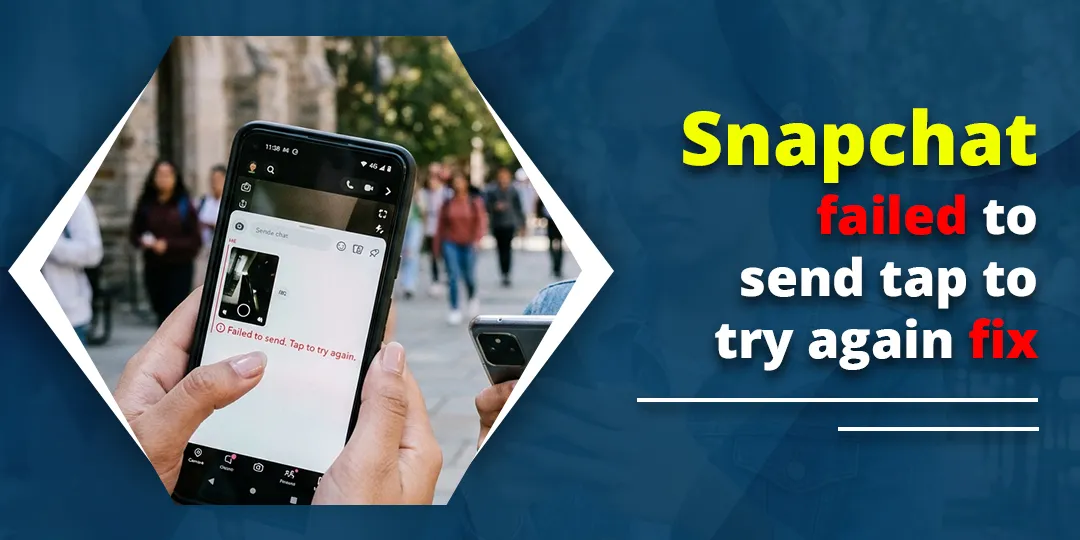
The “Failed to send. Tap to try again” error on Snapchat is usually caused by a poor internet connection, a temporary app glitch, outdated software, or a corrupted cache. In some cases, Snapchat’s servers are down, or the person you are messaging has removed or blocked you.
Most people fix it in a few minutes by switching networks, updating Snapchat, force closing the app, and clearing the cache. This guide covers those quick fixes first, then the deeper iPhone and Android settings, Story reply failures, and one-person problems that most guides skip.
Contents
Quick Overview
Try these fixes in order. Retry your failed Snap after each one.
- Check your connection: Toggle Airplane Mode on and off, or switch between Wi-Fi and mobile data. Turn off any VPN.
- Check if Snapchat is down: Look for outage reports before changing settings.
- Update Snapchat: Install the latest version from the App Store or Google Play.
- Force close and reopen the app.
- Clear the cache: On iPhone, go to Settings, then Clear Data, then Clear Cache. On Android, go to Settings, then Clear Cache, then Continue.
- Restart your phone: Turn it fully off for one minute, then back on.
- Log out and back in.
- Reset network settings if it fails on every network.
- Reinstall or offload Snapchat as a last resort.
- Fails for one person only? They may have removed you, blocked you, deleted their account, or limited who can contact them.
What Does “Failed to Send. Tap to Try Again” Mean on Snapchat?
It means your Snap or Chat never reached Snapchat’s servers, so it was not delivered.
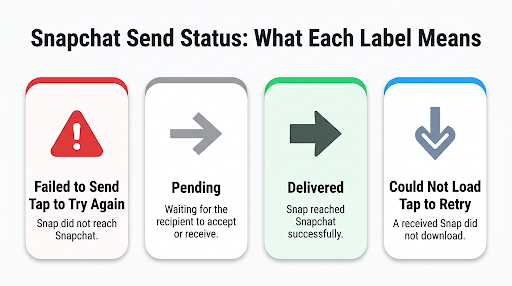
Snapchat keeps the item in the chat with a red “Failed to send” label so you can tap it and retry instead of creating it again.
People often mix this error up with other Snapchat labels. Here is how to tell them apart:
| What you see | What it usually means | What to do |
| Red “Failed to send. Tap to try again” | The upload did not reach Snapchat | Follow the fixes in this guide |
| “Could not send. Please try again” | Same problem, different wording in some app versions | Same fixes apply |
| Stuck on “Sending…” | The upload started but has not finished, often due to slow speed or a large video | Wait briefly, then switch networks |
| Gray arrow with “Pending” | The person has not added you back, or may have removed you | Not a bug. It delivers only if they add you |
| “Could not load. Tap to retry” | A Snap sent to you will not download | A receiving problem, not a sending one. See the section below |
| Solid red, purple, or blue arrow with “Delivered” | It sent fine. Red is a photo Snap without sound, purple is a Snap with sound, blue is a Chat | Nothing to fix |
So if you searched “Snapchat failed to send red arrow,” look closely. A solid red arrow is a successful photo Snap. Only the red “Failed to send” text means delivery failed.
Why Does Snapchat Keep Saying Failed to Send?
The most common cause is an unstable connection between your phone and Snapchat’s servers, even when your phone shows full signal. Signal bars only show a link to the router or cell tower, not a working path to Snapchat.
Here are the main causes, from most to least common:
- Weak or unstable internet: Patchy mobile data, crowded public Wi-Fi, or school and office networks that filter apps.
- VPN or network filter: VPNs, private DNS, and ad blockers can block Snapchat’s connection.
- Outdated app: Old versions can fall out of sync with Snapchat’s servers. The recipient’s outdated app can also cause problems.
- Corrupted cache: Bad temporary files can break sending while the rest of the app seems fine.
- Temporary app glitch: A stuck background process can hold up uploads until you force close the app.
- Snapchat server outage: When Snapchat has problems, Snaps fail for many users at once.
- Phone restrictions: Low Data Mode, Data Saver, blocked cellular access, missing permissions, or full storage.
- Recipient changes: They removed you, blocked you, deleted their account, or changed who can contact them.
- Deleted Story: If you reply to a Story that was deleted or expired, the reply fails.
Is the Problem Your Phone, Snapchat, or the Other Person?
Run a 30-second test before you try any fix. It tells you exactly where to focus.
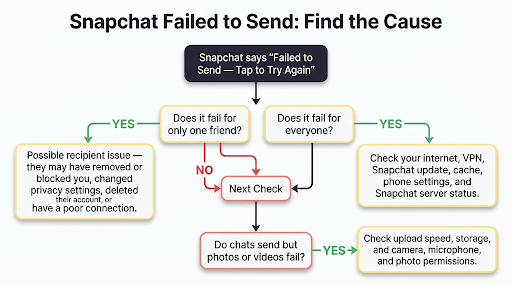
- Send a short text Chat to a different friend.
- Send a small photo Snap, not a long video, to that same friend.
- Check whether Stories and new messages load.
| Result | Likely cause | Start here |
| Fails for one person only | Recipient removed, blocked, or restricted you | One-person section |
| Fails for everyone | Your connection, app, phone, or an outage | Fixes 1 to 8 |
| Chats send, but photos or videos fail | Slow upload speed, permissions, or storage | Fixes 1, 11, and 12 |
| Only Story replies fail | The Story was deleted or reply settings changed | Story reply section |
| Nothing loads or refreshes | Connection to Snapchat’s servers | Fixes 1, 2, and 9 |
What Does Snapchat Officially Recommend?
Snapchat’s own support team recommends four steps when Snaps or Chats won’t send: update the app, check your internet connection, clear the cache, and restart your device. Its help article on Snaps that won’t send or load also makes one point many guides miss: both you and the recipient should be on the latest version. Snapchat’s separate guide to troubleshooting Chat issues adds that both people need a good internet connection.
That second point matters. If your connection is fine but your friend is on weak data or an old app version, your messages can still have trouble going through. The fixes below start with Snapchat’s official steps, then add the extras that solve tougher cases.
How to Fix Snapchat Failed to Send Tap to Try Again
Work through these fixes in order. The first few are quick and solve most cases. Save the later ones for when the basics do not work.
1. Check Your Internet Connection and Turn Off VPN
Snapchat recommends moving to a spot with better cell service or connecting to a stable Wi-Fi network. This single step fixes a large share of failed sends.
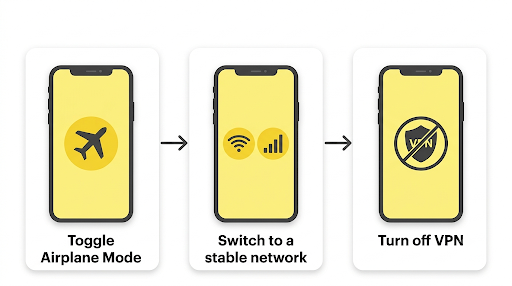
- Toggle Airplane Mode on for 10 seconds, then off. This forces a fresh network connection.
- Switch networks. On Wi-Fi, turn Wi-Fi off and use mobile data. On mobile data, connect to stable Wi-Fi.
- Restart your router if Snapchat fails only on your home Wi-Fi.
- Run a speed test. Very slow upload speed can let text Chats through while photos and videos fail.
- Turn off your VPN, private DNS, or ad-blocking app, then retry.
Tip: If Snapchat works on mobile data but fails on one Wi-Fi network, that network is likely blocking it. This is common on school, workplace, and hotel Wi-Fi.
2. Check Whether Snapchat Is Down
If Snapchat fails on every network, check for an outage before changing your settings. Snapchat does not run its own public status page, so you need to check other sources.
- Look for a spike in reports on Downdetector’s Snapchat page.
- Check the official Snapchat Support account on X for announcements.
- Ask a friend on a different network whether their Snaps are sending.
If you are searching “Snapchat not sending Snaps today,” an outage is the most likely cause, especially if friends have the same problem. Your failed Snaps stay in the chat, so you can tap them to resend once service is back.
Our guide on how to check if Snapchat is down right now shows every way to confirm an outage.
3. Update Snapchat (and Ask Your Friend to Update)
Update Snapchat from the App Store on iPhone or Google Play on Android. Snapchat’s support team says both the sender and the recipient should be on the latest version.
- iPhone: Open the App Store, tap your profile picture, find Snapchat, and tap Update.
- Android: Open Google Play, search for Snapchat, and tap Update.
If Snapchat started failing right after an update, a bug in the new version may be the cause. Try the cache and restart steps below first. Snapchat usually releases fixes for widespread bugs quickly.
4. Force Close and Restart Snapchat
Force closing clears a stuck background process that may be holding up your upload. Going back to your home screen does not do this, because the app keeps running.
- iPhone: Swipe up from the bottom and pause to open the app switcher. Swipe Snapchat up and off the screen.
- Android: Go to Settings, then Apps, then Snapchat, and tap Force Stop. Tap OK to confirm.
Reopen Snapchat and tap the failed message to retry.
5. Clear the Snapchat Cache
Clearing the cache removes temporary files that can break sending. According to Snapchat, clearing your cache won’t delete any of your Memories, Snaps, or Chats.
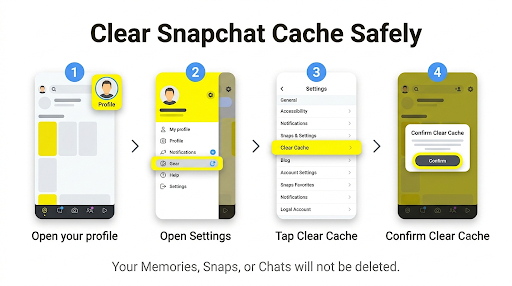
Clear cache on iPhone (in the app)
- Tap your profile icon or Bitmoji in the top-left corner.
- Tap the gear icon to open Settings.
- Scroll down and tap Clear Data.
- Tap Clear Cache, then confirm with Clear.
Clear cache on Android (in the app)
- Tap your profile icon or Bitmoji in the top-left corner.
- Tap the gear icon to open Settings.
- Scroll down and tap Clear Cache.
- Confirm by tapping Continue.
Clear cache on Android (from phone settings)
Go to Settings, then Apps, then Snapchat, then Storage, and tap Clear cache. Do not tap “Clear storage” or “Clear data” yet. That logs you out and resets the app, so save it for later if the cache clear does not work.
Menu names can shift slightly between app versions. If you do not see the option, update Snapchat first.
For screenshots of every menu path, see our guide on how to clear the Snapchat cache on iPhone and Android.
6. Restart Your Phone for One Full Minute
Snapchat specifically recommends turning your device fully off for one full minute, then turning it back on. A full restart resets your phone’s network connection and memory in a way that closing the app cannot.
Close Snapchat first, power off, wait 60 seconds, then power on and retry.
7. Log Out and Log Back In
Logging out forces Snapchat to re-sync your account with its servers. This often fixes failed sends when the rest of the app works normally.
- Go to your profile and tap the gear icon.
- Scroll to the bottom and tap Log Out.
- Restart your phone, open Snapchat, and log back in.
Before you log out, make sure you know your password and can access your phone number or email. If you use two-factor authentication, keep your code method ready. Getting locked out is a bigger problem than a failed Snap.
8. Remove Any Third-Party Apps or Plugins Linked to Snapchat
Snapchat restricts accounts that use unofficial apps, tweaks, or plugins. If you have used modded Snapchat versions, auto-saving apps, or third-party “Snapchat++” tools, remove them and reinstall the official app. These tools can cause failed sends, locked features, and support codes like C13A.
9. Reset Network Settings
If Snapchat fails on both Wi-Fi and mobile data, and other apps also act strangely, reset your phone’s network settings. This clears bad network configurations that a restart cannot fix.
- iPhone: Go to Settings, then General, then Transfer or Reset iPhone, then Reset, and tap Reset Network Settings.
- Android: Go to Settings, then System, then Reset options, and tap Reset Wi-Fi, mobile and Bluetooth. The exact path varies by phone brand.
Warning: This erases saved Wi-Fi passwords, Bluetooth pairings, and VPN settings. Make sure you know your Wi-Fi password before you start. It does not delete photos, apps, or Snapchat data.
10. Reinstall or Offload Snapchat
If nothing above works, a fresh install replaces any damaged app files.
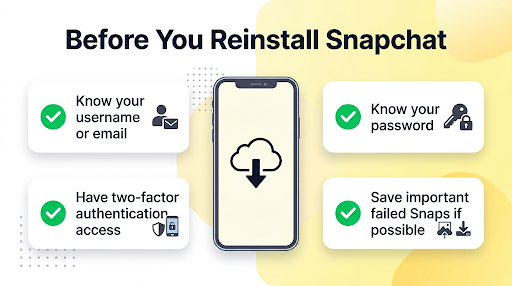
Your friends, streaks, and saved Memories are stored with your Snapchat account, not just on your phone.
- iPhone (offload first): Go to Settings, then General, then iPhone Storage, then Snapchat, and tap Offload App. Then tap Reinstall App. Offloading removes the app but keeps its documents and data on your phone, so it is a gentler first step.
- iPhone (full reinstall): Long-press the Snapchat icon, tap Remove App, then Delete App. Reinstall from the App Store.
- Android: Go to Settings, then Apps, then Snapchat, and tap Uninstall. Restart your phone, then reinstall from Google Play.
Warning: Failed Snaps still waiting in the app may be lost after a full reinstall. If a failed Snap matters, save it to your camera roll first if the option is available.
What iPhone and Android Settings Can Block Snapchat From Sending?
Several phone settings quietly stop Snapchat from uploading, especially photos and videos on mobile data. Check these if the basic fixes did not work.
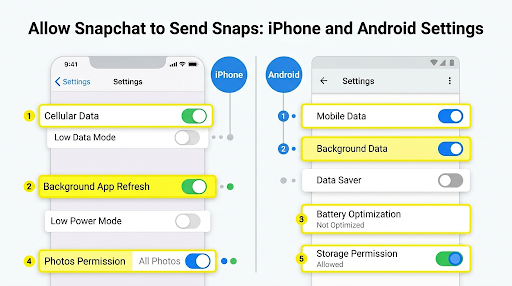
11. Check Data, Battery, and Permission Settings
| Setting | iPhone | Android |
| Mobile data access for Snapchat | Settings, then Cellular, then turn on Snapchat | Settings, then Apps, then Snapchat, then Mobile data, then allow background data |
| Data saving mode | Turn off Low Data Mode in Cellular Data Options and in your Wi-Fi network settings | Turn off Data Saver, or set Snapchat to unrestricted data |
| Battery restrictions | Turn off Low Power Mode in Settings, then Battery | Set Snapchat battery usage to Unrestricted |
| Background activity | Turn on Background App Refresh for Snapchat | Allow background activity for Snapchat |
| App permissions | Settings, then Snapchat. Allow Camera, Microphone, and Photos | Settings, then Apps, then Snapchat, then Permissions. Allow Camera, Microphone, and Photos and videos |
| Date and time | Settings, then General, then Date and Time, then Set Automatically | Settings, then System, then Date and time, then set automatically |
Missing permissions are a common reason why Chats send but photo or video Snaps fail. Snapchat needs Photos or Storage access to attach media from your camera roll, and Microphone access for Snaps with sound.
12. Free Up Storage (and Move Snapchat Off the SD Card)
Snapchat needs free space to prepare your Snap before uploading it. Snapchat’s own Chat troubleshooting steps include freeing up storage space.
- Keep at least 1 to 2 GB free on your phone.
- Delete unused apps, old videos, or downloaded files.
- Android only: If you moved Snapchat to an SD card, move it back to internal storage in Settings, then Apps, then Snapchat, then Storage, then Change. Apps on external storage can run into errors.
Why Does Snapchat Fail to Send to Only One Person?
If your Snaps and Chats go through to everyone except one friend, the cause is almost always on their side. A network or cache problem would affect all of your conversations, not just one.
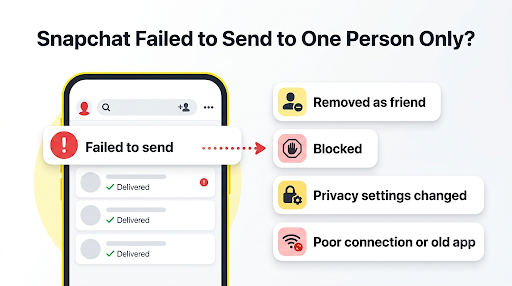
- They removed you as a friend. Your Snaps may show Pending or fail, depending on their settings.
- They blocked you. Messages will not deliver, and they may disappear from your search results.
- They deleted or deactivated their account. The old chat may still show, but nothing goes through.
- Their privacy settings changed. If they set “Contact Me” to My Friends only and you are no longer friends, your messages will not reach them.
- They are on an old app version or a poor connection. Snapchat says both people need an updated app and a good connection.
One fix to try: If you are sure you are still friends, remove them and add them back from your friends list. This can refresh a glitched friend connection. Only do this if you are comfortable with them getting a new friend request, because they will need to accept it again.
The fairest way to confirm is to ask them through another app or a mutual friend. Do not assume a block right away, since glitches on their end can look exactly the same.
If you want to check the signs yourself, our guide on how to know if someone blocked you on Snapchat explains what each clue really means.
Why Does My Snapchat Story Reply Fail to Send?
A Story reply usually fails because the Story was deleted or expired between the moment you opened it and the moment you hit send. Stories disappear after 24 hours, and the owner can delete them at any time.
Other common reasons:
- The person changed who can view or reply to their Story.
- They removed or blocked you after posting it.
- Your app is showing an old, cached version of their Story.
To fix it, close the Story, pull down to refresh your Stories page, and check whether it is still there. If it is gone, send your reply as a regular Chat instead. If Story replies fail for everyone, use the connection and cache fixes above.
What If Snapchat Says “Could Not Load. Tap to Retry”?
“Could not load. Tap to retry” is a receiving problem, not a sending one. It means a Snap someone sent you will not download to your phone. The usual causes are the same as for failed sends: a weak connection, Low Data Mode or Data Saver, low storage, or a cache problem.
Start with Fixes 1, 5, 6, and 11. If you have Snapchat’s data saving option turned on, Snaps may also wait until you tap them to load, which can look like an error on slow connections.
We cover this error in depth in our guide to fixing Snapchat “Could not load. Tap to retry”.
What If Snapchat Shows an Error Code Instead?
Sometimes the failed send comes with, or turns into, a support code. Each code points to a different cause, so the fix is not always the same.
- A C13A code is often tied to unsupported apps, rooted devices, or account security checks. Follow our Snapchat C13A error fix guide.
- For the related login and connection code, see how to handle the Snapchat C14A error.
- If Snapchat blocks you with SS07, read our walkthrough on the SS07 support code.
- For the SS18 code, our Snapchat error SS18 guide covers the likely causes.
- If your inbox also will not load new messages, try the steps for Snapchat “Could not refresh messages”, since both problems often share a connection cause.
Which Fix Should You Try on Android vs iPhone?
The core fixes are the same on both, but a few steps are platform-specific. Use this table to jump straight to what applies to your phone.
| Fix | Android | iPhone |
| Force close | Settings, then Apps, then Snapchat, then Force Stop | Swipe up in the app switcher |
| Clear cache | Snapchat Settings, then Clear Cache, or phone Settings, then Apps, then Snapchat, then Storage | Snapchat Settings, then Clear Data, then Clear Cache |
| Data restriction to check | Data Saver and background data | Low Data Mode and Cellular access |
| Network reset | Reset Wi-Fi, mobile and Bluetooth | Reset Network Settings |
| Gentle reinstall | Uninstall, restart, reinstall | Offload App, then Reinstall App |
| Platform-only issue | Snapchat stored on an SD card | Low Power Mode limiting background uploads |
Common Mistakes That Make the Problem Worse
- Tapping retry over and over. If several retries fail, the cause has not changed. Fix the connection first, then retry once.
- Reinstalling first. It is the slowest fix and can delete unsent Snaps. Save it for last.
- Tapping “Clear data” instead of “Clear cache” on Android. Clear data logs you out and wipes app settings.
- Downgrading with an APK from a random site. Some guides suggest installing an older Snapchat version. Unofficial APK files can carry malware or trigger account locks. Only install Snapchat from Google Play or the App Store.
- Using modded Snapchat apps. Third-party versions and plugins can get your account restricted.
- Assuming you are blocked. Test with another friend before drawing conclusions.
When Should You Contact Snapchat Support?
Contact Snapchat Support if Snaps fail to everyone, on every network, after you have updated, cleared the cache, restarted, reset network settings, and reinstalled, and there is no reported outage. At that point, the problem may be tied to your account.
- Visit the Snapchat Help Center and use the Contact Us option.
- In the app, go to Settings, then Support, then I Need Help, or report a bug through I Spotted a Bug. Menu names can vary by version.
- Include your username, phone model, app version, whether it fails on Wi-Fi and mobile data, and whether it affects one friend or everyone. Add a screenshot of the error.
Frequently Asked Questions
Does “Failed to send” mean someone blocked me on Snapchat?
Not on its own. A block is only likely if the error happens with one specific person while your Snaps to everyone else go through. If it fails for all of your friends, the cause is your connection, your app, or a Snapchat outage.
Will the other person see a Snap that failed to send?
No. A failed Snap never reached Snapchat’s servers, so the recipient gets nothing, not even a notification. They only see it if you retry and it delivers.
Why are my Snaps not sending even though I have signal?
Signal bars show a connection to the cell tower or router, not to Snapchat’s servers. A VPN, restrictive Wi-Fi, Low Data Mode, Data Saver, or blocked cellular access for Snapchat can stop uploads while other apps seem fine. Try mobile data with the VPN off to confirm.
Can I delete a Snap or message that failed to send?
In many app versions, you can press and hold the failed item to see options, but this varies. If no delete option appears, logging out and back in usually clears stuck items. You can also clear the conversation from your Chat feed, which only removes it from your side.
Does clearing the Snapchat cache delete my streaks?
No. Streaks, friends, Memories, and saved Chats are stored with your account. Clearing the cache only removes temporary files on your phone. A streak can still end, though, if your Snaps keep failing for a full day.
Why do Snapchat videos fail to send but photos work?
Videos are much larger files, so they need a stronger and steadier upload speed. On weak data or crowded Wi-Fi, a photo may get through while a long video times out. Send it again on faster Wi-Fi, trim the clip, or check that Snapchat has Microphone and Photos permissions.
How do I restart Snapchat properly?
Force close it, do not just leave the app. On iPhone, swipe it away in the app switcher. On Android, use Force Stop in Settings, then Apps, then Snapchat. For a deeper reset, also turn your phone off for one full minute before reopening Snapchat.
Final Recommendation
Start with the one-friend test to see whether the problem is with a single person or every conversation. If it fails for everyone, follow Snapchat’s official steps first: check your connection, update the app, clear the cache, and restart your phone for a full minute. Those four steps fix most “Failed to send. Tap to try again” errors.
If you are still stuck, check your phone’s data and permission settings, reset network settings, and offload or reinstall Snapchat. If it still fails on every network with no outage reported, contact Snapchat Support with your device details and a screenshot so they can check your account.

Anica Lymus is a technical writer specializing in consumer applications, mobile operating systems, and practical troubleshooting workflows. At Primotechy, she covers account security, software glitches, and app performance across platforms such as Facebook, Instagram, and Snapchat. Drawing on hands-on device testing and in-depth research across iOS, Android, macOS, and Windows, Anica translates complex platform settings and sudden technical errors into clear, verified, step-by-step guides that readers can easily follow and trust.
View all posts by Anica Lymus →