
If your Snapchat Web camera is not working, the cause is usually one of three things: your browser is blocking camera access for web.snapchat.com, another app is already using your webcam, or your computer’s own privacy settings are stopping the browser from reaching the camera. Allow the camera in your browser’s site settings, close Zoom, Teams, Discord, or OBS, and refresh the page. That fixes most cases in under two minutes.
If it still shows a black screen, a “Could not load camera” message, or the wrong camera, the fixes below walk you from the quickest checks to the deeper ones, including Windows and Mac privacy settings, virtual cameras, drivers, and browser conflicts that most guides skip.
Contents
Quick Overview
- Use a supported browser: the latest Google Chrome, Microsoft Edge, or Safari on a computer. Firefox and phone browsers are not supported.
- Allow camera and microphone for web.snapchat.com from the lock icon in the address bar, then refresh.
- Close other apps using the webcam, such as Zoom, Teams, Discord, Skype, OBS, or Streamlabs.
- Turn on camera access in Windows or macOS for your browser.
- Pick the right camera in your browser settings, especially if you have a virtual camera or an external webcam.
- Log out, clear cache, and log back in.
- If nothing works, test the webcam in another app to find out if the problem is Snapchat, the browser, or the hardware.
Why Is My Snapchat Web Camera Not Working?
Snapchat for Web runs inside your browser, so it needs permission from two places: the browser and the operating system. If either one says no, Snapchat sees no camera at all.
Here are the most common causes:
- Blocked site permission. If you clicked “Block” on the camera pop-up even once, the browser remembers it and silently denies access every time after.
- Camera in use by another app. Most webcams can only be used by one app at a time on Windows.
- Windows or macOS privacy settings turned off for desktop apps or for your browser.
- Wrong camera selected, such as OBS Virtual Camera, an old Snap Camera driver, or a disconnected USB webcam.
- Unsupported or outdated browser.
- Browser extensions like privacy blockers or webcam blockers.
- Outdated or broken webcam driver.
- A Snapchat outage or a bug on Snapchat’s side.
The table below helps you match what you see on screen to the most likely fix.
| What You See | Most Likely Cause | Try This First |
| Black screen where the camera should be | Another app is using the webcam, or the wrong camera is selected | Close video apps, then choose your real webcam in browser settings |
| “Could not load camera” or camera icon greyed out | Camera permission blocked in browser or OS | Allow camera for web.snapchat.com and in Windows/macOS privacy settings |
| No permission pop-up appears | Permission was blocked earlier and saved | Reset site permissions from the lock icon |
| Camera works in calls but not for Snaps (or the reverse) | Page glitch or stale session | Hard refresh, then log out and back in |
| “Browser not supported” | Using Firefox or a mobile browser | Switch to Chrome, Edge, or Safari on a computer |
| Camera fails on every website and app | Hardware, privacy shutter, or driver issue | Check the shutter or camera key, then update the driver |
How Do I Fix Snapchat Web Camera Not Working?
Work through these fixes in order. Test the camera after each one so you know which step solved it.
1. Make Sure You Are Using a Supported Browser
Snapchat for Web officially works with the latest versions of Google Chrome, Microsoft Edge, and Safari on a desktop or laptop. If you open Snapchat for Web in Firefox, you may see a “Browser not supported” message, and the camera may never load.
Phone browsers are also not supported. If you are trying Snapchat Web on an iPhone or Android browser, use the Snapchat app instead.
To update your browser:
- Chrome: Three-dot menu > Help > About Google Chrome.
- Edge: Three-dot menu > Help and feedback > About Microsoft Edge.
- Safari: Update macOS from System Settings > General > Software Update.
Restart the browser after updating.
2. Allow Camera and Microphone Access for Snapchat Web
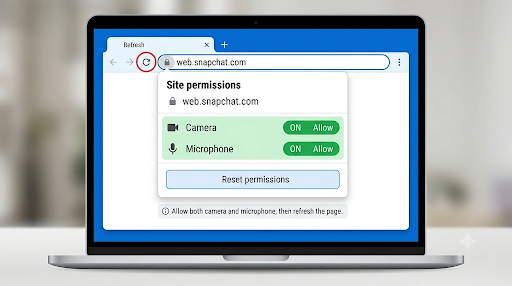
This is the single most common fix. Your browser must allow both the camera and the microphone for web.snapchat.com. If the microphone is blocked, video calls can fail to start even when the camera is allowed.
Google Chrome and Microsoft Edge
- Open web.snapchat.com.
- Click the lock icon (or site settings icon) on the left side of the address bar.
- Set Camera and Microphone to Allow.
- If you don’t see the toggles, click Site settings and change them there.
- Refresh the page.
Safari on Mac
- Open web.snapchat.com in Safari.
- Click Safari in the top menu bar.
- Choose Settings for web.snapchat.com.
- Set Camera and Microphone to Allow.
- Reload the page.
Tip: If you once clicked “Block” on the permission pop-up, Chrome and Edge will not ask again. Open the lock icon and choose Reset permissions, then reload the page and click Allow when the prompt appears.
3. Close Other Apps That Are Using Your Webcam
On most Windows PCs, only one app can use the webcam at a time. If Zoom, Microsoft Teams, Discord, Skype, Google Meet in another tab, OBS, or Streamlabs is open, Snapchat Web may show a black screen.
- Fully quit those apps, not just minimize them. Check the system tray near the clock on Windows or the menu bar on Mac.
- Close other browser tabs that were using the camera.
- On Windows, open Task Manager (Ctrl + Shift + Esc) and end any leftover video or streaming processes.
- Restart your browser and open Snapchat Web again.
4. Turn On Camera Access in Windows Privacy Settings
Windows has its own camera switch, separate from your browser. Browsers like Chrome and Edge count as “desktop apps,” so they need a specific setting turned on. Microsoft confirms that browsers need this setting in its guide on managing camera permissions in Windows.
- Press Windows + I to open Settings.
- Go to Privacy & security > Camera.
- Turn on Camera access.
- Turn on Let apps access your camera.
- Scroll down and turn on Let desktop apps access your camera.
- Repeat the same steps under Privacy & security > Microphone.
Reopen your browser after changing these settings.
5. Allow Your Browser to Use the Camera on Mac
macOS blocks apps from using the camera until you allow them. If you said no when Chrome or Edge first asked, Snapchat Web cannot see your camera.
- Open System Settings > Privacy & Security > Camera.
- Turn on the switch next to Google Chrome, Microsoft Edge, or the browser you use.
- Do the same under Privacy & Security > Microphone.
- Quit and reopen the browser when macOS asks.
Safari usually handles this through its own website settings, so focus on Step 2 if you use Safari.
6. Choose the Correct Camera in Your Browser
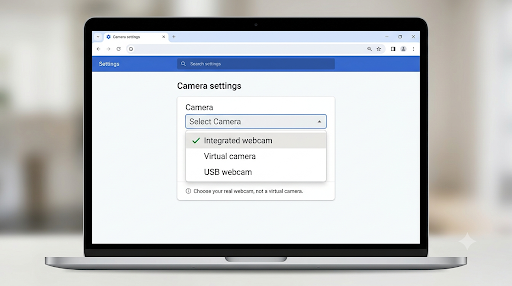
This is a big one that most guides miss. If you have ever installed OBS, NVIDIA Broadcast, ManyCam, an old Snap Camera, or a USB webcam, your browser may be sending Snapchat a virtual or disconnected camera instead of your real one. The result is a black screen, a frozen image, or a “no camera” message.
In Chrome:
- Type chrome://settings/content/camera in the address bar and press Enter.
- Use the dropdown at the top to pick your actual webcam (for example, “Integrated Camera” or your USB webcam’s name).
- Check that web.snapchat.com is not in the “Not allowed” list.
In Edge: go to edge://settings/content/camera and do the same.
During a Snapchat Web video call, you can also click the camera options and switch to a different camera source. If the wrong device keeps showing up, unplug extra webcams and try again.
7. Remove Old Snap Camera Software
Snap Camera, the old desktop app that added Lenses to Zoom and other apps, was shut down on January 25, 2023. Snap now points users to Snapchat for Web for Lenses on a computer. If the old app or its virtual camera driver is still installed, it can still appear as a camera option and show a blank screen.
Snapchat’s Snap Camera help page notes that problems usually happen when Snap Camera is still running in the background. To fix it:
- Quit Snap Camera from the system tray or menu bar.
- Uninstall it from Settings > Apps on Windows or from the Applications folder on Mac.
- Restart your computer, then set your real webcam as the default camera in your browser.
8. Log Out, Clear Site Data, and Log Back In
A stale session or corrupted cache can stop the camera module from loading, even when permissions are correct.
- On Snapchat Web, click your profile or Bitmoji icon at the top left and log out.
- In Chrome or Edge, click the lock icon > Site settings > Delete data (or “Clear data”) for snapchat.com.
- Or clear cached images and files from your browser’s privacy settings.
- Close and reopen the browser.
- Log in again and approve the login on your phone if asked.
Make sure you are logged in to the same account on your phone and the web, and that your Snapchat app is up to date.
9. Disable Extensions and Test in a Private Window
Privacy extensions, ad blockers, webcam blockers, and some antivirus browser add-ons can block camera access without telling you.
- Open an Incognito window in Chrome or an InPrivate window in Edge (extensions are usually off there).
- Log in to Snapchat Web and test the camera.
- If it works, go back to your normal window and turn off extensions one by one until you find the one causing trouble.
Also turn off your VPN for a quick test. A VPN won’t block the webcam, but it can cause login and connection issues that stop calls and the camera screen from loading.
10. Toggle Hardware Acceleration
Snapchat Web uses your graphics card to run Lenses and video. On some computers, a graphics driver conflict causes a black or frozen camera.
- Chrome: Settings > System > Use graphics acceleration when available.
- Edge: Settings > System and performance > Use graphics acceleration when available.
If it’s on, turn it off and relaunch. If it’s off, turn it on and relaunch. Then test Snapchat Web again. Keep whichever setting works.
11. Check the Webcam Itself: Shutter, Camera Key, and Drivers
If the camera fails everywhere, not just on Snapchat, the issue is on your computer.
- Privacy shutter: Many laptops from HP, Lenovo, Dell, and others have a small sliding cover over the lens. Slide it open.
- Camera function key: Some laptops have a key (often F8, F10, or a key with a camera icon) that turns the webcam off. Press it once and check again.
- External webcam: Plug it straight into the computer instead of a USB hub, or try a different port.
- Update the driver on Windows: Right-click Start > Device Manager > expand Cameras or Imaging devices > right-click your webcam > Update driver. If the camera broke after an update, choose Properties > Driver > Roll Back Driver.
On HP laptops, the easiest way to get the right camera driver and BIOS updates is through HP’s own tool. If you’re not sure what it does, here’s a simple guide on what HP Support Assistant is and how it keeps drivers updated.
12. Check If Snapchat Is Down
If everything on your side looks fine and the camera worked yesterday, Snapchat may be having a problem. Check outage trackers or Snapchat Support’s account on X for reports. If many people are reporting the same issue, no local fix will help. Wait a while and try again later.
How Do I Know If the Problem Is Snapchat, My Browser, or My Webcam?
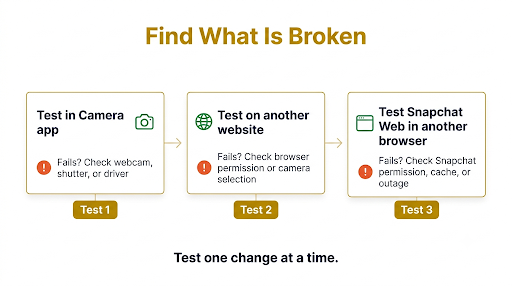
Run a quick test in another app. It takes less than a minute and saves a lot of guessing.
| Test | Result | What It Means |
| Open the Windows Camera app or Mac Photo Booth | Camera doesn’t work | Hardware, shutter, driver, or OS privacy issue (Steps 4, 5, 11) |
| Camera works in the Camera app but not in Google Meet or another site | Works in app, fails in browser | Browser permission, camera selection, or extension issue (Steps 2, 6, 9) |
| Camera works on other websites but not Snapchat Web | Only Snapchat fails | Snapchat site permission, cache, session, or outage (Steps 2, 8, 12) |
| Works in another supported browser | One browser fails | Reset that browser’s settings or keep using the working one |
What If the Snapchat Web Camera Is Not Working During a Video Call?
When the camera works for Snaps but not during calls, the microphone permission or the call’s camera source is usually the problem.
- Make sure both camera and microphone are allowed for web.snapchat.com.
- During the call, click the camera icon to turn video on, and check the camera source option to switch to your real webcam.
- Close any other tab or app that joined a call earlier, such as Meet or Teams.
- If the other person can’t see you, ask them to refresh too. Calls can glitch on either side.
Is the Snapchat Camera Problem Only on the Web Version?
Not always. If you notice the camera acting up on your phone too, the cause is different, because the app uses your phone’s camera permissions, not browser settings.
- If you see a black camera screen in the mobile app after updating, check this guide on fixing a Snapchat camera black screen after an update.
- If the app closes the moment you open the camera, follow these steps for when Snapchat keeps crashing when opening the camera.
Common Mistakes That Keep the Camera Broken
- Changing permissions without refreshing. The page won’t pick up the new setting until you reload it.
- Allowing the camera but not the microphone. Calls need both.
- Leaving Zoom or Teams running in the background. Closing the window is not always enough.
- Fixing the browser but not Windows or macOS. Both layers must allow the camera.
- Ignoring the camera dropdown. A virtual camera set as default is a very common hidden cause.
- Using Firefox or a phone browser and expecting full Snapchat Web features.
- Testing on a work or school computer. IT policies may block camera access for certain sites. Ask your admin if settings look locked.
Frequently Asked Questions
Why does Snapchat Web say “Could not load camera”?
This message usually means the browser or your computer is denying camera access, or another app is holding the webcam. Allow the camera for web.snapchat.com, turn on camera access for desktop apps in Windows (or your browser in macOS), close other video apps, and refresh the page.
Why is my Snapchat Web camera showing a black screen?
A black screen almost always means the browser is connected to the wrong camera or a busy one. Pick your real webcam in chrome://settings/content/camera or edge://settings/content/camera, quit OBS or other virtual camera tools, and check that your laptop’s privacy shutter is open.
Does Snapchat Web work on Firefox?
Firefox is not on Snapchat’s supported list, and it may show a “Browser not supported” message. For the camera, calls, and Lenses to work reliably, use the latest Chrome, Edge, or Safari.
Can I use Snapchat Web camera on my iPhone or Android phone?
No. Snapchat for Web is built for desktop and laptop browsers. On a phone, the browser will usually push you to the app. Use the Snapchat app, and check your phone’s Settings to make sure Snapchat has camera permission.
Why does my camera work on Zoom but not on Snapchat Web?
Zoom is a desktop app with its own camera settings, while Snapchat Web depends on browser permissions. If Zoom works, your webcam is fine. Check the site permission for web.snapchat.com, make sure Zoom is fully closed, and confirm the browser is using the same camera Zoom uses.
Do I need Snap Camera to use Lenses on my computer?
No. Snap Camera was discontinued in January 2023. You can use Lenses directly inside Snapchat for Web in a supported browser. If Snap Camera is still on your PC, uninstall it so it doesn’t interfere with your webcam.
Will I miss chats or calls if notifications are also not working?
Yes, if browser notifications are blocked, you may not see new Snaps or call alerts. Allow notifications for web.snapchat.com from the same lock icon menu. If alerts are also missing on your phone, here’s how to fix Snapchat notifications not showing on the lock screen.
Final Recommendation
Start with the two fixes that solve the most cases: allow camera and microphone for web.snapchat.com, then fully close every other app using your webcam. Refresh the page and test.
If it still fails, check your Windows or Mac camera privacy settings, then choose your real webcam in the browser’s camera settings. That combination clears up nearly every black screen and “could not load camera” problem. If your webcam doesn’t work in any app at all, move straight to the shutter, camera key, and driver checks. And if everything looks right on your end, give Snapchat some time, because the problem may be on their side.

Anica Lymus is a technical writer specializing in consumer applications, mobile operating systems, and practical troubleshooting workflows. At Primotechy, she covers account security, software glitches, and app performance across platforms such as Facebook, Instagram, and Snapchat. Drawing on hands-on device testing and in-depth research across iOS, Android, macOS, and Windows, Anica translates complex platform settings and sudden technical errors into clear, verified, step-by-step guides that readers can easily follow and trust.
View all posts by Anica Lymus →