
If your Snapchat camera shows a black screen after an update, the cause is usually one of three things: the update reset or broke Snapchat’s camera permission, another app is still holding the camera, or old cache files are clashing with the new version. A full power off, a permission check, and an in-app cache clear fix most cases in under five minutes.
The trick is knowing which update caused the problem. A Snapchat app update and a phone software update (like a new iOS or Android version) break the camera in different ways. This guide walks you through a quick test to tell them apart, then gives you the fixes in the order that actually works.
Contents
Quick Overview
Try these fixes in order. Test the Snapchat camera after each one.
- Power your phone fully off, wait 30 seconds, and turn it back on. A regular restart is not always enough.
- Check camera permission for Snapchat in your phone’s Settings and make sure it’s turned on.
- On Android 12 or newer, make sure the system-wide Camera access toggle in Quick Settings is on.
- Close other camera apps like FaceTime, Zoom, WhatsApp, or Instagram.
- Clear Snapchat’s cache from inside the app. This won’t delete your Memories, Snaps, or Chats.
- Update Snapchat and your phone’s software to get any bug-fix patch.
- Reinstall Snapchat as a last resort, after backing up your Memories.
Why Is My Snapchat Camera Black After an Update?
An update changes code that Snapchat relies on to open your camera. When something in that chain fails, Snapchat can’t get a live camera feed, so it shows black instead.
Here are the most common causes after an update:
- Permissions were reset or went missing. Major phone updates can silently change app permissions. After the iOS 26.1 update, some iPhone users reported that Snapchat asked for camera access, but the Camera toggle for Snapchat didn’t appear in Settings at all.
- Another app didn’t release the camera. Your phone’s camera can generally serve one app at a time. If a video call or another camera app froze in the background, Snapchat gets blocked.
- Old cache files don’t match the new version. Snapchat stores temporary files for Lenses, filters, and camera settings. After an update, corrupted or outdated cache can break the camera screen.
- A bug in the new version. Sometimes the update itself is the problem. In that case, only a patch from Snapchat or your phone maker fully fixes it.
- A device-wide camera block. On newer Android phones, a single Quick Settings toggle can block the camera for every app at once.
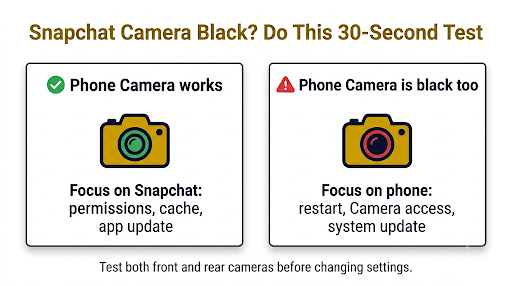
Is It Snapchat or Your Phone? Do This 30-Second Test First
Open your phone’s built-in Camera app before you change any settings. The result tells you exactly where to focus.
| What you see | What it likely means | Where to start |
| Phone Camera app works, Snapchat is black | Snapchat-specific issue (permission, cache, or app bug) | Permissions, cache clear, Snapchat update |
| Phone Camera app is also black | Phone software issue or a device-wide camera block | Full power off, Camera access toggle, system update |
| Black in Snapchat and other apps like WhatsApp or Instagram | Camera system glitch from the phone update | Full power off, close all apps, check for an OS patch |
| Only the front or only the back camera is black | Possible lens, case, or hardware issue | Remove the case, test both cameras in the Camera app |
Tip: Flip between the front and back camera inside Snapchat too. If both are black, it’s almost always software. If only one is black in every app, it may be hardware.
How Do You Fix the Snapchat Black Camera Screen on iPhone?
On iPhone, start with a full shutdown, then check permissions and Screen Time. These three steps cover most post-update cases.
1. Turn Your iPhone Completely Off
Hold the side button and either volume button until the slider appears. Slide to power off, wait about 30 seconds, then turn it back on.
This sounds basic, but it matters. In an Apple Community thread about missing app permissions after iOS 26.1, the only fix a user reported working was powering the phone all the way off. Restarts, reinstalls, and resetting privacy settings didn’t help that original poster.
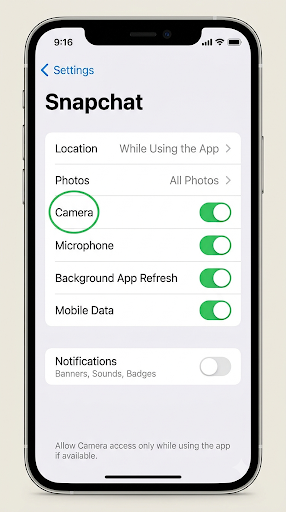
2. Check Snapchat’s Camera Permission
- Open Settings.
- Scroll down and tap Snapchat (on newer iOS versions it may be under Apps).
- Make sure Camera and Microphone are turned on.
You can also go to Settings > Privacy & Security > Camera to see every app with camera access. If the Snapchat toggle is missing here, do the full power off from step 1, then check again.
3. Make Sure Screen Time Isn’t Blocking the Camera
Screen Time restrictions can block the camera for every app, and updates sometimes carry these settings forward in odd ways. This one is easy to miss, especially on a teen’s or shared iPhone.
- Go to Settings > Screen Time.
- Tap Content & Privacy Restrictions and enter your passcode if asked.
- Tap Allowed Apps and make sure Camera is turned on.
If Camera was already on, try turning it off and back on. Then reopen Snapchat.
4. Close Every App Running in the Background
Swipe up from the bottom of the screen and pause to open the app switcher. Swipe up on every app, not just Snapchat. FaceTime, Zoom, WhatsApp, and banking apps that scan QR codes are common culprits.
How Do You Fix the Snapchat Black Camera Screen on Android?
On Android, the biggest post-update trap is the system-wide Camera access toggle. Check that before anything else.
1. Turn On Camera Access in Quick Settings
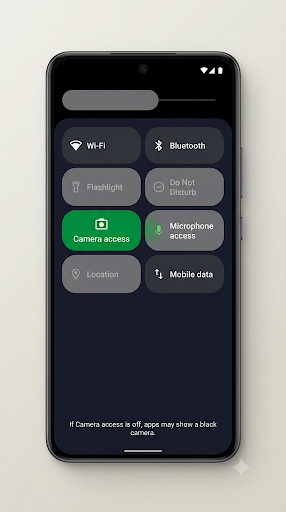
On Android 12 and newer, one toggle can block the camera for every app on your phone. When it’s off, apps just see a blank or black camera.
- Swipe down from the top of the screen twice to open full Quick Settings.
- Find the Camera access tile and make sure it’s on.
- If you don’t see it, tap Edit (the pencil icon) and add it.
You can also check this at Settings > Security & privacy > Privacy controls > Camera access. Menu names vary by phone brand. Google’s guide on checking if your Android camera or microphone is on or off shows the steps for Pixel and stock Android.
2. Check Snapchat’s App Permission
- Go to Settings > Apps > Snapchat > Permissions.
- Tap Camera.
- Choose Allow only while using the app.
If it was set to “Ask every time,” switch it to “Allow only while using the app.” The repeated prompt can fail silently after an update.
3. Force Stop Snapchat
Go to Settings > Apps > Snapchat and tap Force stop. This fully kills the app, which is stronger than swiping it away from recent apps.
4. Clear the Cache (Not the Data)
Go to Settings > Apps > Snapchat > Storage & cache > Clear cache.
Be careful not to tap “Clear storage” or “Clear data” unless you’re ready to log back in. That option wipes your login and local app data. Unsaved drafts can be lost.
How Do You Clear Snapchat’s Cache From Inside the App?
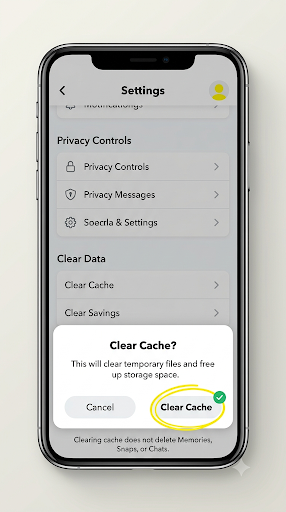
Snapchat has its own cache-clear option, and it works on both iPhone and Android. According to Snapchat’s help guidance, clearing the cache this way won’t delete your Memories, Snaps, or Chats.
- Open Snapchat and tap your profile icon (top-left).
- Tap the gear icon to open Settings.
- Scroll down to App and Privacy and look for My Privacy and Data or Manage My Data.
- Tap Clear Cache, then confirm.
Snapchat moves menu items around between versions. If you can’t find the exact path, use the search bar inside Snapchat Settings and type “cache.”
Can’t open the camera at all? You can still reach your profile and Settings by swiping or tapping your Bitmoji, since those screens don’t need the camera.
What If Snapchat’s Update Itself Is the Problem?
If your phone’s Camera app works fine and you’ve already checked permissions and cleared the cache, the Snapchat update itself may have a bug. Here’s what to do.
- Check for another update. Open the App Store or Google Play Store and search for Snapchat. Snap often releases quick follow-up patches after a buggy update.
- Switch networks. Snapchat’s own camera troubleshooting steps include switching between Wi-Fi and mobile data. The camera screen loads Lenses and filters online, and a bad connection can stall it.
- Check if Snapchat is down. Look at the official Snapchat Support account on X or a site like Downdetector. If many people report camera issues at the same time, it’s a server or app-wide bug, not your phone.
- Log out and log back in. This refreshes your account session and can clear a stuck camera state. Make sure you know your password first.
Camera glitches often show up alongside other in-app problems after an update. If you’re also seeing error codes, our guide to Snapchat app errors and troubleshooting fixes covers the most common ones.
Should You Reinstall Snapchat?
Yes, but only after the simpler fixes fail. Reinstalling gives you a clean copy of the latest version with fresh permissions, which often clears stubborn post-update bugs.
Before you delete the app:
- Make sure your Memories are backed up. Go to Memories and check for any Snaps that haven’t finished saving.
- Know your username and password, or have access to your linked phone number or email.
- Save any important chats you want to keep.
iPhone users have a gentler option. Go to Settings > General > iPhone Storage > Snapchat > Offload App. This removes the app but keeps its documents and data. Then tap Reinstall App on the same screen.
When you open Snapchat after reinstalling, it will ask for camera and microphone access. Tap Allow on both. If you accidentally tap “Don’t Allow,” you’ll have to turn it on manually in Settings.
What If Your Phone’s Software Update Caused It?
If your phone’s own Camera app is black too, or the problem hits Snapchat, WhatsApp, and Instagram at once, the phone update is the more likely cause. Snapchat can’t fix that on its own.
For example, after iOS 26.1, many iPhone users on Apple’s community forums reported black or blurry camera screens across several apps. Some found the camera worked again after a reboot, only to fail again days later. In cases like this, the real fix usually comes from the next system update.
Here’s what to do:
- Install the latest patch. On iPhone, go to Settings > General > Software Update. On Android, go to Settings > System > Software update (the path varies by brand).
- Free up storage. Updates need room to finish background tasks. Low storage can leave apps unstable after an update.
- Reset all settings (iPhone). Go to Settings > General > Transfer or Reset iPhone > Reset > Reset All Settings. This resets settings like Wi-Fi passwords and privacy choices but does not delete your photos or apps.
- Report the bug. Tell Apple or your phone maker the problem started after the update. More reports help push a faster fix.
Common Mistakes That Make the Problem Worse
- Clearing Snapchat’s data instead of its cache on Android. This logs you out and can wipe unsaved content.
- Reinstalling before backing up Memories. Unsaved Snaps can be lost for good.
- Tapping “Don’t Allow” on the permission prompt after reinstalling, then wondering why the screen is still black.
- Only restarting instead of fully powering off. After some updates, only a full shutdown clears the stuck camera service.
- Jumping to a factory reset. A factory reset rarely fixes an update bug, and you risk losing data. Wait for a patch instead.
- Using third-party “fix tools.” Paid repair software is not needed for this problem. The built-in steps above cover it.
What Other Snapchat Black Screen Problems Look Like
Not every black screen on Snapchat is a camera problem. Knowing which one you have saves time.
- Black screen when opening a Snap from a friend: This is usually a loading or network issue, not the camera. Switch networks or wait a few seconds.
- Black for a few seconds, then the camera loads: This often happens on older phones right after an update while the app rebuilds its cache. It usually settles after a day or so of normal use.
- Black screen after recording a Snap: This can point to a storage or cache problem. Free up space and clear the cache.
- Whole app opens to black: The app itself is failing to load, not just the camera. Update or reinstall Snapchat.
If chats are also stuck or not loading, check out how to fix the Snapchat app not refreshing properly. And if your Snaps won’t go through once the camera is back, see our fix for Snapchat app glitches affecting messages.
When Should You Contact Snapchat Support?
Contact Snapchat if the black screen only happens in Snapchat, your phone’s Camera app works fine, and you’ve tried every fix above, including a reinstall.
To report it from inside the app, go to Profile > Settings (gear icon) > Support and Safety > Bugs and Suggestions > Report a Bug. If the app won’t open, use the Snapchat Support website instead.
Include these details in your report:
- Your phone model and software version (for example, iPhone 15 on iOS 26.1)
- Your Snapchat version (found at the bottom of Snapchat Settings)
- Whether the front camera, back camera, or both are black
- When it started, such as “right after updating Snapchat yesterday”
- The fixes you already tried
Frequently Asked Questions
Why is my Snapchat camera black but my phone camera works?
That points to a Snapchat-only problem. The most likely causes are a missing camera permission, corrupted cache, or a bug in the latest Snapchat version. Check permissions first, then clear the cache from inside Snapchat.
Will clearing Snapchat’s cache delete my Memories or streaks?
No. Clearing the cache from Snapchat’s own settings removes temporary files only. Your Memories, Snaps, Chats, friends, and streaks stay on your account. You may need to wait a moment for Lenses to reload the first time.
Is Snapchat down right now, or is it just my phone?
If the black screen started suddenly for many people at once, it’s likely an app-wide bug or outage. Check Snapchat Support on X or Downdetector. If no one else is reporting problems, the issue is on your device.
Why does my Snapchat camera go black only during video calls?
Snapchat video calls and the main camera use the camera in slightly different ways. If only calls fail, close every other app, check that the microphone permission is on, and switch to a stronger network.
Does a jailbroken iPhone or modded Snapchat cause a black camera?
It can. Tweaks and modified Snapchat versions often break after an official update. Users in jailbreak communities have reported that disabling tweaks or switching back to the official app resolved the black screen. Modified apps can also put your account at risk of being locked.
Can a phone case cause a black camera screen on Snapchat?
Yes, but only for one camera. A case that slides or covers part of the lens can make the back camera look black. If only one camera is dark in every app, remove the case and clean the lens before trying software fixes.
The Bottom Line
Start with the 30-second test: open your phone’s Camera app. If it works, the fix is inside Snapchat, so check permissions, clear the in-app cache, and update the app. If it’s black too, your phone update is the cause, so fully power off, check the Camera access or Screen Time settings, and install the next system patch as soon as it’s out.
Most people get their camera back with a full power off and a permission check. Save reinstalling for last, and always back up your Memories first.

Anica Lymus is a technical writer specializing in consumer applications, mobile operating systems, and practical troubleshooting workflows. At Primotechy, she covers account security, software glitches, and app performance across platforms such as Facebook, Instagram, and Snapchat. Drawing on hands-on device testing and in-depth research across iOS, Android, macOS, and Windows, Anica translates complex platform settings and sudden technical errors into clear, verified, step-by-step guides that readers can easily follow and trust.
View all posts by Anica Lymus →