
If your Snapchat chat wallpaper disappeared, the most common reasons are a Snapchat+ subscription that ended, someone else in the chat removing or changing it, or an app glitch after an update. In most cases you can bring it back in under a minute by reapplying it from the chat’s profile under Our Chat > Wallpaper.
This guide walks you through every cause, the exact fix for each one on iPhone and Android, and what to do when the Wallpaper option itself is missing.
Contents
Quick Overview
| What you see | Most likely cause | Quick fix |
| Wallpaper gone in every chat | Snapchat+ ended or app glitch after an update | Check your Snapchat+ status, update the app, restart it |
| Wallpaper gone in only one chat | Your friend or a group member removed or changed it | Reapply it from the Friendship or Group Profile |
| Wallpaper won’t save or keeps resetting | Cache problem, weak connection, or sync error | Clear cache, switch networks, set it again |
| Wallpaper option missing entirely | Feature not available on your account, version, or chat type | Update Snapchat, check Snapchat+, open the correct chat profile |
| AI wallpaper gone, photo wallpaper still works | AI wallpapers are a Snapchat+ perk | Renew Snapchat+ or use a Camera Roll photo instead |
Why Did My Snapchat Chat Wallpaper Disappear?
Your chat wallpaper usually disappears because of a subscription change, a change made by someone else in the conversation, or a loading problem inside the app. Here’s how each one works.
1. Your Snapchat+ Subscription Ended
Chat Wallpapers launched as a Snapchat+ feature. If your subscription expired, was canceled, or a payment failed, custom wallpapers can revert to the default background. Snap’s terms say you keep Snapchat+ features until the end of your current billing period, so the wallpaper often vanishes a few days or weeks after you cancel, not on the day you hit cancel. That delay confuses a lot of people.
AI-generated wallpapers are still a Snapchat+ perk. Some users now see basic wallpaper options without a subscription, but availability varies by account, region, and app version. If only your AI wallpaper vanished while photo wallpapers still work, your Snapchat+ access is the first thing to check.
2. Someone Else in the Chat Removed or Changed It
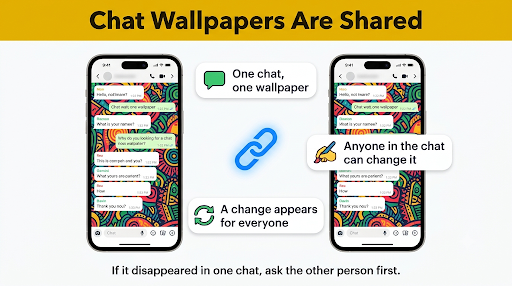
This is the cause most articles skip. A Snapchat chat wallpaper is shared with everyone in that chat. It is not a private setting on your phone. That means:
- Your friend can remove the wallpaper you set, and it disappears on your side too.
- Any group chat member with access to the feature can replace or clear the group wallpaper.
- If your friend set the wallpaper and their Snapchat+ ended, the background may reset for both of you.
If the wallpaper is missing in only one conversation while your other chats look normal, this is almost always the reason.
3. An App Update or Glitch Reset It
Snapchat updates sometimes change how chat profiles and custom backgrounds load. A buggy version, corrupted cache, or failed sync can make the wallpaper show as blank, black, or the default color, even though it’s still set. If chats also look slow or out of date, you may be dealing with a wider sync problem like Snapchat failing to refresh your messages.
4. The Chat Was Cleared, Rebuilt, or You Left the Group
Clearing a conversation from your Chat feed, leaving and rejoining a group, unfriending someone, or being blocked can all break the link between you and that chat’s custom settings. When the conversation comes back as a “new” thread, the wallpaper may not come with it.
5. You Logged In on a New Phone or Reinstalled Snapchat
After switching from Android to iPhone (or the other way), reinstalling the app, or logging in on a second device, Camera Roll wallpapers sometimes fail to load right away. Snapchat+ features can also take a restart to activate on a new device.
How Do You Get Your Snapchat Chat Wallpaper Back?
Start with the quickest fixes and move down the list. Most people solve it in the first three steps.
Step 1: Check Your Snapchat+ Status
- Open Snapchat and tap your Profile icon (top left).
- Look for the Snapchat+ card near the top of your profile.
- Tap it to see if your subscription is active and when it renews.
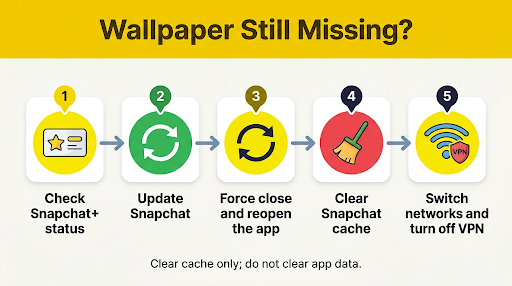
If it says your plan expired, renew it from the same card or at the official Snapchat+ subscription page. After renewing, fully close and reopen Snapchat, since features can take a restart to appear. If you pay through Apple or Google, also check the subscription in your App Store or Google Play account for a failed payment.
Step 2: Reapply the Wallpaper
Even when the cause is a glitch, setting the wallpaper again usually forces it to sync. Here’s how on both iPhone and Android:
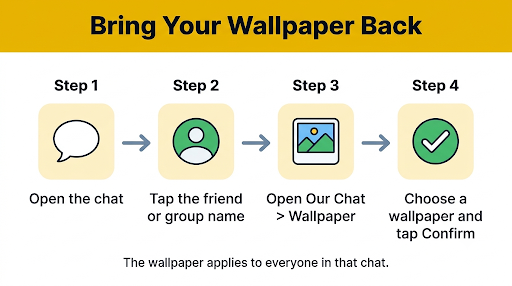
- Open the Chat screen and tap the conversation or group.
- Tap the friend’s name or group name at the top to open the Friendship Profile or Group Profile.
- Scroll to Our Chat and tap Wallpaper.
- Tap Add Wallpaper or Change Wallpaper.
- Pick a built-in option, choose a photo from your Camera Roll, or generate an AI wallpaper if you have Snapchat+.
- Choose whether to blur it, then tap Confirm.
Shortcut: if someone sent a photo in the chat that you’d like as the background, press and hold the image and tap Set as Chat Wallpaper.
Step 3: Update Snapchat
- iPhone or iPad: Open the App Store, tap your profile picture, scroll to pending updates, and tap Update next to Snapchat.
- Android: Open Google Play, tap your profile icon, go to Manage apps & device, and update Snapchat.
Updating fixes known display bugs and makes sure your app version supports the current wallpaper feature.
Step 4: Restart the App and Your Phone
Swipe Snapchat away from your recent apps, wait a few seconds, and open it again. If that doesn’t help, restart your phone. It sounds basic, but it clears temporary loading errors that keep custom backgrounds from appearing.
Step 5: Clear Snapchat’s Cache
- Tap your Profile icon, then the gear icon to open Settings.
- Find Clear Cache (on many versions it sits under Account Actions or Privacy Controls > Clear Data).
- Tap Clear All on iPhone or Continue on Android.
- Restart Snapchat and open the chat again.
Good to know: clearing the cache does not delete your saved chats, Memories, or friends. It only removes temporary files.
Step 6: Check Your Internet Connection
Wallpapers load from Snapchat’s servers, so a weak or blocked connection can leave the chat showing the default background. Switch between Wi-Fi and mobile data, turn off any VPN, and try again. If messages are also stuck in that same conversation, see our guide on Snapchat chats not sending to one person, since the same chat-level issue can affect both.
Step 7: Ask Your Friend What They See
Because the wallpaper is shared, ask your friend or group whether the background is gone on their screen too.
- Gone for everyone: someone removed it, or the person who set it lost Snapchat+. Reapply it.
- Gone only for you: it’s a local glitch. Update, clear cache, or reinstall.
Step 8: Reinstall Snapchat as a Last Resort
Delete Snapchat, reinstall it from the App Store or Google Play, and log back in. Make sure you know your password and have access to your phone number or email first. Your chats, friends, and Snapchat+ status are tied to your account, not the app, so they come back after you log in.
Why Is the Snapchat Wallpaper Option Missing?
If you can’t find Wallpaper at all, the feature either isn’t available on your account yet or you’re looking in the wrong place. Check these points:
- You’re on the wrong profile. Wallpaper lives on the chat’s Friendship Profile or Group Profile under Our Chat, not on your own My Account page or in Settings.
- Your app is outdated. Older versions may hide or not support the option.
- Your Snapchat+ is inactive. On accounts where wallpapers still require a subscription, the option may disappear when your plan ends.
- The chat type doesn’t support it. Wallpapers work in one-on-one chats and group chats. They aren’t available in chats with My AI, business accounts, or Snapchat’s official team account in the same way.
- Feature rollout varies. Snapchat tests and rolls out features in stages, so a friend may see an option you don’t.
Snapchat Chat Wallpaper Disappeared on iPhone vs. Android: Is There a Difference?
The causes are the same on both platforms, but a few details differ:
| Issue | iPhone / iPad | Android |
| Camera Roll wallpaper won’t load | Check Settings > Snapchat > Photos and allow Full Access or the selected photo | Check Settings > Apps > Snapchat > Permissions > Photos and videos |
| Snapchat+ shows expired | Check Settings > your name > Subscriptions for a payment problem | Check Google Play > Payments & subscriptions |
| Background looks black or blank | Low Power Mode or Low Data Mode can delay loading | Battery saver or Data Saver can block background loading for Snapchat |
| Clear cache button | Tap Clear All | Tap Continue |
One common Android-specific case: if you restricted Snapchat’s photo access to “selected photos only,” the wallpaper may not load once that specific image permission resets. Re-grant access, then set the wallpaper again.
What Happens to Chat Wallpapers When Snapchat+ Ends?
When Snapchat+ ends, you keep subscriber features until the last day of your billing period. After that, subscriber-only customizations such as AI chat wallpapers can revert to the standard background. Some other perks reset at the same time, which is why users often notice that My AI shows up in Chats again after being removed around the same moment their wallpaper goes away.
Your messages, saved chats, and friends are not deleted when your subscription ends. Only the paid customizations change.
Common Mistakes That Make the Problem Worse
- Clearing the conversation to “refresh” it. This can wipe chat-level settings and won’t bring the wallpaper back.
- Using “Clear Data” from phone settings on Android. This logs you out and removes local files. Use Snapchat’s own Clear Cache option instead.
- Reinstalling before checking Snapchat+. If your subscription lapsed, reinstalling won’t help.
- Choosing very large or unusual image files. If a photo wallpaper keeps failing, try a standard screenshot or a smaller JPG.
- Assuming it’s a bug when a friend changed it. Ask the other person first. It saves time.
How Do You Stop Your Chat Wallpaper From Disappearing Again?
- Keep Snapchat updated, and turn on automatic updates in the App Store or Google Play.
- Turn on auto-renew for Snapchat+ and keep your payment method current.
- Save your favorite wallpaper image in your Camera Roll so you can reapply it quickly.
- Tell your friend or group which wallpaper you set so no one replaces it by accident.
- Avoid clearing important conversations from your Chat feed.
Frequently Asked Questions
Can my friend see the wallpaper I set on Snapchat?
Yes. Snapchat chat wallpapers show for everyone in that chat, both in one-on-one conversations and group chats. Pick a background you’re comfortable with the whole chat seeing.
Does Snapchat notify someone when you change or remove the chat wallpaper?
Snapchat may show a small note inside the chat when the wallpaper changes, but behavior varies by app version. It doesn’t send a separate push notification just for a wallpaper change.
Why does my Snapchat wallpaper keep resetting in one group chat?
Another member is likely changing or clearing it, since anyone in the group with access to the feature can edit it. If no one is touching it, the person who originally set it may have lost Snapchat+.
How do I remove a chat wallpaper on Snapchat?
Open the chat’s profile, tap Wallpaper under Our Chat, open the preview, and tap the trash can icon in the top right. You can also pick the empty option in the wallpaper selection screen to go back to the default background.
Can I set one wallpaper for all my Snapchat chats at once?
No. Snapchat lets you set a wallpaper one conversation at a time. Unlike WhatsApp, there’s no global chat wallpaper setting.
Will deleting Snapchat delete my chat wallpapers?
Deleting the app doesn’t remove wallpapers from your account, because they’re tied to the conversation. If a Camera Roll wallpaper doesn’t show after reinstalling, set it again from the chat profile.
Is the Snapchat chat wallpaper free?
It depends on your account. Chat Wallpapers started as a Snapchat+ feature, and AI-generated wallpapers still require Snapchat+. Some users can set basic wallpapers without paying, but this isn’t the same for everyone.
Final Recommendation
If your Snapchat chat wallpaper disappeared from every chat, check your Snapchat+ status first, then update and restart the app. If it vanished from just one chat, ask the other person whether they removed it and reapply it from Our Chat > Wallpaper. Still stuck after clearing your cache and reinstalling? Report the problem through Snapchat Support with your device model and app version so their team can check for an account-level issue.

Anica Lymus is a technical writer specializing in consumer applications, mobile operating systems, and practical troubleshooting workflows. At Primotechy, she covers account security, software glitches, and app performance across platforms such as Facebook, Instagram, and Snapchat. Drawing on hands-on device testing and in-depth research across iOS, Android, macOS, and Windows, Anica translates complex platform settings and sudden technical errors into clear, verified, step-by-step guides that readers can easily follow and trust.
View all posts by Anica Lymus →