
If your Instagram pinned comment is not showing, the cause is usually one of four things: the post isn’t yours, the comment is hidden by a filter or Restrict, your app is out of date, or a temporary app glitch is loading the comment thread wrong. Start by updating Instagram, then check whether the comment is hidden or from a restricted account. Those two steps fix most cases.
This guide covers both versions of the problem. Maybe you can’t see the pin option at all. Or maybe you already pinned a comment, but it isn’t at the top, or your followers can’t see it. You’ll find fixes for iPhone, Android, Reels, Live, and the web below.
Contents
Quick Overview
| What you see | Most likely cause | Quick fix |
| No pin icon at all | Not your post, old app version, or you’re on a desktop browser | Open your own post in the updated mobile app |
| Pin icon is there, but pinning fails | You already have 3 pinned comments | Unpin one, then pin the new comment |
| Pinned comment not at the top for you | App cache or loading glitch | Refresh comments, restart the app, or clear cache (Android) |
| Followers can’t see your pinned comment | Hidden Words filter, Restrict, or the comment was hidden | Unhide or approve the comment, then pin a visible one |
| Can’t pin your own comment | Feature not active on your app version yet | Update the app and try again later |
How Do Pinned Comments Work on Instagram?
You can pin up to three comments on any post or Reel you own, and they stay at the top of the comment section with a small pin label. Everyone who opens the comments should see them first, no matter how many new comments come in.
A few rules decide whether pinning works at all:
- You can only pin on your own content. There is no way to pin a comment on someone else’s post or Reel.
- The limit is three per post. Your own pinned comment counts toward that limit.
- Pinning your own comment is back. Instagram head Adam Mosseri announced in September 2025 that creators could once again pin their own comments, after many users noticed the option had disappeared for a while.
- Instagram Live is different. You can pin only one comment at a time during a live video, and it can be your own.
- The commenter gets notified. When you pin someone’s comment, Instagram tells that person. Your other followers don’t get an alert.
- It’s a mobile feature. Pinning works in the Instagram app on iPhone and Android, not in a desktop browser.
Knowing these rules matters because many “not showing” reports aren’t bugs. They’re one of these limits in action.
Why Is the Pin Option Not Showing on Instagram?
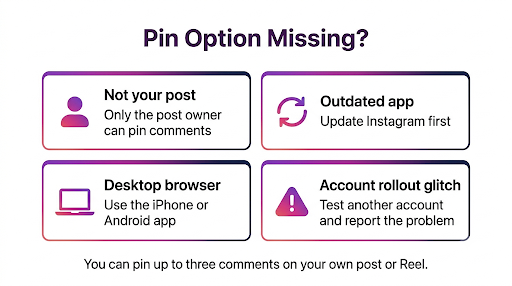
The pin option usually doesn’t appear because you’re looking at someone else’s post, using an outdated app, or trying from a computer. It can also vanish because of a feature rollout issue on your specific account.
1. You’re Not on Your Own Post
This is the most common mix-up. If you comment on a friend’s photo or a brand’s Reel, you won’t get a pin icon. Only the account that published the post can pin. If you want your comment pinned somewhere else, the post owner has to do it.
2. Your Instagram App Is Outdated
New comment tools, like pinning your own comment, roll out through app updates. An older version may show the pin option for other people’s comments but not yours, or not show it at all.
- iPhone: Open the App Store, tap your profile picture, scroll to Instagram, and tap Update.
- Android: Open the Google Play Store, search for Instagram, and tap Update.
3. You’re Using Instagram on a Computer
Instagram on the web lets you read and manage comments, but the pin gesture lives in the mobile app. If you’re on a laptop, Mac, or Windows PC, switch to your phone. On an iPad, the iPhone app usually works the same way.
4. The Gesture Is Different on iPhone and Android
People often miss the option because they use the wrong gesture for their phone.
- iPhone: Swipe left on the comment to reveal the pin icon.
- Android: Tap and hold the comment until a toolbar appears at the top, then tap the pin icon.
Menus shift slightly between app versions. If you don’t see a swipe option on iPhone, try a long press instead.
5. Comments Are Turned Off or Limited
If comments are turned off on that post, there’s nothing to pin. Some creators also report the pin option showing up again after they turned comments off and back on, or set “Allow comments from” to Everyone. It’s worth a try if nothing else works.
6. Your Account Has a Rollout Glitch
Reddit threads in r/Instagram show creators losing the pin option on one account while it still worked on another. That points to a server-side rollout or bug, not your settings. If you’ve updated and still can’t pin, report it from the app (more on that below) and check again after a few days.
Why Is My Pinned Comment Not Showing at the Top?
If you pinned a comment but it doesn’t appear at the top, the comment section is likely loading from old cached data, or the pin didn’t save. A refresh usually fixes it.
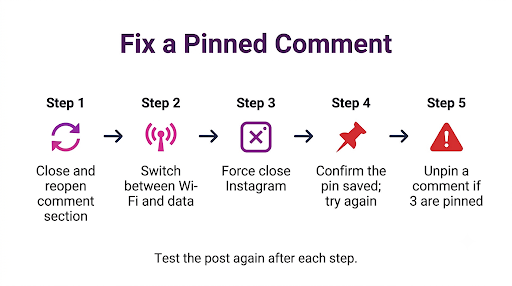
Try these in order:
- Close and reopen the comments. Back out of the post, then open it again. Pull down to refresh the comment thread.
- Check your connection. Switch between Wi-Fi and mobile data, or toggle Airplane Mode on and off for a few seconds. A weak connection can load the comments without the pinned section.
- Force close Instagram. On iPhone, swipe up from the bottom and swipe Instagram away. On Android, go to Settings, then Apps, then Instagram, and tap Force Stop.
- Confirm the pin actually saved. Open the comment again. If it still shows the pin icon as unselected, pin it again and wait for the confirmation.
- Check the three-comment limit. If three comments are already pinned, Instagram asks you to unpin one first. A fourth pin won’t stick.
Why Can’t My Followers See My Pinned Comment?
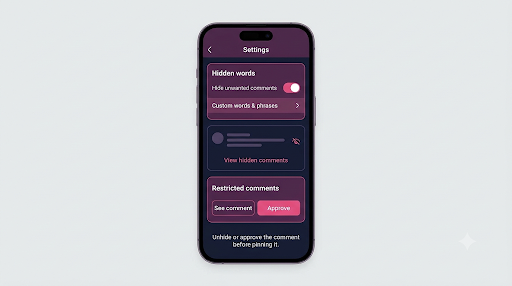
When you can see your pinned comment but your followers can’t, the comment is probably hidden by a filter, from a restricted account, or blocked between that viewer and the commenter. Each one hides a comment from others while it still looks normal to you or the person who wrote it.
Hidden Words and Comment Filters
Instagram automatically hides comments with common offensive words, phrases, or emojis. According to the Instagram Help Center page on Hidden Words, this setting is on by default. There’s also an Advanced comment filtering option that hides even more possible spam, though it doesn’t hide comments from people you follow and who follow you.
Two details trip people up. Hidden comments still count in your total comment count, and the person who wrote the comment isn’t told. So you might see “12 comments” but only 10 on screen, and the pinned one could be among the missing.
To check your filters:
- Go to your profile and tap the menu in the top right.
- Under How others can interact with you, tap Hidden words.
- Review Hide comments, Advanced comment filtering, and any custom words you added.
- On the post itself, open the comments and look for View hidden comments to unhide one.
Common mistake: Adding everyday words like “link,” “price,” or “DM” to your custom list. Those words catch normal comments, including ones you might want to pin, like a customer asking about a product.
Restricted Accounts
If you restricted someone, their new comments on your posts are visible only to them until you approve them. The Instagram Help Center explains how Restrict works, including how to tap See comment and then Approve to make a comment public. Approve it first, then pin it, and it’ll show for everyone.
Blocked Accounts
Blocking works both ways. If the commenter blocked a viewer, or the viewer blocked the commenter, that person won’t see the comment, even if it’s pinned. That’s not a bug, and there’s no setting you can change on your end to override it.
The Comment Was Deleted
If the commenter deleted their comment or their account, the pinned comment disappears too. Instagram may also remove comments that break its rules. In that case, pin a different comment.
How Can You Test If Your Pinned Comment Is Really Visible?
The fastest way to know what others see is to check from another account. What shows on your screen as the owner isn’t always what the public sees.
- Log in with a second account you own and open the post.
- Ask a friend who doesn’t follow you to check, since some filters treat followers and non-followers differently.
- Check on both an iPhone and an Android phone if you can. Some users report a comment issue on one device that doesn’t happen on another.
If the comment shows on other accounts, the problem is on your device. If it doesn’t, the comment is hidden, restricted, or removed.
How Do You Fix Pinned Comments Not Showing on Android?
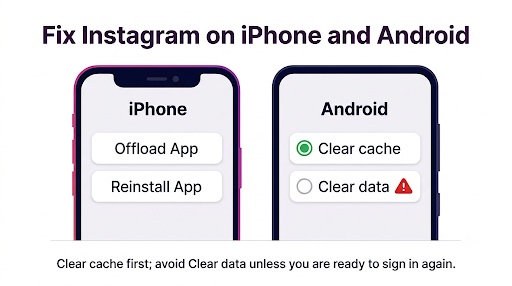
On Android, clearing the Instagram cache is one of the most effective fixes, because stale cached data often causes comment sections to load wrong.
- Open Settings on your phone.
- Tap Apps, then Instagram.
- Tap Storage, then Clear cache. Don’t tap Clear data unless you’re okay logging in again.
- Reopen Instagram and check the post.
Menu names vary by brand. On Samsung Galaxy phones, you’ll find it under Settings, Apps, Instagram, Storage. If Instagram feels slow or broken across the board on a Galaxy device, this guide on fixing Instagram feed loading issues on the Samsung S26 Ultra covers deeper Samsung-specific steps.
How Do You Fix Pinned Comments Not Showing on iPhone?
iPhone doesn’t let you clear a single app’s cache, so offloading or reinstalling Instagram is the closest equivalent.
- Go to Settings, then General, then iPhone Storage.
- Tap Instagram, then tap Offload App. This removes the app but keeps your data.
- Tap Reinstall App on the same screen.
- Log back in if asked and open the post again.
Also check that Low Data Mode isn’t on for your Wi-Fi or cellular connection. It can stop parts of the app from loading fully.
Why Did My Pinned Comment Disappear After an Instagram Update?
App updates sometimes reset how comments load or change where tools appear. If your pinned comment vanished right after an update, it’s usually a display problem, not a deleted pin.
Restart your phone, open the post, and check if the comment still shows the pin icon when you swipe or long press it. If it’s unpinned, pin it again. Update bugs tend to hit several features at once, much like when Instagram watch history stops showing after an update. If several things broke together, wait for the next app update, since Instagram usually patches these quickly.
What About Pinned Comments on Reels, Live, and Collab Posts?
Pinned comments work a little differently depending on the type of content.
Reels
Reels follow the same rules as feed posts. You can pin up to three comments, using the same swipe or long press. If the pin option is missing on a Reel, make sure you’re viewing it from your own profile, not from a reshare in Stories or DMs.
Instagram Live
During a live video, tap a comment and choose Pin Comment. Only one comment can be pinned at a time. After the live ends, comment behavior in the replay can be limited, which is a separate issue. If viewers are asking why they can’t see comments later, here’s why comments may not show on an Instagram Live replay.
Collab Posts
Collab posts appear on two profiles, but they share one comment section. Pinning options can behave differently here, and some users report they can’t pin on a post they were invited to. If the pin option is missing, try pinning from the original author’s account. And if the collab itself isn’t set up right, check why an Instagram collab invite may not be showing before troubleshooting comments.
What Should You Do If Nothing Works?
If you’ve updated the app, checked filters, cleared the cache, and tested from another account, report the problem to Instagram directly. This sends device logs that help their team find account-level bugs.
- Open Instagram and go to the post.
- Shake your phone gently. A Report a problem window should appear. If it doesn’t, go to your profile, tap the menu, then Help, then Report a problem.
- Describe the issue clearly, such as “Pinned comment not showing to followers on my Reel” or “Pin option missing on my own posts.”
- Include screenshots and submit.
Tip: While you wait, you can still highlight key info another way. Add it to your caption, or reply to the comment you wanted pinned so the reply sits right under it.
Common Mistakes That Make Pinned Comments Look Broken
- Pinning a comment from a restricted account without approving it first. Only you and the commenter will see it.
- Testing from your own account only. You see hidden and restricted comments that others don’t.
- Trying a fourth pin. Instagram won’t add it until you unpin one.
- Using the wrong gesture. Swipe on iPhone, long press on Android.
- Pinning a comment with a link or promo code that your own Hidden Words list filters out.
Frequently Asked Questions
Why does Instagram say 3 comments but I only see 2?
One comment is likely hidden by a filter, from a restricted account, or from someone who blocked you or whom you blocked. Hidden comments still count in the total. If it’s your post, check View hidden comments in the comment section.
Can I pin a comment on Instagram from my computer?
No. Pinning is available in the Instagram mobile app on iPhone and Android. You can open the same account on your phone, pin the comment there, and it’ll show for viewers on the web too.
Does Instagram notify people when I unpin their comment?
Instagram notifies people when you pin their comment, but there’s no indication that it sends a notification when you unpin one. The comment simply moves back into the regular thread.
Why can’t I pin my own comment on Instagram?
Your app may not have the feature yet. Instagram brought back the option to pin your own comment in September 2025, and updates roll out gradually. Update the app, restart it, and try a long press on your comment.
Do pinned comments show in the order I pinned them?
Yes. Pinned comments sit at the top in the order you pinned them. If you want a different one first, unpin all three and pin them again in the order you want.
Will a pinned comment show if my account is private?
Yes, but only to people who can see your posts. On a private account, that means approved followers. Non-followers can’t open the post, so they won’t see the pinned comment either.
Final Recommendation
If your Instagram pinned comment is not showing, update the app first and make sure you’re on your own post in the mobile app. Next, check Hidden Words and Restrict, since those are the main reasons followers can’t see a pinned comment. Then test from a second account to confirm what the public sees.
If the pin option is missing even after all that, it’s likely an account-level bug. Report it through the app, keep important details in your caption for now, and check back after the next Instagram update.

Anica Lymus is a technical writer specializing in consumer applications, mobile operating systems, and practical troubleshooting workflows. At Primotechy, she covers account security, software glitches, and app performance across platforms such as Facebook, Instagram, and Snapchat. Drawing on hands-on device testing and in-depth research across iOS, Android, macOS, and Windows, Anica translates complex platform settings and sudden technical errors into clear, verified, step-by-step guides that readers can easily follow and trust.
View all posts by Anica Lymus →