
If your TikTok Repost button is missing, open the Share menu (the arrow icon) on two or three different videos first. If Repost shows up on some videos but not others, the creator or the video’s privacy settings are blocking it. If it is gone on every video, clear the TikTok cache, update the app, then log out and back in.
Most of the time, the button is not actually gone. It has moved, it is hidden on one specific video, or a small app glitch is stopping the Share menu from loading properly. This guide walks you through each cause, in the order that saves you the most time, on both iPhone and Android.
Contents
Quick Overview
| What you see | Most likely cause | What to do |
| Repost is missing on one video only | Private video, private account, or the creator limited sharing | Nothing to fix. Try a different video or share the link instead |
| Repost is missing on every video | App glitch, full cache, or outdated app | Clear cache, update TikTok, log out and back in |
| You see “Remove repost” instead | You already reposted that video | Leave it, or tap it to undo the repost |
| Repost is missing on a new or teen account | Age or safety limits, or a gradual feature rollout | Check account settings and notifications |
| Reposts tab is missing on your profile | No reposts yet, or a display glitch | Repost one video, then refresh your profile |
Where Is the Repost Button on TikTok Now?
The Repost button lives inside the Share menu. Tap the arrow icon on the right side of a video, and Repost appears as a yellow circular icon with two arrows, usually in the top row of options.
A lot of “missing” reports come from people who expect a separate repost icon on the main video screen. TikTok has changed where repost shows up a few times, and the icon has also changed in look, so it is easy to scroll past it. In some app versions, pressing and holding the Share icon or the video itself also brings up a repost shortcut. Menu layouts can vary by app version and region, so if you don’t see it in one place, check the other.
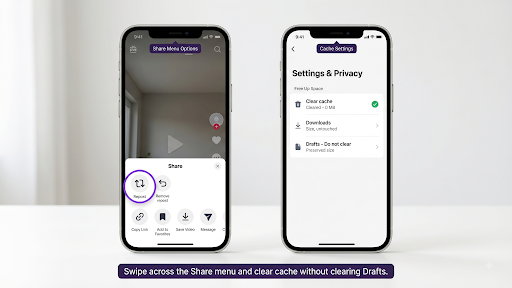
Pro Tip! Swipe left across the top row of the Share menu. On smaller phones, Repost sometimes sits just off-screen.
Why Did My TikTok Repost Button Disappear?
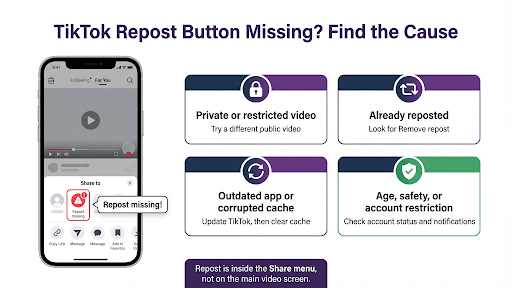
The repost button usually disappears for one of two reasons: the video itself does not allow reposts, or something on your app or account is stopping the option from loading. Here are the specific causes.
1. The Video Is Private or Limited
You can only repost videos that are publicly visible. If a creator has a private account, or set a specific video to Friends or Only me, the Repost option will not appear for that clip. This protects the creator’s audience choice, so there is no workaround inside the app.
2. The Creator Restricted Sharing
Creators can control how their videos get shared, downloaded, or reused. Some limits also come from the type of post, like ads, certain promoted videos, or content with licensing limits. If Repost works on other videos but not this one, the restriction is on the creator’s side, not yours.
3. You Already Reposted It
Once you repost a video, the button changes to Remove repost. Many people tap Share, don’t see the word “Repost,” and assume it vanished. Check for the Remove repost label first.
4. The App Cache Is Full or Corrupted
A bloated or damaged cache is one of the most common reasons buttons go missing across the whole app. This is the same thing that causes other features to stop showing, like when TikTok Photo Mode is not showing even though it works for your friends.
5. You Are Using an Outdated App Version
TikTok updates often. Older versions can lose access to features that moved to a new spot in the menu, or simply fail to load them.
6. Age, Safety, or Account Restrictions
Teen accounts have tighter sharing and visibility defaults, and some interactions are limited for younger users. Accounts with a community guidelines warning or a temporary restriction may also lose certain features for a while. Check your Inbox and your account status for any notice.
7. Weak Connection or Location Signals
A slow connection can stop the Share menu from fully loading, so Repost never appears. Using a VPN can also cause features to behave oddly because TikTok sees a location that does not match your account.
8. Gradual Feature Rollouts
TikTok tests changes on small groups of users before releasing them widely. If you were placed in a test group, your repost layout may look different from your friends’ screens for a while.
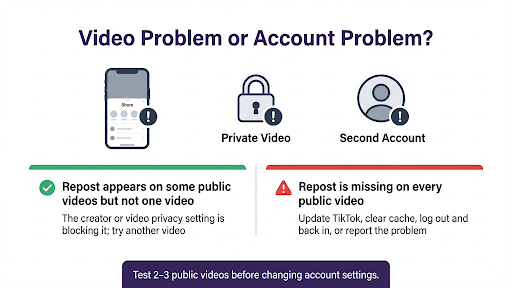
Important Point to be Considered! If Repost is missing on one video, it is almost always a video or creator setting. If it is missing on every video, it is almost always your app or account. Test before you start changing settings.
How Do You Fix the TikTok Repost Button Not Showing?
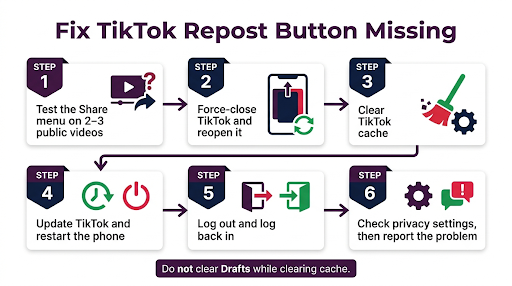
Work through these fixes in order. Test the Share menu on a couple of public videos from your For You feed after each step.
Step 1: Test Several Public Videos
- Open your For You feed.
- Tap the Share arrow on a popular public video.
- Look for the yellow Repost icon, and swipe across the top row.
- Repeat on two more videos from different creators.
If Repost shows on any of them, your account is fine. The missing button was a video-level restriction.
Step 2: Restart TikTok Completely
Force-close the app instead of just switching away. On iPhone, swipe up from the bottom and swipe TikTok away. On Android, open Recent apps and swipe it off, or go to Settings > Apps > TikTok > Force stop. Reopen and check again.
Step 3: Clear the TikTok Cache
- Go to your Profile.
- Tap the menu icon (three lines) in the top right.
- Tap Settings and privacy.
- Scroll to Free up space (listed under Cache and cellular on some versions).
- Tap Clear next to Cache.
- Force-close TikTok and open it again.
Clearing the cache does not delete your videos, drafts saved to your account, followers, or likes. It only removes temporary files. Be careful not to clear Downloads or Drafts if you see those options, since local drafts may not be backed up.
Step 4: Update TikTok
Open the App Store (iPhone) or Google Play Store (Android), search for TikTok, and tap Update if it shows. If you only see Open, you already have the latest version. Restart your phone after the update for good measure.
Step 5: Log Out and Log Back In
- Go to Profile > menu > Settings and privacy.
- Scroll down and tap Log out.
- Force-close the app and restart your phone.
- Open TikTok and sign back in.
This refreshes your session and pulls a fresh copy of your account features from TikTok’s servers. It is the fix most often reported by users when the Repost option disappeared overnight.
Step 6: Check Your Privacy and Repost Settings
Go to Profile > menu > Settings and privacy > Privacy. Look for options related to Reposts and review who can see your reposts. Also check whether your account is set to private. Labels change between versions, so if you don’t see a Repost line, look under the sharing or interaction options on the same screen.
Step 7: Switch Networks and Turn Off Your VPN
Switch from Wi-Fi to mobile data, or the other way around, and disconnect any VPN. Then reload a video and open the Share menu again.
Step 8: Reinstall the App
Delete TikTok and install it again from your app store. Before you do this, post or save any drafts you care about, because drafts stored only on your phone can be lost when you uninstall.
Step 9: Report the Problem to TikTok
If nothing works, report it inside the app. Go to Profile > menu > Settings and privacy > Report a problem, pick the closest topic, and describe that the Repost option is missing from the Share menu. A screen recording helps the support team see the issue. You can also review TikTok’s official help on the TikTok Help Center.
How Do You Fix a Missing Repost Button on iPhone vs. Android?
The fixes are the same on both, but a few steps work a little differently.
| Task | iPhone | Android (including Samsung) |
| Force-close TikTok | Swipe up from the bottom, swipe TikTok away | Settings > Apps > TikTok > Force stop |
| Extra cache clear | Only inside TikTok, or Offload App in iPhone Storage | Settings > Apps > TikTok > Storage > Clear cache |
| Update the app | App Store > search TikTok > Update | Play Store or Galaxy Store > TikTok > Update |
| Background data | Settings > TikTok > turn on Background App Refresh and Cellular Data | Settings > Apps > TikTok > Mobile data > allow background data |
Pro Tip! On iPhone, Offload App (Settings > General > iPhone Storage > TikTok) removes the app but keeps its documents and data. It is a gentler reset than a full delete.
Why Is the Reposts Tab Not Showing on My TikTok Profile?
The Reposts tab on your profile (the double-arrow icon next to your videos grid) usually appears only after you have reposted at least one video. If you have reposts but the tab is gone, it is typically a display glitch that clears after a cache clear and a fresh login.
Profile tabs on TikTok tend to break together. If your Reposts tab vanished at the same time as other sections, the cause is often shared, similar to when a TikTok playlist is not showing on your profile. The fixes in that case overlap a lot with the ones above.
Keep in mind that reposts mainly show up in your followers’ feeds with a small “reposted” label. Your reposts tab is more of a personal record than a public post grid.
How Do You Undo a Repost If You Can’t Find the Video?
To undo a repost, open the video, tap Share, and tap Remove repost. If you can’t find the video again, open your Reposts tab on your profile and select it from there.
If the Reposts tab is not loading, try your watch history. Go to Profile > menu > Settings and privacy > Activity center > Watch history, find the video, and remove the repost from its Share menu. If that list is empty too, see our guide on fixing TikTok watch history when it goes missing.
TikTok does not offer a built-in option to remove all reposts at once. You will need to undo them one at a time.
How Do You Repost a TikTok When There Is No Repost Option?
If a video truly cannot be reposted, you still have honest ways to share it:
- Send it directly: Use the Share menu to send it to friends in TikTok messages.
- Copy the link: Tap Copy link and paste it into a text, a story on another app, or a group chat.
- Duet or Stitch: If the creator allows them, you can react to the video in your own post, which also credits the creator.
- Add to Favorites: Save it so you can come back to it later.
Avoid downloading and re-uploading someone else’s video as your own. It can get flagged as unoriginal content and may lead to removals or reduced reach.
Common Mistakes That Make the Repost Button Seem Missing
- Testing only one video. One private or restricted clip tells you nothing about your account.
- Looking on the main screen instead of the Share menu. Repost is a Share option, not a standalone icon in most versions.
- Using TikTok on a computer. Reposting is built mainly for the mobile app. The web version may not show the same options.
- Clearing Drafts instead of Cache. This deletes unposted work and won’t fix the button.
- Confusing Repost with Duet or Stitch. Those are separate features with their own settings.
Frequently Asked Questions
Did TikTok get rid of the repost button?
No. TikTok still has the Repost feature. It sits inside the Share menu, and its look and position have changed over time, which is why many people think it was removed.
Can you repost on TikTok if your account is private?
Yes, a private account can usually repost public videos. Your reposts will only reach people who are allowed to see your account. You cannot repost videos that come from other private accounts.
Does the creator get notified when I repost their video?
TikTok does not typically send the creator a separate notification for each repost. Your followers see the video in their feed with a label showing that you reposted it.
How do I enable repost on TikTok for Android or iPhone?
There is no single on/off switch to turn the Repost button on for yourself. Keep the app updated, use a public video, and check Settings and privacy > Privacy for repost visibility options. If it still won’t appear, clear the cache and sign in again.
Can I repost on TikTok from a computer?
Reposting is designed for the TikTok mobile app on iPhone and Android. If you want to repost, use your phone even if you usually browse on desktop.
Why does my repost button keep disappearing after I fix it?
If the button comes back and then vanishes again, your account may be in a feature test group, or a VPN or unstable connection keeps interfering. Turn off the VPN, keep auto-updates on, and send a report to TikTok with a screen recording so the issue is logged.
Final Recommendation
Start with the simplest test: open the Share menu on three public videos from your For You feed. If Repost appears on any of them, the missing button was just a creator or privacy limit on one video. If it is missing everywhere, clear the cache, update TikTok, and log out and back in, in that order. That fixes the problem for most people. If you are still stuck after a reinstall, use Report a problem in the app so TikTok can check your account directly.

Anica Lymus is a technical writer specializing in consumer applications, mobile operating systems, and practical troubleshooting workflows. At Primotechy, she covers account security, software glitches, and app performance across platforms such as Facebook, Instagram, and Snapchat. Drawing on hands-on device testing and in-depth research across iOS, Android, macOS, and Windows, Anica translates complex platform settings and sudden technical errors into clear, verified, step-by-step guides that readers can easily follow and trust.
View all posts by Anica Lymus →