
If TikTok Photo Mode is not showing, the usual causes are an outdated app, limited photo permissions, a video mixed into your selection, or a cache glitch. Update TikTok, give it full access to your photos, select only images, and look for the Photo tab or “Switch to photo mode” button on the editing screen. These steps bring the option back for most people.
Below you’ll find every fix in the right order, from the 10-second checks to account-level workarounds, plus what to do if your post keeps turning into a video instead of a swipeable slideshow.
Contents
Quick Overview
| What You See | Most Likely Cause | Quick Fix |
| No Photo tab on the create screen | Old app version | Update TikTok from the App Store or Google Play |
| Only a few photos appear in the picker | Limited photo access | Allow full access to all photos in phone settings |
| “Switch to photo mode” button is missing | A video, GIF, or Live Photo is in your selection | Select only still photos and try again |
| Post plays like a video instead of swiping | You stayed in video or template mode | Tap “Switch to photo mode” before tapping Next |
| Option disappeared after working before | Cache glitch or account-level issue | Clear cache, restart, switch accounts, or reinstall |
| Uploading from a computer | Desktop tools differ from the mobile app | Post photo carousels from the TikTok mobile app |
What Is TikTok Photo Mode?
TikTok Photo Mode lets you post still images as a swipeable carousel instead of a video. Viewers swipe through the photos at their own pace, and you can still add music, text, stickers, and a caption.
TikTok launched Photo Mode in October 2022. You’ll also hear people call it a TikTok slideshow, photo swipe, photo carousel, or photo dump. According to TikTok’s Help Center guide on making a post, you can add up to 35 photos to a single photo post.
Here’s the part that confuses many users. TikTok has two ways to turn pictures into content:
- Photo Mode (swipeable): Viewers swipe left and right through each image. This is the real carousel format.
- Video slideshow or template: Your photos are stitched into a video that plays automatically. Viewers can’t swipe.
If your post plays on its own, Photo Mode didn’t “break.” You probably published it as a video slideshow.
Why Is TikTok Photo Mode Not Showing?
Photo Mode usually goes missing because of something on your phone or in your selection, not because TikTok removed it. These are the most common reasons:
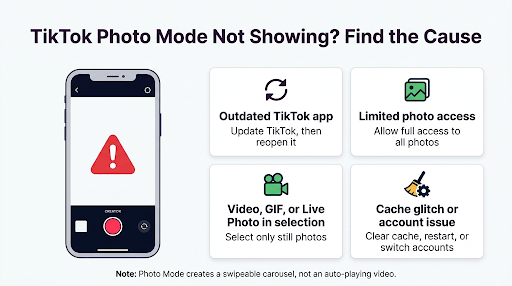
- Outdated TikTok app: Older versions may hide or move the Photo option.
- Limited photo library access: On iPhone and newer Android versions, TikTok may only see a few selected photos.
- Mixed media selection: TikTok photo posts can’t contain videos. If even one clip is selected, the photo option often disappears.
- Corrupted cache: Temporary files can cause buttons and tabs to stop loading properly.
- Gradual rollout or account-level glitch: TikTok tests and moves features in stages, so one account may see an option before another.
- Unsupported device or app: Very old phones, some tablets, and the desktop uploader may not show the same Photo Mode controls.
- Temporary TikTok server issue: Sometimes the feature fails for many users at once.
How Do You Turn On Photo Mode on TikTok?
To turn on Photo Mode, tap the + button, choose Photo, tap Upload, select your images, and then make sure “Switch to photo mode” is active on the editing screen. Before you start troubleshooting, run through the correct steps once, because the layout has changed several times.
- Open the TikTok app and tap the + (Add post) button at the bottom.
- Tap Photo at the bottom of the camera screen if you see it.
- Tap Upload (the gallery thumbnail) and choose the Photos tab.
- Turn on Select multiple and pick up to 35 images in the order you want them to appear.
- Tap Next.
- On the editing screen, look at the bottom. If you see “Switch to photo mode,” tap it. If it already says “Switch to video mode,” you’re in Photo Mode.
- Add sound, text, or stickers, then tap Next and post.
Pro Tip! On some app versions, TikTok opens photo posts in Photo Mode automatically, so the switch button never appears. Check for swipe dots or the “Switch to video mode” label before assuming something is wrong.
How Do You Fix TikTok Photo Mode Not Showing?
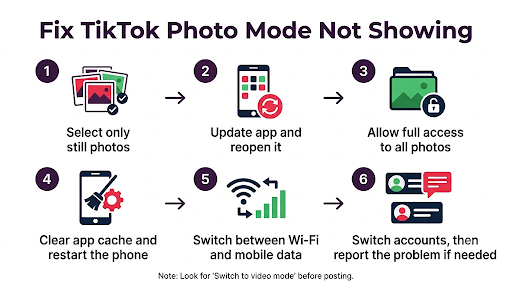
Work through these fixes in order. The first few take less than a minute and solve the problem for most users.
1. Select Only Photos (No Videos, GIFs, or Live Photos)
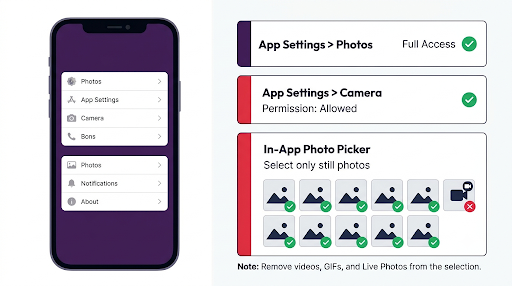
TikTok doesn’t support posts that mix photos and videos. If one video slips into your selection, TikTok treats the whole thing as a video project and the photo option vanishes.
- Open the Photos tab in the upload screen instead of All.
- Remove any video, screen recording, or GIF from your selection.
- On iPhone, Live Photos and some edited images can behave like motion files. Try a regular still photo to test.
2. Update the TikTok App
An outdated app is the number one reason the Photo tab or switch button goes missing.
- iPhone: Open the App Store, tap your profile picture, scroll to TikTok, and tap Update.
- Android: Open Google Play, search for TikTok, and tap Update.
After updating, force-close TikTok and open it again before checking.
3. Give TikTok Full Access to Your Photos
If TikTok only has limited access, it can’t load your full gallery, and photo selection may act strangely.
On iPhone:
- Open Settings and scroll down to TikTok (on newer iOS versions, go to Settings > Apps > TikTok).
- Tap Photos.
- Choose Full Access instead of Limited Access.
On Android:
- Open Settings > Apps > TikTok > Permissions.
- Tap Photos and videos (or Files and media on older versions).
- Select Allow all or Allow.
Menu names vary by phone brand and software version, but the permission always sits under the TikTok app’s settings. On iPhone, you can also reach it from Settings > Privacy & Security > Photos > TikTok.
Important Point to be Considered! Also check Camera and Microphone permissions. They don’t control Photo Mode directly, but a missing permission can stop the create screen from loading all its options.
4. Check the Right Screen for the Photo Option
Many people look for Photo Mode in the wrong place. The option can show up in three spots depending on your app version:
- A Photo tab on the bottom of the camera screen
- A Photo toggle near the top of the upload screen
- A “Switch to photo mode” button at the bottom of the editing screen after you tap Next
If you tap a template or AutoCut instead of Next, TikTok builds a video slideshow, and Photo Mode won’t appear.
5. Clear the TikTok Cache
Clearing the cache removes temporary files that can stop buttons from loading. It won’t delete your drafts or posts.
- Go to your Profile and tap the Menu (three lines) at the top right.
- Tap Settings and privacy.
- Scroll to Cache & cellular and tap Free up space.
- Tap Clear next to Cache and confirm.
Pro Tip! Don’t tap Clear next to Drafts unless you mean it. Drafts are stored on your phone, and deleting them can’t be undone.
6. Force-Close TikTok and Restart Your Phone
A simple restart clears stuck processes that a cache wipe doesn’t touch. Swipe TikTok away from your recent apps, restart your phone, then open TikTok and try again.
7. Check Your Internet Connection
Parts of the create screen load from TikTok’s servers. On a weak connection, some options may not appear. Switch between Wi-Fi and mobile data, and turn off any VPN while you test.
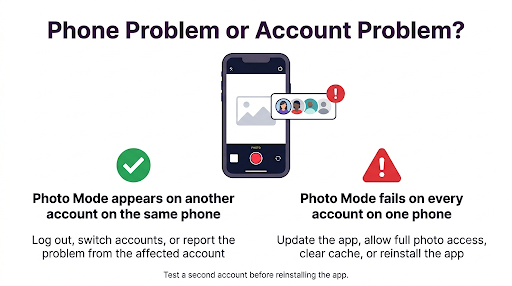
8. Switch Accounts and Switch Back
This workaround comes up again and again in TikTok comments, and it often works when everything else fails. It seems to refresh the features loaded for your account.
- Tap your username at the top of your profile and add or log in to a second account.
- Scroll the For You feed for a minute.
- Force-close TikTok.
- Reopen it and switch back to your main account.
If Photo Mode shows on the second account but not your main one, the problem is tied to your account, not your phone.
9. Log Out and Log Back In
Logging out forces TikTok to reload your account settings. Go to Settings and privacy, scroll down, tap Log out, then sign back in. Make sure you know your password first.
10. Delete and Reinstall TikTok
Reinstalling gives you a clean copy of the latest version. Before you do it, post or save any drafts you care about, because drafts stored on your phone are removed when you delete the app.
11. Try a Different Phone
Log in on another phone with the latest TikTok version. If Photo Mode appears there, your original device is the issue, often an old operating system or a phone that doesn’t support the newest app build.
12. Report the Problem to TikTok
If nothing works, tell TikTok directly. Go to Profile > Menu > Settings and privacy > Report a problem, choose the topic closest to posting or editing, and explain that Photo Mode is missing. Add a screenshot of your editing screen and your app version so support can see what you see.
Why Does My TikTok Photo Mode Say It Is Unavailable?
If TikTok says Photo Mode is currently unavailable, the feature is usually blocked by a temporary glitch, a server issue, or something in your selection. Update the app, check photo permissions, remove any video from your selection, clear the cache, and restart TikTok.
If the message appears for one specific set of images, try a smaller batch. Very large files or unusual formats can fail while normal JPEG photos work fine.
Why Does My TikTok Slideshow Post as a Video?
Your TikTok slideshow posts as a video when you skip “Switch to photo mode,” use a template, or tap AutoCut. In all three cases, TikTok turns your images into an auto-playing video instead of a swipeable carousel.
To fix it, rebuild the post: select your photos, tap Next, and confirm the bottom button says “Switch to video mode” before posting. That label means you’re in Photo Mode. You can’t convert an already published video slideshow into a swipeable post, so you’ll need to repost.
Going the other way is easy too. If you want a video slideshow, tap “Switch to video mode” in the editor.
Is TikTok Photo Mode Not Showing on iPhone Only?
No, the issue happens on both iPhone and Android, but iPhone users see it more often because of the Limited Access photo setting. If you picked “Select Photos” when TikTok first asked for access, TikTok can only see those few images.
On iPhone, also check these:
- Your iOS version is current under Settings > General > Software Update.
- You’re selecting photos from the Photos tab, not mixing in Live Photos or screen recordings.
- Your iPhone has enough free storage, since TikTok needs room to process images.
If you also have upload trouble on other apps, the same storage and connection checks help. For example, our guide on fixing an Instagram Reel stuck at 90% uploading on iPhone walks through similar iPhone-side fixes.
How Do You Fix Photo Mode on Android?
On Android, update TikTok from Google Play, allow full Photos and videos access, and clear the app cache from both TikTok and your phone settings. Android gives you one extra option that iPhone doesn’t.
- Open Settings > Apps > TikTok > Storage.
- Tap Clear cache.
Avoid Clear data or Clear storage unless you’re ready to log in again and lose local drafts.
If you use TikTok Lite, note that it lists Photo Mode as a feature, but Lite sometimes gets features at a different pace than the main app. If Photo Mode is missing in Lite, test the full TikTok app.
Can You Use TikTok Photo Mode on a Computer?
The swipeable Photo Mode is built for the TikTok mobile app. The desktop uploader at TikTok.com has historically focused on videos, and its photo options aren’t the same as the app’s “Switch to photo mode” control.
If you edit photos on your computer, the simplest fix is to send them to your phone and post the carousel from the app. Some third-party scheduling tools can publish TikTok photo posts through TikTok’s official posting API, but they follow strict rules like JPEG or WebP images and the 35-photo cap.
Why Can’t I Swipe Through TikTok Slideshows?
If you can’t swipe through other people’s slideshows, the post may be a video slideshow, or your app may be misreading the swipe as a move to the creator’s profile. This is a viewer-side problem, not a Photo Mode problem.
- Swipe from the center of the photo, not the screen edge.
- Check for small dots under the image. No dots usually means it’s a video.
- Update the app and clear the cache, since the same glitches affect viewing.
Is Photo Mode Missing Because of a Rollout or Account Issue?
Sometimes, yes. TikTok, like Instagram, often tests and changes creation tools in stages, so a button can appear for one account and not another. This explains why your friend may see an option that you don’t, even on the same phone model.
This pattern isn’t unique to TikTok. Instagram features behave the same way, as you can see in our breakdown of why the Instagram Add Yours sticker is not showing for some users. With account-level issues, the switch-accounts trick, logging out, and reporting the problem are your best options.
Is There a TikTok Glitch Right Now?
To check for a TikTok outage, look at TikTok’s official support account on X (@TikTokSupport) or an outage tracker, and see if friends have the same problem. If many people report posting issues at the same time, the fix is to wait.
Don’t keep reinstalling during an outage. You could lose drafts without fixing anything.
Common Mistakes That Hide Photo Mode
- Selecting from the “All” tab: It’s easy to grab a video by accident.
- Tapping a template: Templates create video slideshows, not swipeable posts.
- Using AutoCut: It automatically builds a video edit from your photos.
- Choosing Limited Access on iPhone: TikTok can’t see the photos you want.
- Uploading more than 35 photos: Stay within the limit.
- Clearing drafts while clearing cache: Only tap Clear next to Cache.
Frequently Asked Questions
Why don’t I have the slideshow option on TikTok?
You probably need to update the app or select only still photos. TikTok shows the slideshow or Photo Mode option after you pick images and tap Next. If you only see templates, check the bottom of the editing screen for “Switch to photo mode.”
How do I switch to Photo Mode on TikTok after the new update?
Tap +, choose Photo or Upload, select your images, and tap Next. Newer versions often open photo posts in Photo Mode by default. If the editor shows “Switch to video mode,” you’re already in Photo Mode.
How do I change Photo Mode back to video on TikTok?
Tap “Switch to video mode” at the bottom of the editing screen before posting. Your photos will play as an automatic slideshow video, which lets you sync images to the beat of a sound.
How many photos can I add in TikTok Photo Mode?
You can add up to 35 photos to one TikTok photo post. If you need more, split them into two posts.
Does clearing the TikTok cache delete my drafts?
No. Clearing the cache only removes temporary files. Drafts sit separately on the same Free up space screen, so leave that option alone.
Is picture-in-picture the same as Photo Mode on TikTok?
No. Picture-in-picture lets a TikTok video keep playing in a small floating window while you use other apps. Photo Mode is for posting still images as a swipeable carousel. Fixing one won’t change the other.
Why did Photo Mode disappear after it worked before?
A recent app update, a cache glitch, or a change in photo permissions is usually to blame. Clear the cache, check permissions again, and try the switch-accounts trick before reinstalling.
Final Recommendation
Start with the quick checks: select only photos, update TikTok, and allow full photo access. If Photo Mode still isn’t showing, clear the cache, restart your phone, and try switching accounts. Reinstall only after you’ve saved your drafts, and report the problem to TikTok if the option is missing on your account but works on another.
Running into other “not showing” issues on social apps? Our guide on the Instagram collab invite not showing covers a similar mix of update, permission, and account-level fixes.

Anica Lymus is a technical writer specializing in consumer applications, mobile operating systems, and practical troubleshooting workflows. At Primotechy, she covers account security, software glitches, and app performance across platforms such as Facebook, Instagram, and Snapchat. Drawing on hands-on device testing and in-depth research across iOS, Android, macOS, and Windows, Anica translates complex platform settings and sudden technical errors into clear, verified, step-by-step guides that readers can easily follow and trust.
View all posts by Anica Lymus →