
If your Instagram caption edit is not saving, the cause is usually one of three things: too many hashtags, a caption over 2,200 characters, or a glitch in the app’s local data. Cut your hashtags down to five or fewer, check your caption length, and then restart, update, or clear the cache of the app. If the app still refuses, edit the caption from a web browser instead.
Below, you will find what each error message means, why Instagram rejects some edits, and the exact steps to fix it on iPhone, Android, and desktop. We also cover Reels drafts, carousel drafts, and the separate Edits app, since all three behave a little differently.
Contents
Quick Overview
- Trim hashtags to 5 or fewer. Instagram now caps hashtags at five per post and Reel. Many older guides still say 30.
- Keep the caption under 2,200 characters. Spaces, emojis, line breaks, and hashtags all count.
- Switch networks. Move from Wi-Fi to mobile data, or the other way around, and try saving again.
- Force close and reopen Instagram. This clears temporary freezes in the editor.
- Update the app from the App Store or Google Play.
- Clear cache (Android) or offload the app (iPhone). This resets broken local files without deleting your account data.
- Edit from instagram.com in a mobile or desktop browser.
- Report the bug by shaking your phone or going to Help > Report a problem.
Why Is My Instagram Caption Edit Not Saving?
Instagram usually refuses to save a caption edit because the new text breaks a rule (hashtag count, character count, or blocked content) or because the app cannot sync the change with its servers. The first group is a rule problem. The second is a technical problem. The fix depends on which one you have.
Here are the most common causes:
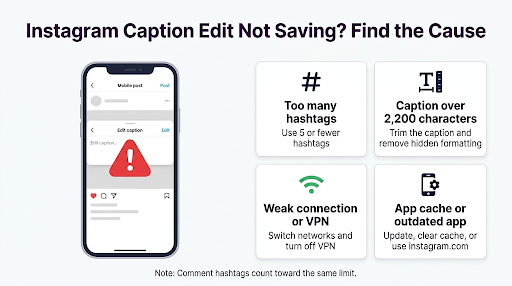
- Hashtag limit exceeded. Instagram started rolling out a hard limit of five hashtags per post and Reel in December 2025. If your original caption had 15 or 30 hashtags and you try to edit it, the save can fail until you remove the extra tags.
- Caption is too long. The maximum caption length is 2,200 characters. Pasting text from a notes app with hidden formatting can push you over without you noticing.
- Too many @mentions. Instagram’s own developer documentation lists a cap of 20 @tags per caption.
- Weak or unstable connection. The edit screen may look saved, but the change never reaches Instagram’s servers.
- Outdated app version. Caption and draft bugs often appear right after an update and get patched in the next one.
- Corrupted cache or local data. Stored app data can break the editor, which is why captions sometimes disappear or revert after you tap Done.
- Restricted words, links, or characters. Instagram’s Help Center notes that profile edits can fail if you enter something that is not allowed, like certain characters or links. Captions can be affected in a similar way.
- A server-side bug. Sometimes the problem is on Instagram’s end and affects many users at once.
Important Point to be Considered! Hashtags placed in the comments also count toward the five-hashtag limit. Moving them from the caption to the first comment does not give you extra slots.
What Does “Your Edits Weren’t Saved. Please Try Again.” Mean?
This message means Instagram tried to save your new caption but the change failed, either because the text breaks a caption rule or because the request did not go through. It does not mean your post is broken or that your account is in trouble.
In most cases, it shows up when you edit an older post that was published with lots of hashtags. The quickest test is simple:
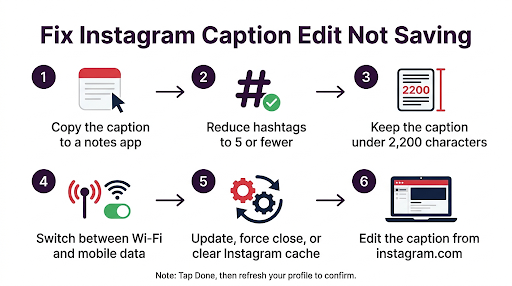
- Copy the full caption to your clipboard or a notes app.
- Delete every hashtag from the caption.
- Tap Done (or the checkmark).
- If it saves, go back and add up to five hashtags, then save again.
If the caption still fails with no hashtags at all, the problem is likely technical. Jump to the app fixes below.
What Does “There Was an Error Saving Your Changes” Mean on Instagram?
“There was an error saving your changes” is a broader version of the same failure. It appears when Instagram cannot save an edit to a post, caption, or profile. The most common triggers are a poor internet connection, an outdated app, and text that Instagram does not allow.
Work through these checks in order:
- Switch between Wi-Fi and mobile data.
- Turn off any VPN or data saver mode, then try again.
- Update Instagram.
- Remove links, unusual symbols, or special fonts copied from font generator sites.
- Try the same edit from a browser.
How Do You Edit an Instagram Caption the Right Way?
To edit a caption, open the post, tap the three dots (⋯), tap Edit, change the text, and tap Done or the checkmark. It sounds obvious, but a lot of “not saving” reports come from leaving the screen before the save finishes.
- Open Instagram and go to your profile.
- Tap the post you want to change.
- Tap the three dots in the top-right corner.
- Tap Edit.
- Tap inside the caption box and make your changes.
- Tap Done (on iPhone) or the checkmark (on Android).
- Wait a second, then pull down on your profile to refresh and confirm the new caption is there.
These match the official steps in Instagram’s Help Center. Button names can vary slightly by app version and device.
Pro Tip! Before you make a big edit, copy your current caption into your notes app. If the save fails and the text vanishes, you will not have to rewrite it from memory.
12 Ways to Fix Instagram Caption Edits Not Saving
Start with the quick checks at the top. They solve most cases in under a minute. Move to the deeper fixes only if the simple ones fail.
1. Cut Your Hashtags Down to Five
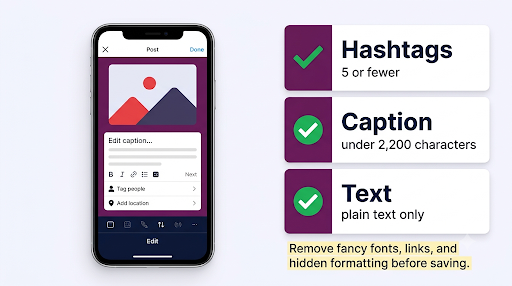
This is the single most common fix in 2026. Instagram now enforces a five-hashtag cap on posts and Reels. If you are editing an older post that used 20 or 30 tags, remove the extras before saving.
If you are not sure which tag is causing trouble, remove all of them, save, and then add them back in small groups. That way you can spot a tag Instagram may be blocking.
2. Check Your Caption Length
The caption limit is 2,200 characters, including spaces, emojis, and hashtags. That is roughly 300 to 400 words. If you pasted a long caption, paste it into a free character counter first.
Long captions also get cut off in the feed after about 125 characters, so shorter captions are often better for reach anyway.
3. Remove Special Fonts, Links, and Hidden Formatting
Fancy text from font generator websites uses unusual Unicode characters. Some of these can stop a caption from saving. Links in captions are not clickable on Instagram, and some can trigger spam filters.
Try pasting your caption into a plain text app first, then copy it back into Instagram. This strips hidden formatting.
4. Switch Between Wi-Fi and Mobile Data
A spotty connection is one of the main reasons edits fail silently. Turn off Wi-Fi and try saving on mobile data, or the reverse. Also turn off your VPN for a minute, since some VPN servers interrupt Instagram’s requests.
If the whole app feels slow, the feed is spinning, or nothing loads, the issue is bigger than captions. Our guide on fixing an Instagram feed that won’t load on Android walks through network and app resets in more detail.
5. Force Close and Reopen Instagram
A frozen editor can make it look like your caption saved when it did not. Close the app fully and reopen it.
- iPhone: Swipe up from the bottom of the screen and pause, then swipe the Instagram card up and away.
- Android: Open recent apps and swipe Instagram away, or go to Settings > Apps > Instagram > Force stop.
6. Update the Instagram App
Caption bugs often show up after one update and get fixed in the next. Open the App Store or Google Play, search for Instagram, and tap Update if you see it.
Updates can also break other things. If you noticed other features acting strange after the latest version, you may also run into problems like your Instagram watch history not showing after an update, which usually clears up the same way.
7. Clear the Instagram Cache on Android
Clearing the cache removes temporary files that can corrupt the caption editor. It does not delete your posts, drafts saved to your account, or login.
- Open your phone’s Settings.
- Tap Apps and select Instagram.
- Tap Storage (or Storage & cache).
- Tap Clear cache.
- Reopen Instagram and try the edit again.
Important Point to be Considered! Tap Clear cache, not Clear storage or Clear data. Clearing storage logs you out and can wipe drafts that are saved only on your phone.
8. Offload Instagram on iPhone
iPhones do not have a clear cache button for Instagram. Offloading is the closest option. It removes the app but keeps your documents and data, then reinstalls a fresh copy.
- Open Settings and tap General.
- Tap iPhone Storage.
- Find and tap Instagram.
- Tap Offload App, then confirm.
- Tap Reinstall App and log back in if asked.
9. Delete and Reinstall Instagram
If offloading or clearing cache does not help, a full reinstall gives you a completely clean app. Your published posts, captions, and profile live on Instagram’s servers, so they will still be there when you log back in.
Pro Tip! Drafts are stored on your device. Before you delete the app, post or back up any drafts you care about, or they may be gone.
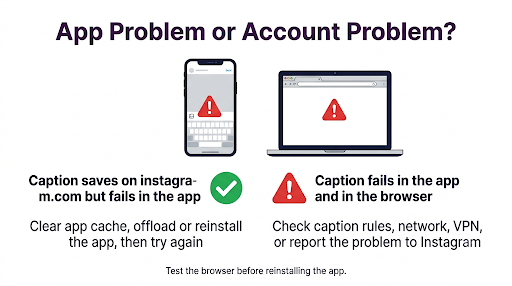
10. Edit the Caption From a Web Browser
When the app keeps failing, the browser version often works because it does not use the app’s local cache.
- Go to instagram.com in Safari, Chrome, or any browser on your phone or computer.
- Log in and open your profile.
- Open the post and click the three dots.
- Choose Edit, update the caption, and click Done.
Then open the app and refresh your profile to confirm the change synced.
11. Log Out and Log Back In
Signing out refreshes your session with Instagram’s servers. This can fix sync problems where edits save on one device but not another. Make sure you know your password before you log out.
12. Check If Instagram Is Down, Then Report the Bug
If none of the steps work, the problem may be on Instagram’s side. Check a live outage tracker or search “Instagram down” to see if other users are reporting the same issue.
If it is only happening to you, report it so Instagram’s team can look at your account:
- Shake your phone while you are on the screen where the edit fails, then tap Report a problem.
- Or go to your Profile > Menu > Help > Report a problem.
Instagram’s Help Center says that including your device type, what you were doing when the problem happened, and a screenshot helps them address it. You can read the official steps for how to report something that’s not working on Instagram.
Why Is My Caption Not Saving on Instagram iPhone?
On iPhone, caption edits usually fail because of an outdated app, a stuck app cache, or iOS restrictions like Low Data Mode. Offloading the app (fix 8) is the most reliable iPhone-specific fix because there is no built-in clear cache option.
Also check these iPhone settings:
- Low Data Mode: Settings > Wi-Fi (or Cellular) > Low Data Mode. Turn it off while editing.
- Background App Refresh: Settings > General > Background App Refresh > Instagram. Keep it on.
- iOS updates: Settings > General > Software Update. Older iOS versions can clash with new app builds.
- Storage space: If your iPhone is almost full, apps can fail to save data. Free up a few gigabytes.
If you also see Reels stalling during upload on iPhone, the cause is often the same storage or connection issue. Here is how to fix an Instagram Reel stuck at 90% uploading on iPhone.
Why Are Captions Not Saving on Reels Drafts and Carousel Drafts?
Captions on drafts are stored on your phone, not on Instagram’s servers, so they are more likely to disappear or reset than captions on published posts. Creators have reported captions vanishing from carousel drafts and Reels drafts reopening with text that has shifted or changed fonts.
Here is how to protect your work:
- Write captions in a notes app first. Paste them in only when you are ready to post.
- Add the caption at the very last step instead of saving it inside the draft.
- Preview on-screen text before publishing. Open the cover editor and scroll through the timeline to check that text overlays are where you left them.
- Do not update the app while you have important drafts. Post them first. Updates and reinstalls can wipe local drafts.
- Use the Edits app for Reels projects. Instagram’s Edits app autosaves projects, which makes it a safer place to build longer Reels before you post.
Is It a Caption Problem or an Auto Captions Problem?
Instagram uses the word “captions” for two different things, and the fixes are not the same. The written caption is the text below your post. Auto captions (closed captions) are the subtitles that appear on top of a Reel or video.
| What you are editing | Where it lives | Common reason it won’t save | Best fix |
| Written post or Reel caption | Text under the post | Too many hashtags, over 2,200 characters, connection issue | Trim hashtags, check length, edit from browser |
| Auto captions on a Reel | Subtitles on the video | App glitch, captions turned off, outdated app | Update app, check caption settings, re-generate captions |
| Captions in the Edits app | Inside an Edits project | Project not saving or exporting, storage full | Update Edits, free storage, export again |
If viewers cannot see auto captions on your Reels at all, check that captions are turned on. Instagram’s Help Center covers how to manage reels and video caption settings.
Why Are My Edits Not Exporting in the Instagram Edits App?
If your project or captions are not saving or exporting in Edits, it is usually caused by low phone storage, an outdated version of Edits, or a stuck project file. This is separate from editing a caption on a published Instagram post.
Try these steps:
- Update the Edits app from the App Store or Google Play.
- Free up storage. Video exports need a lot of temporary space.
- Check the three stages separately: the generated caption words, the editor preview, and the final exported video. If the words look right in the preview but are missing in the export, re-export the project.
- Duplicate the project and export the copy.
- Restart your phone and try again.
Can You Edit a Caption on a Collab Post?
Yes, but only the account that created the post can edit its caption. If you were added as a collaborator, the Edit option for the caption will not work from your side. Ask the original poster to make the change.
If you are trying to fix a collab post but never received the collaboration request in the first place, see why your Instagram collab invite is not showing.
Common Mistakes That Make Caption Edits Fail
- Following old advice about 30 hashtags. Many videos and blog posts are outdated. The limit is now five.
- Moving hashtags to comments to “get around” the limit. Comment hashtags count too.
- Tapping back before Done. Leaving the edit screen early discards your changes.
- Clearing data instead of cache on Android. This logs you out and can delete local drafts.
- Reinstalling before backing up drafts. Drafts live on your phone, not in your account.
- Pasting captions with fancy fonts or symbols. Plain text saves more reliably.
Pro Tip! If you want to keep extra context or hashtag-free notes visible, post them as your first comment and pin it. If the pinned comment does not appear for others, here is how to fix an Instagram pinned comment not showing.
Frequently Asked Questions
Why won’t my Instagram edits save even with no hashtags?
If the caption fails with zero hashtags, the problem is most likely technical, not a rule issue. Try switching networks, updating the app, and editing from instagram.com. If the browser works but the app does not, the app’s local data is the problem, so clear the cache or offload and reinstall.
Is there a limit to how many times you can edit an Instagram caption?
No. Instagram does not set a limit on how many times you can edit a caption. You can change it as often as you want, and there is no time limit after posting.
Does editing an Instagram caption hurt reach?
There is no official evidence that editing a caption lowers reach. Fixing a typo or adding context is fine. However, adding hashtags to an old post later is unlikely to bring it much new reach, since most engagement happens soon after posting.
Do followers get notified when I edit a caption?
No. Instagram does not notify your followers when you change a caption. If you add a new @mention while editing, though, that person may get a notification that they were mentioned.
Why did my caption disappear after I posted?
A caption that vanishes right after posting usually means the text did not upload with the post because of a glitch or weak connection. Open the post, tap Edit, and add the caption again. If this happens on every post, clear the app cache or reinstall, and report the problem through the app.
Can I edit an Instagram caption from my computer?
Yes. Log in at instagram.com on any desktop browser, open your post, click the three dots, choose Edit, and save. This is one of the best workarounds when the mobile app keeps showing a save error.
Final Recommendation
If your Instagram caption edit is not saving, start with the rules: cut your hashtags to five and keep the caption under 2,200 characters. That solves most cases right away. If the error stays, switch networks, update the app, and clear the cache on Android or offload the app on iPhone. When nothing works in the app, make the edit from instagram.com and then shake your phone to report the bug so Instagram can look into it.
And for future posts, write long captions in a notes app first. It takes ten seconds and saves you from losing a caption you spent twenty minutes writing.

Anica Lymus is a technical writer specializing in consumer applications, mobile operating systems, and practical troubleshooting workflows. At Primotechy, she covers account security, software glitches, and app performance across platforms such as Facebook, Instagram, and Snapchat. Drawing on hands-on device testing and in-depth research across iOS, Android, macOS, and Windows, Anica translates complex platform settings and sudden technical errors into clear, verified, step-by-step guides that readers can easily follow and trust.
View all posts by Anica Lymus →