
Instagram post insights usually fail to load because of an app glitch, a weak connection, a private account, a post that is too new, or a temporary problem on Instagram’s side. Most of the time, updating the app, switching networks, and checking that your account is public will bring your post insights back.
Below, you will find what each insights error means, the fixes that work on iPhone and Android, and what to do when the data still refuses to show up.
Contents
Quick Overview
- Check your account: Insights only work on public accounts. Private accounts don’t get them.
- Give new posts time: Fresh posts and recently switched accounts can take a while to show data.
- Fix the app: Update Instagram, force close it, clear the cache (Android), or reinstall it (iPhone).
- Change your connection: Switch between Wi-Fi and mobile data, or toggle Airplane mode.
- Try another route: Open insights from your Professional dashboard or on instagram.com in a browser.
- Still broken? Check whether Instagram is down, then report the problem from the app.
Why Are My Instagram Post Insights Not Loading?
Your post insights are not loading because Instagram either can’t fetch the data right now or has no data to show yet. The first case is usually a technical problem. The second is usually an account or timing issue.
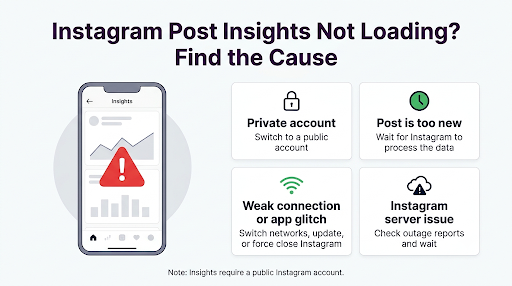
Here are the most common causes:
| Cause | What You Usually See | Quick Fix |
| App glitch or outdated version | Spinning wheel or blank screen | Update, force close, or reinstall Instagram |
| Weak or unstable internet | Insights load halfway or time out | Switch Wi-Fi and mobile data |
| Private account | No View Insights button at all | Switch your account to public |
| Post published very recently | Zeros or “insights will be available soon” style message | Wait and check again later |
| Recent account type or privacy switch | Old posts show no data | Nothing to fix; data starts from the switch |
| Instagram server problem | “There was an error loading your insights” | Wait it out and check outage reports |
| Corrupted cache | Insights fail only on one phone | Clear cache or reinstall |
Who Can See Insights on Instagram Posts?
Anyone with a public Instagram account can view insights, whether it is a personal account or a professional (creator or business) account. Instagram’s help page on viewing account and content insights lists a public account as the requirement.
This trips up a lot of people because older guides still say you must switch to a business or creator account first. That used to be true. Today, personal public accounts get insights too, but professional accounts get the full Professional dashboard and extra tools like boosting.
Keep these limits in mind:
- Private accounts don’t get insights. If you switch to private, you lose access. Switching back to public within 90 days can restore your past data.
- Recently made public? You may not see past insights right away.
- Audience demographics need a preset timeframe and more than 100 viewers or engaged accounts.
- Follower trends such as top locations and most active times need at least 100 followers.
Important Point to be Considered! If you switch from a professional account back to a personal account, or bounce between account types, some past insights may not carry over. Instagram notes that after converting to a business or creator account, you may only see insights for content posted after the switch. So avoid switching account types just to “refresh” insights.
How Do You View Insights on an Instagram Post?
Open the post from your profile and tap View Insights below it. That is the fastest way to check one post’s views, reach, and interactions.
On the Instagram App (iPhone and Android)
- Tap your profile picture in the bottom right.
- Tap the post or reel you want to check.
- Tap View Insights below the post.
For account-wide data, go to your profile and tap Professional dashboard (professional accounts) or Your dashboard (personal accounts). If you don’t see it, tap the menu, open Settings and activity, and look under “For professionals” or “Your insights and tools.”
On a Computer (instagram.com)
- Log in at instagram.com and select Dashboard from the left menu.
- Select Insights under “For professionals,” or Your dashboard under “Your insights and tools” for personal accounts.
- Choose Account or Content from the Insights dropdown.
Pro Tip! Sometimes the view count on a post looks frozen in the feed, but the numbers are fine inside the Professional dashboard. Always check the dashboard before assuming your data is gone.
How Do You Fix Instagram Post Insights Not Loading?
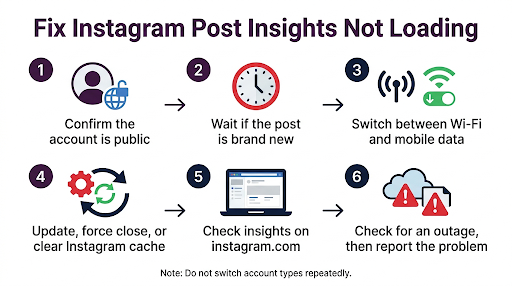
Start with the quick fixes and work down the list. Most people get their insights back within the first four steps.
1. Check Your Internet Connection
Insights pull fresh data from Instagram’s servers, so a weak connection can leave them spinning. Switch from Wi-Fi to mobile data, or the other way around. You can also turn Airplane mode on for 10 seconds and then off again.
If posts, stories, and your feed are also slow, the problem is likely your network, not insights. Our guide on fixing Instagram feed loading problems on Samsung phones covers network and data saver settings that can block Instagram in the background.
2. Force Close and Reopen Instagram
A stuck session is one of the most common reasons insights won’t load. Swipe Instagram away from your recent apps, wait a few seconds, and open it again.
3. Update the Instagram App
Instagram changes how insights look and work quite often. An old app version may not load the newer insights screen properly. Open the App Store or Google Play, search for Instagram, and tap Update if you see it.
On the other hand, a new update can also introduce bugs. If insights broke right after an update, other features often act up at the same time. For example, many users notice their watch history stops showing after an update, which is a sign the app build itself has a glitch. In that case, waiting a few days for a fix update usually solves it.
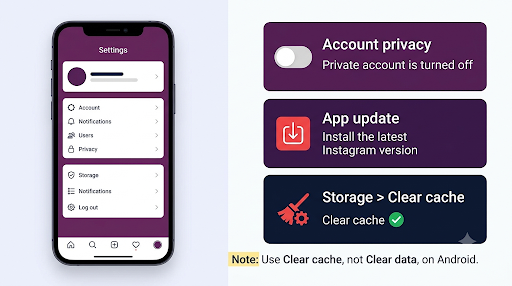
4. Make Sure Your Account Is Public
If you don’t see View Insights at all, check your privacy setting. Go to Settings and activity, tap Account privacy, and make sure Private account is turned off.
5. Wait if the Post Is Brand New
Insights don’t appear the second you hit Share. Instagram needs time to collect and process the data. If you posted just a few minutes ago, give it some time and check again.
Also make sure the post actually finished uploading. If a reel is still processing or stuck, Instagram has nothing to measure yet. If that sounds familiar, see how to fix an Instagram reel stuck at 90% uploading on iPhone.
6. Log Out and Log Back In
Logging out resets your session with Instagram’s servers. It can clear authentication errors that stop insights from loading. Make sure you know your password before you do this.
7. Clear the Cache on Android
Corrupted cache files can break specific screens like insights. On Android:
- Open Settings and tap Apps.
- Find and tap Instagram.
- Tap Storage, then Clear cache.
Clearing the cache won’t delete your posts or log you out. Avoid “Clear data” unless you want to sign in again.
8. Reinstall Instagram on iPhone
iPhone doesn’t have a clear cache option for Instagram. Deleting and reinstalling the app does the same job. Press and hold the Instagram icon, tap Remove App, then Delete App. Reinstall it from the App Store and sign in.
9. Restart Your Phone
A simple restart clears temporary memory and background processes that can interfere with apps. It takes a minute and fixes more problems than people expect.
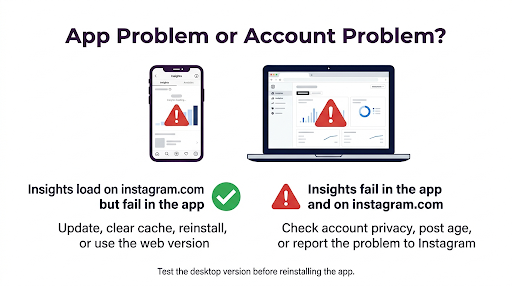
10. Check Insights on Desktop or Another Device
If insights fail on your phone but load on instagram.com, the problem is with your phone or app, not your account. Keep using the web version while you troubleshoot the app.
11. Check Whether Instagram Is Down
When Instagram has a server issue, insights often spin, show zeros, or display an error, even while your likes and comments keep coming in. Check an outage tracker like Downdetector. If lots of people are reporting problems, there is nothing to fix on your end. Wait a few hours.
12. Report the Problem to Instagram
If nothing works for a few days, report it. Go to your profile, tap the menu, tap Help, then Report a problem. Include your phone model, app version, and a screenshot of the error.
You can also shake your phone while in the app to open the report option, if shake to report is turned on.
What Does “There Was an Error Loading Your Insights” Mean?
This message means Instagram tried to fetch your insights but couldn’t. It is usually caused by a temporary server problem, a weak connection, or an app glitch. It does not mean your data is deleted.
Try these in order:
- Tap Try again or pull down to refresh.
- Switch networks.
- Force close and reopen the app.
- Check the same post on instagram.com.
Some users on Reddit report that this error shows up more often on boosted posts or posts with tagged products, and that it can appear shortly after switching account types. This is user-reported, not confirmed by Instagram. If only those specific posts fail while others load, it is likely a bug on Instagram’s side, and reporting it is your best option.
Why Do My Insights Show Zero or “You’ll See Insights Here Once They Become Available”?
This usually means Instagram hasn’t collected enough data yet. It is common on new posts, new accounts, and accounts that just switched to public or professional.
It can also happen when you choose a short timeframe with very little activity. Switch to a longer range like 30 or 90 days and see if the numbers appear.
Why Does It Say “Audience Currently Unavailable Due to Lack of Data”?
Instagram hides audience details like age, gender, and location until you have enough viewers to keep that data anonymous. You need more than 100 viewers or engaged accounts in the selected timeframe, and you need to use a preset timeframe.
Pro Tip! If you just crossed 100 followers, wait a day or two before checking audience data again. It doesn’t always appear immediately.
Why Are Insights Missing for My Old Posts?
Old posts often show no insights because of when your account changed type or privacy. Instagram may only show insights for content posted after you switched to a professional account, and switching back and forth can erase past insights.
There is also a time limit. Account insights cover up to the past 90 days in the app. Individual post insights stay available for much longer, but very old posts may still show limited data. Instagram now offers longer lookbacks and insight exports through its Meta One subscription plans, but standard accounts stick to the 90-day account view.
Why Are Story Insights Unavailable?
Story insights can be unavailable if the story was posted while your account was private, if very few people viewed it, or if Instagram is having a temporary glitch. To view them, open your active story and swipe up. For expired stories, check the Content section of your insights instead.
Do Collab Posts and Boosted Posts Show Insights Differently?
Yes, they can. Boosted posts show both organic and paid results, and the extra ad data can make the insights screen slower to load or more likely to error out. Boosting is also only available to professional accounts.
For collab posts, the post appears on both profiles, and the insights you see depend on whether the collab was fully accepted. If your collaborator never received or accepted the request, the post may not behave the way you expect. Here’s what to do when an Instagram collab invite is not showing.
Are Third-Party Tools Showing Missing Instagram Insights?
If insights load in the Instagram app but not in tools like scheduling or analytics platforms, the problem is the connection between the tool and your account. These tools rely on Meta permissions.
Common fixes include:
- Make sure your account is a business or creator account, since most tools require one.
- Confirm your Instagram account is linked to a Facebook Page and you have admin access to that Page.
- Reconnect the account inside the tool and approve every permission it asks for.
- On Facebook, check Business Integrations and make sure the tool still has access to your Instagram account.
Note that some tools can’t pull data for posts published before an account switched from personal to business.
Common Mistakes to Avoid
- Switching account types repeatedly. This can wipe past insights instead of fixing them.
- Using “Clear data” instead of “Clear cache” on Android. Clear data signs you out and resets app settings.
- Checking a post minutes after sharing it. Give the data time to process.
- Assuming your account is restricted. An insights error is almost always a technical issue, not a penalty.
- Installing apps that promise “hidden insights.” They can’t see more than Instagram shows and may put your account at risk.
Insights aren’t the only part of Instagram that can glitch without warning. If you are also seeing display issues on your posts, here’s why an Instagram pinned comment is not showing and how to fix it.
Frequently Asked Questions
How long does it take for Instagram post insights to show up?
There is no fixed time from Instagram. New posts often show some data within a short while, but it can take longer for numbers to settle, especially right after you post or switch account settings. If nothing appears after a full day, try the fixes above.
Can I see Instagram insights without a professional account?
Yes. A public personal account can view insights through Your dashboard and the View Insights button on posts. A professional account gives you the Professional dashboard and extra tools like boosting.
Why are Instagram post insights not loading on my iPhone only?
If insights load on another phone or on instagram.com, the issue is your iPhone’s app installation. Update iOS and Instagram, then delete and reinstall the app to clear its stored data.
Does an insights error mean my account is shadowbanned?
No. An insights loading error is a technical problem with the app or Instagram’s servers. It has nothing to do with how your content is distributed. You can check Account Status in your settings if you are worried about restrictions.
Will I lose my insights if I switch my account to private?
You lose access while your account is private. If you switch back to public within 90 days, you can get your past insights back.
Is Instagram experiencing an insights glitch right now?
Check an outage tracker like Downdetector and Instagram’s official accounts for updates. If many users report the same issue at the same time, it is a platform problem and will usually fix itself once Instagram resolves it.
Final Recommendation
If your Instagram post insights are not loading, first confirm your account is public and the post is fully uploaded. Then update the app, switch networks, and force close Instagram. If the problem only happens on your phone, clear the cache or reinstall the app. If it happens everywhere, check for an outage and give it a few hours. Still stuck after a few days? Report the problem from the app with a screenshot so Instagram’s team can look into it.

Anica Lymus is a technical writer specializing in consumer applications, mobile operating systems, and practical troubleshooting workflows. At Primotechy, she covers account security, software glitches, and app performance across platforms such as Facebook, Instagram, and Snapchat. Drawing on hands-on device testing and in-depth research across iOS, Android, macOS, and Windows, Anica translates complex platform settings and sudden technical errors into clear, verified, step-by-step guides that readers can easily follow and trust.
View all posts by Anica Lymus →