
If Snapchat Cameo is not saving your face, the most likely reason is that Snapchat has retired Cameos in Chat. The old Cameo setup screen no longer saves new selfies for most users. Your face is now saved through a newer feature called My Selfie, found under Settings.
If you are already using My Selfie and it still will not save, the cause is usually a missing camera or photo permission, an outdated app, a corrupted cache, or a selfie that Snapchat could not read. This guide walks you through each fix on iPhone and Android, in the order that solves the problem fastest.
Contents
Quick Overview
| What you see | Most likely cause | Quick fix |
| No Cameos tab in Chat, or the Cameo selfie never sticks | Cameos in Chat has been discontinued | Use Settings > My Selfie > Update My Selfie |
| Selfie screen opens, but the photo does not save | Camera or Photos permission is off | Turn on Camera and Photos access for Snapchat in phone settings |
| Old face keeps showing up | Old selfie data is still stored | Clear Selfie, restart the app, then set up a new one |
| Spinning loader or “something went wrong” | Weak connection, cache glitch, or old app version | Switch networks, clear cache, update Snapchat |
| My Selfie saved but your face is missing in AI features | AI Snaps is turned off | Turn on AI Snaps in Snapchat settings or Memories |
Are Snapchat Cameos Still Available?
No. Snapchat’s support page now says Cameos in Chat are no longer available and that the company is upgrading other experiences powered by My Selfie. Snapchat has not published a retirement date or announced a return.
This matters because a lot of older tutorials still tell you to open a chat, tap the smiley face, and pick the Cameos tab. If you follow those steps today, the Cameos tab will either be missing or the selfie simply will not save. That is not a bug on your phone. The feature itself is gone.
Cameos first launched in December 2019 as short looping videos with your face placed into pre-made scenes. You can still read the original Snap Newsroom announcement for Cameos to see how the feature used to work.
Key takeaway: If you were trying to save a face for Cameos in Chat, there is nothing left to save it to. The selfie you want now lives in My Selfie.
What Replaced Cameos on Snapchat?
My Selfie replaced the Cameo selfie. It is a set of selfie images Snapchat uses for generative AI features such as AI Snaps and other experiences across the app, including ads.
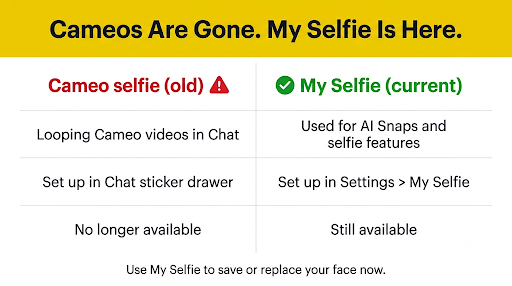
Here is how the two compare:
| Feature | Cameo selfie (old) | My Selfie (current) |
| Where you set it up | Chat sticker drawer or Settings > Cameos | Settings > My Account > My Selfie, or Memories > AI Snaps tab |
| What it powers | Looping Cameo videos in Chat | AI Snaps, generative AI Lenses, and other selfie-based features |
| Can you still create one? | No, for most users | Yes |
| Same as Bitmoji? | No | No. Bitmoji is a cartoon avatar. My Selfie uses photos of your real face. |
If you made a Cameo selfie in the past, Snapchat may already be using that old selfie as part of My Selfie. That is why some people see an old face show up in new AI features even after Cameos disappeared.
How Do You Save Your Face on Snapchat Now?
Go to Settings, tap My Selfie, and choose Update My Selfie. This is the current way to save or replace your face on Snapchat.
- Open Snapchat and tap your profile icon or Bitmoji in the top-left corner.
- Tap the gear icon in the top-right corner to open Settings.
- Under My Account, tap My Selfie.
- Tap Update My Selfie. If you have never set one up, you will see a setup prompt instead.
- Follow the on-screen steps to take selfies with the Snapchat camera, or pick photos of yourself from your camera roll if that option appears.
- Confirm and wait for the save to finish before you leave the screen.
You can also start from Memories. Open Memories and look for the AI Snaps tab, which offers the same setup.
Can’t find My Selfie in Settings? Your Snapchat app is probably out of date, or the feature has not reached your account yet. Update the app first. Menu names can vary slightly by app version, region, and language. Some versions say “Change My Selfie,” and the delete button may read “Clear Selfie” or “Delete Selfie.”
Why Is Snapchat Not Saving My Selfie?
If My Selfie will not save, the cause is usually one of these: missing permissions, a poor photo, a weak connection, cached data, or an old app version. Work through the fixes below in order. Most people find the problem in the first three steps.
1. Check Camera and Photo Permissions
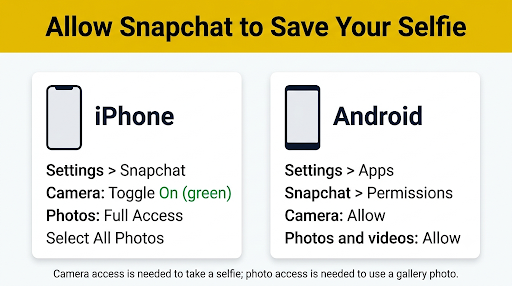
Snapchat needs camera access to take your selfie and photo access to use pictures from your gallery. If either one is blocked, the selfie screen may open but the image never saves.
On iPhone or iPad (iOS)
- Open the iPhone Settings app.
- Scroll down and tap Snapchat.
- Make sure Camera is turned on.
- Tap Photos and choose Full Access. With Limited Access, the photo you want may not show up.
On Android (Samsung, Pixel, and others)
- Open Settings and go to Apps.
- Tap Snapchat, then Permissions.
- Set Camera to “Allow only while using the app.”
- Set Photos and videos (or Storage on older Android versions) to Allow.
If your camera is not working anywhere in Snapchat, the issue is bigger than My Selfie. Our guide on the Snapchat camera black screen after an update covers deeper camera fixes.
2. Retake the Selfie the Right Way
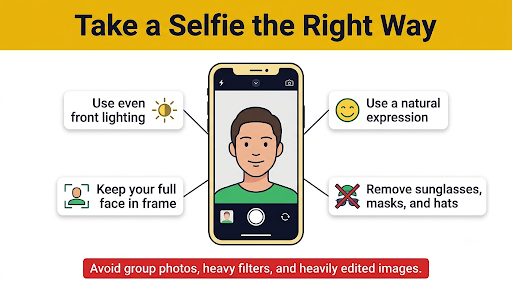
Snapchat has to detect your face clearly before it can save it. A blurry, dark, or partly covered photo can fail without any clear error message.
- Use even, front-facing light. Face a window or lamp. Avoid strong light behind you.
- Keep your full face in the frame. Your forehead, eyebrows, and chin should all be visible.
- Use a neutral expression. Big smiles or tilted heads make detection harder.
- Remove anything covering your face. Sunglasses, masks, low hats, and hands in the shot often cause failures.
- Only include yourself. Group photos or pictures with another face in the background can be rejected.
- Use the Snapchat camera if gallery uploads fail. Edited, filtered, or heavily compressed photos are more likely to be rejected.
3. Clear Your Old Selfie and Start Fresh
If the old Cameo face keeps showing up, or the new one will not replace it, clear the stored selfie first.
- Go to Profile > Settings > My Selfie.
- Tap Clear Selfie or Delete Selfie and confirm.
- Fully close Snapchat and reopen it.
- Go back to My Selfie and set it up again.
Heads up: Clearing your selfie removes it from every My Selfie feature. Any feature that depends on it will stop working until you add a new one.
On some older app versions, you may still see a Clear My Cameos Selfie option under Account Actions or Privacy Controls. Use it if it is there, then set up My Selfie.
4. Clear the Snapchat Cache
Corrupted temporary files can stop a selfie from uploading. Clearing the cache does not delete your Memories, chats, or friends.
- Android: Settings > Account Actions > Clear Cache.
- iPhone: Settings > Privacy Controls > Clear Data > Clear Cache. On some versions it appears under Account Actions instead.
Restart the app after clearing. If your saved content looks missing afterward, it usually just needs time to reload. See our fix for Snapchat Memories not showing after clearing cache if that happens.
5. Update or Reinstall Snapchat
Older versions of Snapchat may still show leftover Cameo screens that no longer connect to anything. An update brings in the current My Selfie menus.
- iPhone: Open the App Store, tap your profile picture, and update Snapchat.
- Android: Open Google Play, search for Snapchat, and tap Update.
If updating does not help, delete and reinstall the app. Log in again and try My Selfie before you change any other settings.
6. Check Your Internet Connection
Your selfie is processed and stored online, so a weak connection can stop the save partway through.
- Switch from mobile data to Wi-Fi, or the other way around.
- Turn off any VPN while setting up your selfie.
- Turn off Low Data Mode on iPhone or Data Saver on Android for a moment.
- Stay on the setup screen until it confirms the save.
7. Free Up Storage and Restart Your Phone
Very low storage can block the camera from saving temporary files. Try to keep at least a little free space on your phone, then restart it. A simple restart clears stuck camera processes that can block Snapchat on both iOS and Android.
Why Is My Selfie Saved but My Face Not Showing in AI Snaps?
If your selfie saved but your face does not appear in AI Snaps or generated images, AI Snaps may be turned off. Snapchat requires AI Snaps to be on for My Selfie to show up in those features.
Check the AI Snaps setting in Snapchat Settings or the AI Snaps tab in Memories. Also keep in mind that not every My Selfie feature is available on every account. Availability can depend on your region, app version, and Snapchat’s rollout.
Common Mistakes That Stop Your Face From Saving
- Looking for Cameos in Chat. The tab is gone. Go to Settings > My Selfie instead.
- Leaving the screen too early. Closing the app while it is still processing can cancel the save.
- Using Limited Photos access on iPhone. The picture you want may not be visible to Snapchat.
- Uploading filtered or edited photos. Beauty filters and heavy edits can confuse face detection.
- Installing modded Snapchat apps that promise to bring Cameos back. These are unofficial and can put your account at risk of being locked.
- Confusing Bitmoji with My Selfie. Changing your Bitmoji does not change your saved selfie, and the reverse is also true.
How Do You Control Who Can Use Your Saved Face?
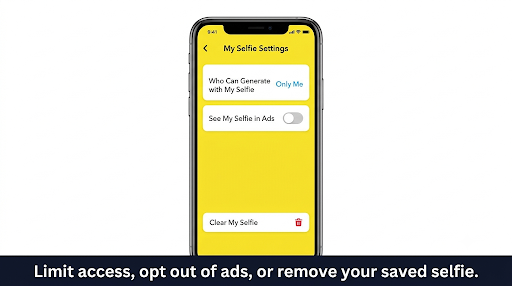
You can limit who can generate images with your selfie and stop it from appearing in ads. Both controls sit inside the My Selfie settings.
- Stop friends from using your face: Settings > My Selfie > Who Can Generate with My Selfie > Only Me. On some versions, this is under App & Privacy > My App > Customize Appearance > My Selfie.
- Keep your face out of ads: In the same My Selfie settings, turn off See My Selfie in Ads. Reports say this setting was on by default when it launched, so it is worth checking.
- Remove your face completely: Use Clear Selfie or Delete Selfie.
Limiting access to Only Me keeps My Selfie working for you. Clear Selfie removes the stored images completely. Pick the one that fits what you want.
When Should You Contact Snapchat Support?
Contact Snapchat Support if you have tried every step above and My Selfie still will not save, or if the My Selfie option is missing even on the latest app version. You can submit a request through Snapchat Support. Include your device model, operating system version, Snapchat version, and any error message you see. That detail helps them find the issue faster.
Frequently Asked Questions
Why did my Snapchat Cameo disappear?
Your Cameos disappeared because Snapchat discontinued Cameos in Chat. Reinstalling the app or clearing data will not bring them back. Clips you received in old chats may still be visible for a while, but you can no longer make new ones.
Can I still make a two-person Cameo on Snapchat?
No. Two-person Cameos were part of Cameos in Chat, so they went away with it. The old “Who Can Use My Cameos Selfie” setting is gone too. The closest control now is “Who Can Generate with My Selfie.”
Why is Snapchat Cameo not saving my face on iPhone?
On iPhone, the most common blocker after the Cameos shutdown is Photos set to Limited Access or Camera access turned off in iOS Settings. Low Data Mode and a weak Wi-Fi signal can also interrupt the upload. Fix those, then set up My Selfie again.
Why is Snapchat not saving my selfie on Android?
On Android, check that Camera and Photos and videos permissions are allowed, and turn off battery saver or Data Saver while setting up. Some phones, especially Samsung models with aggressive battery optimization, can pause Snapchat in the background. Keep the app open until the save finishes.
Does clearing my selfie delete my Snapchat account or Memories?
No. Clear Selfie only removes the selfie images used for My Selfie features. Your account, friends, chats, Bitmoji, and Memories stay the same.
Can I use a photo from my camera roll for My Selfie?
Often, yes, if your app version offers that option during setup. If a gallery photo keeps failing, take fresh selfies with the Snapchat camera. Camera shots are usually clearer and easier for face detection to read.
Will Snapchat Cameos come back?
Snapchat has not announced a return. Its support notice only says it is upgrading other experiences powered by My Selfie. For now, My Selfie and features like AI Snaps are the replacement.
Final Recommendation
Stop trying to save your face through the old Cameo screen. It no longer works. Go to Profile > Settings > My Selfie > Update My Selfie and set up your face there.
If that fails, follow this order: turn on Camera and Photos permissions, retake the selfie in good light with a neutral face, clear the old selfie, clear the cache, and update Snapchat. Once your selfie saves, set “Who Can Generate with My Selfie” to the level you are comfortable with and check the ads setting. That way your face works the way you want, and only where you want.

Anica Lymus is a technical writer specializing in consumer applications, mobile operating systems, and practical troubleshooting workflows. At Primotechy, she covers account security, software glitches, and app performance across platforms such as Facebook, Instagram, and Snapchat. Drawing on hands-on device testing and in-depth research across iOS, Android, macOS, and Windows, Anica translates complex platform settings and sudden technical errors into clear, verified, step-by-step guides that readers can easily follow and trust.
View all posts by Anica Lymus →