
If your Snapchat message says “Sent” but never changes to “Delivered,” the problem is usually a weak connection, an app glitch, or the other person’s account status. Start by switching between Wi-Fi and mobile data, force-closing Snapchat, and checking that you’re still friends with the person. Most of the time, one of those three things clears it up in under a minute.
This guide shows you how to read the status, figure out whether the problem is on your side or theirs, and fix it on both iPhone and Android.
Contents
Quick Overview
- Check the icon. A gray arrow or “Pending” usually points to a friendship or privacy issue. A message stuck on “Sending” or “Sent” usually points to a connection or app issue.
- Reset your connection. Turn Airplane Mode on for 10 seconds, then off. Or switch between Wi-Fi and mobile data.
- Force-close and reopen Snapchat.
- Confirm you’re still friends by opening their profile and checking for their Snap Score.
- Clear the Snapchat cache. This won’t delete your Memories, Snaps, or Chats.
- Update or reinstall the app if nothing else works.
- Check for a Snapchat outage if the problem affects every chat.
What Does “Sent” vs. “Delivered” Mean on Snapchat?
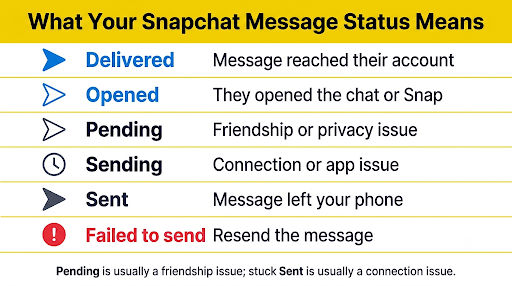
“Sent” means the message left your phone. “Delivered” means Snapchat got it to the other person’s account. Normally, “Sent” flips to “Delivered” within a second or two. When it doesn’t, something is blocking the handoff.
Snapchat uses colors and shapes to show what happened to each message:
| What You See | What It Usually Means |
| Filled blue arrow + “Delivered” | Your chat reached them but hasn’t been opened yet |
| Filled red or purple arrow + “Delivered” | Your Snap (red = no audio, purple = with audio) reached them but hasn’t been opened |
| Hollow arrow + “Opened” | They opened your Snap or chat |
| Gray arrow + “Pending” | Snapchat can’t deliver it, usually because you aren’t friends or they changed privacy settings |
| “Sending…” or “Sent” that never changes | A connection, app, or server problem on the way out |
| “Failed to send” in red | The upload failed completely and needs to be resent |
Here’s the key difference most guides skip: “Pending” is usually a people problem, while a stuck “Sent” or “Sending” is usually a tech problem. Knowing which one you have saves you from trying fixes that won’t help.
Why Is My Snapchat Message Sent but Not Delivered?
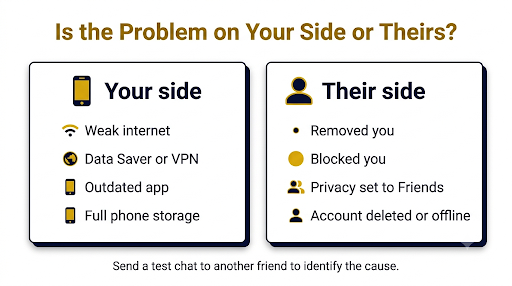
The most common causes fall into two groups: problems on your end and problems on the recipient’s end.
Problems on Your End
- Weak or unstable internet. You might have signal bars but still be dropping data, especially on crowded public Wi-Fi.
- Low Data Mode or Data Saver. These settings can slow or pause uploads, especially for video Snaps.
- A VPN. Some VPN servers interfere with Snapchat’s connection.
- A corrupted cache. Old temporary files can make chat statuses freeze.
- An outdated app. Older versions are more likely to run into messaging bugs.
- Low phone storage. If your phone is nearly full, Snapchat may struggle to process and upload media.
Problems on the Recipient’s End
- They removed you as a friend. This is the top reason messages turn gray and show “Pending.”
- They blocked you or deleted their account. Messages won’t go through, and you usually can’t find them in search.
- Their privacy settings only allow messages from friends. That’s the default, so if you’re not on their list, nothing gets through.
- A sync delay. Sometimes the message did arrive, but the status on your screen hasn’t updated yet.
A quick way to tell which group you’re in: send a test message to a different friend. If that one delivers instantly, the issue is probably with that one person. If nothing delivers, the issue is on your phone, your network, or Snapchat’s servers.
How Do You Fix a Snapchat Message That Won’t Deliver?
Work through these fixes in order. They start with the fastest and least disruptive and move toward the bigger resets.
1. Reset Your Internet Connection
Start here, because it’s the cause most of the time.
- Turn on Airplane Mode, wait about 10 seconds, then turn it off.
- If you’re on Wi-Fi, switch to mobile data. If you’re on mobile data, try Wi-Fi.
- Open a website or another app to confirm the connection actually works.
On iPhone, also check that Snapchat is allowed to use mobile data: go to Settings > Cellular (or Mobile Data) and make sure the Snapchat toggle is on. On Android, check Settings > Apps > Snapchat > Mobile data and allow background data.
2. Force-Close and Reopen Snapchat
A fresh start forces Snapchat to reconnect to its servers and refresh every chat status.
- iPhone: Swipe up from the bottom of the screen and pause to open the app switcher. Swipe Snapchat up and away.
- Android: Open the Recent Apps screen and swipe Snapchat away. You can also go to Settings > Apps > Snapchat > Force stop.
Reopen Snapchat and check the chat. If the message now shows “Failed to send,” tap it to resend. Our guide on Snapchat messages failing to send walks through that error in more detail.
3. Restart Your Phone
Snapchat’s own support advice for Snaps that won’t send is to fully turn off your device for one full minute, then turn it back on. A full restart clears memory and resets network services in a way that just closing the app can’t.
4. Check Whether You’re Still Friends
If you see a gray arrow or “Pending,” check your friendship status before trying anything technical.
- Open the chat with that person and tap their Bitmoji or name to view their profile.
- Look for their Snap Score under their name. If you can see it, you’re still friends.
- If the Snap Score is missing or you see an Add button, they’ve likely removed you.
- Search their username in Snapchat. If they don’t appear at all, they may have blocked you or deleted their account.
If they removed you, the message will stay pending until they add you back. There’s no setting you can change to force it through.
5. Turn Off Low Data Mode, Data Saver, and VPN
These features are great for saving data or privacy, but they can stall uploads.
- Snapchat’s Data Saver: Look in Snapchat’s settings for Data Saver and turn it off. The exact menu location can vary by app version.
- iPhone Low Data Mode: Go to Settings > Wi-Fi, tap the info icon next to your network, and turn off Low Data Mode. For mobile data, check Settings > Cellular > Cellular Data Options.
- iPhone Low Power Mode: Turn it off in Settings > Battery, since it can limit background activity.
- Android Data Saver and battery optimization: Some Android phones aggressively close background apps. Set Snapchat’s battery usage to unrestricted in the app’s settings page if your phone offers that option.
- VPN: Disconnect it, then try sending again.
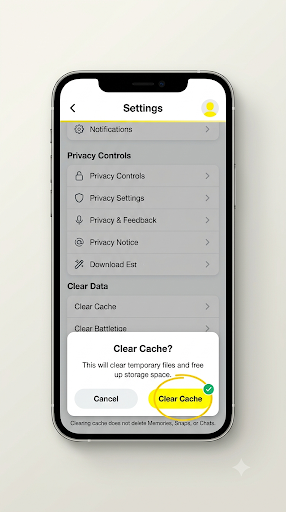
6. Clear the Snapchat Cache
Clearing the cache removes temporary files that can freeze chat statuses. According to Snapchat, clearing your cache won’t delete your Memories, Snaps, or Chats.
Inside the Snapchat app (iPhone and Android):
- Tap your profile icon in the top-left corner.
- Tap the gear icon to open Settings.
- Scroll down to the privacy or account section and tap Clear Data.
- Tap Clear Cache and confirm.
Menu labels shift a little between app versions, so if you don’t see Clear Data right away, keep scrolling through the lower part of Settings.
From Android system settings: Go to Settings > Apps > Snapchat > Storage & cache > Clear cache. Don’t tap Clear storage or Clear data unless you’re ready to log back in, because that resets the app completely.
If your chats also stop loading new messages after this, see our fix for Snapchat messages not refreshing.
7. Update Snapchat
Open the App Store on iPhone or the Google Play Store on Android, search for Snapchat, and tap Update if it’s available. Messaging bugs are often fixed quietly in new releases, so this step matters more than it looks.
8. Log Out and Log Back In
Logging out forces your account to re-sync with Snapchat’s servers. Before you do this, make sure you know your password and have access to the phone number or email on your account. Otherwise, you could lock yourself out while trying to fix a minor glitch.
9. Free Up Phone Storage
If your phone is close to full, delete old videos, unused apps, or downloaded files. Snapchat needs some free space to process photos and videos before it uploads them.
10. Reinstall Snapchat
If nothing else works, delete Snapchat and download it again. On iPhone, you can also use Settings > General > iPhone Storage > Snapchat > Offload App, which removes the app but keeps its documents and data.
Save anything important first. Saved Memories are backed up to your account, but unsaved Snaps and drafts on your phone may be lost. You’ll also need your login details to get back in.
What If Snapchat Isn’t Delivering Messages to Anyone?
If no messages are delivering to any friend, Snapchat itself may be having an outage. Check the official Snapchat Support account on X for announcements, or look at a status tracker like Downdetector’s Snapchat page to see if other users are reporting problems.
If there’s an outage, there’s nothing to fix on your phone. Wait it out, and avoid reinstalling the app, since logging back in can be harder during server problems.
You might also see a connection error code at the same time. If that happens, our guide to the Snapchat connection error C14A explains what’s going on.
What Should You Do If the Problem Is With Only One Person?
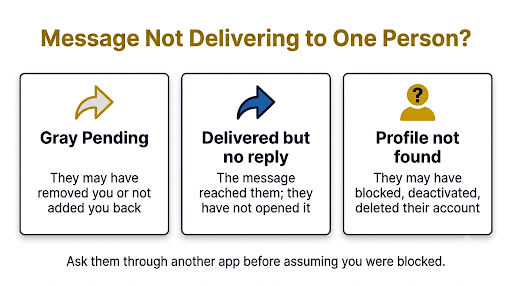
When every friend gets your messages except one, the cause is almost always on their side. Here’s how to narrow it down:
- Gray arrow and “Pending”: They probably removed you or never added you back. Check their profile for a Snap Score.
- “Delivered” for days but no reply: The message did reach them. They just haven’t opened the chat yet, or a sync delay is hiding the “Opened” status.
- They say they never got it, but you see “Delivered”: Ask them to update Snapchat, clear their cache, and restart their phone. The issue may be on their device.
- They can’t be found in search: They may have blocked you, deactivated, or deleted their account.
If you have their number, a quick text asking “Did you get my Snap?” often answers the question faster than any troubleshooting.
Common Mistakes to Avoid
- Resending the same message over and over. This can stack duplicates once the connection comes back. Fix the connection first, then resend once.
- Tapping “Clear Data” instead of “Clear Cache” on Android. Clear Data signs you out and resets the app.
- Reinstalling before trying simpler fixes. A restart or connection reset fixes most cases with zero risk.
- Logging out without your password handy. Make sure you can log back in first.
- Assuming you’ve been blocked right away. A stuck “Sent” status is more often a network issue than a blocked account.
Frequently Asked Questions
Does “Sent” but not “Delivered” mean I’m blocked on Snapchat?
Not necessarily. A blocked or removed account usually shows a gray “Pending” status instead. A message stuck on “Sent” or “Sending” is more often caused by your internet connection or an app glitch. Check whether you can find their profile in search before drawing conclusions.
How long does it take for a Snapchat message to deliver?
On a working connection, a chat usually shows “Delivered” within a few seconds. Video Snaps can take a little longer on slow networks. If a message hasn’t delivered after a few minutes, it’s stuck and needs troubleshooting.
Will the message deliver automatically once the problem is fixed?
Sometimes. If the issue was a short connection drop, Snapchat often finishes sending when you’re back online. If the message shows “Failed to send,” you’ll need to tap it to try again. Pending messages to someone who removed you will only deliver if they add you back.
Why does my Snapchat say “Delivered” when my friend says they never got it?
The message reached their account, but their app may not have synced yet. Ask them to force-close and reopen Snapchat, check their internet connection, and update the app. A cache clear on their phone often fixes it too.
Can a dead phone stop a Snapchat message from delivering?
If the recipient’s phone is off or offline, they won’t see the message until they reconnect. Depending on the situation, your status may not update until their app syncs again, so give it some time before assuming something is wrong.
Does clearing Snapchat cache delete my chats?
No. Snapchat says clearing the cache won’t delete your Memories, Snaps, or Chats. It only removes temporary files that help the app load faster, which is why it’s one of the safest fixes to try.
Final Recommendation
If your Snapchat message is stuck on “Sent,” start with your connection: toggle Airplane Mode, switch networks, and force-close the app. If the status shows a gray “Pending” instead, skip the tech fixes and check whether that person still has you added. If nothing is delivering to anyone, check for an outage before you reinstall. Following that order fixes most cases in just a few minutes, without risking your account or your saved content.
Still stuck after every step? Visit the Snapchat Support help center and submit a request with your device model, app version, and a screenshot of the stuck message.

Anica Lymus is a technical writer specializing in consumer applications, mobile operating systems, and practical troubleshooting workflows. At Primotechy, she covers account security, software glitches, and app performance across platforms such as Facebook, Instagram, and Snapchat. Drawing on hands-on device testing and in-depth research across iOS, Android, macOS, and Windows, Anica translates complex platform settings and sudden technical errors into clear, verified, step-by-step guides that readers can easily follow and trust.
View all posts by Anica Lymus →