
If Snapchat My AI is not responding, the fastest fix is to force close Snapchat, check your connection, clear the app cache, and update the app. Those four steps solve most cases. If My AI still stays silent, the problem is usually a Snapchat outage, a stuck My AI chat, an account restriction, or a Family Center setting, and each of those has its own fix.
This guide walks you through every fix in the right order, from the 10-second ones to the last resort, so you don’t waste time on steps you don’t need.
Contents
Quick Overview
- Check if Snapchat is down on a status site before changing anything on your phone.
- Force close and reopen Snapchat. Swipe it away from your recent apps, then open it again.
- Switch between Wi-Fi and mobile data and turn off Data Saver.
- Clear the Snapchat cache from Settings. Your Memories, Snaps, and Chats stay safe.
- Update Snapchat from the App Store or Google Play.
- Clear My AI data to reset a frozen My AI conversation.
- Log out and log back in, then restart your phone.
- Check Family Center if it’s a teen account, since parents can stop My AI from replying.
- Reinstall Snapchat or report a bug if nothing else works.
Why Is Snapchat My AI Not Responding?
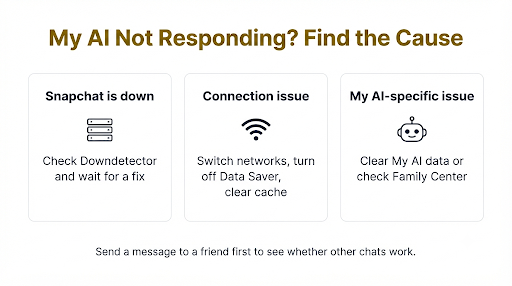
My AI stops replying when something breaks the connection between your app and Snapchat’s servers, or when the app itself is holding onto bad data. My AI runs online. Every message you send has to reach Snapchat’s servers and come back with a reply, so even a small hiccup can leave you staring at a loading chat.
Here are the most common causes:
- Server outage: Snapchat’s My AI has gone down before. In August 2023, My AI posted a random Story and then stopped replying to users, and Snap later confirmed it was a technical outage that had been fixed.
- Weak or unstable internet: Slow Wi-Fi or patchy mobile data can stop replies from loading.
- Corrupted cache: Old temporary files can make chats freeze or load forever.
- Outdated app: An old Snapchat version may have bugs that newer builds already fixed.
- Data Saver mode: It limits background data, which can slow or block some features.
- Stuck My AI chat history: A long or glitched conversation can stop responding while other chats work fine.
- Account or parental restrictions: My AI can be limited on some accounts, which looks like it is “not responding” even though the app is working.
Quick test: Send a message to a friend. If friend chats also fail, the problem is your app or connection. If friend chats work but My AI doesn’t, focus on the My AI specific fixes below (clearing My AI data, Family Center, and outages).
How Do You Fix Snapchat My AI Not Responding?
Work through these fixes in order. Test My AI after each one. Most people won’t need to go past step 5.
1. Check Whether Snapchat or My AI Is Down
Start here, because no fix on your phone can solve a server problem. Open Downdetector’s live Snapchat status page and look for a spike in reports. You can also search “Snapchat down” on X or Reddit to see if other people are posting the same issue right now.
If there is an outage, wait it out. Clearing data or reinstalling during an outage won’t help and can sometimes make you log in again for nothing.
2. Force Close and Reopen Snapchat
A force close clears the app’s temporary session and often brings My AI back instantly.
- iPhone: Swipe up from the bottom of the screen and pause to open the app switcher. Swipe Snapchat up and away. Reopen it.
- Android: Open your recent apps view and swipe Snapchat away. For a deeper close, go to Settings > Apps > Snapchat > Force stop, then reopen it.
3. Check Your Internet Connection
Switch from Wi-Fi to mobile data, or the other way around, and try My AI again. If you’re on public or school Wi-Fi, some networks block certain app traffic. Toggling Airplane Mode on for 10 seconds and then off is a quick way to reset your connection.
Also check whether Snapchat is allowed to use mobile data:
- iPhone: Settings > Cellular (or Mobile Data) > make sure Snapchat is turned on.
- Android: Settings > Apps > Snapchat > Mobile data > allow background data.
4. Turn Off Data Saver in Snapchat
Data Saver reduces how much data Snapchat loads, which can make chats and My AI slow to respond. Open your Profile, tap the gear icon to open Settings, find Data Saver, and turn it off. Then restart the app.
Also turn off Low Data Mode on iPhone or Data Saver on Android at the phone level if you have them on.
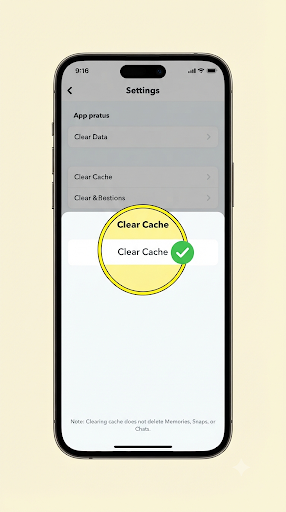
5. Clear the Snapchat Cache
This is one of the most effective fixes for a frozen or endlessly loading My AI chat. Clearing the cache does not delete your Memories, Snaps, or Chats. It only removes temporary files the app rebuilds on its own.
In the current version of Snapchat:
- Open Snapchat and tap your Profile icon.
- Tap the gear icon to open Settings.
- Scroll to App & Privacy and tap My Privacy & Data.
- Under Manage My Data:
- iPhone: tap Clear Cache, then tap Clear.
- Android: tap Clear Data, then Clear Cache, then confirm.
- Close Snapchat and open it again.
On older versions, the same option sits under Settings > Privacy Controls > Clear Data > Clear Cache. Menu labels can shift between app updates, so if you can’t find it, update the app first.
Common mistake: Don’t tap “Clear Conversations” by accident. It sits right next to Clear Cache and removes chats from your Chat feed. It won’t fix My AI and isn’t what you want here.
6. Update Snapchat to the Latest Version
Snapchat updates often, and My AI fixes usually arrive through app updates. Open the App Store on iPhone or Google Play on Android, search for Snapchat, and tap Update if you see it. If you only see “Open,” you’re already on the newest version.
Updates can also cause new bugs. If My AI broke right after an update, read our guide on Snapchat problems after an app update for steps that help when a fresh version misbehaves.
7. Clear Your My AI Data
If friend chats work but My AI won’t reply, the My AI conversation itself may be stuck. Clearing My AI data resets that thread so My AI can start fresh.
- Open your Profile and tap the gear icon.
- Look for Clear My AI Data. Depending on your app version and device, it’s under Account Actions, Privacy Controls > Clear Data, or My Privacy & Data > Manage My Data.
- Tap it and confirm.
- Restart Snapchat and send My AI a new message.
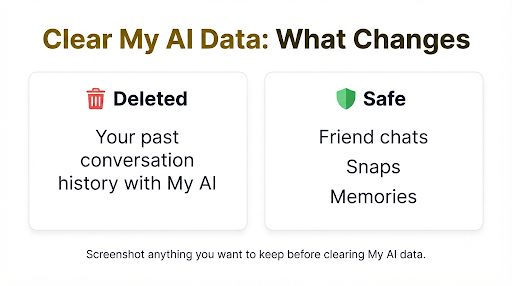
Heads up: This permanently deletes your past conversation history with My AI. If there’s anything you want to keep, screenshot it first.
8. Re-Pin or Re-Add My AI to Your Chat Feed
Sometimes My AI looks unresponsive because the chat you’re opening is a broken shortcut. Snapchat’s own fix is simple: tap the magnifying glass, search for “My AI”, open the chat from the search results, and send a message. That puts a fresh My AI chat back on your feed.
If you removed My AI earlier and it keeps reappearing or acting strange, see our guide on Snapchat My AI still appearing in chats.
9. Log Out, Restart Your Phone, and Log Back In
Logging out refreshes your session with Snapchat’s servers. Before you do this, make sure you know your password and that your phone number or email is up to date, so you can get back in without trouble.
- Go to Settings and scroll to the bottom.
- Tap Log Out.
- Turn your phone off completely, wait about 30 seconds, and turn it back on.
- Open Snapchat and log back in.
If you see a login error such as C14A or C13A when you try to sign back in, follow our steps to fix Snapchat C14A error or fix Snapchat C13A error before going further.
10. Check Family Center Settings on Teen Accounts
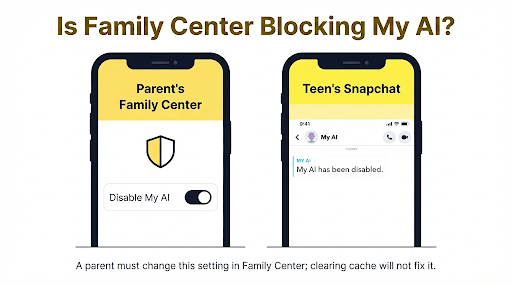
This is the fix most guides miss. If the account belongs to a teen linked to a parent through Family Center, the parent can turn off My AI’s ability to reply. Snap added this control in January 2024, as explained in Snap’s announcement of its expanded parental tools.
When this setting is on, the teen can still message My AI, but My AI won’t give normal answers. It responds with a note that it has been disabled. No amount of cache clearing will change that. The parent has to change the setting in Family Center on their own Snapchat account.
11. Uninstall and Reinstall Snapchat
Reinstalling gives you a completely clean copy of the app. It’s a good last resort when My AI and other features keep freezing.
Before you uninstall: Make sure your Memories are backed up and that you know your login details. Snaps saved only to your camera roll stay on your phone, but anything unsent in the app may be lost.
- iPhone: Press and hold the Snapchat icon, tap Remove App > Delete App, then reinstall from the App Store.
- Android: Press and hold the icon, tap Uninstall, then reinstall from Google Play.
12. Report the Problem to Snapchat
If My AI still isn’t responding after all of this, report it directly. Go to Settings, scroll to Bugs and Suggestions (under Support), choose Report a Bug, and describe what happens. Mention your device, your Snapchat version, and what you’ve already tried. You can also browse the Snapchat Support site, which has a support bot for common questions.
What Do Common My AI Error Messages Mean?
The message you see usually tells you which fix to try first.
| What you see | What it usually means | Best fix to try first |
| My AI shows typing dots but never replies | Slow connection or server delay | Check your internet, then check for an outage |
| “Something went wrong. Please try again.” | App glitch or temporary server error | Force close, then clear the cache |
| My AI chat is stuck loading | Corrupted cache or stuck conversation | Clear the cache, then clear My AI data |
| Messages to My AI won’t send at all | Connection or general chat problem | Test a friend chat, then see our guide on Snapchat messages not refreshing |
| My AI says it has been disabled | Family Center restriction on a teen account | A linked parent must change the Family Center setting |
| “Sorry, I cannot engage in such conversation” | Safety filter, not a technical bug | Rephrase your question or start a new topic |
Is My AI Refusing to Answer, or Is It Actually Broken?
If My AI replies but keeps refusing, it’s working. It’s filtering. Snapchat built My AI with protections against harmful or inappropriate responses, and it can apply temporary usage limits to accounts that repeatedly misuse it. Replies like “Sorry, I cannot engage in such conversation” are part of that system.
Many Reddit users report that My AI keeps refusing even after they change the subject. When that happens, try these steps:
- Rephrase the question in plain, neutral words.
- Start a completely new topic.
- Clear My AI data to reset the conversation context.
- Give it some time if you think a temporary usage limit applies.
Reinstalling won’t fix a refusal, because it isn’t a technical fault.
Are the Fixes Different on iPhone and Android?
The fixes are the same, but a few menus differ. Use this table as a quick reference.
| Task | iPhone | Android |
| Force close Snapchat | App switcher, swipe Snapchat up | Recent apps, swipe away, or Settings > Apps > Snapchat > Force stop |
| Clear Snapchat cache | My Privacy & Data > Clear Cache > Clear | My Privacy & Data > Clear Data > Clear Cache |
| Check mobile data access | Settings > Cellular > Snapchat | Settings > Apps > Snapchat > Mobile data |
| Update the app | App Store | Google Play |
| Extra cache option | Not available at system level | Settings > Apps > Snapchat > Storage > Clear cache |
Android warning: In your phone’s app settings, “Clear cache” and “Clear storage” (or “Clear data”) are different. Clear storage wipes all local app data and signs you out. Use Clear cache unless you’re ready to log in again.
What Mistakes Make My AI Problems Worse?
A few common moves waste time or create new problems:
- Reinstalling first. It’s the slowest fix and rarely needed. Try the quick steps before it.
- Fixing your phone during an outage. Check the server status first, every time.
- Tapping Clear Conversations instead of Clear Cache. It removes chats from your feed and does nothing for My AI.
- Logging out without knowing your password. This can turn a small glitch into a locked account.
- Treating a safety refusal as a bug. If My AI replies with a refusal, technical fixes won’t change it.
Frequently Asked Questions
Why does My AI work for my friends but not for me?
The problem is likely on your device or account, not Snapchat’s servers. Your app version, cache, network, or a Family Center restriction can all affect only your account. Update the app and clear the cache first, since those fix most single-device problems.
Will clearing My AI data delete my regular Snapchat chats?
No. Clear My AI Data only removes your conversation history with My AI. Your chats with friends, your Snaps, and your Memories are not touched.
Do I need Snapchat+ to use My AI?
No. My AI first launched for Snapchat+ subscribers, but Snapchat opened it to all users in 2023. Some older guides still tell you to subscribe to fix it. That advice is out of date, so don’t pay just to fix a My AI that won’t respond.
How long do Snapchat My AI outages usually last?
Most outages are fixed within a few hours, though there’s no set timeline. Keep an eye on a status site and try My AI again later rather than changing settings over and over.
Can I use My AI on Snapchat for Web if the app isn’t working?
It can help you test where the problem is. Log in to Snapchat on the web from a computer and check whether My AI responds there. If it works on the web but not on your phone, the issue is your app or device, so focus on clearing the cache, updating, or reinstalling.
Why does My AI reply very slowly instead of not at all?
Slow replies usually mean a weak connection, Data Saver being on, or heavy traffic on Snapchat’s servers. Turn off Data Saver, switch networks, and try again at a quieter time of day.
What Should You Do Next?
Start with the quick wins: check for an outage, force close Snapchat, switch your network, and clear the cache. If friend chats work but My AI doesn’t, clear your My AI data and re-open My AI from search. On a teen account, check Family Center before anything else. Save reinstalling and reporting a bug for last, and when you report it, include your device model, Snapchat version, and the exact message you see so Snapchat’s team can help faster.

Anica Lymus is a technical writer specializing in consumer applications, mobile operating systems, and practical troubleshooting workflows. At Primotechy, she covers account security, software glitches, and app performance across platforms such as Facebook, Instagram, and Snapchat. Drawing on hands-on device testing and in-depth research across iOS, Android, macOS, and Windows, Anica translates complex platform settings and sudden technical errors into clear, verified, step-by-step guides that readers can easily follow and trust.
View all posts by Anica Lymus →