
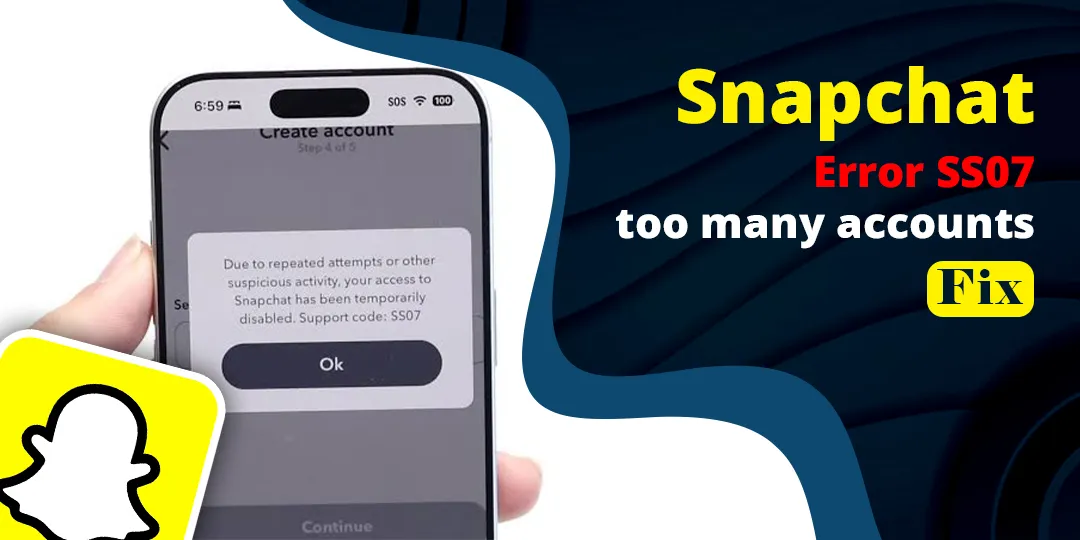

Snapchat error SS07 means your phone or tablet has been banned from logging into Snapchat because too many accounts have been associated with that device. It’s a device-level ban, not just a problem with one account. So clearing the cache, reinstalling the app, or making a new account on the same phone won’t remove it.
The good news is that you still have options. Your account may still work on a different device, and if you think the ban is a mistake, you can file an appeal inside the app. Below you’ll find what SS07 means, what actually works, what doesn’t, and how to keep it from happening again.
Contents
Quick Overview
- What SS07 means: Snapchat has banned this device from logging in because too many accounts were linked to it.
- What’s banned: The phone or tablet. Your account isn’t necessarily locked.
- What won’t fix it: Reinstalling, clearing the cache, changing your password, switching Wi-Fi, or creating a new account on the same device.
- What can help: Logging in on a different device, or appealing through the in-app “Appeal Decision” option if you see one.
- What to avoid: Paid “unban” services and anyone asking for your password or verification code.
What Does SS07 Mean on Snapchat?
SS07 means your device can no longer log into Snapchat because Snapchat linked too many accounts to it. Snapchat’s own help page for accounts you can’t create says this directly: an SS07 code at login means the device has been banned because of the number of accounts tied to it.
This is the main thing to understand. The restriction is attached to the hardware, so every account you try on that phone will hit the same wall. That’s why the error often shows up in two situations:
- SS07 at login: You enter correct login details and still get blocked.
- SS07 when creating an account: You try to sign up for a fresh account and get stopped. Snapchat says you can’t create new accounts on a banned device.
People usually trigger it by switching between several accounts on one phone, creating new accounts quickly, or using a phone that was set up with lots of accounts before.
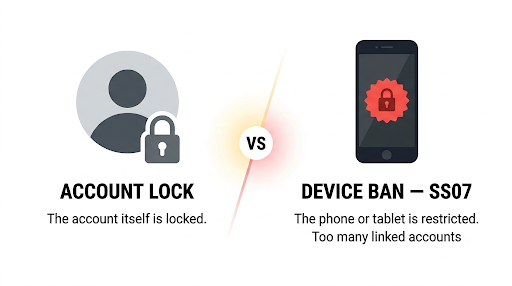
Is SS07 a Device Ban?
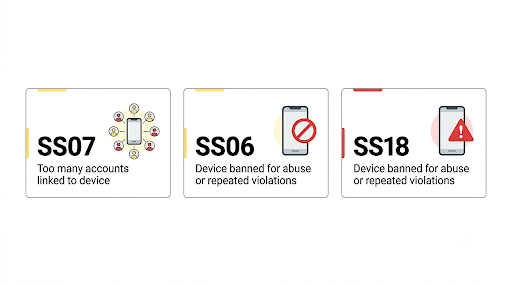
Yes. Snapchat lists SS07 along with SS06 and SS18 in the “device banned” section of its login error message guide. The difference is the stated reason. SS07 is specifically tied to too many accounts being associated with the device, while SS06 and SS18 are tied to abuse or repeated Community Guidelines violations.
How Is SS07 Different From SS06 and SS18?
All three codes block the device, but SS07 is the only one tied specifically to too many accounts. SS06 and SS18 mean Snapchat banned the device for abuse or repeated violations of its Community Guidelines.
| Code | What Snapchat says it means | What’s restricted |
| SS07 | Too many accounts have been associated with the device | The device |
| SS06 | Device banned due to abuse or repeated Community Guidelines violations | The device |
| SS18 | Device banned due to abuse or repeated Community Guidelines violations | The device |
If you got a different code on another phone, or the code changed after an appeal, the details matter. We have separate guides for the SS06 device ban and its options and for what SS18 means on Snapchat.
Why Doesn’t Reinstalling or Clearing Cache Fix SS07?
Those steps fix app glitches, and SS07 isn’t a glitch. Snapchat made a decision about your device, and nothing you change inside the app reverses it.
Here’s what people commonly try, and why it doesn’t work:
| What people try | Does it remove SS07? | Why |
| Clearing the cache or app data | No | The ban isn’t stored in the app’s cache |
| Uninstalling and reinstalling Snapchat | No | The device is still recognized as the same device |
| Changing your password | No | The issue isn’t your login details |
| Switching Wi-Fi or mobile data | No | The ban is on the device, not the network |
| Creating another account on the same phone | No | Snapchat blocks new accounts on banned devices, and extra attempts add to the problem |
A common mistake: making account after account to “test” whether the ban is gone. Every attempt links one more account to a device that’s already flagged for too many accounts.
How Do You Fix Snapchat Error SS07?
There’s no switch that removes SS07 instantly. Snapchat says its Support team cannot unban a banned device. What you can do is get back to your account another way, or challenge the decision through the official appeal.
- Stop retrying on the banned device. Don’t keep logging in or creating accounts on that phone.
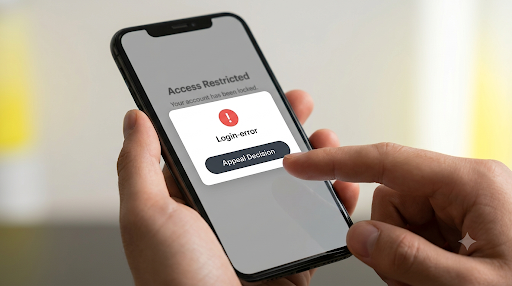
- Check for an “Appeal Decision” option. When you try to log in, look at the pop-up. If it shows “Appeal Decision,” you can appeal (details below).
- Log in on a different device. Because the ban is tied to the phone, your account may work on another phone or tablet, as long as the account itself isn’t separately locked.
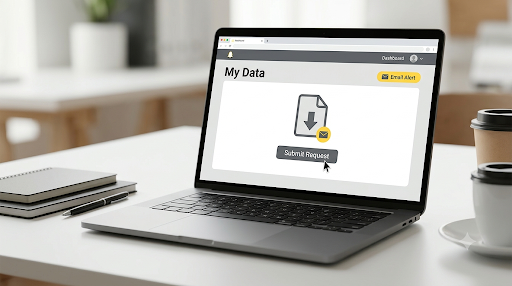
- Save your data. If you’re worried about losing Memories or chats, request a copy of your data from the Snapchat Accounts Portal on a computer or another device.
- Decide whether to wait. Some people report that restrictions eventually lift, but Snapchat does not confirm this or provide a timeline for SS07.
If you request your data and the download email keeps sending you back to the request form, here’s a guide on fixing the Memories email loop.
Should You Wait 48 Hours?
Waiting is reasonable, but don’t count on it. On its account access help page, Snapchat says that when it detects you using more than one account, you may lose access on your device for an extended period, and it suggests waiting 48 hours before logging in again. That advice is for the multiple-account situation in general. It isn’t a promised fix for an SS07 ban, and some users report still seeing SS07 well after two days.
How Do You Appeal a Snapchat SS07 Device Ban?
Use the in-app appeal. Snapchat says the appeals process in the app is the only legitimate way to appeal an account lock decision, including when your device has been banned.
- Open Snapchat and try to log in as usual.
- When the lock or ban pop-up appears, tap Appeal Decision.
- Follow the prompts and explain your situation clearly and honestly.
- Watch the email address linked to your account for Snapchat’s reply.
If you don’t see an “Appeal Decision” option, your case probably isn’t eligible for an in-app appeal. Snapchat’s guide to submitting a locked account appeal has the current steps and rules.
What Should You Say in an SS07 Appeal?
Keep it short and factual. Good appeals usually include:
- Your username and the email or phone number on the account
- That you’re seeing SS07 and when it started
- Why you think it’s a mistake, for example a shared family tablet, or a phone you bought used
- That you’ll stick to one account, or a small number of accounts, on that device from now on
Don’t send the same appeal over and over, and don’t open tickets through unofficial channels. More messages won’t speed things up. Treat your appeal as a one-shot attempt and get it right the first time.
What If You Got SS07 on a Used or Refurbished Phone?
This happens more than people expect. Because the ban is attached to the device, a second-hand or refurbished phone can carry a restriction caused by a previous owner who used many accounts on it. You may see SS07 the first time you try to sign up or log in.
Here’s what to do:
- Use the in-app appeal if the “Appeal Decision” option shows up, and explain that you recently bought the phone used.
- Contact the seller or retailer if you bought it recently. Some sellers will accept a return.
- Use Snapchat on another device in the meantime. Your account isn’t banned just because the phone is.
Can You Use Snapchat on Another Device After SS07?
Usually, yes. The SS07 ban is tied to the phone or tablet, so your account can often still log in on a different device unless Snapchat has locked the account itself. If you see a separate lock message on the new device, that’s an account issue, and it follows its own rules.
A few practical tips if you switch devices:
- Use your existing account rather than making a new one. Your friends, Memories, and Snaps stay in one place.
- Don’t go back and forth between the banned phone and the new one.
- Don’t log lots of accounts into the new device. That’s how the first one got flagged.
If you do start fresh with a new account on a new phone, you’ll have to rebuild your friend list. This guide on finding people on Snapchat without a username can help you reconnect faster.
How Do You Avoid Snapchat SS07?
Keep the number of accounts on any one device low, and don’t switch between them quickly. Snapchat doesn’t publish an exact account limit per phone, so there’s no “safe number” to aim for. The safest approach is to treat each device as having one main account.
- Don’t create several accounts in a short period on the same phone.
- Don’t keep logging out and into different accounts throughout the day.
- Be extra careful after any earlier restriction. If you’ve already had a lock or a warning, more accounts on that device raises the risk.
- Think twice before sharing a device. A family tablet where everyone logs into their own Snapchat can add up quickly.
- Skip third-party Snapchat apps and tweaks. They can cause separate login problems and locks.
Running a business account and a personal account? Keep it to those two, and avoid adding extra test or backup accounts on the same phone.
Are SS07 Unban Services and Bypass Tricks Real?
No. Snapchat says Support cannot unban a banned device, so anyone promising a guaranteed SS07 removal is misleading you. Here’s what these offers usually look like:
- Paid “unban services” that charge a fee and then disappear
- “Free unban” offers that ask for your username, password, or login code
- Messages pretending to be Snapchat Support asking you to “verify” your account by sharing a code
- Bypass or hack tools that ask you to install unknown apps or change system settings
Never share your password or verification code with anyone. Snapchat sends those codes so only you can log in. Someone who gets the code can take over your account, and then you’d have a hacked account on top of a banned device. Bypass tools can also put your phone’s security at risk and break Snapchat’s terms, which could lead to stricter restrictions.
Frequently Asked Questions
Is Snapchat SS07 permanent?
Snapchat doesn’t say how long an SS07 ban lasts. Some users say device bans lifted after several months, but Snapchat hasn’t confirmed that, so plan as if it may not lift on its own. The appeal is your best official chance to have it reviewed.
Does SS07 ban my account or my phone?
It bans your phone. The SS07 code targets the device, so your account may still log in normally on another phone or tablet. If the account also shows a lock message, that’s a separate account-level restriction.
Will SS07 follow me to a new phone?
Not by itself, because the ban is attached to the old device. But if you log lots of accounts into the new phone too, it could get flagged the same way. Stick to one main account on the new device.
Can I create a new Snapchat account after getting SS07?
Not on the banned device. Snapchat says you can’t create new accounts on a banned device. You can create or use an account on a different device, but using your existing account there is usually the better choice.
Can I contact Snapchat Support about SS07?
You can, but don’t expect Support to remove the ban. Snapchat says Support can’t unban a banned device and that the in-app appeal is the legitimate way to challenge the decision. Use Support for other account issues, such as recovering a login on a new device.
Why did I get SS07 when I only have one account?
Other accounts may have been used on that device before you. That’s common with used, refurbished, or shared phones and tablets. Mention this in your appeal.
Does switching Wi-Fi or using a VPN remove SS07?
No. SS07 is tied to the device, not to your internet connection, so changing networks won’t change the result.
What Should You Do Next?
If you just saw SS07, stop retrying on that device. Try logging in, and if the “Appeal Decision” option appears, submit one clear, honest appeal. If you need Snapchat right away, log into your existing account on a different phone or tablet and keep that device to one main account. Ignore anyone selling an unban or asking for your login code. The official appeal is the only real route back on the banned device.

Anica Lymus is a technical writer specializing in consumer applications, mobile operating systems, and practical troubleshooting workflows. At Primotechy, she covers account security, software glitches, and app performance across platforms such as Facebook, Instagram, and Snapchat. Drawing on hands-on device testing and in-depth research across iOS, Android, macOS, and Windows, Anica translates complex platform settings and sudden technical errors into clear, verified, step-by-step guides that readers can easily follow and trust.
View all posts by Anica Lymus →