
Snapchat C13A is a login error that Snapchat groups under “Service unavailable.” It means Snapchat couldn’t finish your login at that moment, and it’s most often tied to your network connection, not a ban. Switching from Wi-Fi to mobile data (or the other way around) is often the first fix to try because C13A is commonly linked to a connection problem.
If that quick switch doesn’t work, the cause is usually a VPN, a private DNS setting, a blocked network, an outdated app, or a temporary hold after too many login tries. This guide walks you through each one in the right order, plus what to do if C13A shows up while you’re trying to reactivate a deactivated account.
Contents
Quick Overview
- What C13A means: Snapchat couldn’t complete your login right now. It’s in the same “Service unavailable” group as C14A, C14B, C16A, SS14A-D01, and SS14A-D02.
- Is it a ban? No. Ban and lock errors use different codes, such as SS06 and SS18.
- First fix: Switch networks. Wi-Fi to mobile data, or mobile data to a different Wi-Fi.
- Next fixes: Turn off VPN, private DNS, and iCloud Private Relay. Update Snapchat. Restart your phone. Clear the cache.
- Tried logging in many times? Stop. Wait up to 48 hours, then try once on a stable connection.
- Never give your password or a login code to anyone offering to “remove” C13A.
What Does Snapchat Error C13A Mean?
C13A means Snapchat received your login request but couldn’t complete it. The full message usually reads: “Something went wrong. Please try again later. Support code: C13A.”
Snapchat’s help article on login error messages puts C13A in its “Service unavailable” group and links that group to poor network connectivity. The suggested fix for the whole group is the same: switch from Wi-Fi to mobile data and try again.
That vague “something went wrong” wording is what makes people panic. It sounds serious. But in practice it’s Snapchat saying, “The request didn’t go through cleanly. Try a different path.”
Where You’ll See C13A
Most people see it in one of three situations:
- Normal login: You enter your username and password, tap Log In, and get the code instead of your Camera screen.
- Reactivating a deactivated account: You deactivated Snapchat recently and get C13A when trying to log back in. This case has its own fix, covered below.
- Logging in on a new phone or after reinstalling: Snapchat runs extra checks on new devices, and a shaky or filtered connection can stop them from finishing.
Is C13A a Ban, a Lock, or a Connection Problem?
C13A is a connection or service problem, not a ban. Snapchat uses separate codes for locked, disabled, and banned situations, and those codes come with different instructions.
This is the biggest gap in most C13A guides. They throw every fix at you without helping you figure out which kind of problem you actually have. Use this table to check your code first:
| Code | What it points to | What to do |
| C13A, C14A, C14B, C16A, SS14A-D01, SS14A-D02 | Service unavailable. Snapchat couldn’t finish the login right now. | Switch networks, turn off VPN or private DNS, update the app, then retry. |
| C02A or a code not listed | Unknown error | Update the app, check your connection, restart, and clear the cache. |
| SS01, SS03, SS08 | Access temporarily disabled | Double-check your login details and wait 48 hours. |
| SS02 | Too many login attempts | Stop trying and wait before your next attempt. |
| SS04 | Account locked | Try unlocking through the Snapchat Accounts Portal. |
| SS06, SS18 | Device banned | Network fixes won’t help. This is a device-level restriction. |
If you see a device-level code instead of C13A, the path is completely different. Our guide on what the SS06 device ban means and how to handle it explains your realistic options there.
Why the Difference Matters
If you treat C13A like a ban, you might delete your account, pay a fake “unban” service, or factory reset your phone for no reason. If you treat a real ban like C13A, you’ll spend days switching Wi-Fi networks for nothing. Knowing the category saves you time and stress.
How Do You Fix Snapchat C13A Error?
Start with the network, because that’s what Snapchat itself ties C13A to. Try logging in once after each step. Don’t hammer the Log In button between steps.
- Switch networks. If you’re on Wi-Fi, turn it off and use mobile data. If you’re already on mobile data, connect to a different Wi-Fi network, like a friend’s home Wi-Fi.
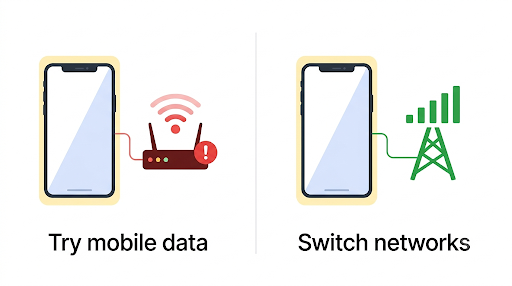
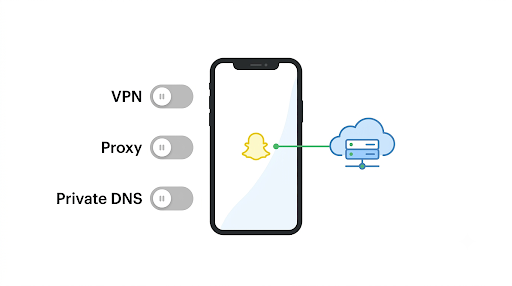
- Turn off any VPN or proxy. Fully disconnect it, not just pause it. Some VPN apps keep an “always on” profile running in the background.
- Turn off private DNS or iCloud Private Relay. These route your traffic in ways that can make your login look unusual. Steps for each phone are below.
- Update Snapchat. Open the App Store or Google Play and install any pending update. Old versions can fail the login handshake.
- Force close the app and restart your phone. This clears stuck network sessions and background glitches.
- Clear Snapchat’s cache. This removes corrupted temporary files without touching your account.
- Check whether Snapchat is down. If lots of people are reporting login problems at the same time, the issue is on Snapchat’s side. Waiting is the only fix.
- Reinstall Snapchat as a last device-side step. Delete it, restart your phone, and install a fresh copy from the official app store.
Tip: Write down which step you’re on. When people get frustrated, they jump between fixes and lose track, then end up making too many login attempts in a short window. That can turn a simple C13A into a temporary lock.
How Do You Fix C13A on iPhone?
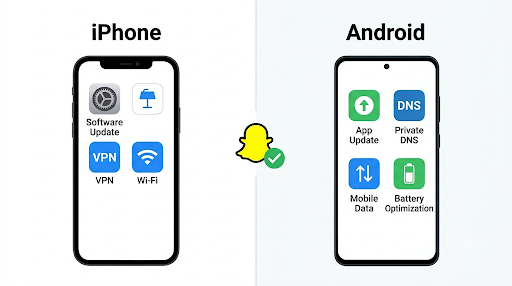
On iPhone, the hidden culprits are usually iCloud Private Relay and the “Limit IP Address Tracking” setting. Most top-ranking guides skip these, but they change how your connection looks to Snapchat.
- Turn off iCloud Private Relay: Go to Settings, tap your name, then iCloud, then Private Relay, and switch it off. This only applies if you pay for iCloud+.
- Turn off Limit IP Address Tracking: Go to Settings, then Wi-Fi, tap the info icon next to your network, and switch off Limit IP Address Tracking. For mobile data, look under Settings, then Cellular, then Cellular Data Options.
- Check for VPN profiles: Go to Settings, then General, then VPN & Device Management. Disconnect or remove any VPN you don’t need.
- Offload the app instead of deleting it: Go to Settings, then General, then iPhone Storage, tap Snapchat, and choose Offload App. Then reinstall it from the same screen. This refreshes the app while keeping its documents and data.
- Update iOS: Go to Settings, then General, then Software Update.
Menu names can shift slightly between iOS versions, so if you don’t see an option exactly where described, use the search bar at the top of Settings.
How Do You Fix C13A on Android?
On Android, check Private DNS first. Many people turn on an ad-blocking DNS once and forget about it, and it quietly blocks parts of Snapchat’s login traffic.
- Set Private DNS to Automatic or Off: On most phones, go to Settings, then Network & internet (or Connections), then Private DNS. On Samsung, it’s often under Connections, then More connection settings.
- Clear the cache: Long-press the Snapchat icon, tap App info, then Storage & cache, then Clear cache. Avoid “Clear storage” unless you’re ready to sign in from scratch, because it wipes the app’s local data.
- Disable data-saver or battery-saver limits for Snapchat: Aggressive restrictions can cut off background network activity during login. Look under App info, then Mobile data and Battery.
- Remove ad-blocking or firewall apps temporarily: Apps that filter traffic on the device can act like a VPN and block Snapchat’s servers.
Exact menu names vary by brand and Android version. Samsung, Google Pixel, OnePlus, and Xiaomi all label these settings a little differently.
Can a VPN, Proxy, or Blocked Wi-Fi Cause Snapchat C13A?
Yes. Anything that filters or reroutes your traffic can stop Snapchat from finishing your login. That includes VPNs, proxies, custom DNS, and network-level blockers you may not even control.
Here are the common sources people overlook:
- School, office, and campus Wi-Fi: These networks often block or limit social media apps. Snapchat may half-connect and then fail.
- Public Wi-Fi with a login page: Coffee shops, hotels, and airports often require you to accept terms in a browser first. Until you do, apps can’t reach their servers properly.
- Home router ad-blockers: Tools like Pi-hole, NextDNS, or parental-control settings on the router can block Snapchat domains for every device in the house.
- Shared or flagged IP addresses: Popular VPN servers are used by thousands of people. Traffic from them can look suspicious to login systems.
Quick test: If Snapchat fails on your home Wi-Fi but works on mobile data, the problem is your Wi-Fi network, not your account. Restart the router, and check its parental controls or DNS settings.
Check Your Phone’s Date and Time
This one rarely gets mentioned. If your phone’s date and time are set manually and are wrong, secure connections can fail. Set the date and time to update automatically in your phone’s settings, then try again.
What If C13A Appears When Reactivating a Deactivated Account?
This is the scenario that shows up again and again in Reddit threads, and the top results barely address it. If you deactivated your account and now get C13A while logging back in, timing is usually the issue.
Here’s what to know:
- Deactivation can take up to about 24 hours to finish. If you try to reactivate during that window, the login may fail. Wait a full day after deactivating, then try again.
- Log in with your username, not your email or phone number. Reactivation generally works through your username and password.
- You have a limited window. Snapchat says a deactivated account is scheduled for permanent deletion after 30 days. The timing may differ in some regions, so act sooner rather than later.
- Only you can reactivate it. Snapchat Support can’t reactivate a deactivated account for you. It can help verify that you own the account if you’ve lost access.
- After permanent deletion, it’s gone. No one can restore a deleted account, including people who claim they can for a fee.
If you’re trying to save your Memories, don’t keep spamming login attempts. Too many tries can trigger a separate temporary disable and burn through precious days in your 30-day window. Try once a day, on a stable network with VPN off.
What If C13A Keeps Coming Back After Many Login Attempts?
Stop trying for now. Snapchat says that if you’ve tried to log in too many times in a short period, your access can be temporarily disabled, and it advises waiting 48 hours before trying again.
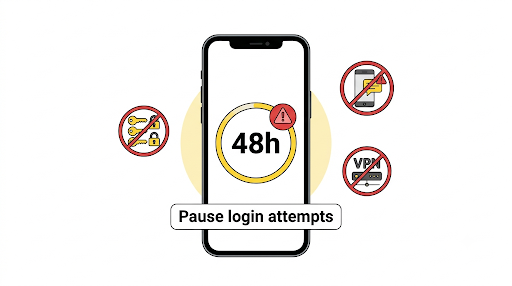
Snapchat’s help page on temporarily disabled account access also notes that requesting too many SMS codes in a short time can trigger a “Too many requests” message.
Here’s a calm plan:
- Stop all login attempts and code requests.
- Wait a full 48 hours. Set a reminder so you’re not tempted to check early.
- During the wait, update Snapchat and your phone’s operating system.
- After 48 hours, turn off VPN, connect to a stable network, and try logging in once.
If your verification code isn’t arriving, Snapchat suggests waiting a few minutes and making sure your connection is stable before trying again. Its guide on what to do when you can’t receive your login code covers this in more detail. If you use two-factor authentication and lost access to your phone, your saved Recovery Code is the way in.
How Can You Tell If the Problem Is Your Phone or Your Account?
Try logging in somewhere else. This simple test tells you a lot, and almost no guide suggests it.
- Sign in at the Snapchat Accounts Portal (accounts.snapchat.com) in a browser. If it works there, your account is fine and the problem is the app or your phone’s network.
- Try a different phone on a different network, such as a family member’s phone on their mobile data. If you can log in there, your own device or network setup is the issue.
- If it fails everywhere, the cause is more likely account-side or a Snapchat outage. Wait and then contact Support.
One caution: logging in on lots of different devices quickly can look suspicious too. Do this test once or twice, not ten times.
Using several accounts on one phone can also cause trouble. Snapchat links some restrictions to devices, and if you share a phone with siblings or juggle multiple accounts, read about how the SS07 error relates to multiple accounts on one device before you add another login.
Can You Appeal a Snapchat C13A Error?
No, not in the usual sense. C13A isn’t an enforcement decision, so there’s nothing to appeal. Appeals only apply when Snapchat has actually locked or restricted your account.
If you can get into the app and suspect an account-level issue, check Account Status in your Snapchat settings. Snapchat labels eligible enforcement decisions with a “Tap to Appeal” option there. If you don’t see that option, the restriction either isn’t eligible for appeal or there’s no enforcement on your account.
If your screen shows a device ban code instead, that’s a different situation. Our breakdown of the Snapchat SS18 error explains what that ban means and what you can realistically do about it.
How Do You Avoid C13A Scams?
Ignore anyone who promises to “remove,” “bypass,” or “unlock” C13A. Snapchat says the only legitimate way to unlock an account is to do it yourself or appeal through the app in eligible cases.
Scammers love error codes because people are stressed and willing to try anything. Watch for these red flags:
- Instagram, TikTok, or Telegram accounts offering “unban services” or “C13A fixes” for money
- Anyone asking for your password, login code, or Recovery Code
- Comments under YouTube videos pointing you to a “support agent” on WhatsApp
- Third-party apps or “modded” Snapchat versions that claim to skip the error
- Links in video descriptions that aren’t from snapchat.com or help.snapchat.com
Important: Using unofficial Snapchat apps, tweaks, or plugins can get your account locked for real. That would turn a temporary C13A into a much bigger problem.
When Should You Contact Snapchat Support?
Contact Snapchat Support if C13A still appears after you’ve tried two different networks, turned off VPN and private DNS, updated the app, and waited 48 hours. At that point, the issue may be something only Snapchat can see.
To make your request useful:
- Go to the official Snapchat Support site (help.snapchat.com) or use Support inside the app if you can reach Settings.
- Choose the option for not being able to access your account and seeing an error message when you log in.
- Include your username, the exact code (C13A), your device model, app version, and the fixes you’ve already tried.
- Submit one request and wait. Sending several tickets won’t speed it up.
A short, clear message works best. Something like: “I get Support code C13A every time I log in. I’ve switched between Wi-Fi and mobile data, turned off my VPN, updated the app, and waited 48 hours. My username is ____.”
FAQs About Snapchat C13A Error
How long does the Snapchat C13A error last?
It often clears as soon as you switch to a working network. If it’s caused by too many login attempts, plan for up to 48 hours. If Snapchat itself is having an outage, it lasts until their servers recover, which can be minutes or hours.
Is C13A the same as C14A?
They’re in the same “Service unavailable” group, so the causes and fixes are basically the same. C14B tends to show a “check your connection” message, while C13A and C14A usually say “something went wrong.” The code number changes, but the approach doesn’t.
Will I lose my Snapchat Memories because of C13A?
No. C13A is a login problem, and Memories saved to your account are stored with Snapchat, not on the login screen. The real risk is a deactivated account passing its deletion window. Snaps saved only to your phone’s camera roll stay on your phone either way.
Why does Snapchat work on my phone but show C13A on my new phone?
New devices go through extra security checks. If the new phone is on a filtered network, has a VPN app installed, or you’ve tried logging in on it many times, the check may fail. Log in once on mobile data with no VPN, and don’t log out of the old phone repeatedly while testing.
Can I fix C13A by creating a new account?
That rarely helps and can make things worse. If the problem is your network, a new account will hit the same error. Creating several accounts quickly can also trigger device-level restrictions, which are much harder to fix than C13A.
Does C13A mean someone hacked my account?
Not by itself. But if you also got emails about password changes or logins you don’t recognize, reset your password at the Snapchat Accounts Portal right away and check the email and phone number on your account.
What Should You Do Next?
Start simple. Switch from Wi-Fi to mobile data, turn off any VPN or private DNS, and try logging in once. That alone fixes C13A for most people, because it’s a connection error, not a ban.
If it doesn’t work, update the app, restart your phone, and clear the cache. If you’ve already tried many times, step away for 48 hours before your next attempt. Reactivating a deactivated account? Wait at least 24 hours after deactivating and log in with your username. And if nothing works after all that, send one clear request to Snapchat Support and skip anyone online promising a paid shortcut.

Anica Lymus is a technical writer specializing in consumer applications, mobile operating systems, and practical troubleshooting workflows. At Primotechy, she covers account security, software glitches, and app performance across platforms such as Facebook, Instagram, and Snapchat. Drawing on hands-on device testing and in-depth research across iOS, Android, macOS, and Windows, Anica translates complex platform settings and sudden technical errors into clear, verified, step-by-step guides that readers can easily follow and trust.
View all posts by Anica Lymus →