
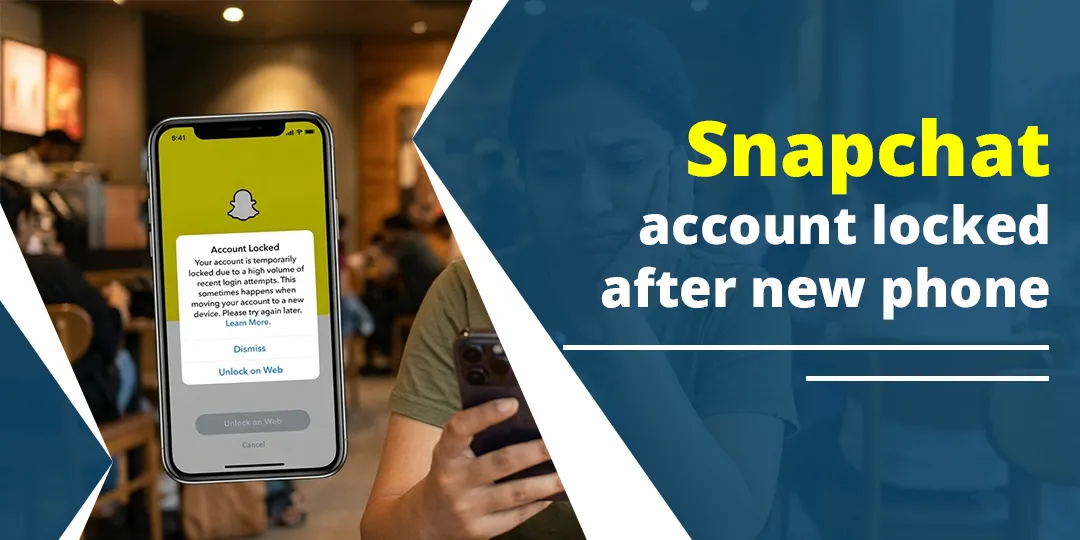
If your Snapchat account got locked after you moved to a new phone, it’s usually a security lock, not a ban. Snapchat sees a device it doesn’t know, plus a few quick login attempts, a VPN, or an app carried over from your old phone, and it blocks access to protect the account. Most of these locks clear if you stop trying to log in for 48 hours and then use Snapchat’s official unlock option.
The real trick is figuring out which kind of lock you have. A temporary lock, a missing verification code, and a device ban all look alike at first, but each one needs a different fix. This guide helps you tell them apart in about a minute, then walks you through the right fix for your case.
Contents
Quick Overview
| What you see on the new phone | What it usually means | What to do |
| “Account temporarily locked” or SS02 | Too many login attempts in a short time | Stop logging in for 48 hours, then try once |
| SS04 or “Your account is locked” | The account itself is locked | Go to accounts.snapchat.com, log in, and tap Unlock if it’s offered |
| Asks for a code sent to your old phone or old number | Two-factor authentication on a new device | Use your Recovery Code, or contact Snapchat Support |
| SS06, SS18, or SS07 | The phone itself is banned, not just the account | Appeal in the app if you see the option. Support can’t lift device bans |
| C14A, C13A, or “service unavailable” | Network or connection problem | Turn off your VPN, switch between Wi-Fi and mobile data, update the app |
| “Locked for violating Community Guidelines” | A guideline or Terms of Service lock | Finish the in-app lesson, or tap Appeal Decision |
Why Does Snapchat Lock Your Account After You Switch to a New Phone?
Snapchat locks accounts on new phones because a login from a new device is one of the strongest signs that someone else might be trying to get in. On its own, a new phone rarely causes a lock. It’s usually the new phone plus one or more of the triggers below.
1. Too Many Login Attempts in a Short Time
This is the most common cause by far. You set up the new phone, Snapchat asks for your password, you mistype it, try again, reset it, and try once more. Snapchat’s help center says your access can be temporarily disabled if you tried to log in too many times in a short period. Its advice is to check your login details and wait 48 hours before you try again.
Every extra attempt during the lock can restart the clock. That’s why a lot of people who say they “waited and it didn’t work” were really opening the app every few hours to check.
2. Unofficial Apps Came Along From Your Old Phone
Phone transfer tools, like Quick Start on iPhone or Android’s copy-your-data option, try to move every app you had. If your old phone had a modified Snapchat build (for example, Snapchat++), a tweak, an auto-saver, or a “login helper,” it can come right back on the new phone. Snapchat locks accounts that use unauthorized third-party apps, and a brand-new device login makes those apps even easier to spot.
Note: Snapchat+ is Snapchat’s own paid subscription and is safe to use. The problem is unofficial clients and plug-ins that change how the app works.
3. A VPN, Shared Wi-Fi, or Flagged Network
New phones often get set up on hotel Wi-Fi, a store’s network, or with a VPN app restored from a backup. If a network has a lot of suspicious traffic, Snapchat may refuse logins from it. These problems usually show up as service-unavailable codes instead of a full lock.
4. Two-Factor Authentication Is Tied to the Old Phone
With two-factor authentication on, Snapchat asks for a login code the first time you sign in on a new device. If that code goes to an authenticator app on your old phone, or to a phone number you don’t have anymore, you’re stuck at the verification screen. The account isn’t technically locked, but you can’t get past that step.
5. You Changed Your Phone Number Too
Getting a new phone often comes with a new number or a new carrier. If your Snapchat account is still linked to the old number, SMS codes and password-reset texts go to a number you can’t reach anymore.
6. The Phone Already Has a Device Ban
This one is rare, but most guides skip it. Snapchat bans some phones themselves, not just accounts. If your new phone is secondhand or refurbished and shows SS06 or SS18 the very first time you log in, even with an account in good standing, the ban may be from the previous owner. More on this below.
How Do You Know Which Type of Lock You Have?
Read the exact message or error code on the screen. That one detail decides your fix. Before you do anything else, write down:
- The full message, word for word
- Any code, such as SS02, SS04, SS06, SS07, SS18, or C14A
- Whether the error shows up on Wi-Fi, mobile data, or both
- Whether you can still reach the email address and phone number on the account
- Whether your old phone is still logged in to Snapchat
Snapchat keeps an official list of what its login error messages and support codes mean. Check your code against it, because Snapchat sometimes changes the wording.
Here’s a simple way to think about it. Lock codes are about your account. Ban codes are about your phone. Connection codes are about your network. If you confuse one for another, you can spend days on a fix that was never going to work.
How to Unlock a Temporarily Locked Snapchat Account on a New Phone
If you see “temporarily locked,” SS02, or SS04, follow these steps in order. Don’t skip ahead to step 5.
- Stop logging in for a full 48 hours. Don’t open Snapchat, don’t try Snapchat Web, and don’t reset your password over and over. Some guides say 24 hours, but Snapchat’s own guidance says 48.
- Remove any unofficial apps. Delete modified Snapchat builds, tweaks, auto-savers, and any app that asked for your Snapchat login. On a jailbroken iPhone or rooted Android, remove the tweak, not just the app icon.
- Reinstall the official app. Delete Snapchat and download it again from the App Store or Google Play so you’re on the newest official version.
- Turn off your VPN and use a trusted network. Your home Wi-Fi or regular mobile data is best. Skip public Wi-Fi for this login.
- Unlock through the Accounts Portal. After 48 hours, go to accounts.snapchat.com in a browser, log in, and select Unlock if you see it. You can also try once in the app and follow any unlock prompt.
- Log in once and slowly. Type your username and password carefully. If it fails, wait instead of trying again right away.
If the lock came from too many attempts, the Unlock option often doesn’t show up until the waiting period is over. Seeing nothing to tap is normal at that stage.
Should You Clear the Snapchat Cache?
Clearing the cache won’t lift a real account lock. It can help, though, if the app is glitching, stuck on a loading screen, or showing an old error after the lock has already cleared.
- Android: Settings, then Apps, then Snapchat, then Storage, then Clear cache.
- iPhone: iOS has no system cache button for Snapchat, so reinstalling the app does the same job. Once you’re logged in, you can also clear the cache inside Snapchat’s own settings.
What If Snapchat Won’t Send the Verification Code to Your New Phone?
If you’re stuck at the verification screen, your fix depends on where the code is going and whether you saved a Recovery Code.
If You Have a Recovery Code
A Recovery Code is a backup that lets you log in without the usual SMS or authenticator code. Snapchat explains that it keeps you able to log in after you lose your device, change your phone number, or factory-reset your phone.
- Open Snapchat on the new phone.
- Enter your username and password and tap Log In.
- When asked for a code, enter your Recovery Code instead.
Important: logging in with a Recovery Code turns off two-factor authentication. Go into Settings right away and turn it back on, ideally with an authenticator app you’ve moved to the new phone.
If the Code Goes to an Authenticator App on Your Old Phone
If you still have the old phone, open the authenticator there and use the code. It still works even after you’ve switched SIMs. Some authenticator apps also sync to the cloud, so check whether yours restored on the new phone before you assume it’s gone.
If the Code Goes to an Old Number
Here are a few things to try:
- Ask your carrier if you can keep or move the old number. Most U.S. carriers let you port a number within a set window after you cancel.
- If your old phone is still logged in to Snapchat, use it to update the phone number in Settings before you log in on the new phone.
- If neither works, contact Snapchat Support (steps below) and choose the option for not being able to verify your phone number.
If You Have No Recovery Code and No Old Phone
This is the hardest situation. Snapchat says it can’t recover lost Recovery Codes, so your only route is Support. Use the Snapchat Support site, choose that you can’t access your account, and give as much proof as you can that the account is yours: your username, the email and number linked to it, roughly when you created it, and the device you used before.
How to Recover Your Snapchat Account Without Your Old Phone
You can often recover the account without the old phone, as long as you still have the email address or a phone number linked to it.
- Go to accounts.snapchat.com and click Forgot Password.
- Enter the email address or phone number linked to your account.
- Reset your password from the email or text Snapchat sends.
- Log in on the new phone with the new password. Try it once, then wait if it fails.
- If two-factor authentication blocks you, use the Recovery Code steps above.
If you think someone else got into your account during the switch, for example if the email or number on the account was changed, treat it as a compromised account. Change your password, check the email and phone linked in Settings, and report it through Snapchat Support’s compromised account option.
Does the Old Phone Still Matter?
Yes, and people often overlook this. If your old phone is still logged in to Snapchat, it may be the easiest way back in.
- From the old phone, create a Recovery Code before you do anything else on the new one.
- Update your phone number and email in Settings if either one has changed.
- Check which devices are signed in. Snapchat lets you see and sign out of devices through Session Management on accounts.snapchat.com.
Only factory-reset the old phone after you’re fully logged in on the new one and two-factor authentication is set up again.
Snapchat SS04 Error After a New Phone: What It Means
SS04 means your account is locked. It’s about the account, not your phone. Lots of people see it right after switching phones, usually after several quick login attempts or because an unofficial app was restored.
If the lock is temporary, wait 48 hours, then use the Unlock option on accounts.snapchat.com. If the message says the lock is because of a Community Guidelines or Terms of Service violation, waiting won’t fix it. Use the in-app lesson or the appeal process instead.
If you see a code like C14A or C13A instead of SS04, you’re dealing with a connection problem, not a lock. Our guides to the Snapchat C14A login error and the C13A error on Snapchat cover the network fixes that usually clear them.
Snapchat Device Banned After New Phone: What SS06, SS18, and SS07 Mean
These three codes mean Snapchat has banned the phone itself, not just one account. According to Snapchat, SS18 and SS06 mean the device is banned because of abuse or repeated Community Guidelines violations. SS07 means the device is blocked from logging in because too many accounts are linked to it.
That’s why making a new account on the same phone doesn’t help. Snapchat says you can’t create new accounts on a banned device, and its support team can’t unban devices. The Snapchat SS18 error and the SS07 error and what you can do about it are explained in more detail in our separate guides.
What If You Bought the Phone Used?
If your secondhand or refurbished phone shows SS06 or SS18 on the very first login, and your account has no history of violations, the ban may have come with the phone. Before you spend weeks on appeals:
- Log in to your account on a different phone, like a family member’s. If it works there, your account is fine and the phone is the problem.
- Contact the seller while you’re still inside the return window.
- Keep a screenshot of the error and the date you got the phone.
Warning: skip any app, video, or “service” that claims it can bypass a device ban or unlock your account for a fee. Snapchat’s in-app appeal is the only legitimate path, and unofficial tools can turn a temporary lock into a permanent one.
How to Submit an Appeal for a Permanently Locked Snapchat Account
If the lock says it’s because of a Community Guidelines or Terms of Service violation, you can only appeal it inside the Snapchat app. Here’s how Snapchat’s appeal process works:
- Open Snapchat and try to log in.
- Tap Appeal Decision on the pop-up that appears.
- Explain clearly and politely why you think the lock is a mistake. If it happened right after switching phones, say so, and list anything unofficial you’ve since removed.
- Use an email address you check often. Snapchat emails you the result.
A few rules many guides leave out:
- If you don’t see Appeal Decision, that lock can’t be appealed.
- You have six months from when you were told about the decision to appeal.
- If Snapchat offers a lesson and quiz (the “Start Lesson” screen), you can usually only appeal in the app if you don’t pass within 30 days. To appeal sooner, look for the more-options link on the lock screen.
- Snapchat aims to reply within about two weeks, but that’s only an estimate. The lock stays in place while your appeal is reviewed.
- Appealing anywhere else won’t speed things up. Emails, social media posts, and tagging Snapchat on X don’t move your case forward.
Snapchat Account Locked on a New iPhone vs. a New Android Phone
The causes are the same on both, but a few details are different.
| Situation | New iPhone | New Android phone |
| Apps carried over from the old phone | Quick Start and iCloud backups restore App Store apps. Sideloaded tweaks need a jailbreak and usually don’t come along on their own | Copy-your-data tools and some brand transfer apps can move sideloaded APKs, including modified Snapchat builds |
| Clearing the cache | Reinstall the app, or use Snapchat’s in-app setting once you’re logged in | Settings, then Apps, then Snapchat, then Storage, then Clear cache |
| Switching from Android to iPhone (or back) | Your account moves over with your login, but authenticator apps and saved Recovery Codes may not. Check both before you wipe the old phone | |
What to Do After You Get Back Into Snapchat
Logging back in on a new phone sometimes comes with a few follow-up glitches while your account syncs.
- If your chats won’t load right after you log in, give it a few minutes on a strong connection. Then see our fix for Snapchat “could not refresh” messages.
- If your first few Snaps get stuck, the “Failed to send, tap to try again” fix covers the usual causes.
- Turn two-factor authentication back on, and generate a new Recovery Code right away.
- Back up your Memories through My Data on accounts.snapchat.com. If the download email keeps sending you back to the request page, here’s why the Memories email takes you back to the request form.
How to Stop Snapchat From Locking Your Account Next Time You Change Phones
Most of these locks can be avoided with about five minutes of prep before you switch.
- Make a Recovery Code on the old phone. Go to Settings, then My Account, then Two-Factor Authentication, then Recovery Code. Store it in a password manager or on paper. Don’t email it to yourself.
- Check your email and phone number in Snapchat Settings and make sure both are current and verified.
- Move your authenticator app to the new phone, or turn on its cloud backup, before you wipe the old one.
- Delete any unofficial Snapchat apps or tweaks before you run a phone transfer.
- Log in on the new phone once, on a trusted network, with the VPN off. Keep the old phone handy until you’re fully in.
- Don’t keep many accounts on one device. Too many linked accounts can get the phone itself blocked with SS07.
Common Mistakes That Keep People Locked Out Longer
- Checking the app “just once” during the 48 hours. Each attempt can restart the lock.
- Making a new account on the same phone. If the phone is banned, the new account gets locked too, and you’ve added another account to the device.
- Factory-resetting the old phone too early. That can wipe your authenticator and your only logged-in session.
- Paying for an “unlock service.” These don’t work and can expose your login details.
- Sending many support tickets. Duplicate requests don’t speed anything up and can make your case harder to follow.
FAQs
How long does a Snapchat temporary lock last on a new phone?
Snapchat recommends waiting 48 hours with no login attempts. If you still can’t get in after that, use the Unlock option on accounts.snapchat.com. If there’s no Unlock option and the message mentions a violation, it’s not a temporary lock, and you’ll need the in-app lesson or appeal.
Can I log in to Snapchat on a new phone without my old phone number?
Yes, if you still have the email address on the account or a saved Recovery Code. Reset your password by email, then use the Recovery Code if two-factor authentication asks for an SMS code. Without either one, contact Snapchat Support and choose the option for not being able to verify your phone number.
Will getting another new phone fix a Snapchat device ban?
A different phone may let you log in if only the device was banned. But if your account was also locked for violations, it will still be locked on any phone. Getting around a ban can also break Snapchat’s Terms of Service, so appealing in the app is the safer move.
Why does Snapchat say my account is locked when I didn’t do anything wrong?
Automatic security systems flag patterns, not intent. A new device, a VPN, a few quick password resets, or a restored unofficial app can all look like someone trying to break in. If you see Appeal Decision, use it and mention that the lock happened right after you switched phones.
Is Snapchat Support able to unlock my account faster?
Not for guideline locks or device bans. Snapchat says its in-app appeal is the only legitimate way to appeal those decisions, and support can’t lift device bans. Support is still the right place for verification problems, a lost phone number, or a hacked account.
My account has been locked for more than 30 days. Is it gone?
Not necessarily. A deactivated account is different from a locked one. If you deleted your account yourself, you have 30 days to log back in and bring it back. A locked account stays locked until it’s unlocked or the appeal is decided, and you have six months to appeal from when you were notified.
Final Recommendation
Start by reading the exact message or code on your new phone. If it’s a temporary lock or SS04, stop logging in for 48 hours, remove anything unofficial, turn off your VPN, and unlock through accounts.snapchat.com. If you’re stuck on the verification screen, use your Recovery Code or your old phone. If it says SS06, SS18, or SS07, use the in-app appeal and skip the unofficial “fixes.”
Once you’re back in, set up two-factor authentication again and save a fresh Recovery Code somewhere safe. That one step makes your next phone switch much easier.

Anica Lymus is a technical writer specializing in consumer applications, mobile operating systems, and practical troubleshooting workflows. At Primotechy, she covers account security, software glitches, and app performance across platforms such as Facebook, Instagram, and Snapchat. Drawing on hands-on device testing and in-depth research across iOS, Android, macOS, and Windows, Anica translates complex platform settings and sudden technical errors into clear, verified, step-by-step guides that readers can easily follow and trust.
View all posts by Anica Lymus →