
If your Snapchat verification code is not sending, the cause is usually one of four things: you requested too many codes and hit a temporary block, the text or email was filtered as spam, your phone can’t receive SMS right now, or Snapchat is sending the code to an old phone number or email you no longer check. Stop tapping “Resend,” wait a few minutes, and check your spam folders and message filters first. That alone fixes most cases.
This guide covers the quick checks, the device settings that quietly hide codes on iPhone and Android, what the “Too many requests” error really means, and what to do when the code goes to a number you lost. You’ll also learn which situations Snapchat Support can and can’t help with, so you don’t waste days waiting on a ticket that can’t be approved.
Contents
Quick Overview
- Stop requesting codes. Each extra request makes a “Too many requests” block more likely. Wait at least a few minutes before one more try.
- Check where the code went. Look in email spam or junk, the “Unknown Senders” or “Spam” filter in your messages app, and any blocked numbers list.
- Confirm your phone can get SMS. You need cell signal, an active plan, and no carrier block on short-code texts.
- Toggle your network. Switch between Wi-Fi and mobile data, turn off any VPN, then restart the phone.
- Try another way in. Use “Call me instead,” a passkey, Sign in with Apple or Google, a familiar device or Wi-Fi network, or your Recovery Code if you have 2FA on.
- If you hit “Too many requests,” wait it out. Snapchat’s support pages suggest anything from a few minutes up to 24 hours.
- If the code goes to a number you lost, only a Recovery Code, a passkey, or your verified email can get you back in. Support can’t send a code to an unverified number.
Why Is Snapchat Not Sending My Verification Code?
In most cases Snapchat did send the code, but something between Snapchat and your screen blocked, delayed, or hid it. In fewer cases, Snapchat held the code back because of rate limits or a security check.
Here are the most common causes, matched to the fix that usually works:
| What you’re seeing | Most likely cause | Best fix |
| No text arrives at all | Weak signal, SMS filtering, blocked short codes, or a carrier issue | Check reception, unknown-sender filters, and blocked numbers. Try “Call me instead.” |
| No email arrives | Spam or junk filtering, or an old email on the account | Check spam, junk, Promotions, and Updates tabs. Search for “Snapchat.” |
| “Too many requests” message | Temporary rate limit after repeated code requests | Stop requesting. Wait a few minutes to 24 hours. |
| Code goes to an old number | The old number is still the verified number on the account | Use your Recovery Code, a passkey, or your verified email |
| Code arrives late or expired | Network delay, or several codes sent so the older one is no longer valid | Use only the newest code. Don’t request another one while waiting. |
| Snapchat asks for a code you never used before | A new or unrecognized device triggered an extra security check | Log in from a device or Wi-Fi network you’ve used before |
| 2FA code never shows up by email | 2FA Login Codes are never sent by email | Check SMS or your authenticator app, or use your Recovery Code |
Why does Snapchat ask for a code in the first place?
There are two reasons, and knowing which one applies to you changes the fix.
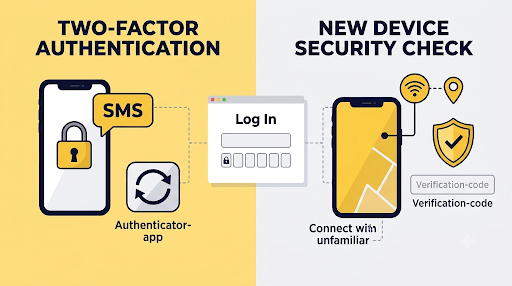
- You turned on two-factor authentication (2FA). Snapchat will ask for a Login Code every time you sign in on a new device. That code comes by SMS or from your authenticator app.
- Snapchat added an extra security check. This usually happens when you log in from a new or unrecognized device. Snapchat sends the code to your phone number or your email, and you can’t always choose which one.
Snapchat explains both in its help article on login codes you can’t receive. One detail many guides miss: if you have 2FA turned on, Snapchat never sends your Login Code by email. So if you are refreshing your inbox for a 2FA code, you are looking in the wrong place.
What Should You Do First When the Code Doesn’t Arrive?
Start with the fixes that take seconds and don’t put your account at risk. Go through them in this order.
1. Stop pressing “Resend” and wait
This is the mistake almost everyone makes. You don’t see the code in 20 seconds, so you tap resend three, five, ten times. Each request counts toward Snapchat’s limit, and soon you get locked out of requesting codes at all.
Codes often arrive a few minutes late during busy times or when your carrier is slow. Snapchat’s own advice is to wait a few minutes before requesting a new code. And when you do get several codes, only the most recent one is likely to work.
2. Check spam, junk, and filtered folders
For email codes, check every folder, not just your main inbox:
- Spam or Junk
- Gmail’s Promotions, Updates, and Social tabs
- Any custom rules or filters you set up long ago
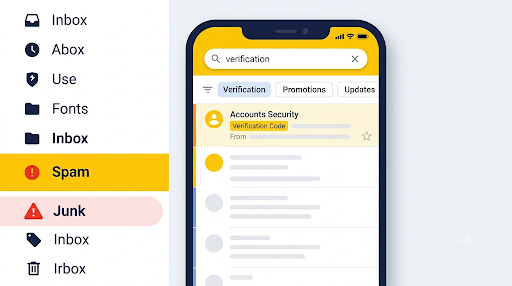
Search your mailbox for “Snapchat” instead of scrolling. Real Snapchat account emails come from the accounts.snapchat.com domain, so that is also a good way to tell them apart from fake ones.
3. Make sure your phone can actually receive a text
Snapchat’s checklist for missing SMS codes is short: make sure you have reception and that SMS from unknown senders isn’t blocked. In practice, also check these:
- Your plan is active and paid. Prepaid lines that run out of balance can stop receiving texts.
- Airplane mode is off. Toggle it on for 10 seconds, then off, to force your phone to reconnect to the network.
- You’re not roaming abroad with SMS disabled.
- You haven’t blocked short codes. Snapchat codes often come from short automated numbers, and some carriers or family-plan controls block those.
- Ask a friend to text you. If their text doesn’t arrive either, the problem is your phone line, not Snapchat.
4. Switch networks and turn off your VPN
Your connection affects whether Snapchat’s request goes through. Switch from Wi-Fi to mobile data, or the other way around. If you use a VPN, turn it off. A VPN can make your login look like it’s coming from a different country, which can trigger extra security checks and make the code request fail.
5. Restart the phone and update Snapchat
A restart clears stuck messaging queues, especially after a SIM swap or carrier update. Then update Snapchat from the App Store or Google Play. An outdated app can fail to request codes properly.
6. Clear the Snapchat cache
If you can still open Snapchat settings, clear the cache. On Android, you can also go to Settings, then Apps, then Snapchat, then Storage, and tap Clear cache. Don’t tap “Clear data” unless you’re ready to log in again from scratch.
How Do You Fix Snapchat SMS Codes on iPhone and Android?
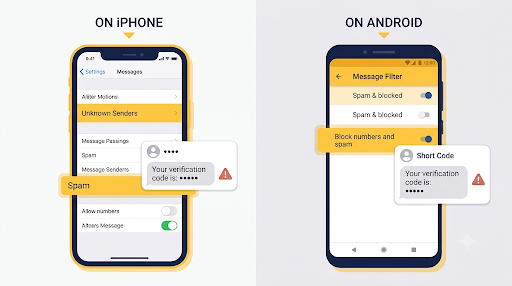
Both iPhone and Android have spam and unknown-sender filters that can hide a Snapchat text without showing a notification. The code is on your phone. You just can’t see it.
On iPhone
- Open the Messages app and tap Filters (or the filter icon) at the top.
- Check the Unknown Senders and Spam lists, not just “All Messages.”
- Go to Settings, then Apps, then Messages (on older iOS versions it’s just Settings, then Messages). Look under the unknown-sender and spam options and review what’s being filtered or screened.
- Check Settings, then Apps, then Phone, then Blocked Contacts for any blocked short codes.
- Turn off Focus or Do Not Disturb so you see the notification when the code arrives.
Menu names change slightly between iOS versions, so if a label doesn’t match exactly, look for “Unknown” or “Spam” in the Messages settings.
On Android
- In Google Messages, tap your profile picture or the menu and open Spam & blocked. Look for a Snapchat text there.
- On Samsung Messages, open the menu, go to Settings, then Block numbers and spam, and check blocked messages.
- Make sure your default SMS app is the one you’re checking. If you installed a second messaging app, codes may land there.
- Check that “Premium SMS access” or similar carrier restrictions aren’t blocking automated texts, if your phone has that option.
Watch for the Google prompt on some Android phones
This one confuses a lot of people. On some Android devices, when you verify a phone number, Snapchat uses a Google prompt to verify the number with your carrier, and no code is sent by SMS or call. If you dismiss that prompt and wait for a text, nothing will come. If you don’t see the prompt, tap “Send via SMS” or “Call me instead.” Snapchat describes this in its guide to changing or verifying your mobile number.
Use “Call me instead”
When you verify a phone number, Snapchat lets you get the code by phone call. If texts aren’t coming through but calls work, this is often the fastest fix.
What Does “Too Many Requests” Mean on Snapchat?
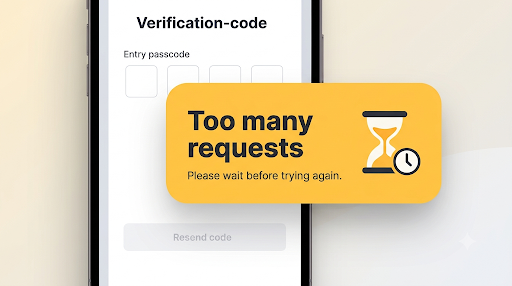
“Too many requests” means you hit a temporary block for asking for too many SMS codes, or for making too many login attempts in a short time. It is not a ban. It goes away on its own if you stop trying.
Here’s a detail most articles skip. Snapchat’s two help articles give different wait times:
| Where you see it | Snapchat’s advice |
| While logging in | Wait a few minutes and make sure your connection is stable |
| While verifying an email or phone number | Wait 24 hours before trying again |
The safest approach: try once more after 15 to 30 minutes. If it still fails, put the phone down for a full 24 hours. Every retry during the block can restart the clock. This is where most people turn a one-hour problem into a two-day problem.
If instead you see an error code like SS01, SS02, SS03, or SS08, that’s a different, longer block on login attempts. Snapchat generally suggests waiting 48 hours before trying again in those cases.
What If Snapchat Shows an Error Code Instead of Sending the Code?
Sometimes the code never sends because the login itself is failing. Snapchat shows a short error code that tells you why. These are the ones people most often mistake for a “code not sending” problem:
- C13A or C14A: Snapchat can’t complete the login right now, often because of a poor connection. Switching from Wi-Fi to mobile data is the first thing to try. See our full guide to fixing the Snapchat C14A error, and this one for the C13A login error.
- SS07: the device is banned because too many accounts were used on it. No verification code will fix this. Here’s what you can do about the SS07 device ban error.
- SS18 or SS06: the device was banned for Community Guidelines violations. Snapchat Support says it can’t unban devices. Read more on what Snapchat error SS18 means.
- SS04: the account is locked. If it’s a temporary lock, you can try the “Unlock” option on Snapchat’s accounts page.
Why Is Snapchat Sending My Code to My Old Phone Number?
Snapchat sends codes only to the phone number and email that are verified on your account. If you changed numbers but never updated Snapchat, the code goes to the old number. Snapchat can’t redirect it.
This is the hardest situation, so be realistic about your options:
- If you have 2FA on and saved a Recovery Code, use it. This is exactly what it’s for.
- If you set up a passkey, it lets you log in with Face ID, fingerprint, or your phone PIN instead of a code. The passkey prompt should appear automatically on the login screen of the device where it’s stored.
- If your email is verified, reset your password using email at accounts.snapchat.com. When Snapchat’s extra security check picks your email, you’ll get the code there instead.
- Try a device you’ve used before. Logging in from a phone or Wi-Fi network Snapchat already recognizes can avoid the extra check entirely.
- Ask your carrier if you can get the old number back. Some carriers can restore a recently released number.
Important: Snapchat Support says it cannot send a Login Code to a phone number that wasn’t already verified on your account, and it can’t change your email or phone number for you. If you have no access to any verified contact method and no Recovery Code, there is no back door. Be wary of anyone online who claims otherwise.
There’s also a security reason to fix this quickly. Carriers recycle old numbers. Snapchat warns that someone who gets your old number could try to use it to access your account, which is why it recommends keeping an email or a passkey on the account as a second check.
How Do You Use a Snapchat Recovery Code?
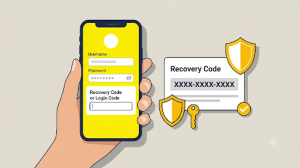
A Recovery Code is a backup code you create inside Snapchat after turning on 2FA. It lets you log in when you can’t get your SMS code or open your authenticator app. It only works if you created it before you got locked out.
To log in with a Recovery Code
- Open Snapchat.
- Enter your username and password and tap Log In.
- When asked for a Login Code, enter your Recovery Code instead.
Note: logging in with a Recovery Code turns off two-factor authentication automatically. Turn it back on as soon as you’re in, and generate a fresh Recovery Code.
To create a Recovery Code (do this now if you can log in)
- Tap your Profile icon, then the gear icon to open Settings.
- Under “Shortcuts,” tap My Account.
- Under “Manage My Account,” tap Two-Factor Authentication.
- Tap Recovery Code, then Generate Code.
- Enter your password and save the code somewhere safe.
Snapchat recommends a password manager or a printed copy kept in a safe place. It specifically advises against emailing the code to yourself, because if your email gets hacked, so does your Snapchat. Full details are in Snapchat’s guide on how to use a Recovery Code. Also note that Snapchat says it does not offer support for lost Recovery Codes.
What if your authenticator app codes stopped working?
If you use Google Authenticator, Duo, or another authenticator app, the codes are generated on your phone. You don’t “receive” them. Problems usually come from:
- Getting a new phone and not moving your authenticator accounts over
- Factory-resetting your phone
- Deleting the authenticator app
- The phone’s clock being wrong. Authenticator codes are time-based, so turn on automatic date and time.
In the first three cases, the codes are gone. Your Recovery Code is the way back in.
What If Snapchat Isn’t Sending the Code to Your Email?
Email codes most often land in spam, or go to an email address you forgot is on the account. Check these in order:
- Search all folders, including Spam, Junk, and Gmail tabs, for “Snapchat.”
- Wait a few minutes, then try verifying once more. Snapchat’s own advice is to wait before trying again.
- Make sure the email on the account is current. If you can log in, check Settings, then My Account, then Email.
- Check that your mailbox isn’t full. A full inbox can bounce new messages.
- Remember that email verification works only in the app, not on the web.
If you’re waiting for a 2FA Login Code, check SMS or your authenticator app instead. As mentioned above, Snapchat doesn’t send 2FA Login Codes by email.
Can You Log In to Snapchat Without a Verification Code?
Sometimes, yes, but only with a method you already set up. Snapchat won’t skip verification just because you ask. Here are the legitimate options:
| Method | When it works |
| Recovery Code | You have 2FA on and created the code in advance |
| Passkey | You added a passkey and are on the device that stores it |
| Sign in with Apple or Google | Your Apple or Google email matches a verified email on your Snapchat account |
| Familiar device or Wi-Fi | The code was triggered by Snapchat’s new-device security check, not by 2FA |
| Email instead of phone | Your email is verified and you can reset your password through it |
One warning about Sign in with Apple or Google: if the email doesn’t match a verified email on your Snapchat account, Snapchat creates a brand-new account instead of signing you in. Double-check which email you’re using.
Should You Use a Virtual or Temporary Phone Number?
Usually not. Many people try free online numbers or VoIP apps when their real number won’t receive the code. These often fail. Third-party testers report that Snapchat frequently doesn’t deliver codes to VoIP, landline, or temporary numbers, and Snapchat says the same number can’t be verified on more than one account. Public “receive SMS online” numbers are shared by strangers, so anyone could see your code.
Even if it works once, you’ll be tying your account to a number you don’t control. Snapchat specifically warns against adding a phone number you don’t control. Use your own mobile number, or your email.
Did You Get a Snapchat Code You Didn’t Request?
The opposite problem is worth knowing about. If a Snapchat login code shows up when you weren’t logging in, someone likely used your password and was stopped by the verification step. Don’t share that code with anyone, and change your password right away.
Snapchat says it will never text or email you asking for your password or 2FA code. A common scam is a message from a “friend” or “Snapchat team” asking you to read back a code you just got. That code is the key to your account.
When Should You Contact Snapchat Support?
Contact Snapchat Support after you’ve tried the fixes above, waited out any “Too many requests” block, and still can’t get a code to a number or email you control. Use the Snapchat Support Bot or the “Contact Us” form on help.snapchat.com, under login and account access.
Include clear details so they can verify you:
- Your username
- The phone number and email linked to the account
- The exact error message, if any
- Roughly when you lost access
- Your device model and whether you’re using iPhone or Android
Set the right expectations. Support can’t reset your password if you have no access to the verified phone or email, can’t add a new number for you, can’t recover lost Recovery Codes, and can’t unban a device. Support is most helpful when the issue is a glitch, a stuck lock, or a compromised account where you still control at least one contact method.
How Can You Prevent Snapchat Verification Code Problems?
Five minutes now can save you days of being locked out later. If you can log in today, do these:
- Verify both a phone number and an email. Snapchat requires both if you turn on 2FA. Two routes are better than one.
- Update your number the day you change it. Go to Settings, then My Account, then Mobile Number, before you lose the old SIM.
- Create and store a Recovery Code. Print it or save it in a password manager.
- Add a passkey if the option shows in your settings. Passkeys are still rolling out, so you may not see it yet.
- Move your authenticator app to your new phone before wiping the old one.
- Don’t spam the resend button. One request, then wait.
Once you’re back in, if messages or Snaps act up, those are separate problems with their own fixes. For example, see what to do when Snapchat shows “Failed to send, tap to try again” or when it could not refresh messages.
Frequently Asked Questions
How long does a Snapchat verification code take to arrive?
Most codes arrive within a minute. Delays of a few minutes are normal when carriers are busy. If nothing comes after about five minutes, check your filters and request one new code. Don’t keep requesting, or you’ll trigger a temporary block.
How long does a Snapchat verification code stay valid?
Snapchat doesn’t publish an exact expiry time, but codes are short-lived. If you requested several, older codes may stop working once a new one is sent. Always enter the newest code you received.
Why does Snapchat say my verification code is incorrect?
You’re usually entering an older code after a newer one was sent, or the code expired while you were waiting. For authenticator apps, a wrong phone clock is a common cause. Set your date and time to automatic and use a fresh code.
Can I choose whether Snapchat sends the code to my phone or email?
Not always. For Snapchat’s new-device security check, Snapchat decides which verified contact method to use. For 2FA, the code always comes by SMS or your authenticator app, never by email.
Is Snapchat down if I’m not getting codes?
Possibly, but it’s rare. Check Snapchat’s official social accounts or an outage tracker. If friends on the same carrier are also stuck, it may be a carrier-side SMS delay. Either way, waiting is better than repeated requests.
Can I use my verified phone number on a new Snapchat account?
You can, but be careful. Only one account can have a given number verified. If you verify it on a new account, Snapchat removes it from the older account, which could cut off your main way to recover that older account.
Will deleting and reinstalling Snapchat fix the code problem?
Sometimes, if the app itself is glitching. It won’t help if the issue is a rate limit, a spam filter, or an old number on the account. Reinstalling also means you’ll need to log in again, which can trigger another code request.
Final Recommendation
If your Snapchat code isn’t arriving, request it once, then wait at least five minutes while you check spam folders, message filters, and blocked numbers. If you see “Too many requests,” stop completely for up to 24 hours. If the code is going to a number you no longer have, go straight to your Recovery Code, passkey, or verified email, because Support can’t redirect it.
And once you’re back in, take two minutes to update your phone number, verify your email, and save a Recovery Code. That’s the difference between a small annoyance and a lost account next time.

Anica Lymus is a technical writer specializing in consumer applications, mobile operating systems, and practical troubleshooting workflows. At Primotechy, she covers account security, software glitches, and app performance across platforms such as Facebook, Instagram, and Snapchat. Drawing on hands-on device testing and in-depth research across iOS, Android, macOS, and Windows, Anica translates complex platform settings and sudden technical errors into clear, verified, step-by-step guides that readers can easily follow and trust.
View all posts by Anica Lymus →