
If Snapchat notifications are not showing on your lock screen, the cause is almost always a phone setting, not Snapchat itself. On iPhone, the usual culprits are the Lock Screen alert toggle, Focus mode, Scheduled Summary, or a muted notification. On Android, it’s usually the lock screen privacy setting, a Snapchat notification category set to Silent, or battery restrictions.
The good news? Most people fix this in under five minutes. Below, you’ll find exactly where to look on iPhone, Pixel, and Samsung phones, plus what to do when every setting looks right but alerts still won’t appear.
Contents
Quick Overview
Start by matching what you see to the most likely fix:
| What you notice | Most likely cause | Where to fix it |
| Banners show when unlocked, but nothing on the lock screen | Lock Screen alert is turned off | iPhone: Settings > Notifications > Snapchat > Lock Screen |
| You see “Snapchat” but no message text | Previews hidden | iPhone: Show Previews > Always. Android: show sensitive content |
| Alerts arrive in a batch later | Scheduled Summary or battery saver | iPhone: Immediate Delivery. Android: Battery > Unrestricted |
| Only a number shows at the bottom of the lock screen | Lock screen set to Count view | iPhone: Settings > Notifications > Display As > List or Stack |
| Alerts appear only after you unlock (Android) | Silent notifications hidden on lock screen | Settings > Notifications > Notifications on lock screen |
| One friend’s chats never alert you | That chat is set to Silent in Snapchat | Snapchat: hold the chat > Chat Settings > Message Notifications |
| No Snapchat alerts anywhere | Notifications off in Snapchat or the phone | Both the Snapchat app and phone settings |
Why Are Snapchat Notifications Not Showing on Your Lock Screen?
Snapchat sends the notification, but your phone decides where it appears. That’s why the lock screen can stay empty even when Snapchat alerts work fine while you’re using the phone.
Here are the most common reasons:
- The Lock Screen alert style is off. On iPhone, an app can be allowed to notify you but still be blocked from the lock screen.
- Focus or Do Not Disturb is on. Sleep, Work, and other Focus modes silence apps that aren’t on their allowed list.
- Scheduled Summary is holding alerts. Apps in your summary deliver at set times instead of right away.
- You muted Snapchat by accident. Swiping left on a notification and tapping Mute sends future alerts straight to Notification Center.
- Android hides silent notifications. If a Snapchat category is set to Silent, Android may keep it off the lock screen.
- Battery saving blocks background activity. Samsung and other Android phones can put Snapchat to sleep.
- An Apple Watch is taking the alerts. If you wear an unlocked Apple Watch, alerts go to your wrist and your iPhone screen stays dark.
- A bug after an update. Right after a big iOS or Android update, apps sometimes need their own update before notifications behave normally.
How Do You Fix Snapchat Lock Screen Notifications on iPhone?
Work through these in order. The first three solve the problem for most iPhone users.
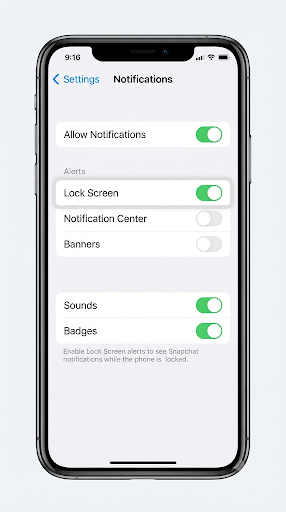
1. Turn On Lock Screen Alerts for Snapchat
- Open Settings and tap Notifications. (On newer iOS versions, you can also go to Settings > Apps > Snapchat > Notifications.)
- Scroll down and tap Snapchat.
- Make sure Allow Notifications is on.
- Under Alerts, check Lock Screen, Notification Center, and Banners.
- Turn on Sounds and Badges so you actually notice new Snaps.
If Lock Screen was unchecked, that’s your fix. Lock your phone and ask a friend to send a Snap to test it.
2. Set Show Previews to Always
If a Snapchat notification shows up but just says “Notification” or hides the sender, your previews are restricted. Go to Settings > Notifications > Snapchat > Show Previews and pick Always.
There’s also a global setting at Settings > Notifications > Show Previews. According to Apple’s guide to using notifications on iPhone, choosing Always shows notification content on the Lock Screen without unlocking.
Privacy tip: If other people often see your phone, “When Unlocked” is a fair middle ground. You’ll still see that Snapchat sent something, just not the details.
3. Check Focus and Do Not Disturb
Swipe down from the top-right corner to open Control Center. If a Focus like Sleep, Work, or Do Not Disturb is active, tap it to turn it off.
Want to keep Focus on but still get Snaps? Go to Settings > Focus, choose the Focus, tap Apps, and add Snapchat to the allowed list.
Many people forget that Sleep Focus can turn on automatically on a schedule. If your Snapchat alerts only disappear at night or at certain hours, a scheduled Focus is the likely reason.
4. Remove Snapchat From Scheduled Summary
Scheduled Summary groups alerts and delivers them at set times. If Snapchat is in your summary, your lock screen will stay quiet until the next delivery.
- Go to Settings > Notifications > Scheduled Summary.
- Under Apps in Summary, turn off Snapchat.
- Or open Settings > Notifications > Snapchat and set Notification Delivery to Immediate Delivery.
5. Unmute Snapchat Notifications
This one catches a lot of people. If you once swiped left on a Snapchat alert and tapped Options > Mute for 1 Hour or Mute for Today, new alerts go quietly into Notification Center. They won’t light up your screen or appear as fresh lock screen cards.
To undo it, swipe left on a Snapchat notification in Notification Center, tap Options, and choose Unmute. A mute also expires on its own after the time you picked.
6. Change the Lock Screen Display From Count to List
If your lock screen only shows something like “3 Notifications” at the bottom, it’s set to Count view. Your Snapchat alerts are there, just collapsed.
Go to Settings > Notifications > Display As and choose List or Stack. You can also pinch the notifications on the lock screen to switch layouts.
7. Check Your Apple Watch
When your iPhone is locked and you’re wearing an unlocked Apple Watch, notifications usually go to the watch instead. Your iPhone won’t light up or make a sound. The alert is still in Notification Center, but it feels like it never arrived.
To test, take off your watch and have someone send you a Snap. If the lock screen alert shows up, your settings are fine. You can adjust Snapchat alerts in the Watch app on your iPhone under Notifications.
8. Turn On Background App Refresh and Turn Off Low Power Mode
Go to Settings > General > Background App Refresh and make sure it’s on, both at the top and for Snapchat. Then check Settings > Battery and turn off Low Power Mode.
Low Power Mode reduces background activity, which can delay or limit how quickly apps update in the background.
How Do You Fix Snapchat Lock Screen Notifications on Android?
Android menus vary by brand, so the exact names may be slightly different on your phone. If you can’t find a setting, open Settings and search for “lock screen notifications.”
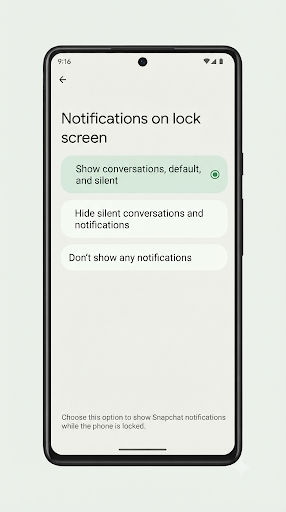
1. Allow Notifications on the Lock Screen (Pixel and Stock Android)
- Open Settings > Notifications.
- Tap Notifications on lock screen.
- Choose Show conversations, default, and silent.
- If you want message text visible, turn on Show sensitive content (wording can vary).
As Google’s Pixel notification help page explains, the “Hide silent conversations and notifications” option shows only alerting notifications on the lock screen, and “Don’t show any notifications” blocks them completely until you unlock.
2. Check Lock Screen Notifications on Samsung Galaxy
- Open Settings > Notifications.
- Tap Lock screen notifications and make sure it’s on.
- Check whether Hide content is selected. If it is, you’ll see an alert without the message details.
- Look for a list of apps that can show on the lock screen and make sure Snapchat is included.
On some One UI versions, these options sit under Settings > Lock screen and AOD instead. Samsung’s own guide to controlling notifications on Galaxy phones covers the lock screen options for your model.
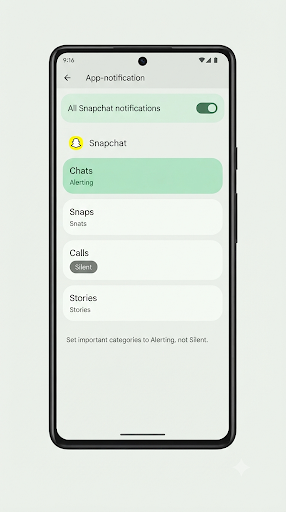
3. Make Sure Snapchat’s Notification Categories Are Set to Alerting
This is the Android fix most guides skip. Android splits Snapchat notifications into categories, like chats, Snaps, and calls. If a category is set to Silent, it may never reach your lock screen, especially if your phone hides silent notifications.
- Go to Settings > Apps > Snapchat > Notifications.
- Turn on All Snapchat notifications.
- Tap each category you care about and set it to Default or Alerting, not Silent.
- If a category has a Lock screen option, set it to show all content.
Quick shortcut: when a Snapchat alert appears in your notification shade, long-press it and choose Default or Alerting.
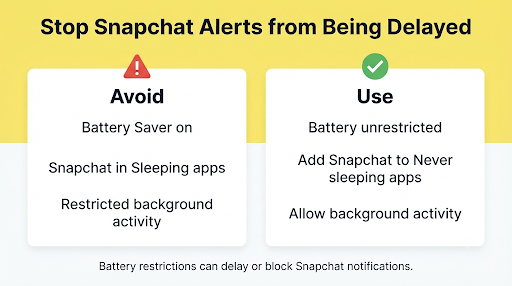
4. Remove Battery Restrictions
Battery optimization is a big reason Snapchat alerts arrive late or only after you open the app.
- Most Android phones: Settings > Apps > Snapchat > Battery (or App battery usage) > Unrestricted.
- Samsung: Settings > Battery > Background usage limits. Remove Snapchat from Sleeping apps and Deep sleeping apps, or add it to Never sleeping apps.
- Turn off Battery Saver or Power saving mode while you test.
5. Turn Off Do Not Disturb and Data Saver
Swipe down for Quick Settings and turn off Do Not Disturb. Also check Settings > Network & internet > Data Saver. If Data Saver is on, allow Snapchat unrestricted data so it can receive alerts in the background.
Which Snapchat In-App Settings Should You Check?
Your phone settings can be perfect and you’ll still miss alerts if Snapchat’s own notifications are off. Check this after fixing your phone settings.
- Open Snapchat and tap your Profile icon at the top left.
- Tap the gear icon to open Settings.
- Tap Notifications.
- Turn on notifications and the types you want, like messages, Snaps, and calls. On iPhone these are toggles. On Android they’re checkboxes.
What If Only One Friend’s Snaps Don’t Show Up?
That’s usually a per-chat setting, not a phone problem. In Snapchat, press and hold the friend’s name in the Chat screen, tap Chat Settings, then Message Notifications, and make sure it isn’t set to Silent. Group chats have the same option.
If messages to that person are also failing, the problem may be with the chat itself. Our guide on fixing Snapchat chats that won’t send to one person covers blocked, removed, and stuck conversations.
What About Story Notifications?
Story alerts are set per friend. In Snapchat’s notification settings, look for the option to manage Story notifications and add the friends you want alerts for. These also need Snapchat notifications turned on in your phone settings.
What Should You Do If Snapchat Notifications Still Don’t Show on the Lock Screen?
If every toggle is on and alerts still won’t appear, the issue is likely a stale connection between Snapchat and your phone’s notification service. Try these, in this order.
1. Restart Your Phone
It sounds basic, but a restart reconnects your phone to Apple’s or Google’s push notification service. Do this after changing settings, too.
2. Update Snapchat and Your Phone
Check the App Store or Google Play for a Snapchat update, then check for a system update. Notification bugs often show up right after a major iOS or Android release and get fixed in the next app version.
3. Clear Snapchat’s Cache
In Snapchat, go to Settings, scroll to Account Actions, and tap Clear Cache. This won’t delete your Memories or saved chats. On Android, you can also go to Settings > Apps > Snapchat > Storage > Clear cache.
4. Log Out and Log Back In
Logging out and back in can register your device again for notifications. Before you do this, make sure you know your password and can get a login code. If Snapchat asks for a code that never arrives, here’s how to fix a Snapchat verification code that isn’t sending.
5. Check Your Connection
Weak Wi-Fi or mobile data can delay alerts until you open the app. If you’re also seeing errors inside Snapchat, like messages stuck with a red warning, see our fix for the Snapchat “Failed to send, tap to try again” error. And if alerts arrive but the app won’t load the new message, the Snapchat “Could not refresh” messages fix walks through that problem step by step.
6. Reinstall Snapchat
Delete the app, restart your phone, and install it again from the official store. When Snapchat opens, tap Allow when it asks to send notifications. If you tap Don’t Allow by mistake, you’ll need to turn it on later in your phone settings.
7. Check Whether Snapchat Is Down
If friends are reporting the same issue at the same time, it may be on Snapchat’s side. Check Snapchat’s official support accounts or the Snapchat Support site before changing more settings.
Did This Start After You Switched to a New Phone?
This is common. When you set up a new phone or restore from a backup, notification permissions don’t always carry over. Snapchat may also log you out, and you might have skipped the notification prompt during setup.
Go through the iPhone or Android steps above on the new device, and confirm notifications are enabled inside Snapchat. If you can’t even get back into your account on the new phone, our guide on a Snapchat account locked after switching phones explains what to do.
Common Mistakes That Keep Snapchat Alerts Off Your Lock Screen
- Fixing only one side. Snapchat needs notifications turned on in both the app and your phone settings.
- Confusing hidden previews with missing alerts. If you see “Snapchat” with no text, alerts work. Only previews are hidden.
- Forgetting scheduled Focus modes. Sleep Focus can switch on automatically every night.
- Leaving Snapchat on Silent in Android. One silent category can make it look like all alerts are broken.
- Testing while wearing an Apple Watch. Your watch may be catching every alert.
- Using a third-party battery cleaner. These apps can force-stop Snapchat in the background.
Frequently Asked Questions
Why do Snapchat notifications show when my phone is unlocked but not on the lock screen?
Your phone allows Snapchat banners but blocks the lock screen. On iPhone, check Lock Screen under Settings > Notifications > Snapchat. On Android, set Notifications on lock screen to show all notifications, including silent ones.
Why does my lock screen say “Snapchat” but not who sent the Snap?
Your previews are hidden for privacy. Set Show Previews to Always on iPhone, or turn on sensitive content on Android. Keep in mind that anyone who picks up your phone will then see the sender’s name.
Why do I only get Snapchat notifications after I open the app?
This usually points to battery restrictions or a weak connection. Set Snapchat’s battery use to Unrestricted on Android, or turn on Background App Refresh and turn off Low Power Mode on iPhone.
Do Snapchat lock screen notifications work with Focus mode on?
Yes, if you allow them. Add Snapchat to the allowed apps list for that Focus. Otherwise, Snapchat alerts stay silent until the Focus ends.
Will clearing the Snapchat cache delete my chats or Memories?
No. Clearing the cache removes temporary files only. Your Memories, saved chats, and friends list stay in your account.
Can I show Snapchat notifications on the lock screen but hide the message text?
Yes. On iPhone, set Snapchat’s Show Previews to When Unlocked. On Android, keep lock screen notifications on but turn off sensitive content, or use Samsung’s Hide content option.
Why did Snapchat lock screen notifications stop after an iOS or Android update?
Updates sometimes reset notification options or turn on new features like summaries. Recheck your Snapchat notification settings, update the app, and restart your phone. If the problem started for many users at once, wait for a Snapchat update.
Final Recommendation
Start with your phone, not Snapchat. On iPhone, confirm Lock Screen is checked, Focus is off or allows Snapchat, and Snapchat isn’t in Scheduled Summary. On Android, set lock screen notifications to show all notifications, make sure Snapchat’s categories aren’t Silent, and set its battery use to Unrestricted.
Then open Snapchat, confirm notifications are on in its Settings, and restart your phone. Ask a friend to send a test Snap while your screen is locked. If it still doesn’t appear, update or reinstall Snapchat and tap Allow when it asks for notification permission.

Anica Lymus is a technical writer specializing in consumer applications, mobile operating systems, and practical troubleshooting workflows. At Primotechy, she covers account security, software glitches, and app performance across platforms such as Facebook, Instagram, and Snapchat. Drawing on hands-on device testing and in-depth research across iOS, Android, macOS, and Windows, Anica translates complex platform settings and sudden technical errors into clear, verified, step-by-step guides that readers can easily follow and trust.
View all posts by Anica Lymus →