
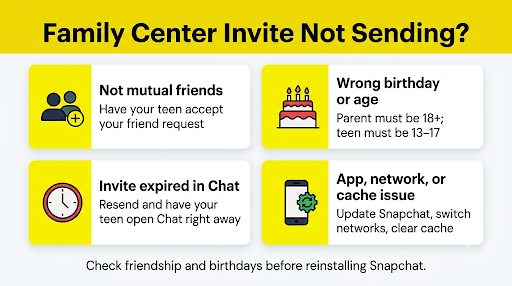
If your Snapchat Family Center invite is not sending, the cause is usually one of four things: you and your teen aren’t mutual friends yet, one of your birthdays doesn’t meet Family Center’s age rules, the invite expired in Chat, or the app needs an update. Most parents can fix it in under 10 minutes by checking those four things in order and then resending the invite with their teen sitting right next to them.
This guide covers every known reason the invite fails, what to do on iPhone and Android, and what to try when the invite looks like it sent but your teen never sees it.
Contents
Quick Overview
| What you see | Most likely cause | Fast fix |
| Your teen’s name doesn’t show up in the invite list | You aren’t mutual friends, or their account isn’t registered as 13 to 17 | Have your teen accept your friend request, then check their birthday |
| The Invite button is missing or grayed out | Your own account has no birthday, shows under 18, or Family Center isn’t available in your region | Add or confirm your birthday in Settings, then update the app |
| Invite “sent” but your teen can’t find it | The Chat message expired or was cleared | Resend and have your teen open Chat right away |
| Invite fails with a loading spinner or error | Old app version, weak connection, VPN, or cached data | Update Snapchat, switch networks, clear cache, restart |
| Your teen taps Accept and nothing happens | Your teen’s app is outdated, or they’ve turned 18 | Update the teen’s app and confirm their age |
How Does the Snapchat Family Center Invite Actually Work?
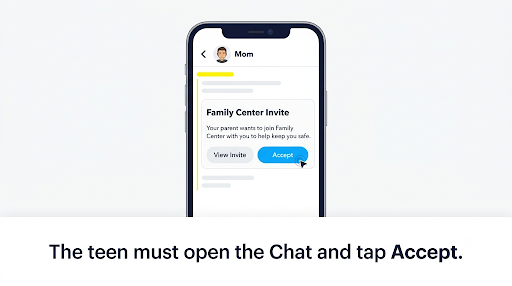
A Family Center invite is not an email or a text. It’s a special card that Snapchat drops into the direct Chat between you and your teen. Your teen has to open that Chat and tap Accept from their own phone. Nothing is shared until they do.
That design explains most “not sending” problems. The invite depends on three things working at once:
- A friend connection between your account and your teen’s account
- Correct ages on both accounts
- A live Chat thread where the invite card can land and stay long enough to be seen
If any one of those breaks, the invite either won’t send, won’t show up, or won’t accept. According to Snapchat’s official Family Center page for parents, teens receive an invitation card and must opt in to participate.
Why Is My Snapchat Family Center Invite Not Sending?
Here are the real causes, roughly in the order you’re most likely to run into them.
1. You and your teen aren’t mutual friends
This is the number one reason. Sending your teen a friend request is not enough. Your teen has to accept it. Until they do, their name won’t appear in the Family Center invite list, and the invite has nowhere to go.
Snapchat also hides teen accounts from search results and friend suggestions unless you share mutual friends. So if you can’t find your teen at all, ask them for their exact username or have them show you their Snapcode to scan.
2. Your teen’s birthday makes them look 18 or older
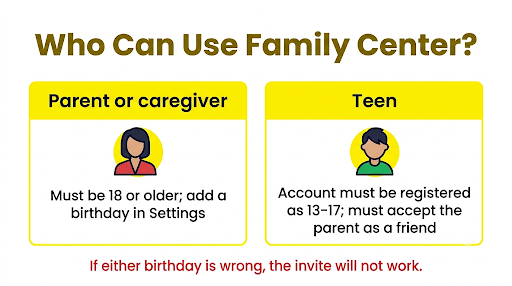
Family Center only links to accounts registered as 13 to 17 years old. If your teen entered an older birth year when they signed up (which is common), Snapchat treats them as an adult and the invite won’t work.
This one is tricky to fix. Snapchat only lets users change their birthday a limited number of times, and a teen can’t simply edit their way into the right age once the limit is hit. If your teen sees a message like “Hey, Time Traveler,” they’ve used up their changes. In that case, contacting Snapchat Support or creating a new account with the correct birthday may be the only way forward.
3. Your own account doesn’t meet the parent age rule
The person sending the invite must be 18 or older. Snapchat Support states that parents or caregivers under 18 cannot send Family Center invites, and Snapchatters 18 and older cannot accept them as a teen.
A related problem shows up often in Snapchat help forums: the parent’s account has no birthday saved at all. Several parents have reported that Family Center kept opening a website instead of the in-app tools, and the fix was simply adding their date of birth to their profile.
4. The invite expired or got deleted in Chat
Because the invite lives inside Chat, it follows your Chat settings. If your chats are set to delete after viewing or after 24 hours, the invite card can disappear before your teen ever taps it. Snapchat lists an expired Chat message as one of the reasons a teen’s account won’t appear in Family Center.
5. Your teen already left Family Center or turned 18
Either side can leave Family Center at any time, and the other person gets notified. Teens also age out automatically at 18. If your teen recently had a birthday, that could be why an invite that worked before suddenly won’t go through.
6. Outdated app, bad connection, or a glitch
Family Center gets regular updates. Snapchat expanded it in January 2026 with screen time insights and friend “trust signals,” according to the Snap Newsroom announcement. If either phone is running an older version, the invite card may fail to send or fail to render on the teen’s side.
Weak Wi-Fi, a VPN, or corrupted cached data can also stop the invite partway through. These are the same problems behind the Snapchat “Failed to send, tap to try again” error, so if your normal messages are failing too, fix that first and then resend the invite.
7. Family Center isn’t available in your region
Family Center has rolled out to most markets, including the U.S., but Snapchat notes regional availability can still block access in some countries. If you’re traveling or using a VPN set to another country, that can cause problems too.
How Do You Fix a Snapchat Family Center Invite That Won’t Send?
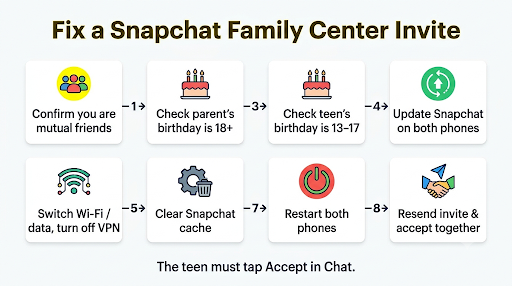
Work through these steps in order. Do them with your teen in the same room if you can, since several steps need their phone.
- Confirm you’re mutual friends. Open Chat on your phone and try sending your teen a normal message. If you can chat back and forth, the friend connection is fine.
- Check your own birthday. Tap your profile icon, then the gear icon for Settings, then Birthday. Make sure a date is saved and that it shows you as 18 or older.
- Check your teen’s birthday. On their phone, go to the same Birthday setting. Their age must show 13 to 17.
- Update Snapchat on both phones. Use the App Store on iPhone or Google Play on Android. Don’t skip the teen’s phone. An old version there is a common reason the card never shows up.
- Switch networks. Move from Wi-Fi to cellular data or the other way around. Turn off any VPN.
- Clear Snapchat’s cache. In Snapchat Settings, scroll to Account Actions and tap Clear Cache. This won’t delete your Memories or chats.
- Restart both phones. It sounds basic, but it clears stuck background processes.
- Resend the invite. Go to Profile, then Settings, then Family Center (you can also search “Family Center” in the app). Pick your teen and tap Send Invitation.
- Have your teen open Chat immediately. They should open your conversation, find the invite card, and tap Accept before closing the app.
Tip: Have your teen accept the invite while you’re watching. It removes the “I never got it” back-and-forth and gives you a natural moment to show them exactly what you will and won’t see.
How Do You Fix the Invite Not Sending on iPhone?
iPhone-specific settings can block Snapchat from finishing the invite in the background.
- Turn on Background App Refresh: Settings, then General, then Background App Refresh, then make sure Snapchat is on.
- Turn off Low Data Mode: Check Settings, then Wi-Fi (tap the info icon on your network) or Settings, then Cellular, then Cellular Data Options.
- Allow cellular data for Snapchat: Settings, then Cellular, then scroll and make sure Snapchat’s toggle is on.
- Check Screen Time limits on the teen’s iPhone: If Snapchat is restricted under Screen Time, your teen may not be able to open the Chat in time to accept.
- Turn on Snapchat notifications: Settings, then Notifications, then Snapchat. This helps your teen notice the invite the moment it arrives.
If nothing works, delete and reinstall Snapchat. Your account and saved chats are tied to your login, not the phone, so you won’t lose them as long as you know your password.
How Do You Fix the Invite Not Sending on Android?
Android phones vary by brand, but these settings cause the most trouble on Samsung, Pixel, and Motorola devices.
- Turn off battery optimization for Snapchat: Settings, then Apps, then Snapchat, then Battery, then set it to Unrestricted.
- Turn off Data Saver: Settings, then Network and Internet (or Connections on Samsung), then Data Saver.
- Clear the app cache from Android settings: Settings, then Apps, then Snapchat, then Storage, then Clear Cache. Avoid Clear Data unless you’re ready to log in again.
- Check Google Family Link: If your teen’s phone uses Family Link, make sure Snapchat isn’t paused or time-limited.
What If the Invite Sent but My Teen Can’t See It?
When the invite shows as sent on your side but your teen says there’s nothing there, the card was most likely cleared from Chat or your teen is looking in the wrong place. It can also behave like a Snapchat message that shows sent but not delivered, where the message leaves your phone but never reaches theirs because of a connection or app problem on the teen’s side.
If your teen’s Chat screen won’t load new messages at all, deal with the “Could not refresh” messages error in Snapchat first. The invite card can’t show up until their Chat syncs properly.
Have your teen check these spots:
- Your Chat thread specifically. The invite is not a notification banner or a Story. It’s a card inside your one-on-one conversation.
- Scroll up in the Chat. If you sent other messages afterward, the card may be buried.
- Look for “View Invite” or “Accept.” The exact label can vary slightly between app versions.
If the card is truly gone, resend it and have your teen open Chat within a minute or two. To keep it from disappearing again, you can press and hold the invite message in Chat and save it, if your chat settings allow saving.
What If My Teen Taps Accept and Nothing Happens?
If the Accept button doesn’t respond, update the app on your teen’s phone first. This is almost always a version mismatch. After updating, force close Snapchat, reopen it, and try again.
If it still fails, confirm your teen hasn’t turned 18 and that their account birthday is correct. An account that Snapchat sees as 18 or older will be blocked from accepting even if the card appears.
Common Mistakes Parents Make With Family Center Invites
- Sending the invite before the friend request is accepted. Always confirm you can chat first.
- Reinstalling over and over. If the problem is age or friendship, reinstalling won’t help. Check account details before blaming the app.
- Repeatedly changing a teen’s birthday. Each change counts against a limit. Pick the correct date once.
- Trying to set it up on Snapchat for Web. Use the iPhone or Android app for Family Center setup.
- Sending the invite and walking away. Expiring Chats can wipe it. Sit with your teen and accept it together.
- Using someone else’s account. The invite has to come from the parent or caregiver’s own account, on their own phone.
What Can You See Once the Invite Is Accepted?
Once your teen accepts, you get a dashboard, not access to their messages. Knowing this helps when you’re explaining Family Center to a hesitant teen, which is often the real reason an invite sits unaccepted.
| Parents can see or do | Parents cannot see |
| Your teen’s friend list and newly added friends | The content of Snaps or Chats |
| Who they’ve messaged in the past 7 days | Photos or videos they send or receive |
| Average daily time on Snapchat over the previous week (added in 2026) | My Eyes Only or private Memories |
| Signals for how your teen may know a new friend | Their live location, unless they choose to share it |
| Turn off My AI, set content restrictions, report accounts | What your teen reported, unless they share it |
Your teen also gets a mirrored view, so they can see what you see. That transparency is a good talking point if they’re nervous about accepting.
When Should You Contact Snapchat Support?
Contact Snapchat Support if you’ve confirmed the friendship, both birthdays, the app version, and your region, and the invite still won’t send. Also reach out if your teen’s birthday is wrong and they can no longer change it.
When you contact them, include:
- Whether you see an error message or the Invite button is missing or grayed out
- Your country and your teen’s country
- Whether you’re both friends on Snapchat
- Your phone model and whether it’s iPhone or Android
- Your Snapchat app version (found at the bottom of Settings)
Never share your login with a third-party site that claims it can “fix” Family Center or reset a birthday limit. Only use the Help section inside Snapchat or Snapchat’s official support site.
Frequently Asked Questions
Why can’t I find my teen’s name when sending a Family Center invite?
Your teen’s name only appears in the invite list after they’ve accepted your friend request and their account is registered as 13 to 17. If either is missing, Snapchat won’t list them. Ask your teen to search your username and accept your request from their Friends screen.
Does a Snapchat Family Center invite expire?
The invite itself lives inside Chat, so it can disappear based on your chat deletion settings. If your teen doesn’t open it in time, simply send a new one. There’s no penalty for resending.
Can a teen decline or ignore a Family Center invite?
Yes. Family Center is opt-in, so a teen can decline or never tap Accept. If an invite sits unanswered, it’s usually worth a conversation about what you’ll see (friends and contacts) and what stays private (their messages).
Can two parents add the same teen to Family Center?
Each parent or caregiver can send their own invite from their own account, and the teen accepts each one separately. If the second parent’s invite won’t send, run the same checks: friendship, the second parent’s own birthday, and app version.
Why does Family Center open a website instead of the app tools?
This often happens when your own Snapchat account has no birthday saved or when the app is out of date. Add your date of birth in Settings, update Snapchat, and reopen Family Center from inside the app.
Will my teen know I sent a Family Center invite?
Yes. The invite appears as a visible card in your Chat with them. Family Center can’t be set up secretly, which is by design.
Can I use Family Center if my child is under 13?
No. Snapchat’s terms don’t allow accounts for kids under 13, and Family Center only supports teen accounts aged 13 to 17. For younger kids, device-level controls like Apple Screen Time or Google Family Link are the better fit.
Final Recommendation
Start with the two checks that solve most cases: make sure you’re mutual friends, then confirm both birthdays. If those are right, update Snapchat on both phones, clear the cache, and resend the invite while your teen is sitting next to you so they can accept it before it disappears. If the invite still won’t send after all of that, collect your app version, device details, and any error message, and contact Snapchat Support through the app.

Anica Lymus is a technical writer specializing in consumer applications, mobile operating systems, and practical troubleshooting workflows. At Primotechy, she covers account security, software glitches, and app performance across platforms such as Facebook, Instagram, and Snapchat. Drawing on hands-on device testing and in-depth research across iOS, Android, macOS, and Windows, Anica translates complex platform settings and sudden technical errors into clear, verified, step-by-step guides that readers can easily follow and trust.
View all posts by Anica Lymus →